


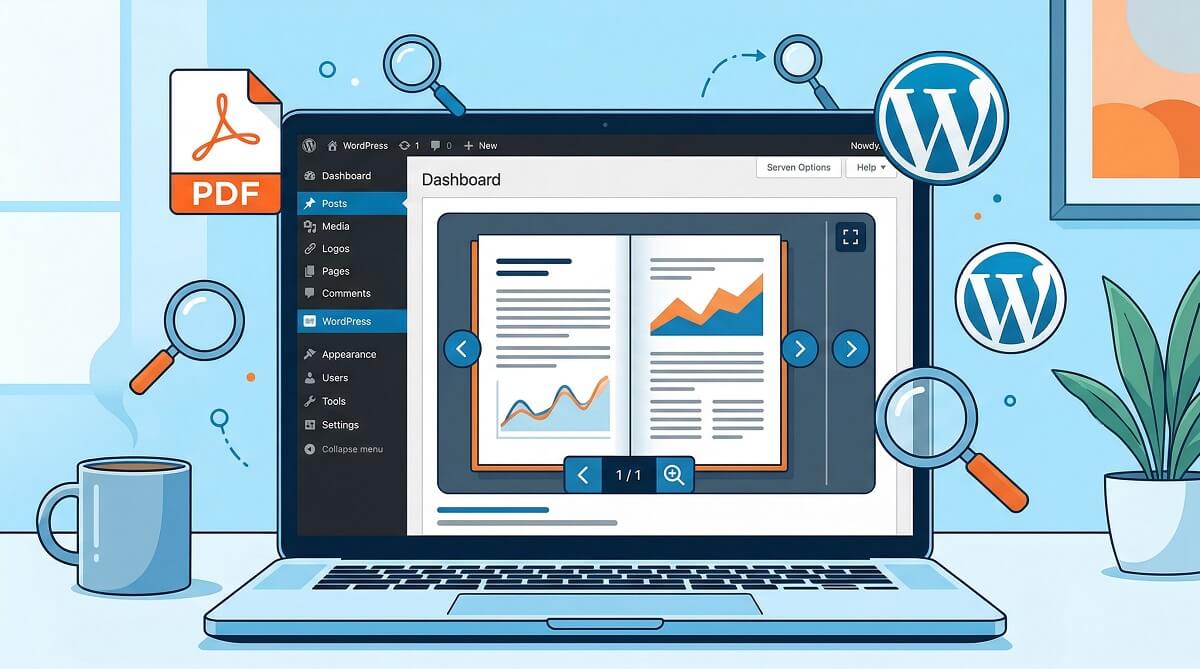
WordPress doesn’t embed PDFs out of the box. Upload one to your Media Library and the best you get is a raw link — click it, and the visitor leaves your page to read the file in a new tab or a PDF app. For a business sharing a product brochure, an educator posting course materials, or a consultant distributing reports, that’s a problem.
PDF viewer plugins fix it. They let you embed PDFs directly inside your posts and pages, so visitors read the document without ever leaving your site. But with dozens of options in the WordPress plugin directory — ranging from genuinely free tools to premium $130/year packages — picking the right one takes more than a quick Google search. This guide cuts through the marketing and gives you a real comparison of what each plugin actually does, what it costs, and which use cases it fits best.

Looking for more WordPress plugin guides? WPlasma covers WordPress tutorials, plugin reviews, and hosting comparisons to help you build a better site.
The Quick Answer (If You’re Short on Time)
Before diving deep, here are the fast picks for common needs:
- Best overall free option: PDF Poster (662,000+ installs, free download button included)
- Best if you care about privacy: PDF Embedder or WonderPlugin PDF Embed (no Google dependency)
- Best for Elementor users: EmbedPress (native Elementor widget, free tier available)
- Best for multi-page builder compatibility: EmbedPress or WonderPlugin (shortcode works anywhere)
- Best for interactive flipbooks: Real3D Flipbook or Dear Flipbook
- Best for document variety (Word, Excel, PDF): Embed Any Document
- No plugin needed? A plain HTML
<embed>tag works for basic cases — more on that below
Not sure which category fits you? The decision matrix in the “Which Plugin Is Right for You” section below maps your site type to the best choice.
What a WordPress PDF Viewer Plugin Actually Does
By default, linking to a PDF on your WordPress site opens the file in a new browser tab or triggers a download. Either way, the visitor leaves your page context. A PDF viewer plugin solves this by rendering the document inline — the reader scrolls through your PDF on the same page, just like they’d read any other content.
Most viewers offer some combination of these controls:
- Page navigation (previous/next arrows)
- Zoom in/out
- Download button (toggle on or off)
- Print button
- Fullscreen mode
- Thumbnail/sidebar navigation
How the PDF actually renders varies by plugin, and it matters more than most buyers realize. Three approaches exist:
- PDF.js (Mozilla’s library): Renders the PDF directly in the browser without sending the file to any external service. Best for privacy. Used by PDF Embedder, WonderPlugin PDF Embed.
- Google Docs Viewer / Microsoft Office Online: The PDF URL is sent to Google or Microsoft for rendering. Easy, reliable, but the file URL is exposed to a third-party server. Used by Embed PDF Viewer (for Chrome/mobile), Embed Any Document.
- Native browser rendering (no plugin needed): Modern browsers (Chrome, Firefox, Edge) can render PDFs natively using a simple HTML
<embed>or<object>tag. No plugin required — but no controls either.

The No-Plugin Option: When It’s Enough
For simple use cases — a single PDF on a page, no toolbar controls needed — you can skip plugins entirely. Add a Shortcode block or a Custom HTML block in Gutenberg, and paste this:
<embed src="/wp-content/uploads/your-document.pdf" type="application/pdf" width="100%" height="600px"></embed>This works well in Chrome, Firefox, and Edge. It fails silently on iOS Safari (which does not support embedded PDFs natively) and gives users no navigation controls. If either limitation is a dealbreaker, a plugin is worth the extra step.
The 7 Best WordPress PDF Viewer Plugins Compared
The following reviews are based on verified install counts, current pricing (March 2026), and hands-on feature testing. Each plugin is honest about what the free version actually delivers — because that’s where most reviews leave you guessing.
1. PDF Poster — Best Free Option Overall
With 662,974+ active installs, PDF Poster is the most widely-used free PDF viewer in the WordPress plugin directory — a fact that most comparison articles miss because they focus on older, smaller plugins.
What makes it stand out in the free tier is its feature set. Unlike competitors that lock the download button behind a paid plan, PDF Poster includes a download button, print button, and fullscreen toggle at no cost. It uses a Gutenberg block for easy insertion and is responsive across devices.

Best for: Site owners who want a complete free PDF viewer without upgrading for basic functionality.
Limitation: Gutenberg-only in the free version; shortcode access requires the Pro version. No hyperlinks inside PDFs in the free tier.
- Active installs: 662,974+
- Rating: 4.5/5 (143 reviews)
- Free version: Download button, print, fullscreen, Gutenberg block
- Pro version: Shortcode, sidebar nav, popup mode, content protection, more
2. PDF Embedder — Best for Privacy-Conscious Users
PDF Embedder’s pitch is straightforward: it renders PDFs using Mozilla’s PDF.js library directly in the browser, with no iframes and no external services involved. The document stays on your server. No data passes through Google or Microsoft infrastructure.
For GDPR-conscious sites or anyone handling sensitive documents, that distinction matters. The plugin has earned 300,000+ active installs and a 4.7/5 rating across 477 reviews — making it the most-reviewed PDF plugin in the directory.
The honest catch: the free tier is quite limited. There’s no download button, no fullscreen mode, and hyperlinks inside the PDF don’t function. All of those capabilities require a paid plan — starting at $29.50/year for a single site (March 2026 pricing).
Best for: Sites where privacy is a priority, and where the owner is willing to pay for a full-featured viewer.
Limitation: Free version is more limited than PDF Poster’s free tier. Most useful features require an upgrade.
- Active installs: 300,000+
- Rating: 4.7/5 (477 reviews)
- Free version: Basic PDF embed only (no download, no fullscreen, no hyperlinks)
- Premium: Basic $29.50/yr (1 site), Plus $49.50/yr (5 sites), Pro $79.50/yr (20 sites)
- Rendering: PDF.js — no third-party services
3. Embed PDF Viewer — Best Minimalist Free Plugin
Created by developer Andy Fragen, Embed PDF Viewer does exactly one thing: gives you a Gutenberg block to drop a PDF into any post or page. No settings panel to navigate, no premium upsell to worry about — it’s free and straightforward.
The technical approach is a mixed bag. For Firefox and non-Chrome browsers, the plugin renders the PDF using an iframe with the browser’s native viewer. For Chrome and mobile, it routes through Google Docs Viewer, which means the PDF’s URL is sent to Google’s servers for rendering. That works reliably, but it introduces a third-party data dependency that some users may want to avoid.
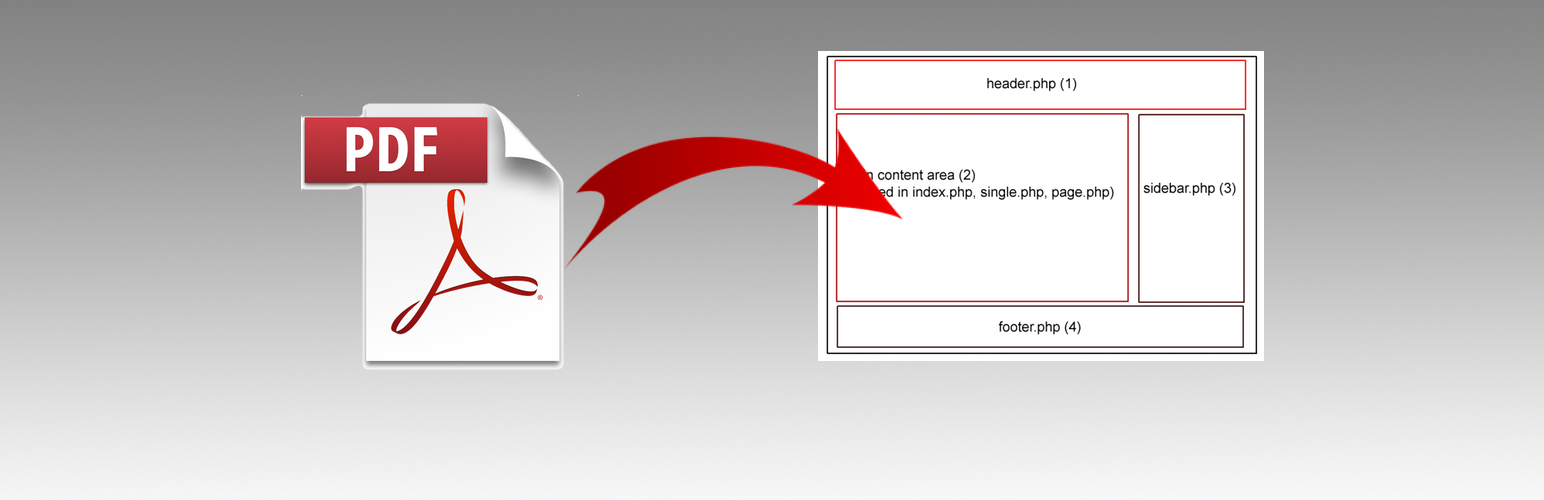
Best for: Users who just need to drop a PDF into a page quickly and don’t need toolbar controls or customization.
Limitation: Chrome/mobile uses Google Docs Viewer (privacy consideration). Occasional load failures reported on the plugin’s own support page.
- Active installs: 20,000+
- Rating: 4.7/5 (19 reviews)
- Free: Yes (free only, no paid version)
- Rendering: Browser-native for Firefox; Google Docs Viewer for Chrome and mobile
4. EmbedPress — Best for Page Builder Users
EmbedPress isn’t a PDF plugin at heart — it’s a universal embedding tool that handles 150+ content sources including YouTube, Spotify, Google Docs, social feeds, and yes, PDF files. That breadth is both its strength and its potential drawback: if all you need is a PDF viewer, EmbedPress is the most capable option for page builder users, but it comes with more overhead than PDF-only plugins.
Where EmbedPress genuinely excels is page builder coverage. It supports Gutenberg natively, ships with a dedicated Elementor widget, and also integrates with Divi, Beaver Builder, and the Classic Editor. No other plugin in this comparison matches that range. The free version includes PDF embedding, while the Pro plan starts at $55/year for one site and adds content protection, custom branding, analytics, and lazy loading.
Best for: Elementor or Divi users who want a polished PDF viewer without fighting with shortcodes. Also useful if you embed multiple content types beyond PDFs.
Limitation: More plugin weight than dedicated PDF tools. Content protection and lazy loading require Pro.
- Active installs: 5.25M+ total downloads
- Rating: 4.8/5 (286 reviews)
- Free version: PDF embedding, Gutenberg block, Elementor widget, Divi module
- Pro: Individual $55/yr (1 site), Business $159/yr (unlimited sites)
- Page builder support: Gutenberg, Elementor, Divi, Beaver Builder, Classic Editor
5. WonderPlugin PDF Embed — Best Free Option for Advanced Controls
WonderPlugin PDF Embed is an underappreciated option. Like PDF Embedder, it uses Mozilla PDF.js for rendering, so no data goes to Google or Microsoft. Unlike PDF Embedder, it’s free — with a much more complete toolbar control set at no cost.
From the free version, you can hide or show the download button, print button, and text selection tool individually. Right-click protection is available. The viewer supports URL parameters for jumping to specific pages or zoom levels. The one meaningful constraint: PDFs must be hosted on the same domain as your WordPress site (or on a CORS-configured server) — externally hosted PDFs from Dropbox or Google Drive won’t work with this plugin.
Best for: Users who want fine-grained toolbar control without paying, and whose PDFs are self-hosted.
Limitation: No cross-domain PDF support unless the server has CORS headers configured. Only 9,000+ installs — less community-tested than larger options.
- Active installs: 9,000+
- Rating: 4.5/5 (13 reviews)
- Free: Yes (base plugin is free)
- Rendering: Mozilla PDF.js — no third-party services
- Paid add-ons: Wonder Lightbox, Wonder Carousel (for popup/carousel display)
6. Embed Any Document — Best for Multiple File Types
If your site regularly shares a mix of PDFs, Word documents, Excel spreadsheets, and PowerPoint presentations, Embed Any Document simplifies things by handling all of them through one plugin. It uses Google Docs Viewer and Microsoft Office Online as rendering backends — which means the same third-party dependency caveats apply as with Embed PDF Viewer.
One limitation to flag upfront: file size caps are strict. Google Docs Viewer maxes out at 8MB per file; Microsoft Office Online handles up to 10MB. If you’re working with large, graphic-heavy PDFs, some documents may refuse to load entirely.

Best for: Organizations that need to share documents in multiple formats (PDF, Word, Excel, PowerPoint) from a single plugin.
Limitation: 8MB/10MB file size limits; depends on Google and Microsoft servers. Not ideal for large PDFs or privacy-sensitive content.
- Active installs: 50,000+
- Rating: 4.2/5 (92 reviews)
- Free version: Google Docs Viewer + Microsoft Office Online
- Plus version: Google Drive, OneDrive, Dropbox, Box.com support
- Supported formats: PDF, DOC, DOCX, XLS, XLSX, PPT, PPTX, and more
7. Real3D Flipbook — Best for Interactive Presentations
Not every PDF needs a plain viewer. Annual reports, product catalogs, digital magazines, and e-books often perform better as interactive experiences. Real3D Flipbook turns a standard PDF into a 3D page-turning flipbook with realistic animation — visitors click or swipe through pages like an actual book.
The plugin supports video and link hotspots on pages, multiple display modes (single-page, fullscreen, lightbox), and custom branding. It’s a premium-only product available on CodeCanyon, starting around $39 for a six-month license.
Best for: Businesses and publishers creating high-quality digital magazines, catalogs, e-books, or branded presentations where visual experience matters.
Limitation: Premium only — no free tier. Overkill (and unnecessary expense) for straightforward document sharing.
- License: Premium (CodeCanyon, from ~$39 for 6 months)
- Features: 3D page-turning animation, video hotspots, fullscreen, lightbox, custom branding
- Best for: E-books, magazines, catalogs, branded presentations
Full Comparison Table
Here’s a side-by-side view of all six free or freemium plugins based on verified data from March 2026:
| Plugin | Free Tier | Premium Price/yr | Installs | Rendering Engine | Gutenberg | Elementor | Download Button (Free) | No 3rd-Party |
|---|---|---|---|---|---|---|---|---|
| PDF Poster | ✅ Yes | Pro available | 662,974+ | Self-hosted | ✅ | Shortcode | ✅ Yes | ✅ Yes |
| PDF Embedder | ✅ Yes | From $29.50 | 300,000+ | PDF.js | ✅ | Shortcode | ❌ No | ✅ Yes |
| EmbedPress | ✅ Yes | From $55 | 5.25M+ downloads | Mixed | ✅ | ✅ Widget | ✅ Yes | Partial |
| WonderPlugin PDF Embed | ✅ Yes | Free (add-ons paid) | 9,000+ | Mozilla PDF.js | Shortcode | Shortcode | ✅ Configurable | ✅ Yes |
| Embed PDF Viewer | ✅ Yes | Free only | 20,000+ | Google Docs Viewer (Chrome) | ✅ Block | ❌ | ✅ (browser native) | ❌ No (Google) |
| Embed Any Document | ✅ Yes | Plus available | 50,000+ | Google Docs + MS Online | ✅ | Shortcode | Limited | ❌ No |
| Real3D Flipbook | ❌ No | ~$39 / 6 months | N/A (CodeCanyon) | Custom (3D) | ✅ | ✅ | ✅ Yes | ✅ Yes |
Prices current as of March 2026. Verify at the plugin’s official site before purchasing.
Which WordPress PDF Viewer Fits Your Use Case?
Features matter less than fit. A plugin with 20 options is useless if it doesn’t work with your page builder, and a “free” plugin that locks its most basic features behind a paywall isn’t actually free for most people. Here’s a practical decision guide:
| Your Situation | Recommended Plugin | Why |
|---|---|---|
| Personal blog or portfolio, basic PDF sharing | PDF Poster (free) | Complete free feature set; no upgrade needed for basics |
| Small business, product brochures, service menus | PDF Poster or EmbedPress (free) | Both handle standard embedding well; EmbedPress for Elementor users |
| Educator, course materials, assignments | PDF Embedder (free/paid) or WonderPlugin | No third-party rendering; content stays on your server |
| E-commerce, product manuals and spec sheets | EmbedPress or PDF Poster | Reliable embedding; EmbedPress for Elementor product pages |
| Membership site, gated documents | PDF Embedder Pro or EmbedPress Pro | Secure storage, content protection, and access control features |
| Mixed document types (PDF + Word + Excel) | Embed Any Document | Single plugin handles all major office document formats |
| Publisher, magazine, or catalog (visual experience) | Real3D Flipbook or Dear Flipbook | 3D flipbook experience; best engagement for branded content |
| Developer building a custom solution | WonderPlugin or HTML embed tag | WonderPlugin shortcode is portable; raw HTML embed for no-plugin approach |
| GDPR/privacy-sensitive content | PDF Embedder or WonderPlugin PDF Embed | PDF.js rendering — no data sent to Google or Microsoft |
Standard PDF Viewer vs. Flipbook — Which Should You Choose?
| Factor | Standard PDF Viewer | Flipbook Plugin |
|---|---|---|
| Cost | Free options available | Usually premium ($39+) |
| Setup complexity | Low — install and embed | Medium — configure animations, hotspots |
| Page load impact | Low to medium | Medium to high (3D rendering) |
| Best for | Documents, reports, forms, manuals | Magazines, catalogs, e-books, presentations |
| Reader experience | Functional, direct | Engaging, visual, interactive |
| Mobile performance | Good | Varies — test on target devices |
The rule of thumb: if the content needs to be read, use a standard viewer. If it needs to be experienced, use a flipbook.
How PDF Viewer Plugins Affect Your WordPress Site’s Performance
Most comparison articles skip this entirely, but it’s worth knowing before you install anything. PDF viewer plugins add JavaScript to your page — sometimes quite a lot of it — and the PDF itself adds a large resource to load.
Here’s how the main approaches compare for performance impact:
- PDF.js-based plugins (PDF Embedder, WonderPlugin): Load the PDF.js library (roughly 300–400KB minified) on any page that embeds a PDF. This is client-side rendering, meaning the browser does the work. Fast once loaded; heavier initial load.
- Google Docs Viewer / Microsoft Online (Embed PDF Viewer, Embed Any Document): The PDF is rendered by an external server and delivered as an iframe. Your server load is minimal, but you depend on external uptime — and the PDF URL is exposed to third-party servers.
- Flipbook plugins (Real3D, Dear Flipbook): Add the heaviest JavaScript payload, plus 3D rendering libraries. Best to lazy-load these plugins only on pages that use them.
Practical tips for keeping performance in check:
- Use a plugin that supports lazy loading (EmbedPress Pro includes this). It defers loading the PDF until the user scrolls to it.
- Host your PDFs on the same server as WordPress to avoid cross-origin loading delays.
- If you only embed PDFs on one or two pages, use a plugin that only loads its scripts on pages with a PDF block — not sitewide.
- Compress your PDFs before uploading. A 5MB PDF takes much longer to render than an optimized 500KB version of the same document.
How to Set Up a WordPress PDF Viewer Plugin
The process is the same regardless of which plugin you choose — only the block name and shortcode syntax differ.
- Install the plugin: Go to WordPress Dashboard → Plugins → Add New, search for the plugin name, click Install Now, then Activate.
- Upload your PDF: Go to Media → Add New and upload your PDF file. Copy the file URL once uploaded.
- Add to your content (Gutenberg): Open a page or post in the block editor. Click the “+” icon to add a new block. Search for the plugin’s block name (e.g., “PDF Poster”, “EmbedPress PDF”, “PDF”). Select it and choose your PDF from the Media Library.
- Add to your content (Shortcode): For plugins using shortcodes, add a Shortcode block and paste the plugin’s code. Example for WonderPlugin:
[wonderplugin_pdf src="https://yoursite.com/wp-content/uploads/document.pdf" width="100%" height="600px"] - Preview and adjust: Preview the page to check how the PDF renders on desktop and mobile. Adjust width and height settings as needed.

FAQ — WordPress PDF Viewer Questions Answered
What is the best free WordPress PDF viewer plugin?
For most sites, PDF Poster is the best free option in 2026. It has 662,974+ active installs, includes a download button and fullscreen mode in the free version, and uses a native Gutenberg block. If privacy is a priority (no Google Docs Viewer), WonderPlugin PDF Embed is the best free alternative.
Can I prevent users from downloading my PDF in WordPress?
Most PDF viewer plugins include a toggle to hide the download button from the viewer’s toolbar. However, hiding the button doesn’t fully prevent a determined user from accessing the file — the PDF URL is still visible in the page source. For stronger protection, PDF Embedder Pro (from $29.50/year) and EmbedPress Pro ($55/year) offer encrypted delivery and access control features. No plugin can prevent someone from taking a screenshot.
Which WordPress PDF viewer plugin works with Elementor?
EmbedPress has the best native Elementor integration — it adds a dedicated Elementor widget for PDF embedding, available in the free version. Other plugins (PDF Poster, WonderPlugin, PDF Embedder) can also be used in Elementor via shortcode, though without a dedicated widget.
Do PDF viewer plugins slow down WordPress?
They can — particularly PDF.js-based plugins that load a 300–400KB JavaScript library. The impact is manageable if the plugin only loads on pages that actually contain a PDF (most quality plugins do this), and if your PDFs are compressed and hosted on the same server as WordPress. Flipbook plugins carry a heavier performance cost due to 3D rendering libraries. EmbedPress Pro includes lazy loading to minimize the impact.
Can I embed a PDF in WordPress without a plugin?
Yes. Add a Custom HTML block in Gutenberg and use: <embed src="/wp-content/uploads/your-file.pdf" type="application/pdf" width="100%" height="600px"></embed>. This works in Chrome, Firefox, and Edge. It does not work on iOS Safari. You also get no controls — no zoom, navigation, or download button.
Which PDF viewer plugins work with the Gutenberg block editor?
Most modern PDF viewer plugins support Gutenberg. PDF Poster, PDF Embedder, Embed PDF Viewer, and EmbedPress all provide native Gutenberg blocks. WonderPlugin and Embed Any Document work via shortcode in a Shortcode block, which still functions in Gutenberg.
What is the difference between a PDF viewer and a PDF flipbook?
A PDF viewer embeds the document as a scrollable or paginated reader, similar to how Adobe Acrobat displays a PDF. A PDF flipbook converts your PDF into an animated 3D book with page-turning effects, video hotspots, and interactive navigation. Viewers are better for functional document sharing; flipbooks are better for immersive brand experiences like magazines and catalogs.
Can I embed a password-protected or members-only PDF?
Password-protected PDFs (encrypted at the file level) are generally not supported by standard viewer plugins — the password prompt interferes with embedding. For members-only access control, WP Download Manager with its PDF Viewer add-on is purpose-built for this use case. PDF Embedder Pro also offers secure delivery options. EmbedPress Pro allows content visibility controls.
Why is my embedded PDF not loading correctly?
Common causes: (1) The PDF URL is not publicly accessible (the file is behind a login or the URL has changed). (2) Google Docs Viewer is failing — reload the page; if it persists, switch to a PDF.js-based plugin. (3) The PDF is corrupted or non-standard — try re-exporting from the original source. (4) File size exceeds the plugin’s limit — Embed Any Document caps at 8MB via Google Docs Viewer. (5) Cross-origin issues with WonderPlugin — the PDF must be on the same domain or a CORS-enabled server.
How many PDFs can I embed with free plugins?
Most free plugins have no limit on the number of PDFs you can embed. PDF Poster, WonderPlugin, and PDF Embedder all advertise unlimited embeds. The practical limit is your server storage space and the impact of loading many heavy PDF files on a single page.
Final Thoughts
The right WordPress PDF viewer comes down to three factors: your use case, your budget, and your page builder setup. For most personal and small business sites, PDF Poster’s free version handles the basics without requiring an upgrade. If you’re on Elementor, EmbedPress saves the most friction. If privacy matters, PDF Embedder or WonderPlugin keep your documents off third-party servers.
Before installing, check whether the plugin loads its scripts globally (on every page) or only where a PDF block is present. That single detail has more impact on your site speed than which rendering engine the plugin uses. When in doubt, install one, test it on a staging site, and confirm it renders correctly on both desktop and mobile before going live.
