


Searching for the best plugin to download your WordPress site is a reasonable goal — until you realize that phrase actually covers three completely different problems. Someone who wants a nightly backup stored in Google Drive needs a completely different tool than a developer who wants to clone a site to a local machine, and both of them need something different from a site owner who wants to offer downloadable PDFs to visitors.
This guide breaks down all three use cases, maps them to the right plugin, and gives you verified 2026 pricing and active install counts so you can make a confident choice without reading a dozen plugin sales pages.
More WordPress plugin guides on wplasma.com
What Does “Download a WordPress Site” Actually Mean?
Before recommending anything, it helps to nail down exactly what you need. Most people searching this keyword fall into one of three categories:
| Use Case | What You Actually Need | Plugin Category | Quick Pick |
|---|---|---|---|
| Full site backup | A saved copy of your site for disaster recovery or security | Backup plugin | UpdraftPlus, BackWPup |
| Site migration / clone | Moving or copying your site to a new host, server, or local environment | Migration plugin | All-in-One WP Migration, Duplicator |
| File download manager | Offering downloadable files (PDFs, ZIPs, software) to your site’s visitors | Download manager plugin | WP Download Manager |
If your goal is protecting your site from data loss — you want a backup plugin. If you’re moving your site to a new host or setting up a staging environment — you want a migration plugin. If you run a site that distributes files to your audience — you want a file download manager.
The sections below cover each category in depth, with honest assessments of what each plugin does well and where it falls short.
Best Plugins to Back Up (Download) Your Entire WordPress Site
Backing up your WordPress site creates a complete, downloadable copy of your files and database. If your site gets hacked, your host deletes it, or a bad update breaks everything, a backup is what brings it back. A good backup plugin should run automatically, store copies off-site, and let you restore without technical expertise.
UpdraftPlus — Best for Most WordPress Sites
With over 3 million active installs and a 4.8/5 rating from more than 8,400 reviews on WordPress.org, UpdraftPlus is far and away the most trusted WordPress backup plugin available. The free version is genuinely capable: it schedules automatic backups, supports Google Drive, Dropbox, Amazon S3, and FTP as storage destinations, and includes a one-click restore feature.
WordPress backup guide on wplasma.com
What puts UpdraftPlus in a category of its own is how well the free tier handles routine backup needs for personal sites and small businesses. You can run daily backups to Google Drive without paying a cent. The paid plans ($70/year for 2 sites as of March 2026) unlock incremental backups, database encryption, OneDrive and Azure storage, and direct site-to-site migration.
- Best for: Personal sites and small businesses wanting reliable automated backups with minimal setup
- Not ideal for: Sites needing encrypted backups on the free tier (encryption is a paid feature)
- Free tier: Unlimited backup size, multiple cloud destinations, scheduling
- Paid from: $70/year (2 sites), $95/year (10 sites), $195/year (unlimited) — March 2026
BackWPup — Best for Developers and Technical Users
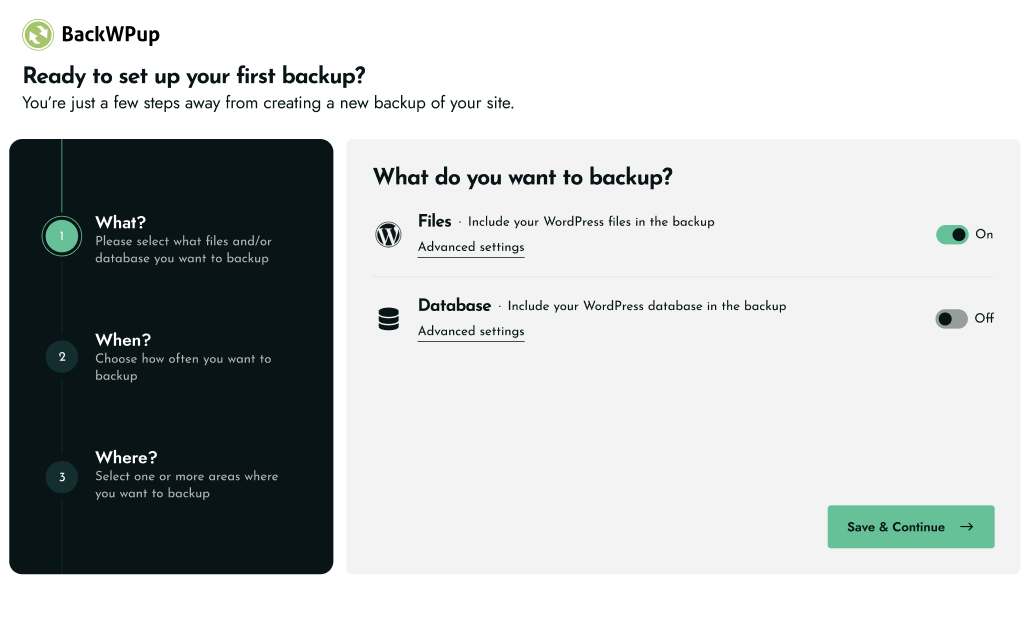
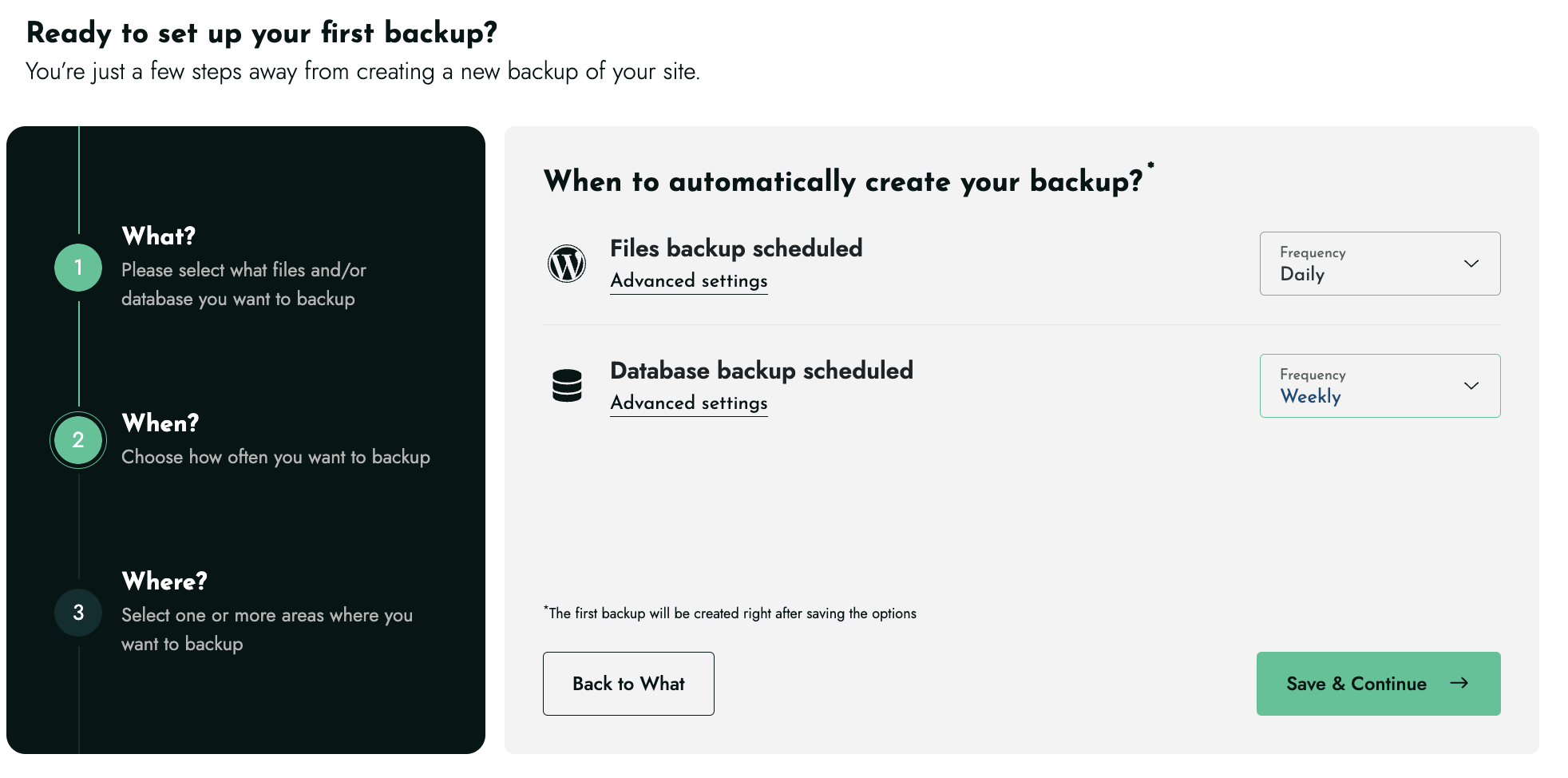
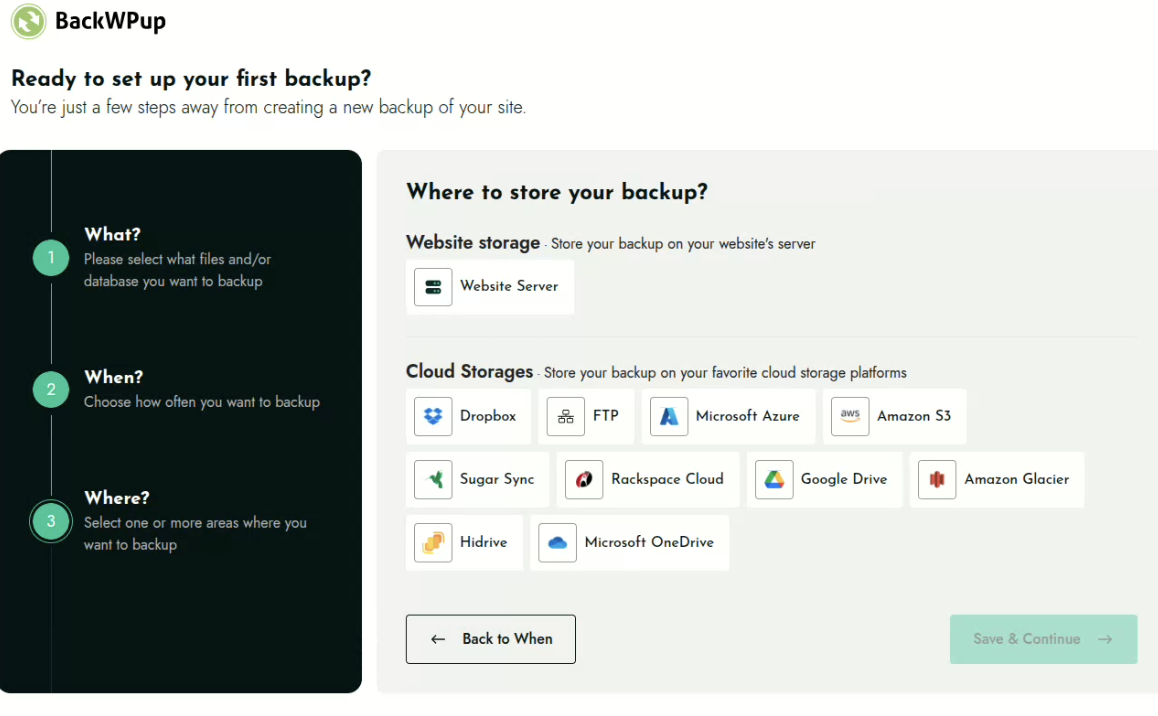
BackWPup takes a more structured approach to site backups. The plugin’s three-step wizard — What to back up, When to run it, and Where to store it — makes configuration straightforward even for complex setups. It’s made by WP Media, the same team behind WP Rocket, which signals serious development resources and long-term commitment.
The free version covers backups to Dropbox, Amazon S3, FTP, and Microsoft Azure. The Pro plans (starting at $49/year for 2 domains) add Google Drive, OneDrive, encrypted archives, and most notably — a standalone restore application that works even when you can’t access your WordPress dashboard. WP-CLI support landed in version 5.6.0, making it a solid choice for developers who want to automate backups in deployment scripts.
- Best for: Developers and agencies managing multiple sites; users needing encrypted backups and WP-CLI automation
- Not ideal for: Beginners who want a simpler interface with fewer options
- Free tier: Backup scheduling, Dropbox/S3/FTP/Azure, one-click restore
- Paid from: $49/year (2 domains), $99/year (5 domains), $199/year (20 domains) — March 2026
Backup Plugin Comparison (March 2026)
| Plugin | Active Installs | Rating | Free? | Paid From (Annual) | Free Cloud Storage | Best For |
|---|---|---|---|---|---|---|
| UpdraftPlus | 3M+ | 4.8/5 (8,409 reviews) | Yes | $70/yr (2 sites) | Google Drive, Dropbox, S3, FTP | Most users |
| BackWPup | 500K+ | 4.0/5 (1,318 reviews) | Yes | $49/yr (2 domains) | Dropbox, S3, FTP, Azure | Developers, complex setups |
| Jetpack Backup | N/A (subscription) | — | No | Check jetpack.com | Managed WordPress.com cloud | Hands-off, non-technical users |
Prices sourced from official plugin websites, March 2026. Verify current pricing before purchasing.
Best Plugins to Clone or Migrate Your WordPress Site
Migration is different from backup. When you migrate a WordPress site, you’re not just saving a copy — you’re moving it somewhere new, replacing URLs in the database, handling serialized data, and ensuring everything works at the destination. The good news is that modern migration plugins handle most of this automatically.

All-in-One WP Migration — Easiest Option for Beginners
The install count here is not a typo: All-in-One WP Migration has over 60 million active installs. It’s been trusted by organizations including Boeing, NASA, Harvard University, and Automattic (the company behind WordPress.com). For anyone moving a WordPress site from one host to another without touching any configuration files, this plugin is the most beginner-friendly option available.
The process is simple: export your entire site as a single .wpress file, install the plugin at the destination, and import it. The catch with the free version is an upload size limit of roughly 300MB at the restore step — workable for small sites, not great for sites with extensive media libraries. The Unlimited Extension ($69/year for up to 50 sites as of March 2026) removes all size restrictions and eliminates PHP execution time and memory limits.
WordPress migration guide on wplasma.com
- Best for: Non-technical users moving a site between hosting providers; anyone who wants drag-and-drop migration
- Not ideal for: Large sites on the free tier (300MB limit), or sites needing scheduled automated migrations
- Free tier: Full export; restore limited to ~300MB; no scheduling; no cloud storage
- Paid from: $69/year (Unlimited Extension, 50 sites) — March 2026
Duplicator — Best for Site Cloning and Staging
Duplicator takes a package-based approach: it bundles your entire site into an archive plus a PHP installer script. You upload both files to the destination server, run the installer in a browser, and Duplicator handles the URL replacement and database import. This approach is particularly good for developers who set up the same site configuration repeatedly or need to create staging environments from a production site.
The free version handles migration and basic cloning without scheduling. It also includes cloud storage support (Dropbox, Google Drive, S3, OneDrive) which is unusually generous for a free backup/migration tool. Paid plans starting at $79/year add scheduled backups, staging site management, multisite support, and advanced recovery points.
- Best for: Developers cloning sites, creating staging environments, or needing a package-based installer approach
- Not ideal for: Users who just need a simple one-click migration without any installer steps
- Rating: 4.9/5 from 4,860 WordPress.org reviews — the highest rating in this comparison
- Free tier: Migration, cloning, multi-cloud storage
- Paid from: $79/year regular ($55/year promo pricing active March 2026, 2 sites)
WP Migrate — Best for Professional Developers
WP Migrate (by Delicious Brains) solves a specific problem that backup and migration plugins often handle clumsily: the ongoing development workflow. If you’re regularly pulling a production database down to your local environment to work on a site, then pushing changes back to staging before deploying to production, WP Migrate’s push/pull model fits naturally into that process.
The plugin handles serialized data correctly — a common failure point when other tools run a simple find-and-replace on the database — and supports WP-CLI for command-line automation. Multisite migrations are supported, including extracting a subsite to a standalone installation. It’s not designed for beginners, and pricing should be verified at deliciousbrains.com/wp-migrate-db-pro/.
- Best for: Professional developers managing multiple environments (local/staging/production)
- Not ideal for: Beginners; one-time migrations; users without a multi-environment workflow
Migration Plugin Comparison (March 2026)
| Plugin | Active Installs | Rating | Free Limit | Paid From (Annual) | WP-CLI | Multisite | Best For |
|---|---|---|---|---|---|---|---|
| All-in-One WP Migration | 60M+ | 4.5/5 | ~300MB restore | $69/yr (Unlimited, 50 sites) | Yes | Paid ($319+) | Beginners, any host |
| Duplicator | 1M+ | 4.9/5 | No scheduling | $79/yr* (2 sites) | No (free) | Paid (Pro+) | Cloning, staging |
| WP Migrate | Premium only | — | N/A | Check deliciousbrains.com | Yes | Yes | Professional devs |
*Duplicator promotional pricing ~$55/year was active March 2026; regular price is $79/year. Verify before purchasing.
Best Plugins to Manage File Downloads on Your WordPress Site
If visitors to your site need to download something — a PDF guide, a software package, a digital product — you need a download manager, not a backup tool. These plugins control who can access which files, track download counts, protect files from direct linking, and in some cases handle payment for digital products.
WP Download Manager — Most Complete Feature Set
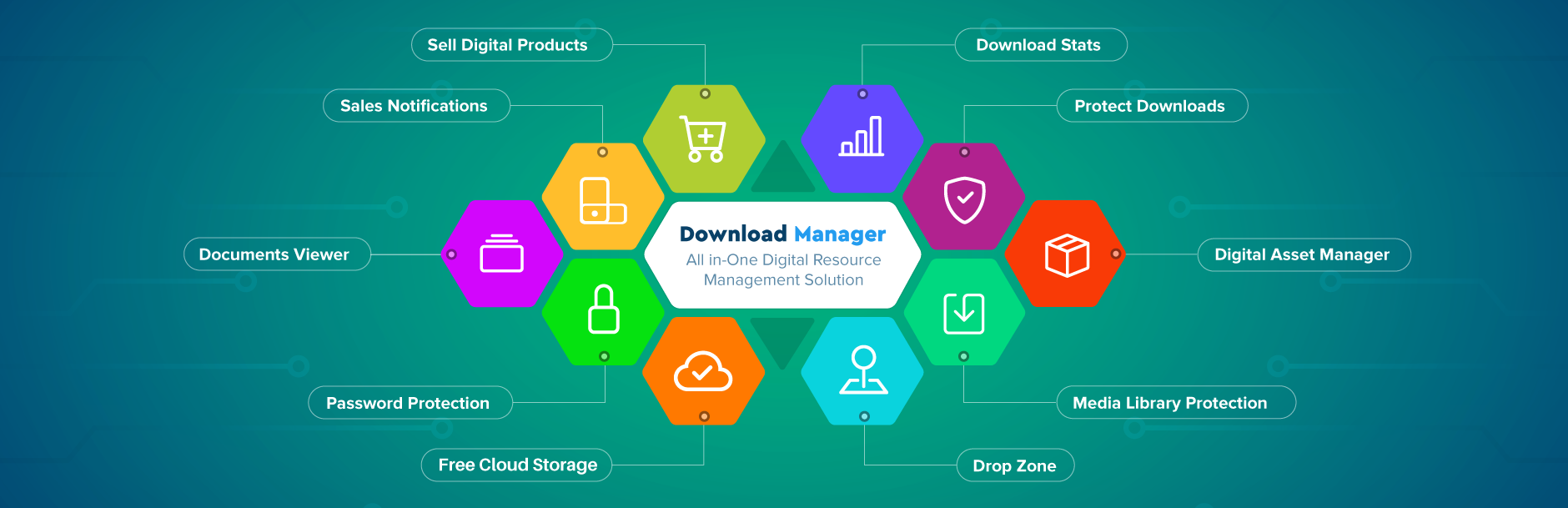
WP Download Manager (by W3 Eden) handles the full spectrum of file distribution scenarios. On the free tier, you get download access control by user role, password protection, CAPTCHA verification, IP blocking, download logging, and cloud storage integration with Google Drive, Dropbox, Box, OneDrive, and pCloud. That’s a lot for free.
The Pro plan ($99/year for one site) adds multi-file packages, custom download templates, bandwidth controls, and download statistics. The Business plan ($299/year for 2-5 sites) includes email lock — where visitors provide their email to unlock a download — and social share locks, both useful for lead generation. An integrated e-commerce system lets you sell digital products without WooCommerce: connect PayPal, Stripe, or 20+ other payment gateways and start selling software, ebooks, or templates directly.
- Best for: Sites distributing files to visitors; digital product sellers; anyone needing detailed access control and download analytics
- Not ideal for: Users who only need one or two simple download buttons (this plugin has a learning curve)
- Free tier: Access control, analytics, cloud storage, password protection, CAPTCHA
- Paid from: $99/year (1 site), $299/year (2-5 sites), $499/year (up to 48 sites) — March 2026
WordPress file management guide on wplasma.com
Easy Digital Downloads — Best for Selling Digital Products
If your primary goal is selling digital products — not just offering free downloads — Easy Digital Downloads (EDD) is built specifically for that. The plugin handles product listings, shopping cart, payment processing, and customer file delivery. It’s a dedicated e-commerce solution for digital goods rather than a general-purpose download manager. Check easydigitaldownloads.com for current pricing, as plans vary significantly by features needed.
- Best for: Sites whose main business is selling digital products (plugins, themes, courses, ebooks)
- Not ideal for: Free file distribution or sites that don’t have an e-commerce focus
File Download Manager Comparison (March 2026)
| Plugin | Active Installs | Free? | Paid From (Annual) | E-commerce? | Access Control | Analytics |
|---|---|---|---|---|---|---|
| WP Download Manager | 100K+ | Yes | $99/yr (1 site) | Yes (cart, PayPal, Stripe) | Password, roles, CAPTCHA, IP block | Yes (download logs) |
| Easy Digital Downloads | 50K+ | Yes (basic) | Check easydigitaldownloads.com | Yes (core feature) | Role-based | Yes |
Full Plugin Comparison: All Categories (March 2026)
| Plugin | Category | Active Installs | Free? | Paid From (Annual) | Best For |
|---|---|---|---|---|---|
| UpdraftPlus | Backup | 3M+ | Yes | $70/yr | Most sites wanting reliable auto-backup |
| BackWPup | Backup | 500K+ | Yes | $49/yr | Developers, encrypted backups, WP-CLI |
| Jetpack Backup | Backup | N/A | No | Check jetpack.com | Hands-off users who want managed cloud backup |
| All-in-One WP Migration | Migration | 60M+ | Yes | $69/yr (Unlimited) | Beginners migrating to a new host |
| Duplicator | Migration / Clone | 1M+ | Yes | $79/yr* | Cloning sites, creating staging environments |
| WP Migrate | Migration | Premium only | No | Check deliciousbrains.com | Professional devs with push/pull workflow |
| WP Download Manager | File Download Manager | 100K+ | Yes | $99/yr | Sites distributing files to visitors |
| Easy Digital Downloads | File Download Manager | 50K+ | Yes (basic) | Check easydigitaldownloads.com | Digital product sellers |
Prices sourced from official plugin websites, March 2026. *Duplicator promotional pricing was active at time of writing; verify current pricing.
Security Checklist: Protecting Your WordPress Download Files
Backup files contain everything on your site — including your wp-config.php, which holds your database credentials and security keys. Storing a backup file carelessly is a genuine security risk. Here’s what to watch for:
- Never store backups in a public web folder. If your backup file is accessible at yourdomain.com/wp-content/backups/backup.zip, anyone can download your entire database. Most reputable plugins protect their default backup directory, but verify this in your settings.
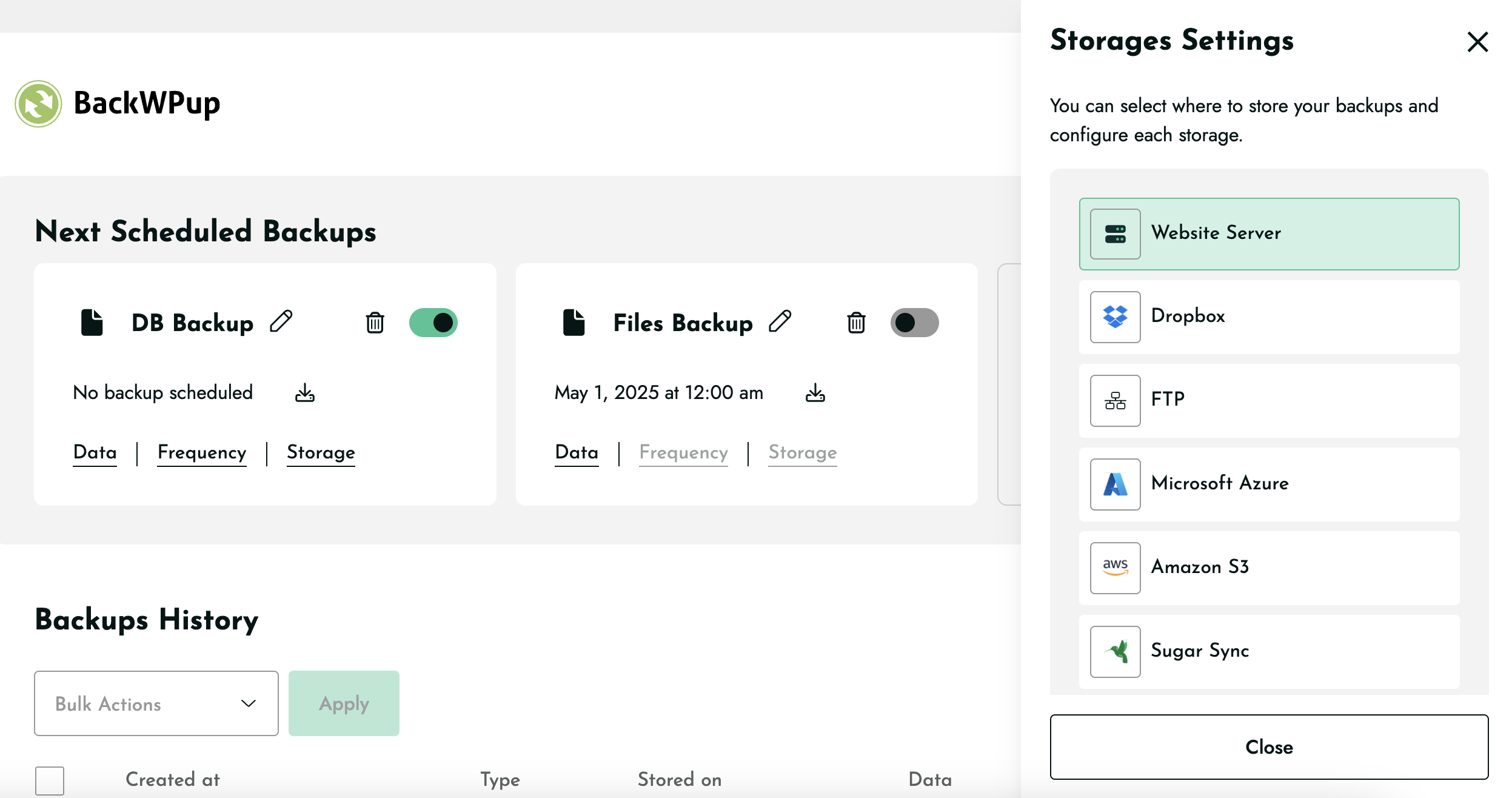
- Use cloud storage destinations, not local server storage only. If your server is compromised or your host has an outage, local-only backups are useless. Configure Google Drive, Dropbox, or S3 as a destination.
- Enable encryption for sensitive sites. BackWPup Pro and UpdraftPlus paid both support encrypted backup archives. For any site handling personal data, payment information, or private content, encryption is worth the extra cost.
- Use dedicated credentials for backup storage. Don’t connect backups to your primary personal Google or Dropbox account. Create a dedicated account or use a service account — this limits exposure if credentials are compromised.
- Test your restores regularly. A backup you’ve never tested is an assumption, not a safety net. Restore to a staging site at least once a quarter to verify the process works.
- Keep plugins updated. BackWPup fixed CVE-2025-15041 in version 5.6.3 (January 2026), plus additional authorization vulnerabilities in October 2025 and March 2026. Running outdated backup plugins introduces risk rather than reducing it. (Source: BackWPup changelog, wordpress.org)
Who Should Use Which Plugin? Quick Decision Guide
| Your Situation | Best Plugin | Why |
|---|---|---|
| Personal blog or small site, want a free automatic backup | UpdraftPlus (free) | 3M+ installs, Google Drive support, zero cost for most needs |
| Small business, want scheduled cloud backup with email support | UpdraftPlus paid | $70/yr, incremental backups, database encryption, premium support |
| Developer, want WP-CLI and encrypted backups | BackWPup Pro | $49/yr (2 domains), WP-CLI, standalone restore app, encryption |
| Moving a small-to-medium site to a new host | All-in-One WP Migration (free) | Easiest UI, 60M+ installs, works on virtually any host |
| Moving a large site or need no size limits | All-in-One WP Migration Unlimited Extension | $69/yr for 50 sites, removes all restore size restrictions |
| Setting up a staging environment or cloning a site | Duplicator | 4.9/5 rating, package-based approach ideal for cloning |
| Professional dev with local/staging/production workflow | WP Migrate | Push/pull model, serialized data handling, WP-CLI, multisite |
| Site distributing free downloads to visitors | WP Download Manager (free) | Access control, analytics, cloud storage — all on free tier |
| Selling digital products (plugins, ebooks, templates) | Easy Digital Downloads | Built specifically for digital product e-commerce |
Frequently Asked Questions
What is the best free plugin to download my entire WordPress site?
UpdraftPlus is the most reliable free option for most WordPress sites. It backs up your files and database automatically, stores copies to Google Drive or Dropbox, and includes a one-click restore — all without paying anything. It has over 3 million active installs and a 4.8/5 rating from more than 8,400 users on WordPress.org. For migration specifically (moving to a new host), All-in-One WP Migration is the better free choice, though its restore size is limited to roughly 300MB on the free version.
What is the difference between a backup plugin and a migration plugin?
A backup plugin creates a saved copy of your site for disaster recovery — it runs automatically in the background and stores multiple versions you can restore from if something goes wrong. A migration plugin moves your site from one location to another: it handles URL replacement in the database, serialized data, and importing everything correctly at the destination. Some plugins, like Duplicator, do both reasonably well. If you’re setting up recurring protection, use a backup plugin. If you’re making a one-time move, a migration plugin is the right tool.
Can I download my WordPress site without using a plugin?
Yes, but it’s more involved. The manual approach requires FTP access to download your files, plus phpMyAdmin or a similar tool to export your database as a SQL file. You’d then need to manually update URLs in the database and import everything at the destination. Plugins handle all of this automatically — which is why they’re so widely used. The manual method is still useful to understand as a fallback or for very specific advanced scenarios.
More WordPress how-to guides on wplasma.com
How large can my site be for these plugins to work reliably?
For backup plugins (UpdraftPlus, BackWPup), there’s no practical file size limit — they process the site in chunks rather than loading everything into memory at once. For migration plugins, the free version of All-in-One WP Migration caps restores at roughly 300MB; the Unlimited Extension removes this restriction. Duplicator also handles large sites, though very large media libraries (10GB+) may require running the export on a server with sufficient execution time. Always check your PHP time limit and memory limit before migrating a large site.
Is it safe to store my WordPress backup on Google Drive or Dropbox?
Generally yes, with caveats. Both services offer strong security, but your backup file contains sensitive data including your database credentials. Use a dedicated account for backup storage rather than your primary personal account, and enable two-factor authentication. For sites handling sensitive user data, consider encrypted backups (available in UpdraftPlus paid and BackWPup Pro) before sending files to any cloud service.
What happens to my database when I use a backup plugin?
A backup plugin exports your entire WordPress database as a SQL file, which is then included in the backup archive along with your WordPress files. The database contains everything except your actual files: posts, pages, comments, settings, users, plugin configurations, and so on. When you restore, the plugin imports this SQL file back into a database and reconnects everything. Good backup plugins handle serialized data and URL replacement automatically during this process.
How do I restore my WordPress site from a backup?
With UpdraftPlus: go to Settings → UpdraftPlus Backups, find the backup you want to restore, and click Restore. With BackWPup: go to the plugin’s restore section and select your backup file. With All-in-One WP Migration: install the plugin on a fresh WordPress site, go to Migration → Import, and upload your .wpress file. Most reputable plugins walk you through the restore process step by step. For a site that’s completely inaccessible, BackWPup Pro includes a standalone restore application that works without needing WordPress access at all.
Do I need to pay for a plugin, or are the free versions good enough?
For most personal sites and small businesses, free versions are perfectly adequate. UpdraftPlus free handles automatic backups to Google Drive or Dropbox without any cost. All-in-One WP Migration free handles site migrations for sites under 300MB. The main reasons to upgrade to paid: you need encrypted backups, your site exceeds the free tier file size limit, you need incremental backups for large sites, you need WP-CLI integration, or you want priority support. Don’t pay for features you don’t need — the free tiers of the top plugins are genuinely capable.
Wrapping Up
The phrase “best plugin to download a WordPress site” points to three distinct tools depending on your goal. Backup plugins like UpdraftPlus and BackWPup protect you from data loss with automated, scheduled copies stored in the cloud. Migration plugins like All-in-One WP Migration and Duplicator help you move or clone a site between environments. And if your visitors are the ones doing the downloading, a file distribution tool like WP Download Manager handles access control, analytics, and optionally payment.
Start with your specific situation — what exactly do you need to download, and why? That question narrows the list to one or two options quickly. For most WordPress site owners who simply want peace of mind, UpdraftPlus on its free tier is the right starting point: install it, connect Google Drive, set a daily schedule, and your site’s data is protected without spending anything.
