


WordPress powers 43.4% of all websites on the internet as of March 2026 — and with that reach comes an inevitable truth: errors happen. Whether you run a personal blog, a small business site, or an online store, chances are you’ve stared at a blank white screen or a cryptic error message wondering where things went wrong.
The good news is that the vast majority of WordPress errors share a small set of root causes, and most of them can be fixed in under 30 minutes once you know what you’re looking at. This guide covers 15 of the most common WordPress errors, grouped by root cause so you can identify and resolve your specific problem fast. We’ve also included a severity matrix, a universal triage checklist, and — something you won’t find in most guides — a prevention section so this stays a reference you come back to, not just a one-time fix. For more WordPress how-to content, visit WPlasma.
Use Ctrl+F (Cmd+F on Mac) to jump directly to your specific error.
Quick Summary
Short on time? Here’s what you need to know before diving in:
- WordPress errors almost always trace back to one of four root causes: PHP/server problems, database issues, file permission errors, or plugin/theme conflicts
- Deactivating all plugins resolves the majority of WordPress errors — it’s always worth trying first
- WordPress 5.2 and later includes a built-in Recovery Mode that sends an email to your admin address when a fatal error occurs, giving you a direct link to fix it
- The current stable WordPress release is 6.9.4 (March 11, 2026); keeping it updated prevents a large class of errors
WordPress Error Severity at a Glance
| Error | Severity | Most Common Cause | Avg. Fix Time | DIY or Host? |
|---|---|---|---|---|
| White Screen of Death | High | Plugin conflict / PHP memory | 10–30 min | DIY |
| Error Establishing DB Connection | High | Wrong wp-config.php credentials | 5–20 min | DIY (Pro if hacked) |
| 500 Internal Server Error | High | Corrupted .htaccess file | 5–15 min | DIY |
| Parse / Syntax Error | Medium–High | Code snippet with typo | 2–10 min | DIY |
| PHP Memory Exhausted | Medium | Too many plugins / low hosting limit | 5–10 min | DIY |
| Maximum Execution Time | Medium | Slow plugin / heavy import | 5–15 min | DIY / Host |
| 404 Page Not Found | Medium | Permalink structure change | 2–5 min | DIY |
| 403 Forbidden Error | Medium | File permissions / .htaccess | 5–20 min | DIY / Host |
| 502 / 503 / 504 Errors | Medium–High | Server overload / CDN issue | 5–60 min | Host |
| Maintenance Mode Stuck | Low | Failed update / interrupted | 1–2 min | DIY |
| Login Redirect Loop | Medium | Cookie / URL mismatch | 5–15 min | DIY |
| Image Upload Error | Low–Medium | File permissions / disk space | 5–20 min | DIY |
Before You Start — Your 5-Step WordPress Error Triage
Before targeting a specific error, run through this checklist. These five steps resolve a surprising number of WordPress problems on their own, and they give you vital information when they don’t.
- Back up your site first. Always, before touching anything. Use your host’s backup tool or a plugin like UpdraftPlus. A backup converts a potential catastrophe into a 5-minute restore.
- Check your admin email. WordPress 5.2 and later automatically emails your admin address when a fatal error occurs. That email contains a description of the error and a direct link to enter Recovery Mode — use it before doing anything else.
-
Enable WP_DEBUG. Open your
wp-config.phpfile and add these three lines just before the line that reads “That’s all, stop editing!”:define( 'WP_DEBUG', true ); define( 'WP_DEBUG_LOG', true ); define( 'WP_DEBUG_DISPLAY', false );This writes errors to
wp-content/debug.logwithout showing them publicly. After troubleshooting, remove these lines. -
Deactivate all plugins. Rename the
wp-content/pluginsfolder toplugins_oldvia FTP or your host’s File Manager. This instantly disables every plugin without touching the database. If the error disappears, reactivate plugins one by one to identify the culprit. -
Switch to a default WordPress theme. Via FTP, navigate to
wp-content/themes/and rename your active theme’s folder. WordPress will fall back to its default theme. If the error clears, your theme is the problem.
If all five steps don’t reveal the issue, the sections below will help you diagnose by error type. For additional WordPress troubleshooting resources, see WPlasma’s WordPress guides.
PHP and Server Errors
PHP is the scripting language that runs WordPress. When PHP encounters a problem — whether from a plugin, a theme, or a server configuration limit — it produces errors that range from a cryptic blank screen to a detailed error message pointing directly to the problem file.
White Screen of Death (WSoD)
A blank white page where your WordPress site should be is known as the White Screen of Death. There’s no error message, no indication of what went wrong — just nothing. On newer versions of WordPress (5.2 and later), the WSoD is often replaced by the message “There has been a critical error on this website.”
What causes it: Plugin conflicts (most common), a faulty or incompatible theme, PHP memory exhaustion, or a syntax error in code you recently added.
How to fix the White Screen of Death:
- Check your admin email first. WordPress sends a recovery email when a fatal error occurs. Click the link in that email to enter Recovery Mode, which lets you access the admin dashboard even when the front end is broken — then deactivate the problematic plugin directly.
- Deactivate all plugins via FTP. Go to
wp-content/plugins/in your FTP client or File Manager and rename the folder toplugins_old. Reload your site. If it comes back, reactivate plugins one at a time until the white screen returns — that’s your culprit. - Switch to the default WordPress theme. Navigate to
wp-content/themes/and rename your active theme folder. WordPress will switch to its default theme automatically. - Increase your PHP memory limit. Open
wp-config.phpand add:
define('WP_MEMORY_LIMIT', '256M');
WordPress’s default memory allocation is often too low for sites with multiple plugins active.
500 Internal Server Error
The 500 Internal Server Error is the server’s way of saying “something went wrong, but I can’t tell you exactly what.” It’s frustrating precisely because it offers no specific diagnosis. This error can display as “500 Error”, “HTTP 500”, or “500. That’s an error.”
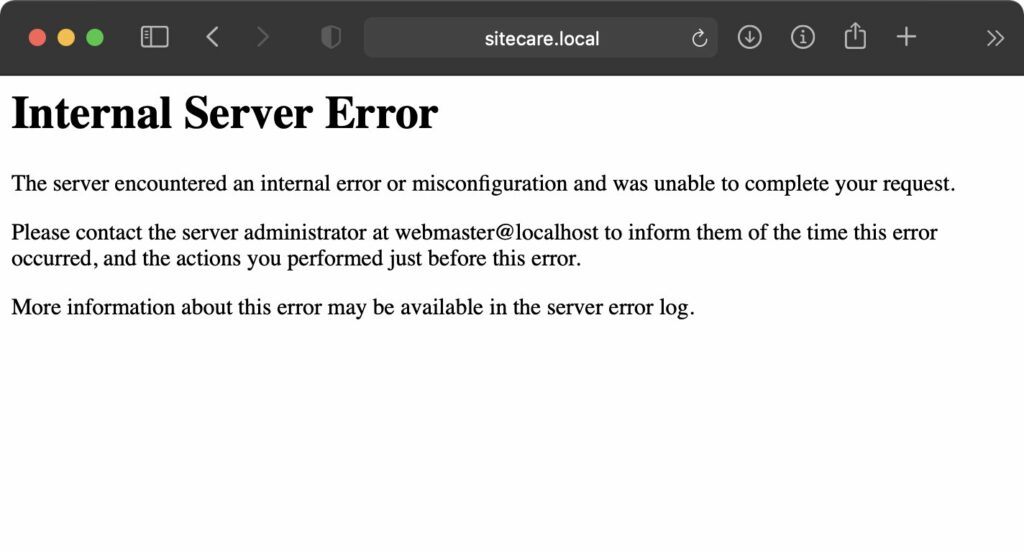
What causes it: A corrupted .htaccess file (most common), PHP memory limit exhaustion, plugin or theme conflicts, or corrupted WordPress core files.
How to fix a 500 Internal Server Error:
- Rename your .htaccess file. Connect via FTP, go to your site’s root folder, and rename
.htaccessto.htaccess_old. Reload your site. If it loads, generate a fresh.htaccessby going to Settings > Permalinks in your admin dashboard and clicking Save Changes. - Deactivate all plugins. If renaming .htaccess doesn’t help, disable plugins using the FTP method described in the triage section.
- Increase your PHP memory limit. Add
define('WP_MEMORY_LIMIT', '256M');towp-config.php. - Re-upload WordPress core files. Download a fresh copy of WordPress from wordpress.org, delete only the
wp-adminandwp-includesfolders from your server, and upload the fresh copies. This replaces corrupted core files without touching your content.
Fatal Error — PHP Memory Limit Exhausted
WordPress allocates a default PHP memory limit of 40MB for single sites (64MB for Multisite). For most modern WordPress sites with even a handful of active plugins, that’s often not enough — particularly when running resource-intensive operations like importing products, running backups, or using a page builder.
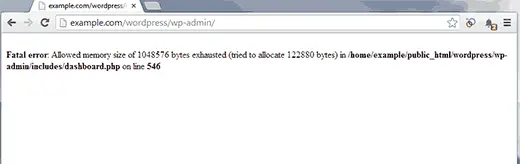
The error looks like: “Fatal error: Allowed memory size of 33554432 bytes exhausted (tried to allocate 2348617 bytes)”
What causes it: Too many active plugins, resource-intensive themes or page builders, large media imports, or a hosting plan with a very low PHP memory cap.
How to fix PHP memory exhausted errors:
- Increase the limit via wp-config.php. Add this line before the “stop editing” comment:
define('WP_MEMORY_LIMIT', '256M');For WooCommerce stores and large sites, consider 512MB. Note: your hosting plan sets the ceiling — if your host caps PHP at 128MB, this line can’t exceed that cap without a plan upgrade.
- Identify the memory hog. Deactivate plugins one by one and check which one causes the error to disappear. Some image optimization plugins and page builders are known memory consumers.
- Consider upgrading your hosting plan. Shared hosting plans typically offer 128MB–256MB PHP memory. Managed WordPress hosts often provide 256MB–512MB by default.
Parse Error / Syntax Error
Unlike the White Screen of Death, a Parse Error is actually informative — it tells you exactly which file is broken and approximately which line contains the problem. This error appears when WordPress encounters malformed PHP code, usually after someone manually added a code snippet.
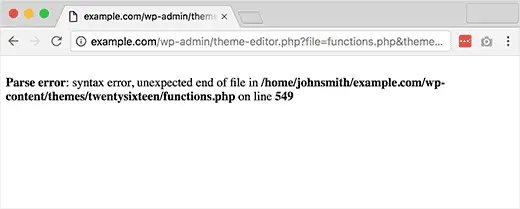
The error looks like: “Parse error: syntax error, unexpected ‘$variable’ in /home/user/public_html/wp-content/themes/mytheme/functions.php on line 87”
What causes it: A missing semicolon, an unclosed bracket, a mismatched quotation mark, or an incomplete code snippet added to functions.php or another PHP file.
How to fix a Parse/Syntax Error:
- Read the error message carefully. Note the file path and line number.
- Access the file via FTP. Download the file, open it in a text editor, and go to the line indicated. Check the lines immediately before and after — the error is usually on or near the reported line.
- Fix or remove the broken code. If you recently added a snippet, remove it entirely. If you need the code, check for missing semicolons (
;), unclosed brackets, or mismatched quotes. - Upload the corrected file. Save and replace the file on your server. The error should disappear immediately.
Maximum Execution Time Exceeded
PHP scripts have a time limit set by your hosting provider — typically 30 to 60 seconds. When a script takes longer than this limit to complete, WordPress throws a “Maximum execution time exceeded” fatal error. This most commonly surfaces during large plugin or theme updates, database imports, or backup operations.
What causes it: A slow or poorly optimized plugin, a large data import, a backup operation timing out, or a hosting plan with a very low execution time limit.
How to fix maximum execution time errors:
- Increase via .htaccess. Add this line to your
.htaccessfile (back it up first):php_value max_execution_time 120 - Increase via wp-config.php. Add this line:
set_time_limit(300); - Identify the slow script. If the error appears after activating a specific plugin, that plugin likely contains an inefficient database query. Deactivate it and look for an alternative.
- Contact your host. If you can’t modify php.ini or .htaccess on your plan, ask your hosting provider to increase the maximum execution time for your account.
Database Errors
Your WordPress database is the backbone of your site. It stores every post, page, setting, user, and plugin configuration. When something breaks the connection between WordPress and the database, your site can’t display any content at all.
Error Establishing a Database Connection
“Error Establishing a Database Connection” is one of the most disruptive WordPress errors because it takes down both the front end of your site and your admin dashboard simultaneously. The cause is almost always one of three things: wrong credentials, a server problem, or a corrupted database.

Follow this three-tier diagnosis approach:
Tier 1 — Check your wp-config.php credentials (most common fix):
- Connect via FTP and open
wp-config.phpin your site’s root folder. - Verify these four values match exactly what your hosting control panel shows:
define( 'DB_NAME', 'your_database_name' ); define( 'DB_USER', 'your_database_username' ); define( 'DB_PASSWORD', 'your_database_password' ); define( 'DB_HOST', 'localhost' ); - If any value is wrong, correct it and save the file. DB_HOST is usually
localhostbut can vary — check with your host if unsure.
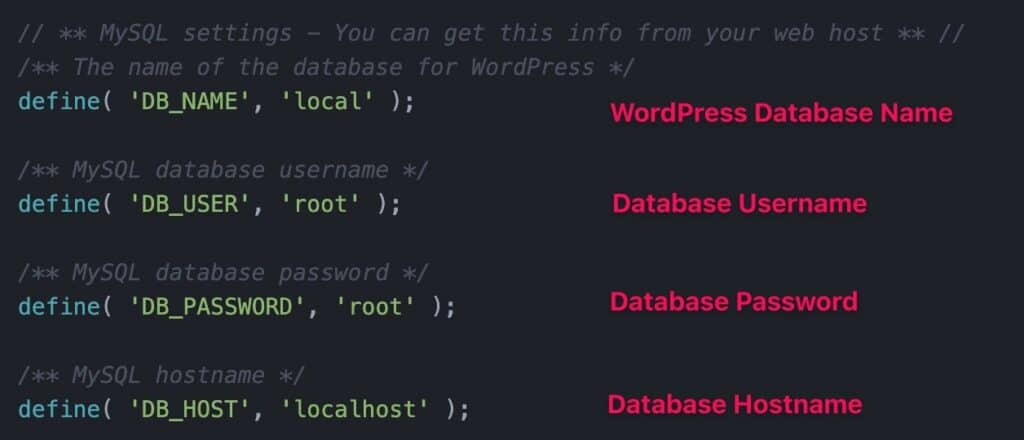
Tier 2 — Run the WordPress database repair tool (if credentials are correct):
- Add this line to
wp-config.php:define('WP_ALLOW_REPAIR', true); - Visit:
https://yoursite.com/wp-admin/maint/repair.php(documented at WordPress developer docs) - Click “Repair Database”. When finished, remove the
WP_ALLOW_REPAIRline fromwp-config.php.
Tier 3 — Contact your hosting provider:
If credentials are correct and the repair tool doesn’t help, the database server may be down, your database may have hit its quota, or — in rare cases — your site may have been compromised. Contact your host with details about the error. If you suspect a hack, use Sucuri SiteCheck to scan your site.
HTTP Status Code Errors
HTTP status codes are standardized responses that servers send when processing web requests. For WordPress sites, the most common ones you’ll encounter fall into two families: 4xx errors (something wrong with the request or URL) and 5xx errors (something wrong with the server).
403 Forbidden Error
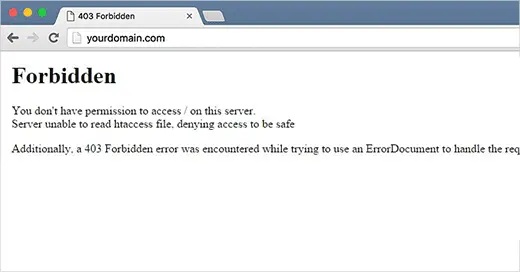
A 403 error means your server understood the request but refuses to grant access. When it shows up on your own WordPress site, it’s almost always a file permissions problem or a corrupted .htaccess file.
WordPress recommended file permissions:
| Item | Recommended Permission |
|---|---|
| WordPress directories | 755 |
| WordPress files | 644 |
| wp-config.php | 600 (most restrictive — contains DB credentials) |
| .htaccess | 644 |
How to fix a 403 Forbidden Error:
- Regenerate your .htaccess file. In your WordPress admin, go to Settings > Permalinks and click Save Changes without making any other changes. This creates a fresh .htaccess file with correct default rules.
- Check and reset file permissions. Connect via FTP or your host’s File Manager. Right-click on the WordPress root directory and set permissions to 755. For individual files, set to 644.
- Deactivate security plugins temporarily. Some security plugins (like Wordfence) can trigger 403 errors if misconfigured. Disable your security plugin via FTP and see if access is restored.
- Contact your host. If none of the above works, the issue may be a server-level security rule that only your host can modify.
404 Page Not Found Error
The 404 error appears when a visitor requests a URL that WordPress can’t match to any content. Sometimes this affects only specific pages; other times it breaks every post and page on your site while the homepage still works fine.
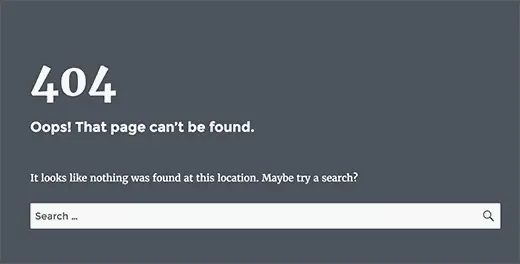
What causes it: Changed permalink structure, a deleted or corrupted .htaccess file, or mod_rewrite not enabled on your server.
How to fix WordPress 404 errors:
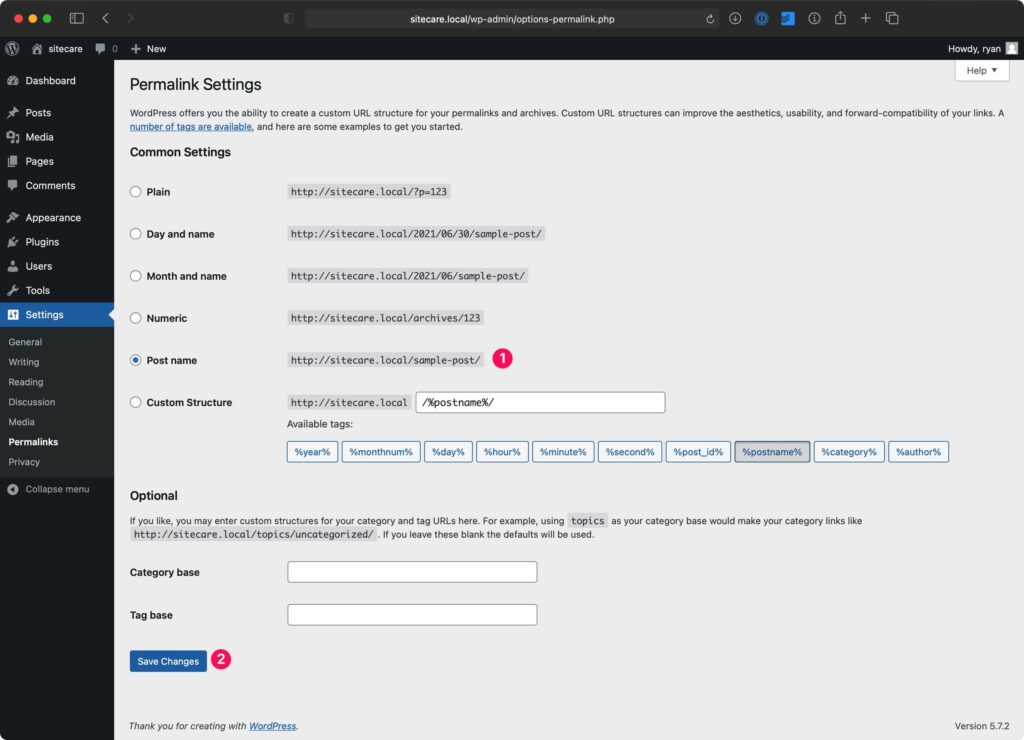
- Refresh your permalink structure. Go to Settings > Permalinks in your WordPress admin dashboard and click Save Changes without changing anything. This forces WordPress to regenerate the
.htaccessrewrite rules. - Manually update your .htaccess file if Step 1 doesn’t work. Replace the WordPress section with:
# BEGIN WordPress <IfModule mod_rewrite.c> RewriteEngine On RewriteBase / RewriteRule ^index\.php$ - [L] RewriteCond %{REQUEST_FILENAME} !-f RewriteCond %{REQUEST_FILENAME} !-d RewriteRule . /index.php [L] </IfModule> # END WordPress - Contact your host about mod_rewrite. If the .htaccess fix doesn’t work, mod_rewrite may not be enabled on your server. Your hosting provider can enable it for you.
502, 503, and 504 Gateway Errors
These three error codes are often confused because they look similar but point to different problems in how servers communicate with each other.
| Error Code | Meaning | Most Common Cause | First Action |
|---|---|---|---|
| 502 Bad Gateway | Proxy server got an invalid response from upstream | Server overload, faulty plugin, CDN misconfiguration | Reload page, then check CDN/firewall |
| 503 Service Unavailable | Server is too busy or in maintenance | Traffic spike, server maintenance, resource-heavy plugin | Wait a few minutes, then disable plugins |
| 504 Gateway Timeout | Proxy server timed out waiting for upstream response | Slow server processing, high traffic, database overload | Reload, check DNS and CDN settings |
How to approach all three:
- Wait and reload. If the error is caused by a temporary traffic spike or routine maintenance, it often resolves in a few minutes.
- Disable plugins and switch theme. A plugin making excessive database queries or API calls can overwhelm your server. Deactivate all plugins via FTP and switch to a default theme to test.
- Disable your CDN temporarily. Cloudflare and other CDN/proxy services occasionally cause 5xx errors independently of your server. Disable your CDN and check if the error clears.
- Contact your hosting provider. If the error persists after the above steps, the problem likely lies with your server infrastructure — CPU limits, RAM limits, or database connection pool exhaustion — which only your host can address.
Admin and Login Errors
These errors prevent access to your WordPress dashboard, making them particularly stressful because the usual admin-based fixes are unavailable.
WordPress Stuck in Maintenance Mode
During an update, WordPress creates a .maintenance file in your site’s root folder that temporarily disables the site while files are being updated. If the update fails or is interrupted — by a browser tab closing, a timeout, or running too many updates at once — that file stays behind and keeps your site offline indefinitely.
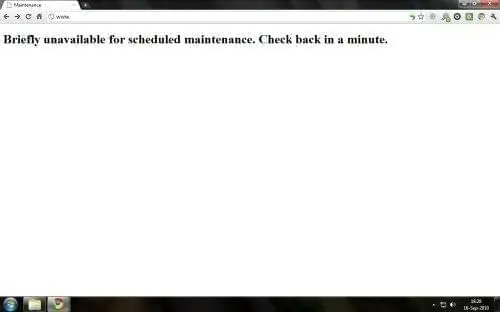
The fix is straightforward:
- Connect to your site via FTP or open your host’s File Manager.
- Navigate to your site’s root directory (usually
public_html/). - Make sure hidden files are visible (in FileZilla: Server > Force showing hidden files).
- Find and delete the file named
.maintenance. - Reload your site — it should be back immediately.
After deleting the file, check your WordPress dashboard to see whether the update that triggered the maintenance mode actually completed. If not, run the update again.
Login Page Keeps Redirecting
You enter your WordPress credentials, hit Log In, and the page just refreshes back to the login form. No error message, no confirmation — just an endless loop.
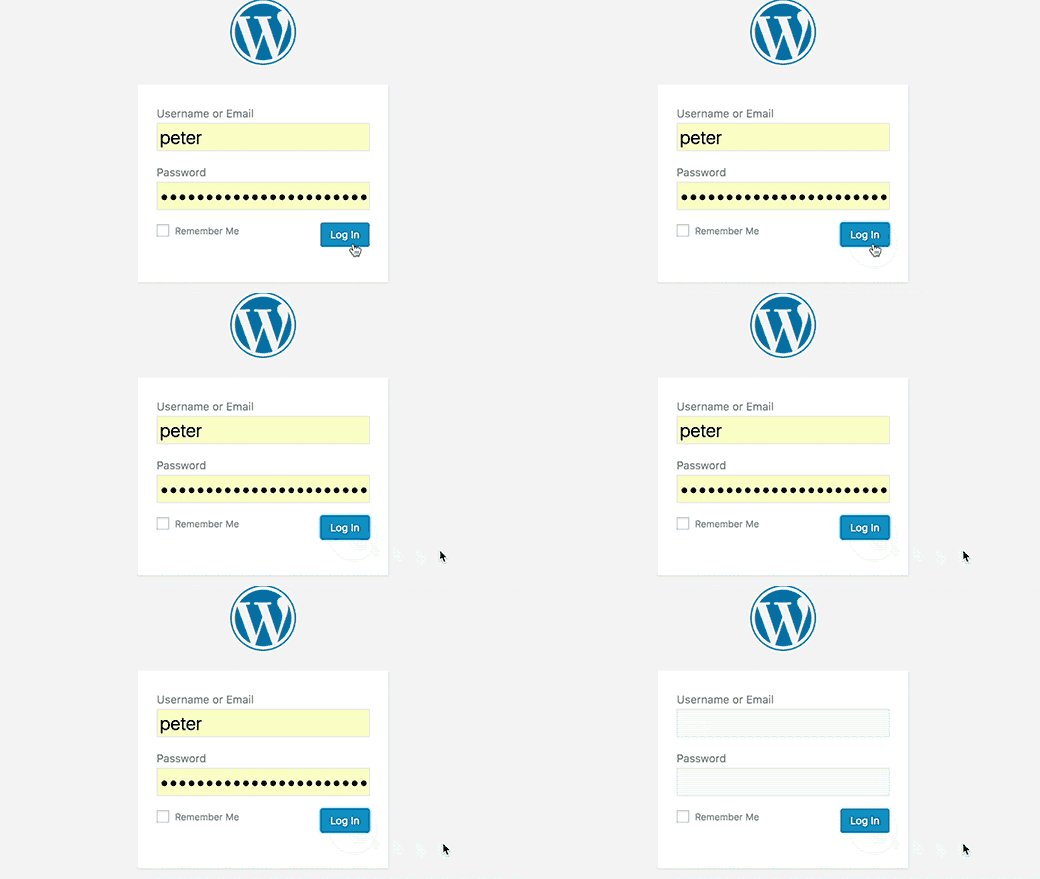
What causes it: A mismatch between your WordPress Address (URL) and Site Address (URL) settings, a corrupted .htaccess file, or browser cookies that need to be cleared.
How to fix the WordPress login redirect loop:
- Clear your browser cookies. Use Ctrl+Shift+Delete (Cmd+Shift+Delete on Mac) to clear cookies for your site, then try logging in again. This resolves the issue in many cases.
- Check WordPress URL settings via wp-config.php. Add these two lines to
wp-config.php(replace with your actual domain):define('WP_HOME','https://yourdomain.com'); define('WP_SITEURL','https://yourdomain.com'); - Regenerate your .htaccess file. Delete the existing
.htaccessfile via FTP, then create a new one with the default WordPress rules (see the 404 error section above for the code). - Deactivate all plugins. A misconfigured redirect plugin or security plugin can cause this loop. Rename the plugins folder via FTP to deactivate everything.
Locked Out of the WordPress Admin
Getting locked out of your WordPress admin is more common than it should be — it can happen from a forgotten password, a security plugin blocking too many login attempts, or a more serious issue like a failed update or database corruption.
How to regain admin access:
- Use the “Lost your password?” link. The simplest option — click it on the login page and reset via your email address.
- Reset your password via phpMyAdmin. In your hosting control panel, open phpMyAdmin. Select your WordPress database, open the
wp_userstable, find your admin user, and click Edit. In theuser_passfield, select MD5 from the function dropdown and type your new password in the value field. Save. - Deactivate your security plugin via FTP. If a security plugin (like Wordfence or iThemes Security) locked you out after too many failed login attempts, go to
wp-content/plugins/and rename that specific plugin’s folder to deactivate it.
Upload and Media Errors
WordPress makes media management straightforward — until it doesn’t. Upload errors are usually caused by one of two things: insufficient disk space or incorrect file permissions on the uploads directory.
Unable to Upload Images / HTTP Image Upload Error
What causes it: Incorrect file permissions on the wp-content/uploads/ folder, insufficient disk space on your hosting account, memory limits reached during image processing, or a conflict with an image optimization plugin.
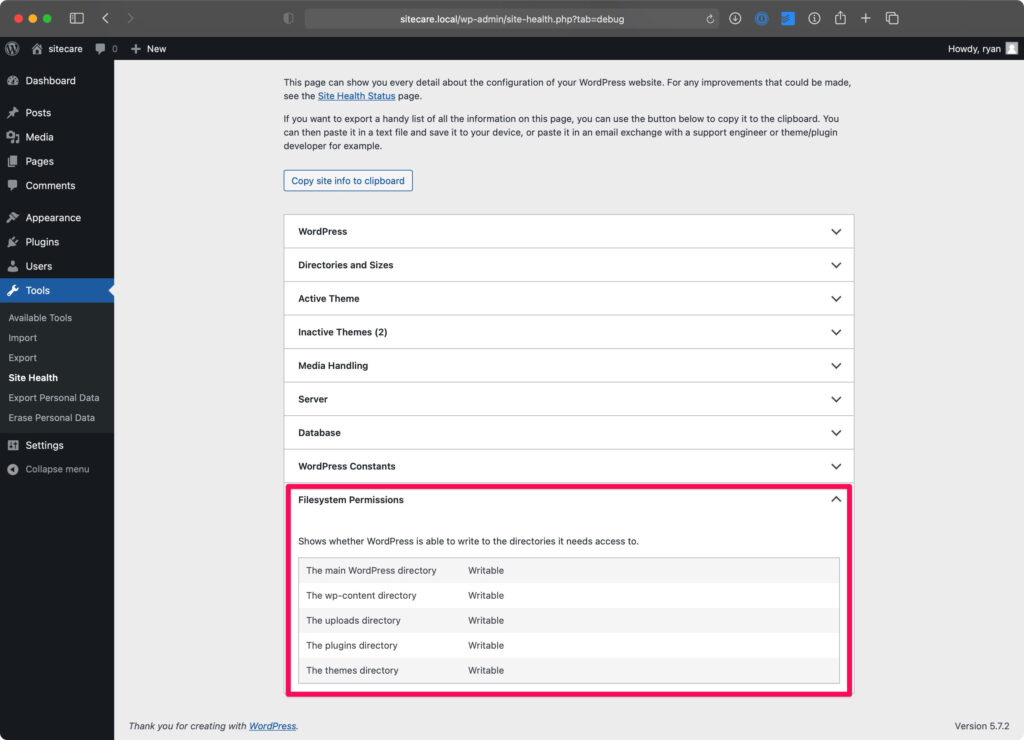
How to fix image upload errors:
- Check Site Health first. Go to Tools > Site Health in your WordPress admin and click the Info tab. Look at the Filesystem Permissions section — it shows whether your uploads folder is writable, and the Uploads directory size compared to your available disk space.
- Fix file permissions via FTP. Navigate to
wp-content/and right-click theuploadsfolder. Set its numeric permissions to 755. Then right-click again, choose File Permissions, set to 644, check “Recurse into subdirectories”, and select “Apply to files only.” - Switch the image editor from Imagick to GD Library. WordPress defaults to the Imagick image editor, which uses more memory. If you’re hitting memory limits during upload, switching to GD Library can help. Add this to your
functions.php:add_filter( 'wp_image_editors', function( $editors ) { return array( 'WP_Image_Editor_GD', 'WP_Image_Editor_Imagick' ); }); - Check your disk space. If your server storage is full, no uploads will work until you free up space or upgrade your hosting plan.
How to Prevent Common WordPress Errors
Most WordPress errors are preventable. The sites that stay up and run smoothly aren’t necessarily the most technically sophisticated — they’re the ones where the owner follows a few consistent habits. For a deeper look at keeping WordPress healthy, the WPlasma guides cover maintenance, security, and performance in detail. Here’s what makes the biggest difference:
- Keep WordPress, plugins, and themes updated. The current stable release is WordPress 6.9.4 (March 11, 2026). Running outdated versions leaves you exposed to security vulnerabilities and compatibility problems that cause errors.
- Use a staging site for major updates. Before updating a plugin that powers a critical feature (WooCommerce, a page builder, a membership plugin), test the update on a staging copy of your site first. Most managed WordPress hosts provide one-click staging environments.
- Set up automated daily backups. A backup plugin like UpdraftPlus or Jetpack makes restoring from any error a 5-minute process instead of a crisis. Store backups off-server (Google Drive, Dropbox, or Amazon S3).
- Practice plugin hygiene. Don’t just deactivate unused plugins — delete them. Inactive plugins can still be exploited for security vulnerabilities and add bloat that contributes to performance errors.
- Check your PHP version. WordPress officially recommends PHP 8.3 or greater as of 2026 (see official WordPress server requirements). Running PHP 7.4 or earlier not only slows your site but leaves you exposed to security issues, since those versions no longer receive security updates. Check your PHP version in Tools > Site Health.
- Choose a host with adequate PHP memory limits. Standard WordPress sites perform well with 256MB of PHP memory. If your host’s plan caps PHP at 64MB or 128MB and doesn’t allow increases, you’ll run into memory exhaustion errors regularly.
- Use a child theme when customizing your theme. Edits made directly to a parent theme’s files get overwritten every time the theme updates. A child theme preserves your customizations and eliminates a whole category of “my changes disappeared” errors.
- Monitor with WordPress Site Health. Go to Tools > Site Health regularly and address any Critical issues flagged there. WordPress uses this tool to surface configuration problems before they become errors.
When to Fix It Yourself vs. Contact Your Hosting Provider
Not every WordPress error requires a support ticket. Here’s a practical breakdown of where the DIY boundary typically sits.
Fix it yourself:
- Parse errors (the error message tells you the exact file and line)
- Maintenance mode stuck (delete one file via FTP)
- 404 errors caused by permalink settings (two clicks in your admin)
- Plugin or theme conflicts (rename folder via FTP to deactivate)
- PHP memory limit increases via wp-config.php
- Login redirect loops (clear cookies, check URL settings)
- File permission corrections (change via FTP or File Manager)
Contact your hosting provider:
- 502/503/504 errors that persist after disabling plugins and CDN
- Database server down or database quota exceeded
- Disk space exhausted at the server level
- Database permissions errors (like “CREATE command denied to user”)
- PHP configuration changes your plan doesn’t allow (php.ini edits, execution time limits)
- A hacked or compromised site — your host can assist with incident response and cleanup
Frequently Asked Questions
What is the WordPress White Screen of Death?
The White Screen of Death (WSoD) is an error state where your WordPress site displays a completely blank white page with no content or error message. It’s caused by a PHP fatal error — most commonly a plugin conflict, PHP memory exhaustion, or a faulty theme. In WordPress 5.2 and later, the WSoD is often accompanied by an email to your admin address with recovery instructions. Fix it by checking that email, then deactivating plugins one by one via FTP until the error clears.
How do I fix “Error Establishing a Database Connection”?
Start by checking your wp-config.php file to verify that the DB_NAME, DB_USER, DB_PASSWORD, and DB_HOST values are correct. If they are, try the WordPress built-in database repair tool by adding define('WP_ALLOW_REPAIR', true); to wp-config.php and visiting yourdomain.com/wp-admin/maint/repair.php. If neither works, contact your hosting provider — the database server may be down or your database may have been compromised.
What causes a 500 Internal Server Error in WordPress?
The 500 error is most commonly caused by a corrupted .htaccess file or PHP memory exhaustion. Start by renaming your .htaccess file to .htaccess_old via FTP and reloading your site. If that clears it, regenerate a fresh .htaccess by going to Settings > Permalinks and clicking Save Changes. If renaming .htaccess doesn’t help, try deactivating all plugins and increasing your PHP memory limit.
How do I increase the PHP memory limit in WordPress?
Add define('WP_MEMORY_LIMIT', '256M'); to your wp-config.php file, before the line that says “That’s all, stop editing.” For large WooCommerce sites or membership sites, consider 512MB. Note that your hosting plan sets an upper ceiling — if your host caps PHP memory at 128MB, you’ll need to contact them or upgrade your plan to go higher.
How do I fix a WordPress 404 error on posts but not the homepage?
This is almost always a permalink issue. Go to your WordPress admin dashboard, navigate to Settings > Permalinks, and click Save Changes without changing any settings. This regenerates your .htaccess file with the correct rewrite rules. If that doesn’t work, manually replace the WordPress section of your .htaccess with the default rewrite rules found in the WordPress documentation.
Why is my WordPress site stuck in maintenance mode?
During an update, WordPress creates a hidden file called .maintenance in your site’s root folder. If the update was interrupted, this file stays behind and keeps your site offline. Fix it by connecting via FTP or File Manager, navigating to your site root, enabling hidden file visibility, and deleting the .maintenance file. Your site will be back online immediately.
What is a Parse Error in WordPress and how do I fix it?
A Parse Error (also called a Syntax Error) happens when WordPress encounters malformed PHP code. The error message tells you exactly which file is broken and approximately which line contains the problem. Connect to your site via FTP, download the listed file, open it in a text editor, and look at the area around the reported line number. Common causes are missing semicolons, unclosed brackets, or an incomplete code snippet that was pasted in incorrectly.
How do I fix a 403 Forbidden Error in WordPress?
Start by regenerating your .htaccess file: go to Settings > Permalinks and click Save Changes. If that doesn’t work, check your file permissions via FTP — directories should be 755, files should be 644, and wp-config.php should be 600. If you have a security plugin like Wordfence active, try deactivating it via FTP to see if it’s the cause of the lockout.
What is the difference between 502, 503, and 504 errors?
A 502 Bad Gateway error means a proxy server received an invalid response from an upstream server. A 503 Service Unavailable error means your server is overloaded or undergoing maintenance. A 504 Gateway Timeout means the proxy server timed out waiting for the upstream server to respond. All three often resolve on their own within minutes; if they persist, disabling your CDN and contacting your host is the recommended next step.
How can I tell if a plugin is causing my WordPress error?
The fastest way: connect via FTP, navigate to wp-content/, and rename the plugins folder to plugins_old. This deactivates all plugins instantly. If your site loads normally, a plugin is the culprit. Rename the folder back to plugins, then deactivate and reactivate plugins one by one from your WordPress admin until the error returns — that’s the problematic plugin.
Do WordPress errors affect my SEO?
Yes — 404 errors on pages Google has indexed can affect your search ranking if left unaddressed. 500, 502, 503, and 504 errors tell search engines your site is unavailable, which can lead to crawl errors and ranking drops if the errors persist for more than a few days. Fix high-severity errors immediately; for 404 errors, use 301 redirects to guide both users and search engines to the correct page.
Final Thoughts
WordPress errors look scarier than they usually are. The vast majority trace back to three actions: deactivating plugins, checking .htaccess, and adjusting PHP memory. Master those three moves and you can handle most issues that come your way.
What separates sites that stay up from sites that constantly battle errors isn’t technical skill — it’s routine maintenance. Regular backups, timely updates, good plugin hygiene, and a host that provides adequate resources eliminate most errors before they start.
Keep this guide bookmarked for the next time something breaks. And when it does break — check your admin email first. WordPress 5.2’s built-in recovery system gives you a significant head start on diagnosis before you need to touch a single file.
