


Most guides on WordPress database plugins hand you a list of twelve tools and leave you to figure out which one you actually need. That’s not particularly helpful when some plugins handle backups, others clean up junk, and still others help you store and display user-submitted data — and the right choice depends entirely on your situation.
This guide takes a different approach. Before recommending any specific plugin, it explains the five distinct types of database tools and what each one does. Once you know which category fits your needs, picking the best plugin in that group becomes straightforward.
All pricing figures were verified in March 2026. Plugin install counts are sourced from WordPress.org.
The Short Answer (For Readers in a Hurry)
Not sure which category you need? Here’s a quick breakdown of the best options by use case, based on hands-on testing and verified data:
| What You Need | Best Free Pick | Best Paid Pick | Best For |
|---|---|---|---|
| Database cleanup & optimization | WP-Sweep | WP-Optimize Premium ($49/yr) | Removing bloat, speeding up queries |
| Database backups | UpdraftPlus | Duplicator Pro ($79/yr) | Full DB copies, offsite storage |
| Storing & displaying form data | Formidable Forms Lite | Formidable Forms Pro ($39.50/yr) | Searchable databases, directories |
| Domain / host migration | Search & Replace Everything | Duplicator Pro ($79/yr) | URL replacement, full site moves |
| Database reset (dev/staging only) | DB Reset Pro | — | Wiping test environments cleanly |
| Custom site search indexing | — | SearchWP ($99/yr) | Replacing WordPress default search |
Who needs a database plugin right now: Sites that have been live for six months or more, WooCommerce stores processing regular orders, and any site that recently went through a migration or uninstalled multiple plugins.
Who can wait: Brand-new WordPress installs with minimal content and no active form data collection.
Why Your WordPress Database Needs Attention
Every time someone visits your site, submits a form, leaves a comment, or you publish a post, WordPress writes to its MySQL database. That’s expected — it’s how the platform works. What’s less obvious is what happens over time.
Post revisions pile up. WordPress saves a new copy of your content every time you hit “Update,” and those old versions don’t disappear automatically. Spam comments, even the ones you mark as spam, stay in the database until you clear them. Plugins that you uninstalled months ago often leave behind orphaned tables and option rows. WooCommerce adds its own layer of data — customer sessions, order meta, and product variations — all of which accumulate quickly on busy stores.
The practical result: a database that was 20MB when you launched can balloon to 200MB or more after a couple of years. Larger tables mean slower queries, and slower queries mean slower pages.
Three distinct operations address this:
- Cleaning: Removing data that’s no longer needed — old revisions, trashed posts, spam comments, expired transients, orphaned plugin records. You’re reducing volume.
- Optimizing: Defragmenting the database tables that remain so they run more efficiently. Like defragging a hard drive — you’re not removing data, you’re reorganizing it. MySQL tables develop overhead as rows are deleted; optimization reclaims that space and speeds up queries.
- Backing up: Creating a complete copy of your database so you can restore it after an incident. This is not optional before running any cleanup or optimization.
Most sites need all three, but not all plugins do all three — which is why understanding the categories matters.
The 5 Types of WordPress Database Plugins
Grouping these tools by function makes the decision much easier. Here’s what each category does and when you’d reach for it.
1. Database Cleaners & Optimizers
These plugins remove unnecessary data and defragment your tables. They’re what most people think of when they search for a “WordPress database plugin.” Good choices here include WP-Optimize, WP-Sweep, Advanced Database Cleaner, and WP-DBManager.
Best for: Any site that’s been live for six months or more, sites that have had multiple plugins installed and removed, and WooCommerce stores where order data builds up fast.
2. Database Backup Plugins
Before touching anything in your database, you need a reliable backup. Backup plugins create snapshots of your database (and usually your full site) and store them somewhere safe — Google Drive, Dropbox, Amazon S3, or your local computer. UpdraftPlus and Duplicator are the two most-used options in this category.
Best for: Every WordPress site. No exceptions.
3. Data Management & Relational Database Plugins
These handle a completely different problem: collecting data from users through forms and making it searchable and displayable on your site. If you’re building a job board, a recipe database, a property listings page, or any other frontend that shows user-submitted data, this is the category you need. Formidable Forms and WPForms are the main players here.
Best for: Sites that collect form submissions and need to display or search that data on the frontend.
4. Database Migration & Search-Replace Plugins
When you move your site to a new domain or server, your database contains hundreds of references to the old URL. These plugins find and replace all of those references correctly — including serialized data, which breaks if you just do a simple text swap. Search & Replace Everything is the go-to free tool for this.
Best for: Domain migrations, switching hosts, pushing staging to production.
5. Database Reset & Developer Tools
Occasionally a developer needs to wipe a WordPress database clean and start fresh — without reinstalling WordPress and losing uploaded media or theme files. DB Reset Pro and WP-DBManager’s reset functionality cover this. These are not for production sites.
Best for: Development environments, plugin testing, building client staging sites.
Best Database Optimization & Cleaner Plugins
Database cleanup is where most site owners start, and it’s where the plugin market is most competitive. Here are the four options worth considering, with honest notes on what each one costs and where it falls short.
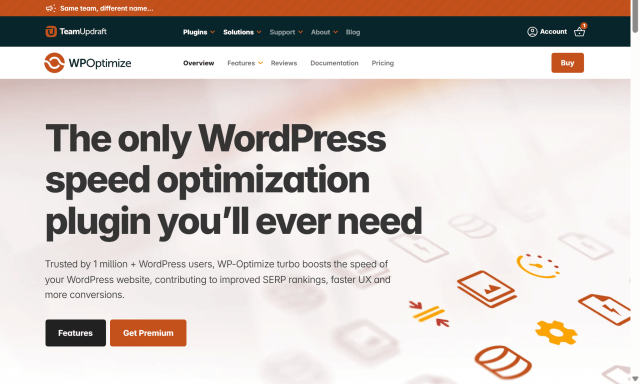
WP-Optimize (Free + Premium)
WP-Optimize stands out because it’s not just a database cleaner — it also handles image compression and page caching. For sites that want to address multiple performance factors with one plugin rather than three, that’s genuinely useful.
On the database side, it clears revisions, spam comments, trashed posts, expired transients, and orphaned data. Scheduled automatic cleanups mean you can set it and mostly forget it. The free version covers the core database cleanup functionality. Premium ($49/year for 1 site, March 2026) adds image lazy loading, WebP conversion, more granular scheduling, and deletion of unused images from your media library.
- Pros: All-in-one performance tool; scheduled cleanups; multisite support; 1M+ active installs; actively maintained (last updated Feb 2026)
- Cons: Advanced cache and image features are Premium-only; free version is solid but doesn’t give you the full picture
Best for: Site owners who want database cleanup plus caching and image optimization in a single plugin.
Advanced Database Cleaner (Free + Pro)
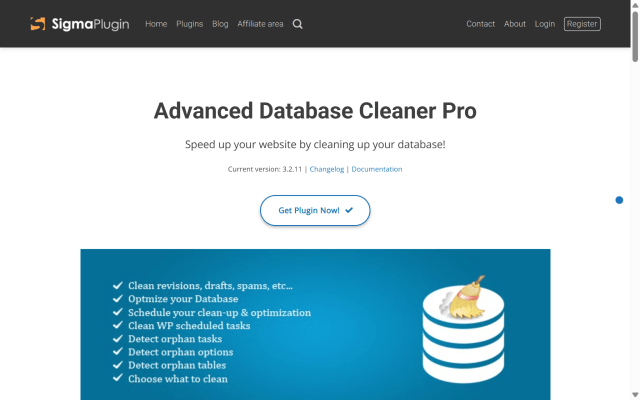
If you want more control than WP-Optimize offers over exactly what gets cleaned, Advanced Database Cleaner is worth a look. It’s particularly good at identifying orphaned database tables — the leftover structures that plugins leave behind when they’re uninstalled.
The Pro version uses a “Remote SmartScan” to accurately determine which tables belong to which plugins, which reduces the risk of accidentally deleting something you need. Event logging and analytics charts are also Pro-only. The pricing model is unusual in a good way: Pro uses lifetime pricing starting at $39 for 2 sites (March 2026) rather than annual subscriptions.
- Pros: Granular control over cleanup targets; good at orphaned data detection; lifetime pricing; multisite compatible; 200K+ installs
- Cons: Free version limits scheduled cleanup tasks; UI can feel dense for non-technical users
Best for: Developers and advanced users who want precise control over their database cleanup operations.
WP-Sweep (Free)
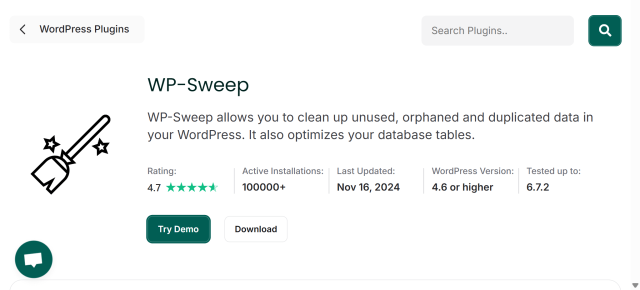
WP-Sweep is free, lightweight, and takes a safety-first approach: it uses WordPress’s own delete functions rather than direct SQL queries. That distinction matters. Raw SQL deletes can leave behind inconsistencies that WordPress’s internal cleanup hooks normally handle. WP-Sweep avoids that problem by working through the API.
It also supports WP-CLI commands (wp sweep --all) and REST API endpoints, which is handy for developers who manage sites from the command line. The main limitation is compatibility: it has known conflicts with Elementor, WPML, and Polylang. If your site uses any of those, test carefully before running it.
- Pros: Free; safe approach via native WP functions; WP-CLI support; REST API endpoints; 100K+ installs
- Cons: Known compatibility issues with Elementor, WPML, Polylang; last updated April 2025 (~11 months); no paid upgrade path
Best for: Small sites and developers who want a safe, free cleanup tool and aren’t running page builders that conflict with it.
WP-DBManager (Free)
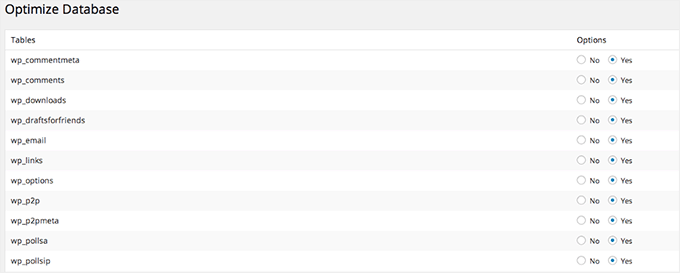
WP-DBManager is fully free and covers more ground than its competitors in this tier: it optimizes and repairs tables, schedules automated backups, and even lets you run custom SQL queries directly from your WordPress dashboard. For anyone who knows a little SQL, that last feature is genuinely useful.
There’s a significant caveat, though. Its backup functionality requires server-level access to mysqldump and mysql binaries. Many managed WordPress hosting providers — SiteGround, Kinsta, WP Engine, and others — restrict shell access, which means the backup features simply won’t work on those platforms. The optimization and repair features typically still work, but don’t assume the full feature set is available until you’ve tested it on your specific host.
It’s also worth noting the plugin hasn’t been updated since November 2024 — about 16 months at time of writing.
- Pros: Completely free; covers optimization, repair, backups, and SQL queries; automated scheduling; 60K+ installs
- Cons: Backup features require mysqldump shell access (unavailable on most managed hosts); last updated November 2024; interface feels dated
Best for: Self-hosted or VPS environments where shell access is available, and budget is the primary constraint.
Optimization Plugins Pricing Summary (March 2026)
| Plugin | Free Version | Paid Starts At | Key Paid Feature | Active Installs |
|---|---|---|---|---|
| WP-Optimize | ✅ | $49/yr (1 site) | Image compression + caching + advanced scheduling | 1M+ |
| Advanced DB Cleaner | ✅ | $39 lifetime (2 sites) | Unlimited schedules, event logging, analytics | 200K+ |
| WP-Sweep | ✅ (free only) | — | — | 100K+ |
| WP-DBManager | ✅ (free only) | — | — (requires mysqldump) | 60K+ |
Best Database Backup Plugins
A backup isn’t optional before running any database operation — cleanup, optimization, migration, or anything else. If something goes wrong and you don’t have a backup, you’re starting over. These are the three most reliable backup options for WordPress.
UpdraftPlus (Free + Premium)
With over 3 million active installs and 154 million total downloads, UpdraftPlus is the most widely used WordPress backup plugin. The free version does more than most sites need: scheduled automated backups stored to Google Drive, Dropbox, Amazon S3, or FTP, with one-click restore.
Premium (~$70/year for 1 site, March 2026) adds incremental backups (only changed data since the last backup, reducing server load), multisite support, and clone/migrate functionality with restore tokens. The pricing page now lives at teamupdraft.com — the same company that makes WP-Optimize.
- Pros: 3M+ installs; wide cloud storage support; solid free version; actively maintained (Mar 2026)
- Cons: Multisite support requires Premium; real-time backups not available even in Premium
Best for: Most WordPress sites that want a reliable, well-supported backup solution without paying anything upfront.
Duplicator Pro
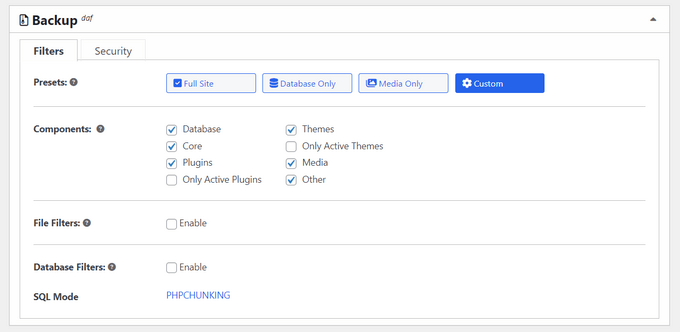
Duplicator does two things well: backups and migrations. If you’re moving your site to a new host or domain, it’s easier to use one tool that creates a package and handles the migration than to use a backup plugin separately from a migration plugin.
The free version handles basic site packaging. Duplicator Pro ($79/year for 2 sites, March 2026) adds scheduled cloud backups, cloud storage integrations (Google Drive, Dropbox, S3, OneDrive, FTP/SFTP), one-click restore points, and multisite support at the Pro tier. It also updates all database URLs during migration, which is the step that breaks most DIY site moves.
- Pros: Backup + migration in one tool; scheduled cloud backups (Pro); URL updating during migration; 1M+ installs; last updated Mar 18, 2026
- Cons: Free version is limited; multisite requires Pro ($399/yr); can feel complex for users who only need simple backups
Best for: Sites that frequently migrate between hosts or environments, or agencies managing multiple WordPress installs.
Jetpack Backup (VaultPress)
Jetpack Backup offers real-time incremental backups — every change is saved as it happens, not on a schedule. That’s particularly useful for WooCommerce stores where order data is written continuously and daily backups might miss a few hours of transactions.
The downside is the dependency: you need to install and connect the full Jetpack plugin and link it to a WordPress.com account, even if you only want backup functionality. For sites that already use Jetpack for other features, that’s not an issue. For those who don’t, it’s extra overhead.
- Pros: Real-time incremental backups; WooCommerce order protection; mobile app; activity log integration
- Cons: Requires Jetpack connection and WordPress.com account; feels bloated if backup is all you need; pricing starts ~$4.95/month
Best for: WooCommerce stores or high-traffic sites that need real-time backups and already use or are open to Jetpack’s broader feature set.
Best Data Management & Relational Database Plugins
This category handles a completely different problem than cleanup or backups. If your site collects form submissions — contact inquiries, job applications, property listings, event registrations — and you need to store, search, filter, and display that data on your frontend, you need a data management plugin.

Formidable Forms (Free + Pro)
Formidable Forms is the most capable option in this category. Beyond collecting form data, its Views addon lets you pull that data back out and display it on the frontend in tables, grids, or calendars. That makes it possible to build searchable job boards, property directories, recipe databases, or user-generated content pages — without custom development.
The Views addon, dynamic field relationships (lookup fields that cascade based on prior selections), and front-end editing are all behind the Pro plan. Formidable Basic starts at $39.50/year for 1 site (March 2026). The 300K+ installs figure is modest compared to WPForms, but Formidable’s users tend to be building more complex applications.
- Pros: Full relational database capabilities; Views addon for frontend display; front-end editing; CSV/XML import and export; 300K+ installs; last updated Mar 2026
- Cons: Views addon is Pro-only; steeper learning curve than WPForms; Basic plan is single-site
Best for: Sites that need to collect data and display it dynamically on the frontend — directories, job boards, listings, or any form-to-database application.
WPForms (Free + Pro)
WPForms is the most installed WordPress form plugin, with over 6 million active installs. It stores form submissions in the WordPress database and surfaces them in a clean backend interface — you can view, search, filter, export, and delete entries without leaving your dashboard.
What WPForms doesn’t do is display that data on the frontend in dynamic ways. It’s a data collection and management tool, not a relational database builder. For straightforward contact forms, lead generation, and basic survey data, that’s perfectly fine. For more complex data relationships, Formidable is the better choice.
Basic starts at $49.50/year for 1 site (introductory; renews at ~$99/year, March 2026).
- Pros: 6M+ installs; extremely easy setup; 2,000+ templates; CRM and email marketing integrations; entry expiry dates; last updated Mar 2026
- Cons: Not a relational database tool; free version limited; entry management features require at least Basic plan
Best for: Sites that collect form data and need to manage it cleanly, without the complexity of a full relational database system.
TablePress (Free + Premium)
TablePress creates tables and stores them in the WordPress database, then lets you display them anywhere via shortcode. It’s ideal for pricing tables, comparison sheets, schedules, or any structured data you maintain manually. The 800K+ active installs make it one of the most popular table plugins in the ecosystem.
The free version handles most use cases. Premium ($89/year or $389 lifetime for 1 site, March 2026) adds column filter dropdowns, server-side processing for very large datasets, REST API access, and automatic periodic imports from external URLs — useful if your table data lives in a spreadsheet that updates regularly.
- Pros: 800K+ installs; no code needed; sortable/filterable tables; import/export CSV and Excel; actively maintained (Mar 2026); lifetime license available
- Cons: Static data only — not a dynamic relational database; limited to table display use cases
Best for: Sites that need to publish and maintain structured data tables — pricing, specs, schedules, comparisons — without user-submitted data.
A Note on WooCommerce Database Management
WooCommerce stores accumulate database bloat faster than standard WordPress sites. The main contributors are the wp_woocommerce_sessions table (active customer sessions that grow continuously), wp_postmeta (order meta, product variation data), and expired transients stored in wp_options. WP-Optimize explicitly targets WooCommerce session data in its cleanup routines, which is one reason it’s often recommended for stores over simpler cleaners. If you run WooCommerce, look for a cleanup plugin that specifically mentions WooCommerce session and order meta cleanup.
Best Database Migration Plugin
When you change your site’s domain or move to a new host, the database contains hundreds of serialized references to the old URL. A simple find-and-replace in phpMyAdmin will break serialized data, which causes site-breaking errors. The right tool handles serialized data correctly.
Search & Replace Everything (Free)
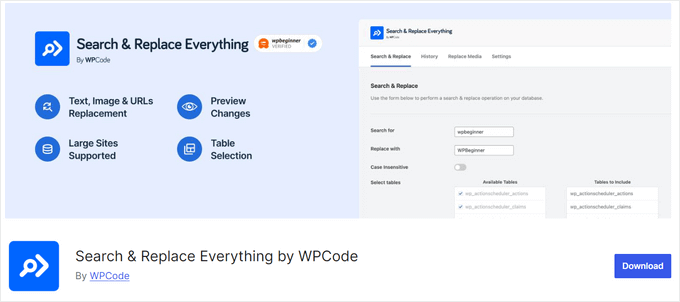
Search & Replace Everything handles WordPress database find-and-replace with serialized data support. You can target specific tables, preview changes before running them, and process large databases without timing out. There’s no undo feature, so the pre-run preview and a fresh backup are essential before using it.
The core functionality is free. Advanced options (detailed change logging, additional file replacement) are tied to a WPCode Pro subscription.
- Pros: Free; handles serialized data correctly; preview before executing; supports large databases; 20K+ installs
- Cons: No undo — changes are permanent; advanced features require WPCode Pro; relatively small install base compared to other tools
Best for: Domain changes, host migrations, and any situation where you need to update URLs or paths across the entire database safely.
Before You Run Any Database Plugin — Safety Checklist
Database operations are not easily reversible. Running an optimizer or cleaner without a backup is the fastest way to turn a performance improvement into a site recovery nightmare. Here’s the checklist to run through before using any database plugin:
- Create a full database backup. Use UpdraftPlus, Duplicator, or your hosting provider’s backup tool. Verify it actually downloaded or saved correctly — don’t assume.
- Test on staging first. If your host offers staging environments (SiteGround, Kinsta, WP Engine, and others do), run the cleanup there before touching production.
- Check plugin compatibility. WP-Sweep conflicts with Elementor, WPML, and Polylang. WP-DBManager may not work on managed hosts. Check the plugin’s “Known issues” section on WordPress.org before installing.
- Know what you’re cleaning. Post revisions, spam comments, and expired transients are generally safe to remove. Core WordPress tables, active customer session data, and WooCommerce order meta need more care.
- Schedule during low-traffic hours. Optimization and cleanup operations can cause brief database locks. Running them at 2 AM rather than noon is a small adjustment with meaningful impact on busy sites.
- Verify the plugin is actively maintained. Check the “Last updated” date on WordPress.org. Plugins that haven’t been updated in 12+ months may not be compatible with your current WordPress and PHP versions.
Free vs. Paid — When Does Upgrading Make Sense?
For most sites, free tools handle the basics just fine. The question is when paying for a premium version actually changes what’s possible for your specific situation.
| Your Situation | Recommended Tier |
|---|---|
| New site, less than 6 months old | Free tools only |
| Growing blog (1–3 years, no ecommerce) | Free optimizer + free backup is sufficient |
| WooCommerce store with active orders | Paid backup (Duplicator Pro or UpdraftPlus Premium) + free or paid optimizer |
| Building a frontend data directory or application | Formidable Forms Pro ($39.50/yr) — Views addon is Pro-only |
| Agency managing multiple client sites | Premium across the board; multi-site licenses save money |
| Developer using staging environments | Free reset and cleanup tools are sufficient |
The clearest signal to upgrade is when you need automated offsite backups — the free versions of most backup plugins don’t schedule reliably to cloud storage. If your site is generating real business or storing customer data, the $49–79/year cost of a paid backup plugin is a straightforward tradeoff against the cost of rebuilding your site from scratch.
Frequently Asked Questions
What is a WordPress database plugin and do I really need one?
A WordPress database plugin is a tool that helps you manage the MySQL database that powers your WordPress site. Depending on the plugin, it can clean up unnecessary data, create backups, optimize table performance, store form submissions, or facilitate site migrations. Whether you need one depends on your site’s age, size, and goals. A new personal blog probably doesn’t need one yet. A WooCommerce store or a site that’s been live for more than a year almost certainly does.
What’s the difference between cleaning and optimizing a WordPress database?
Cleaning means removing data you no longer need — old post revisions, spam comments, trashed posts, expired transients, and orphaned records from uninstalled plugins. Optimizing means defragmenting the remaining database tables so they run faster. Think of cleaning as throwing out old boxes, and optimization as rearranging what’s left so you can find things more efficiently. Most database cleaner plugins do both, but they’re technically distinct operations.
Is it safe to clean my WordPress database — what if something gets deleted?
It’s safe when done correctly, which means: always create a backup first, use a reputable plugin that uses WordPress’s native delete functions (WP-Sweep does this explicitly), and start with low-risk items like post revisions and expired transients before moving to anything more sensitive. Don’t clean order data in WooCommerce, don’t delete active transients, and don’t run cleanup tools on a production site without a verified backup in place.
How often should I clean my WordPress database?
For most sites, once a month is a reasonable starting point. High-traffic sites, active WooCommerce stores, or sites with lots of form submissions might benefit from weekly scheduled cleanups. Most paid database optimization plugins let you automate this on a schedule, which removes the need to remember. The initial cleanup on an uncleaned site will produce the most dramatic size reduction; subsequent cleanups are more about maintenance than transformation.
Do database plugins slow down my website while running?
Briefly, yes — optimization and cleanup operations can lock database tables temporarily. On small sites with clean databases, this is imperceptible. On larger sites, you may notice a brief slowdown if you run an optimization during peak traffic. Scheduling cleanups during off-peak hours (early morning) and using a plugin that supports background processing reduces this impact. WP-Optimize, for example, can run tasks in the background rather than blocking your admin session.
Which WordPress database plugin is best for WooCommerce stores?
WP-Optimize is the most commonly recommended choice for WooCommerce environments because it explicitly targets WooCommerce session data, order meta, and product variation cleanup in its routines. For backups, Jetpack Backup’s real-time incremental backups are particularly well-suited to stores where orders are placed continuously — a daily backup schedule could miss several hours of transactions. Duplicator Pro is also a solid option if you need both backup and migration capability in one tool.
Can I manage my WordPress database without a plugin?
Yes, through phpMyAdmin or WP-CLI. phpMyAdmin gives you a browser-based interface to run SQL queries directly; WP-CLI lets you do the same from the command line. Both are faster and more flexible than any plugin for developers who know what they’re doing. The risk is higher too — a wrong SQL query without a backup can cause serious data loss. Plugins add guardrails, confirmation steps, and compatibility with WordPress’s internal hooks that raw SQL operations bypass.
What’s the best free WordPress database optimization plugin?
WP-Sweep for safety-focused cleanup (uses native WP functions, free forever), WP-Optimize free version if you want one plugin to also handle cache and images, or WP-DBManager if you’re on a self-hosted server with shell access and want maximum functionality for free. For backups specifically, UpdraftPlus free is the most capable no-cost option with cloud storage support and reliable scheduling.
Conclusion
There’s no single “best” WordPress database plugin — there’s the right plugin for what your site actually needs. A database cleaner won’t help you collect and display form data, and a form-to-database tool won’t back up your site before an upgrade.
The category-first approach makes the decision easier. Figure out whether you need optimization, backup, data management, migration support, or a developer reset tool — and then pick the best option in that category. For most sites, that means a free or low-cost optimizer for regular maintenance and a reliable backup plugin before anything else runs.
Whatever you choose, the safety checklist isn’t optional. Backups before cleanups, staging before production, and verified plugin compatibility before installation — those three habits prevent the majority of database-related issues that WordPress users run into.
