


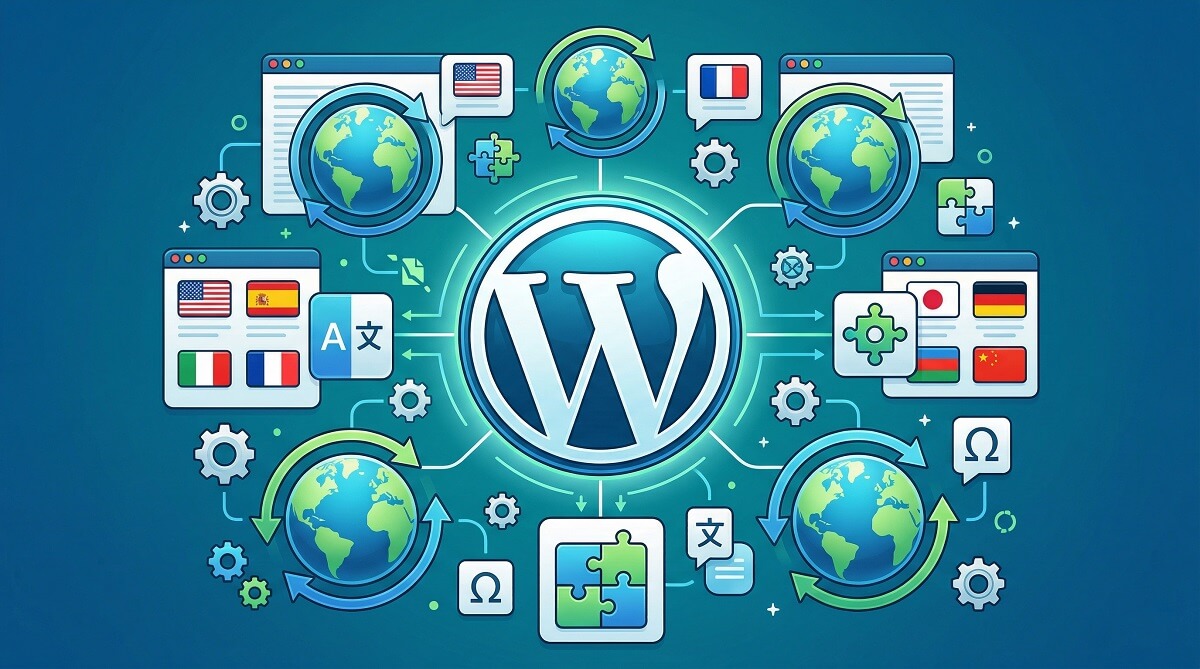
WordPress powers roughly 44% of the entire web. That’s a massive platform — and yet out of the box, it doesn’t include a single translation tool. If you want your site to speak more than one language, you’re going to need a plugin.
The tricky part isn’t finding options. There are dozens of translation plugins. The tricky part is understanding what’s actually different between them — because on the surface, most of them sound identical: “easy setup,” “SEO-friendly,” “supports 100+ languages.” What they don’t always explain is how they store your data, what happens when you switch, and whether their free tier does anything useful at all.
This guide cuts through that. After reviewing the most widely used options, here’s what you actually need to know before picking one.
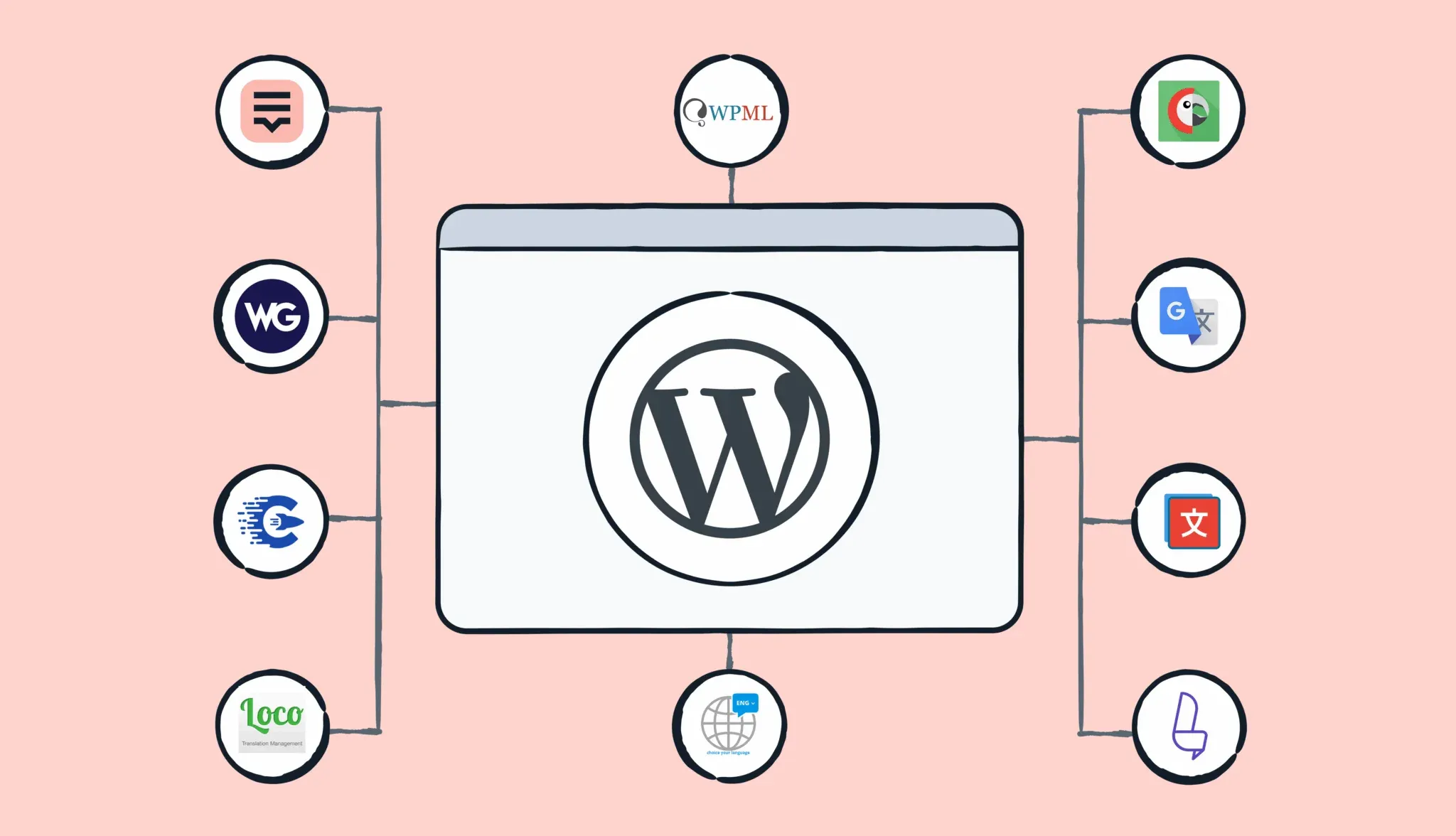
Learn more about WordPress plugins and tools at WPLasma
The Quick Answer (If You’re Short on Time)
If you don’t need the full breakdown, here’s where most sites land:
- WPML — The most complete option. Best for complex sites, WooCommerce stores, and agencies. No free version. Starts at €39/year.
- TranslatePress — Visual front-end editor, self-hosted, strong for small businesses. Free version available (1 language). Paid from €99/year.
- Weglot — Fastest setup, cloud-based, beginner-friendly. Free for up to 2,000 words. Be aware: it’s a subscription, and canceling means your translations disappear.
- Polylang — The best genuinely free option. Manual translation, solid SEO, lightweight. Pro tier (€99/year) adds DeepL and WooCommerce.
- GTranslate — Good for quick automatic coverage across many languages. Translation quality is fully machine-generated.
| What you’re building | Recommended plugin | Why |
|---|---|---|
| Personal blog, adding 1-2 languages | Polylang (free) or TranslatePress (free) | Lightweight, self-hosted, no subscription risk |
| Small business site, fast launch | Weglot (Starter) or TranslatePress Personal | Weglot: instant setup. TranslatePress: visual editing |
| WooCommerce store | WPML (CMS plan) or TranslatePress Business | Handles products, checkout, cart, multicurrency |
| Developer / agency managing multiple sites | WPML Agency or MultilingualPress | Multi-site support, scalable architecture |
| Just need to translate theme/plugin UI strings | Loco Translate | Specifically built for .po/.mo file editing |
What Makes a WordPress Translation Plugin Worth Using
Before diving into individual plugins, it helps to understand the decisions that actually shape your experience — because the wrong architecture choice is painful to undo later.
Auto, Manual, or Hybrid?
Automatic plugins use machine translation (Google Translate, DeepL, Microsoft) to instantly render your content in another language. It’s fast, but the output quality varies. For simple informational content, it’s often fine. For nuanced marketing copy or technical instructions, machine translation can produce awkward or misleading results.
Manual plugins require you (or a translator) to write every translation. More work, but full quality control. Hybrid plugins — which most of the serious options are — let you start with machine translation and then edit manually to fix anything that needs a human touch.
Self-Hosted vs Cloud-Based: This Matters More Than Most People Realize
Most translation plugins store everything in your WordPress database, right alongside your posts and pages. You own the data entirely. Switch plugins, export everything. Cancel your hosting, your translations stay in the database export.
Cloud-based plugins — Weglot being the primary example — work differently. Your translations live on the provider’s servers and get served to your site via their infrastructure. This is genuinely convenient: setup takes minutes, and their delivery network can actually improve load times on certain configurations.
The catch: if you cancel your subscription, your translated content stops appearing. You haven’t “lost” the translations exactly — Weglot lets you export — but your site reverts to one language until you either restart the subscription or migrate everything to a new system. It’s a meaningful commitment, especially once you’ve translated thousands of pages.
Explore more WordPress tips and plugin guides at WPLasma
Multilingual SEO: What Actually Needs to Work
For translated pages to rank in local search results, search engines need to find and index them as separate URLs. That means your plugin needs to create unique addresses for each language — either via subdirectories (site.com/fr/), subdomains (fr.site.com), or separate domains (site.fr).
Beyond that, proper multilingual SEO requires hreflang tags (which tell Google which language version to show to which audience), translated metadata (page titles, descriptions), and ideally translated URL slugs.
One question that comes up frequently: can you let Google index machine-translated pages? As of 2024, Google shifted its stance. Rather than treating auto-translated content as spam by default, the policy now evaluates whether the content is genuinely useful. Low-quality machine translations that add no real value are still considered scaled content abuse. But clean, edited translations — even if machine-assisted — are fine. The practical advice: don’t index raw, unreviewed machine output. Use machine translation as a first draft, then review before making pages publicly indexable.
Performance: Will This Slow My Site Down?
Translation plugins add complexity to your site, and complexity has a cost. How much cost depends on the architecture.
Real-world benchmark tests comparing four of the most popular plugins on a clean WordPress installation showed meaningful differences. WPML and Polylang kept load times at or below the baseline. Weglot and TranslatePress added more page overhead — though the gap is small enough that a good caching setup mostly closes it.
More on this in the performance section below.

The 7 Best WordPress Translation Plugins Reviewed
WPML — The Established Standard
WPML has been around since 2007 and powers over a million WordPress sites. That longevity isn’t an accident — it’s a genuinely comprehensive solution that handles translation at a level most plugins don’t reach.
It supports 65 languages with the ability to add custom variants (Canadian French, Indian English, etc.). Translation can be done manually via a side-by-side editor, automatically via WPML’s AI, Google, DeepL, or Microsoft, or through professional translation services that integrate directly into the workflow. The Translation Management module lets you assign content to specific translators with task tracking and notifications.
For WooCommerce, WPML offers dedicated add-ons that localize product listings, cart content, checkout, and even multicurrency display based on visitor location. It integrates with Elementor, Divi, Gutenberg, and most major page builders without conflicts.
Pricing (March 2026): €39/year (Multilingual Blog — basic sites, 1 production site), €99/year (Multilingual CMS — includes 90,000 translation credits, 3 production sites, WooCommerce support), €199/year (Agency — 180,000 credits, unlimited sites). All plans include one year of support and a 30-day money-back guarantee.
Best for: Sites with complex content structures, WooCommerce stores, agencies managing multiple multilingual sites.
A few caveats: No free version, no free trial. The setup process has a learning curve — especially for larger sites with custom post types and taxonomies. Some users find the add-on structure (strings translation, media translation, WooCommerce are separate modules) adds to the complexity. Support response is guaranteed within 12 hours on weekdays.
Read more WordPress plugin comparisons at WPLasma
TranslatePress — Visual Editing Without Leaving WordPress
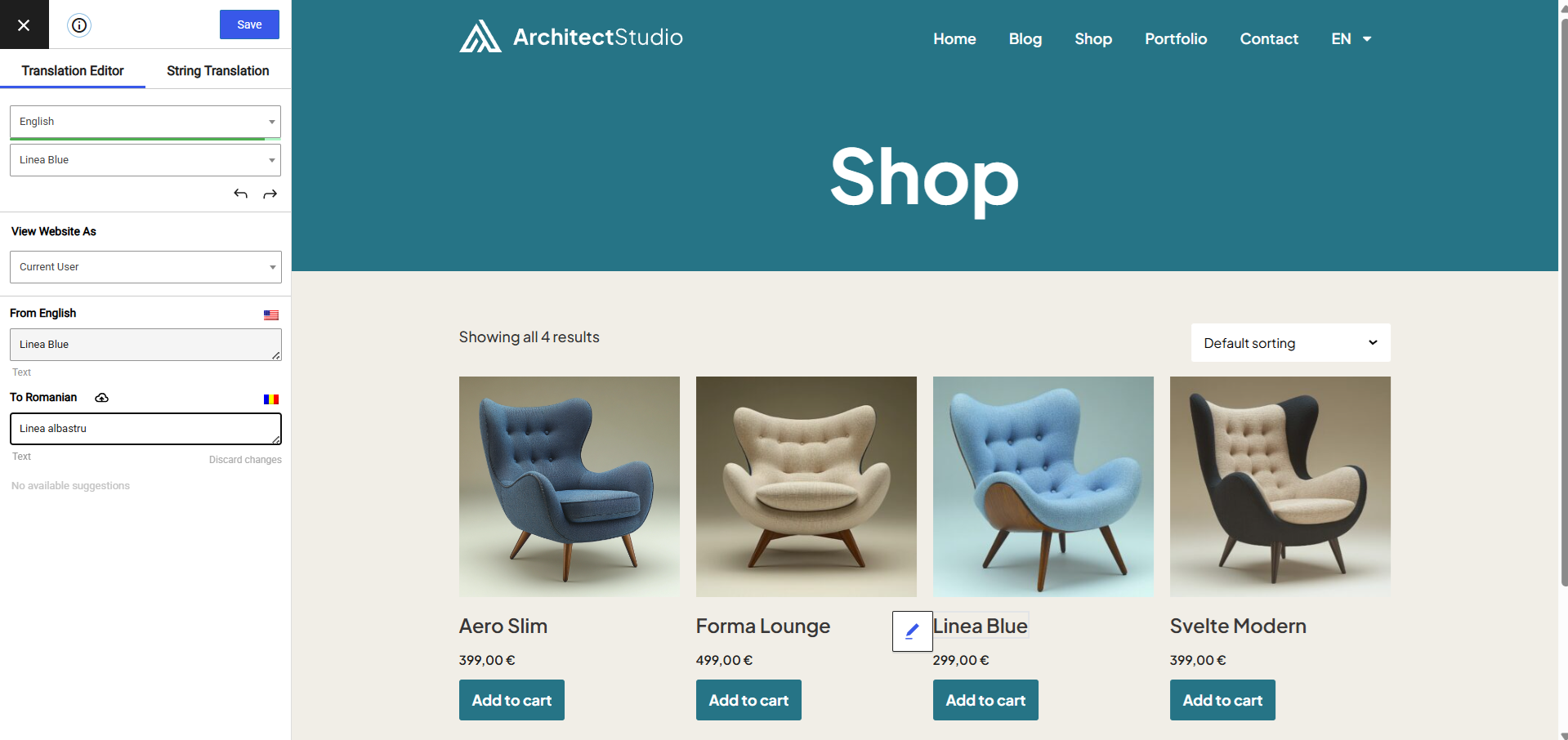
TranslatePress takes a different approach. Instead of routing you through a backend translation interface, it lets you translate pages directly from the front end — click on any text element on a live preview of your site, and a panel opens to enter the translation.
For anyone who’s ever had to guess how a translated string would look in context, this is a real improvement. You see exactly what visitors will see as you work, which catches layout issues (text that overflows a button, for example) before they go live.

Everything is stored in your WordPress database. GPL-licensed and self-hosted, so you own the translations regardless of what happens to your subscription. The free version on WordPress.org handles one language with unlimited manual translations.
Image translation is a feature you won’t find in every plugin — it lets you swap out images for language-specific versions, which matters when your visuals include text or culturally specific content. Dynamic strings (content generated by plugins or themes via gettext) are also translatable, which is a significant edge over simpler tools.

Pricing (March 2026): Free (1 language, manual), €99/year Personal (1 site, 50K AI words), €199/year Business (3 sites, 200K AI words, all pro add-ons including DeepL and translator accounts), €349/year Developer (unlimited sites, 500K AI words).
Best for: Small business owners who want visual control over translations, anyone who’s been frustrated by backend-only editors, WooCommerce stores on the Business plan.
One thing to keep in mind: The SEO Pack (translated slugs, metadata, hreflang) is included in paid plans. Multiple languages require the paid tier — the free version is single-language only. Some page builder combinations (notably Oxygen Builder) have reported compatibility issues.
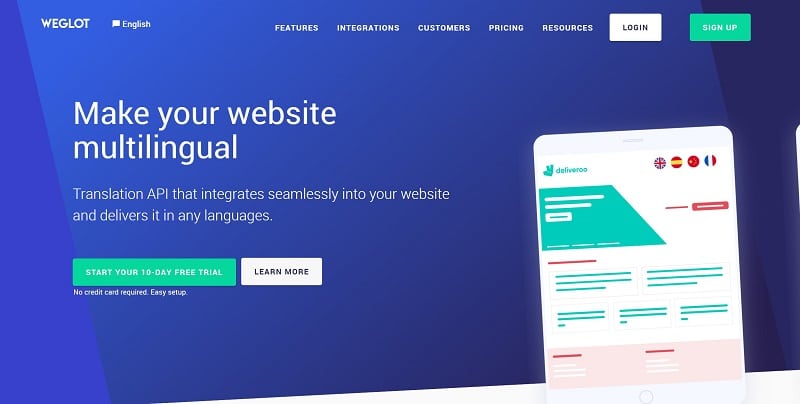
Weglot — The Fastest Way to Go Multilingual
If speed of deployment is the priority, Weglot is genuinely in a different category. Install the plugin, enter an API key, select your target languages, and your site is multilingual in under ten minutes. Weglot automatically detects and translates all content — text, alt tags, metadata — without any manual mapping.
The platform is cloud-based, which means translations live on Weglot’s infrastructure (hosted on AWS, SOC 2 Type 2 certified, GDPR-compliant). That infrastructure also means you can add team members for collaborative editing, order professional translations within the same dashboard, and manage everything without touching the WordPress backend.
110+ languages are supported. SEO handling is solid: subdirectories or subdomains for each language, hreflang tags, translated metadata. Major brands including HBO and Decathlon use it for production sites.
Pricing (March 2026): Free (2,000 words, 1 language). Starter: $17/month ($170/year, 10,000 words, 1 language). Business: $32/month (50,000 words, 3 languages). Pro: $87/month ($870/year, 200,000 words, 5 languages). 14-day free trial available for paid plans.
Best for: Businesses that need multilingual capabilities immediately, teams that want cloud-based collaboration, sites where setup simplicity outweighs long-term cost considerations.
The honest trade-off: This is a subscription — not a license. Translations are stored on Weglot’s servers. If you cancel, your site reverts to one language. For high-traffic sites or sites with large word counts, the monthly cost climbs quickly. It’s worth calculating total annual cost against a self-hosted alternative before committing.
Polylang — Free, Flexible, and SEO-Solid
Polylang’s core plugin is fully free and has been for years. It takes a manual-first approach: you create translations yourself (or import them), assign languages to content, and control how URLs are structured per language. There’s no automatic translation in the free version, though the Pro tier adds DeepL integration for AI-assisted drafts.
The architecture is lightweight and WordPress-native. Translations are stored as standard WordPress data, so there’s no lock-in — migrate to another plugin later without losing anything. The language switcher can be added as a widget, menu item, or shortcode. URL structures (subdirectory, subdomain, or separate domain) are configurable.
SEO compatibility is a genuine strength. Polylang works well with Yoast SEO, RankMath, and AIOSEO, generating proper hreflang tags and letting you control translated URLs and slugs with the Pro tier.
Pricing (March 2026): Free (core plugin). €99/year Pro (DeepL integration, SEO-friendly URL slugs, REST API). €139/year Business Pack (Pro + WooCommerce compatibility). Standalone WooCommerce add-on: €99.
Best for: Personal blogs, SEO-focused site owners who prefer manual control, anyone who wants a solid free starting point they can upgrade later.
Where it falls short: WooCommerce support requires the paid Business Pack. Free-tier support relies on the community forum, which can be slower than premium support channels. Complex multi-plugin setups occasionally produce conflicts that take time to diagnose.
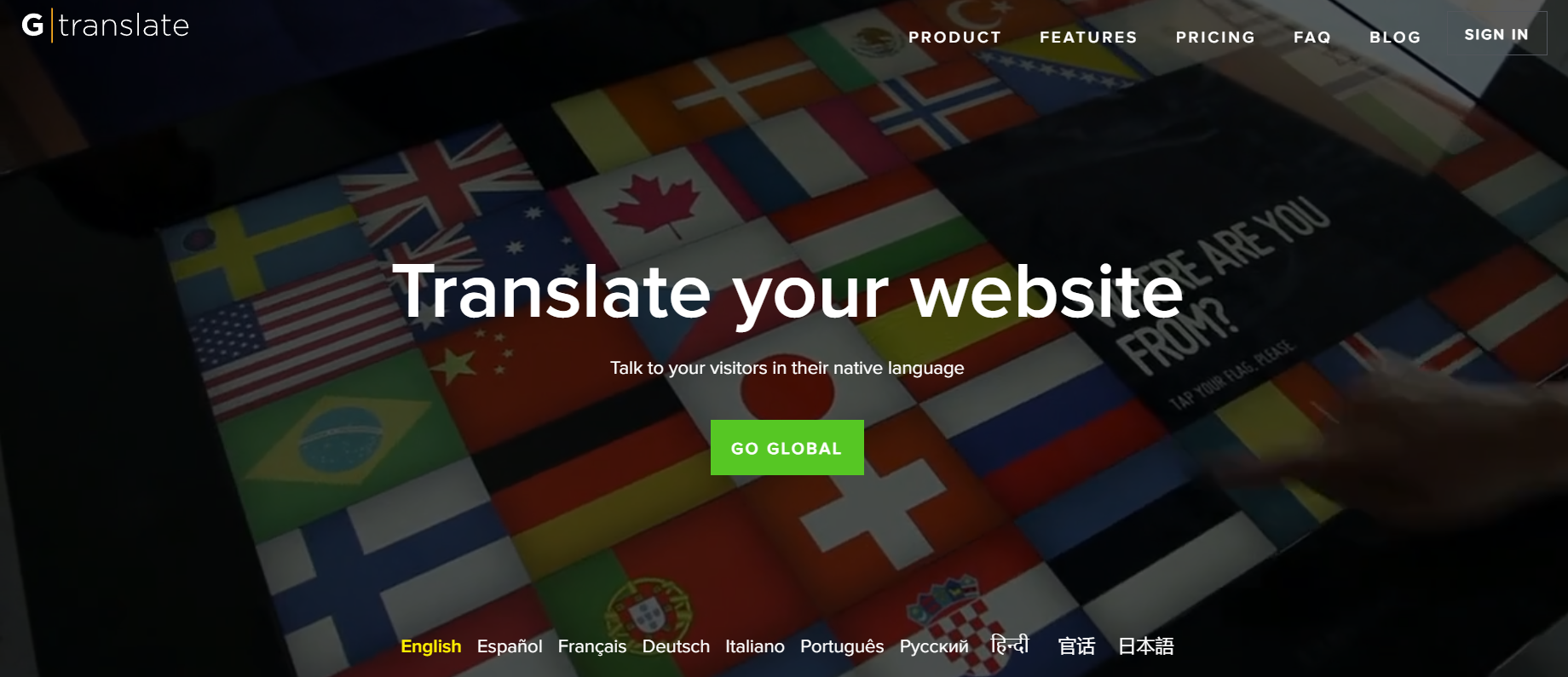
GTranslate — Machine Translation at Scale
GTranslate uses the Google Translate API to automatically translate your entire site into 100+ languages. The free version gives visitors a language selector that triggers client-side translation — it’s fast to set up but the translated pages don’t get their own URLs, which means search engines won’t index them.
Paid plans change this significantly. The Translation Delivery Network (TDN) caches translations on a CDN and serves language-specific URLs that search engines can index. That opens the door to ranking for keywords in target languages — useful for sites trying to capture traffic in markets they haven’t specifically written for.
Pricing (March 2026): Free. Paid from $9.99/month ($99/year). SEO indexing requires the $199/year plan. Language-specific domain support starts at $299-$399/year.
Best for: Sites that need broad language coverage quickly, budget-conscious owners who understand the quality trade-off, businesses targeting markets where even imperfect machine translation provides meaningful value.
The quality ceiling: Machine translation output is entirely dependent on Google Translate. Technical content, idiomatic expressions, and industry jargon often translate poorly. There’s an inline editor for manual corrections, but editing at scale is tedious. The free version has no SEO value whatsoever.
MultilingualPress — The Multisite Approach
MultilingualPress works differently from every other plugin on this list. Instead of creating multiple language versions within a single WordPress install, it uses WordPress Multisite to run each language as a separate site within a network.
This means each language has its own database tables, its own plugin and theme settings, and its own performance profile. Language-specific resources don’t bleed into each other. For large sites with high traffic, this architecture scales significantly better than single-site approaches that store all languages in one database.

SEO follows Google’s multilingual guidelines cleanly: each language gets its own URL structure (subdomain, subdirectory, or domain), and hreflang tags connect the network for proper cross-language signals. Integration with Yoast SEO, Advanced Custom Fields, and WooCommerce is built in.
Pricing (March 2026): No free tier. $99/year Standard (3 languages, 1 multisite network), $299/year Pro (6 languages, 3 multisite networks), $599/year Agency (18 languages, 9 networks).
Best for: Enterprises, large agencies, sites where performance at scale is a genuine concern, developers already comfortable with WordPress Multisite.
Not for everyone: Multisite setup requires more technical knowledge than a standard WordPress install. Not a good fit for beginners or small sites. No free tier makes it harder to evaluate before committing. The learning curve is real.
Loco Translate — For Translating Themes and Plugins
Loco Translate serves a different purpose than every other plugin here. It doesn’t translate your pages or posts — it translates your theme and plugin interface strings. If your WordPress theme has hardcoded text (“Read More”, “Posted on”, “Search results for…”), Loco Translate lets you change those strings into any language directly from your dashboard.
It works with .po and .mo files (the standard format for WordPress translations) and includes integrations with DeepL, Google Translate, Microsoft Translator, and OpenAI for automatic suggestions. These appear as candidates alongside each string — you accept, edit, or reject with a click.

Pricing (March 2026): Free (up to 2,000 translation strings). Pro: $5.95/month (5,000 strings). Agency: $29.95/month (125,000 strings). Annual billing available at a discount.
Best for: Developers who need to translate theme interface strings, anyone adapting a third-party plugin or theme for a non-English audience.
Scope limitation: This is not a solution for translating post content, pages, or WooCommerce products. It’s complementary to the other plugins on this list — many multilingual sites run Loco Translate alongside WPML or Polylang to handle both content and interface string translation.
Plugin Performance: What Actually Happens to Your Page Speed
Speed questions come up constantly with translation plugins, and the honest answer is: it depends on which one you use and how it’s built.
Real tests run on a clean WordPress installation (Astra theme, DigitalOcean $5/month VPS, no caching) measured these results:
| Plugin | Median Load Time | HTTP Requests | Page Size | DB Queries |
|---|---|---|---|---|
| None (baseline) | 0.764 s | 14 | 81 KB | 4 |
| WPML | 0.707 s | 18 | 82 KB | 16 |
| Polylang | 0.712 s | 15 | 79 KB | 4 |
| Weglot | 0.987 s | 19 | 138 KB | 4 |
| TranslatePress | 1.026 s | 22 | 127 KB | 7 |
Source: WP Rocket performance testing blog, November 2019. Tests run on identical hardware without caching. These figures are reference benchmarks — modern hosting environments and caching layers will produce different results.
A few things stand out here. WPML actually ran faster than the baseline in these tests — likely because WPML’s team had made significant performance improvements just before testing. It does run 16 database queries vs the baseline’s 4, which is a real overhead, but the overall load time stayed low. Polylang’s performance is nearly identical to having no plugin at all — its lightweight, database-native approach keeps overhead minimal.
Weglot and TranslatePress both add more page weight. Weglot’s architecture is the reason: translations are fetched from external servers, which adds HTTP requests and file size. The upside is that it offloads translation storage from your hosting environment. TranslatePress’s overhead comes from how it processes dynamic content — it’s doing more work per page load to catch all translatable strings.
The practical takeaway: any of these plugins combined with a solid caching setup (WP Rocket, W3 Total Cache, or server-level caching) will perform well for most sites. The uncached differences are real but not dramatic at this scale.
Choosing Based on What Your Site Actually Needs
Generic “best for X” labels only get you so far. Here’s how to think about this based on what you’re actually trying to accomplish.
Personal blog, adding one or two languages: Start with Polylang’s free version. It handles unlimited manual translations, creates proper multilingual URLs, and integrates cleanly with SEO plugins. You can translate manually or hire someone on a freelance basis for each language. If you’d rather avoid manual work entirely, GTranslate’s free tier gives you machine translation without any configuration — though it won’t help your SEO until you upgrade to a paid plan.
Small business site: TranslatePress Personal (€99/year) is worth the investment for the visual editor alone. Being able to see exactly how your translated pages look while editing prevents the usual back-and-forth of translating blind in a backend panel. If you need to launch in multiple languages within days rather than weeks, Weglot’s Starter plan gets you there fast, with the understanding that it’s a recurring subscription.
WooCommerce store: The requirements here go beyond just translating product descriptions. You’ll need translated checkout flows, cart text, order confirmation emails, and ideally currency handling based on customer location. WPML’s CMS plan (€99/year) with the WooCommerce Multilingual add-on is the most complete solution. TranslatePress Business (€199/year) also handles WooCommerce well, with the advantage of the visual editor for product pages.
Developer or agency managing multiple client sites: WPML’s Agency plan (€199/year) covers unlimited sites and includes the translation management workflow tools that make team-based translation manageable. If your clients’ sites are on WordPress Multisite or you’re building a large network, MultilingualPress is worth evaluating — the per-language site isolation gives you more control over performance and plugin configuration per locale.
Need to translate theme or plugin UI strings: Add Loco Translate alongside whatever main translation plugin you choose. These tools solve different problems — Loco handles .po/.mo file editing; the others handle content.
Explore more WordPress guides and tutorials at WPLasma
Frequently Asked Questions
Does WordPress have a built-in translation feature?
No. WordPress core doesn’t include translation functionality for site content. The platform supports running in different admin languages and has a translation-ready architecture for themes and plugins, but to make your site available in multiple languages for visitors, you need a dedicated translation plugin.
Will a translation plugin slow down my WordPress site?
It depends on which plugin you use and whether you have caching in place. In benchmark tests, WPML and Polylang showed minimal speed impact — WPML even ran faster than the no-plugin baseline in one test set, despite adding database queries. Weglot and TranslatePress added more page overhead due to their architectural approaches. In practice, any modern caching setup significantly reduces these differences. No translation plugin will tank your performance if the rest of your site is optimized.
What is multilingual SEO and why does it matter?
Multilingual SEO means making sure that search engines can find, index, and correctly attribute each language version of your site. Practically, this requires unique URLs per language (not just JavaScript-swapped content), hreflang tags that tell Google which version to show to which audience, and translated metadata (titles, descriptions, slugs). Without these, your translated pages either won’t rank at all or will compete with each other in search results — both bad outcomes. Every serious translation plugin handles at least some of this; the better ones (WPML, TranslatePress Business, Weglot) handle all of it automatically.
What’s the difference between cloud-based and self-hosted translation plugins?
Self-hosted plugins (WPML, TranslatePress, Polylang) store translations in your WordPress database. You own the data. Cloud-based plugins (Weglot primarily) store translations on the provider’s servers and deliver them to your site via their infrastructure. Cloud storage means faster initial setup and easier team collaboration, but it creates a dependency: if you stop paying, the translations stop appearing. Self-hosted means you can switch hosts, switch plugins, or cancel any subscription without losing your translations.
Can I let Google index machine-translated pages?
Yes, with an important caveat. Google updated its stance in 2024 and removed blanket warnings against indexing auto-translated content. The current policy evaluates content based on whether it’s genuinely useful — not on how it was created. Raw, unreviewed machine translations that produce confusing or misleading content still fall under “scaled content abuse” policy. The safe approach: use machine translation as a first draft, review and edit anything customer-facing before making it indexable, and don’t publish thousands of unreviewed auto-translated pages hoping to rank.
Is Polylang better than WPML?
They serve somewhat different use cases. Polylang is free at its core, lightweight, and well-suited to straightforward multilingual setups where you’re comfortable providing translations manually. WPML is heavier, more expensive, but significantly more complete — it handles more content types, has better translation management workflows, and offers dedicated WooCommerce support that Polylang’s free tier doesn’t include. For a personal blog or simple business site, Polylang often does everything you need. For a complex WooCommerce store or a site where teams of translators need to coordinate, WPML is the stronger choice.
Which WordPress translation plugin is best for WooCommerce?
WPML with the WooCommerce Multilingual add-on is the most widely used and most complete solution for WooCommerce translation. It handles product pages, variations, cart text, checkout, order emails, and multicurrency display. TranslatePress Business is a strong alternative with the advantage of the visual editor for product pages. Polylang’s Business Pack also adds WooCommerce support at €139/year, though with fewer advanced features. Weglot handles WooCommerce translation as well, though at its usual subscription pricing.
What happens to my translations if I cancel Weglot?
Your translated content stops appearing on your site. Weglot stores translations on its own servers — when your subscription ends, those translations are no longer served to your visitors. Weglot does provide export tools so you can take your translations with you, but migrating that content into a self-hosted plugin requires real effort. If you’re planning to use Weglot long-term, this isn’t a concern. If you’re testing the waters and might switch later, factor the migration work into your decision.
Closing Thoughts
The best WordPress translation plugin is the one that matches how you actually work. If you want full control and don’t mind doing things manually, Polylang’s free version gives you a solid foundation. If visual editing matters and you want to own your data, TranslatePress earns its price. If speed of launch is the priority and subscription cost isn’t a concern, Weglot is genuinely fast. If you’re building something complex — a large WooCommerce store, a multi-client agency site, an enterprise network — WPML or MultilingualPress handle that weight better than lighter alternatives.
Whatever you choose, one principle applies across all of them: understand the architecture before you commit. Cloud vs self-hosted isn’t just a technical detail — it shapes your costs, your flexibility, and your options if you ever need to change course. Pick the tool that fits where you are now and where you’re realistically heading.
