



A slow WordPress site doesn’t just frustrate visitors — it costs you rankings. Google’s PageSpeed Insights explicitly recommends caching as one of the fastest ways to reduce server response times, and benchmark tests show that enabling caching alone can cut page load times by 23% or more on an already-optimized site. For sites with no other optimizations, the difference is even larger.
But with dozens of caching plugins available, picking the right one isn’t straightforward. The best plugin for someone on Hostinger’s LiteSpeed server is completely different from the best choice for a developer running a custom Nginx VPS — or a blogger who just wants to flip a switch and forget about it.
This guide cuts through the noise. You’ll find honest reviews of the most widely used WordPress caching plugins in 2026, a full comparison table with verified pricing, and a clear breakdown of which plugin works best for which type of site.
Quick Answer: Which Caching Plugin Should You Use?
If you’re short on time, here’s the bottom line. The right caching plugin depends primarily on your web server and budget:
| Your Situation | Recommended Plugin | Why |
|---|---|---|
| On LiteSpeed hosting (Hostinger, A2 Hosting, etc.) | LiteSpeed Cache | Free, server-level caching — outperforms all alternatives on compatible hosts |
| Non-LiteSpeed server, want the easiest setup | WP Rocket | Works out of the box, activates 80% of best practices automatically |
| Running a WooCommerce store | WP Rocket | Automatically excludes cart/checkout pages — prevents caching conflicts |
| Need free + feature-rich on Apache/Nginx | W3 Total Cache | Most features available free, including object cache and CDN integration |
| Simple blog, zero budget | WP Super Cache | Made by Automattic, dead simple, reliable page caching |
| Performance-focused, Core Web Vitals priority | FlyingPress | Leads Chrome UX Report for “good” CWV; advanced features WP Rocket lacks |
| Non-technical, want everything managed for you | NitroPack | Hosted service with built-in CDN; easiest setup but expensive at scale |
One important note before you install anything: if your managed hosting provider (Kinsta, WP Engine, SiteGround, Cloudways) already handles server-level caching, you may not need a separate page-caching plugin at all. More on that in the hosting vs plugin section below. For a broader look at performance, WPlasma covers WordPress optimization guides, plugin reviews, and hosting comparisons.
What WordPress Caching Actually Does (and Why It Matters)
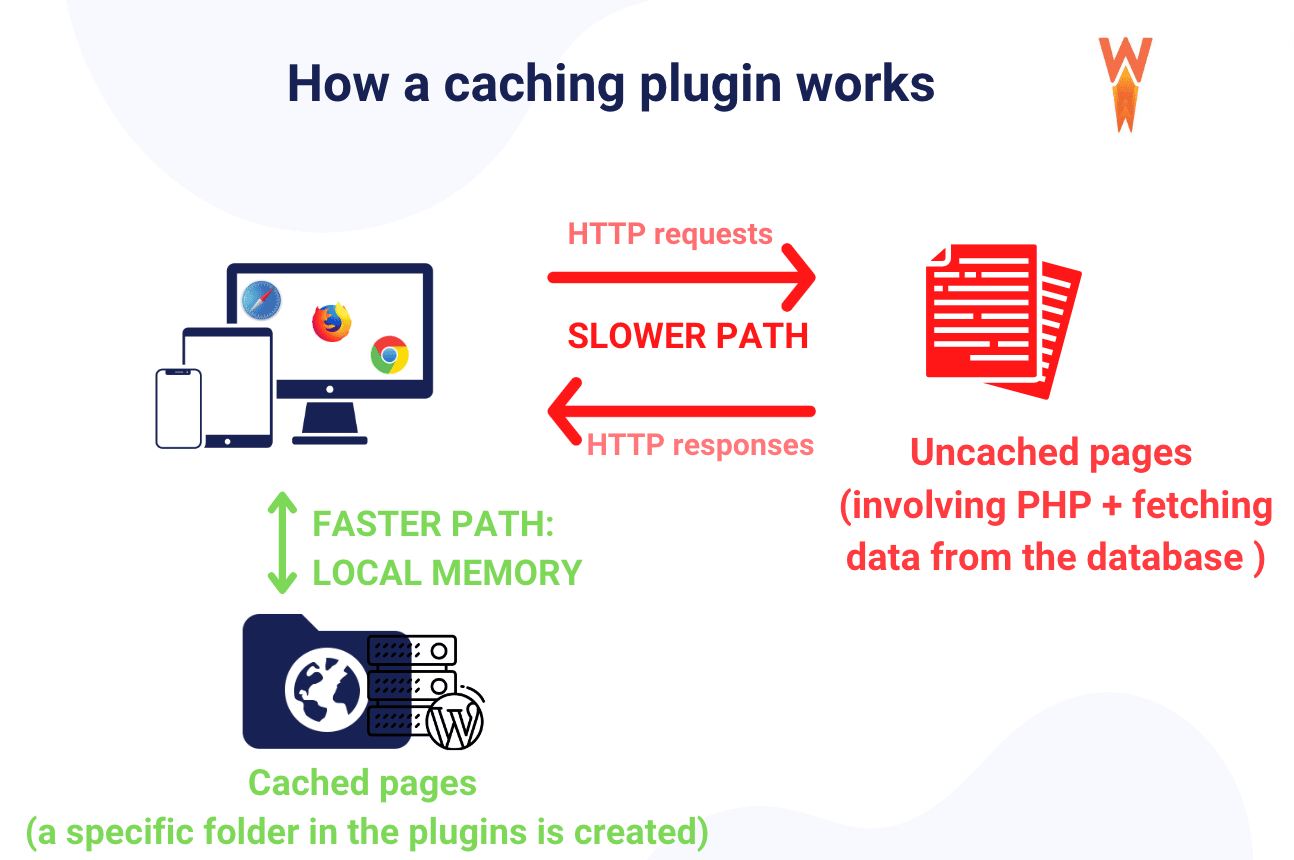
Every time someone visits an uncached WordPress page, the server runs PHP, queries the database, assembles the HTML, and sends the result back to the browser. For a typical WordPress site, this process takes anywhere from 500ms to 2+ seconds per request — and it happens fresh every single time, even when nothing on the page has changed.
Caching short-circuits this process. The first time a page is requested, the caching plugin saves the finished HTML output to a file. Every subsequent visitor gets that pre-built file directly, skipping the PHP and database overhead entirely.
The results are measurable. In tests run using Pingdom, a well-optimized site saw page load times drop from 677ms to 521ms — a 23% reduction — just from enabling caching. Time to First Byte (TTFB), which measures how long it takes the server to send the first byte of data, dropped from over 200ms to under 40ms in the same tests.
Beyond raw speed, caching touches two other things site owners care about:
- SEO: Google uses page speed as a ranking signal through its Core Web Vitals program. A faster site — especially one with lower Largest Contentful Paint (LCP) scores — has a measurable advantage in organic search rankings.
- Conversions: According to research by Think with Google, the probability of a visitor bouncing increases by 32% when page load time goes from 1 second to 3 seconds. For eCommerce stores, every second of delay has a direct revenue impact.
What to Look for in a WordPress Caching Plugin
Not all caching plugins are built the same. Before comparing specific options, it helps to understand what actually separates a good caching plugin from a great one.
1. Server Compatibility
This is the most important factor that most guides gloss over. LiteSpeed Cache is a genuinely exceptional plugin — but its page caching only works on LiteSpeed servers and OpenLiteSpeed. If you’re on Apache or Nginx, you’ll only get LiteSpeed Cache’s optimization features (CSS/JS minification, image optimization), not its server-level page caching. Always check which server your host uses before choosing a plugin.
2. Types of Caching Supported
Page caching (serving static HTML) is the foundation, but the best plugins also handle browser caching (telling visitors’ browsers to store assets locally), object caching (saving database query results in Redis or Memcached), and CDN integration (distributing assets from servers closer to your visitors).
3. Core Web Vitals Features
Modern caching plugins do far more than just cache pages. The features that directly improve Google’s Core Web Vitals scores include:
- Delay JavaScript execution — reduces Interaction to Next Paint (INP) scores
- Preload LCP images — ensures the most visible image loads as fast as possible
- Remove Unused CSS — reduces render-blocking resources, improving Largest Contentful Paint (LCP) and Cumulative Layout Shift (CLS)
- Critical CSS generation — inlines the styles needed for above-the-fold content
4. Ease of Setup vs Configuration Depth
WP Rocket activates caching automatically on installation, with no configuration required to start seeing results. W3 Total Cache has 16+ pages of settings and rewards the time you put in — but misconfiguration can actually hurt performance. Know which you need before committing.
5. Pricing and Support
Free caching plugins rely on community support forums; paid plugins include dedicated support teams, which matters when your site breaks after an update. The price gap is real: WP Rocket starts at $59/year, while W3 Total Cache and WP Super Cache are completely free. Whether that gap is worth it depends on how much your site’s uptime and performance matter to your business.

The Best WordPress Caching Plugins Reviewed
The following reviews focus on what actually matters: what the plugin does well, where it falls short, and who it’s really built for.
WP Rocket — Best Overall Caching Plugin
WP Rocket has been the dominant paid caching plugin for years, and the reason is straightforward: it works immediately, with minimal setup, and covers more ground than almost any free alternative. From the moment you activate it, page caching, browser caching, and GZIP compression are automatically enabled.

Beyond basic caching, WP Rocket handles JavaScript delay (which directly improves INP scores), lazy loading for images and iframes, CSS and JS minification, database cleanup, and CDN integration — all features you’d otherwise need separate plugins to cover. The built-in Rocket Insights feature lets you track your site’s PageSpeed score directly from the WordPress dashboard.
Where it falls short: WP Rocket doesn’t include native image optimization — you’ll need a separate plugin like Imagify for that. It also doesn’t preload LCP images or support self-hosting Google Fonts by default, two features that FlyingPress handles better. And at $59/year for a single site, it’s not cheap.
Pricing (March 2026): $59/year (1 site), $119/year (3 sites), $299/year (50 sites). All plans include support, updates, and a 14-day money-back guarantee.
Best for: Beginners, agencies, WooCommerce stores on Apache/Nginx servers. For WooCommerce specifically, WP Rocket automatically excludes cart and checkout pages from the cache — preventing the common “cached price/stock” problem.
Not ideal for: Users on LiteSpeed hosting (LiteSpeed Cache is free and equally capable), or budget-focused site owners.
LiteSpeed Cache — Best Free Option (LiteSpeed Servers)
The asterisk next to “free” is important here: LiteSpeed Cache’s page caching requires a LiteSpeed or OpenLiteSpeed server. If you’re on a host that uses this server software — Hostinger, A2 Hosting, DreamHost, and many others — you’re sitting on one of the most powerful free caching tools available.

The plugin has 126 million downloads and a 4.8/5 rating on WordPress.org (as of March 2026, version 7.8). The feature set rivals — and in some areas surpasses — paid plugins: server-side page caching, QUIC.cloud CDN integration, image optimization with AVIF/WebP support, Redis/Memcached object cache, delay JavaScript, a unique “Unique CSS” feature that removes unused CSS styles, low-quality image placeholders (LQIP) to reduce layout shift, and full Cloudflare API integration.
On LiteSpeed servers, independent benchmarks show it achieving page load times around 1.12 seconds and TTFB around 148ms — consistently outperforming WP Rocket on equivalent hardware.
Where it falls short: If you’re not on a LiteSpeed server, you lose the core caching features. The optimization features (CSS/JS minification, image optimization) still work on any server, but the page caching — which is the biggest speed win — won’t function on Apache or Nginx without additional setup.
Pricing: Completely free. Compatible hosting plans start at a few dollars/month (Hostinger’s cheapest plans use LiteSpeed). The optional QUIC.cloud CDN has a free tier and paid plans for more bandwidth.
Best for: Anyone on LiteSpeed hosting who wants maximum performance without spending anything on a caching plugin.
W3 Total Cache — Best Free Option for Apache/Nginx
W3 Total Cache is the most configurable free caching plugin available, and that’s both its biggest strength and its most significant weakness. The plugin’s 16 configuration pages give technically experienced users complete control over every aspect of caching and performance — but that same depth can overwhelm anyone who just wants to make their site faster without spending an afternoon in settings menus.
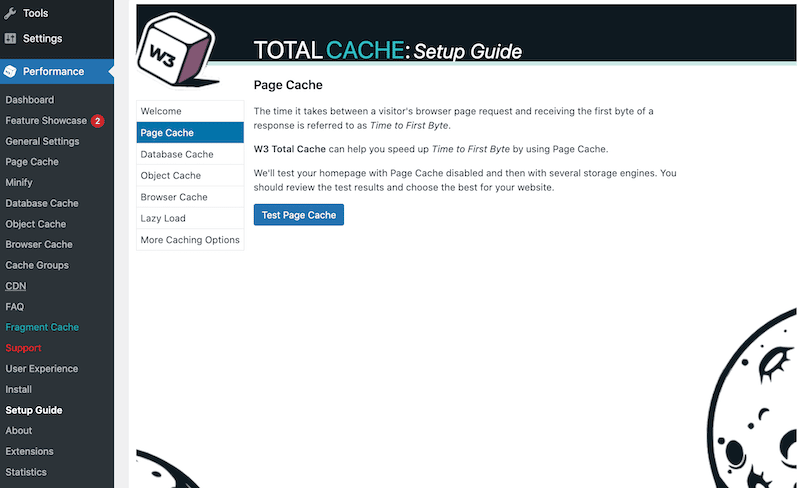
The free version covers page caching, browser caching, object caching (with Redis, Memcached, and other backends), database query caching, CDN integration, and minification. That’s a feature set many paid plugins don’t match. W3TC also integrates with Google PageSpeed Insights directly from the WordPress dashboard, and their documented tests show removing unused CSS adds 27 PageSpeed points and eliminating render-blocking CSS can improve LCP by 56%.
The Pro version ($99/year) adds full-site CDN delivery, WordPress REST API caching, and fragment caching — useful for developer-built sites with complex dynamic content.
Where it falls short: The free version doesn’t include delay JavaScript or remove-unused-CSS features, both of which are important for Core Web Vitals scores. You’ll also need to carefully configure cache preloading manually — it’s not automatic like WP Rocket.
Pricing (March 2026): Free (most features), Pro at $99/year for one site (adds support, CDN full-site delivery, REST API caching).
Best for: Developers and technically confident site owners on Apache or Nginx servers who want maximum free features. Not recommended for beginners without a willingness to dig into documentation.
FlyingPress — Best for Core Web Vitals Performance
FlyingPress is the underdog in this list that’s quietly outperforming more well-known competitors in real-world conditions. Chrome UX Report data — which measures actual user experiences across millions of browsing sessions — shows websites using FlyingPress have a higher percentage of “good” Core Web Vitals scores than those using WP Rocket or W3 Total Cache.
The feature set explains why. FlyingPress handles standard caching and CSS/JS optimization, but it goes further with capabilities most competitors don’t offer: self-hosting Google Fonts locally (which removes a third-party request and improves privacy compliance), lazy rendering entire HTML elements (not just images), locally caching YouTube video thumbnails to eliminate external requests, and a “lazy-bg” CSS class for lazy loading background images — something WP Rocket handles less elegantly.
FlyingCDN uses Cloudflare Enterprise under the hood, which gives you access to features like Argo Smart Routing and Enterprise-level DDoS protection — infrastructure that would typically cost hundreds of dollars per month if purchased directly.
Where it falls short: FlyingPress is primarily built for performance-focused users who understand what these features do. It’s not the right choice if you just want to install something and forget about it. Support is primarily through the developer’s Facebook community groups, which may not suit everyone.
Pricing (March 2026): Starter $59/year (1 site), Pro $99/year (3 sites), Business $199/year (25 sites), Unlimited $249/year. Includes a 14-day free trial across all plans.
Best for: Performance-focused site owners and developers who want the highest possible Core Web Vitals scores. If you’ve been using WP Rocket and want to push further, FlyingPress is worth testing.
WP Super Cache — Best Simple Free Plugin
Maintained by Automattic — the company behind WordPress.com — WP Super Cache has earned its place as the go-to recommendation for users who want reliable page caching without configuration complexity. The plugin has 62 million downloads and serves roughly 99% of visitors from static HTML files, which is exactly what you want from a page cache.
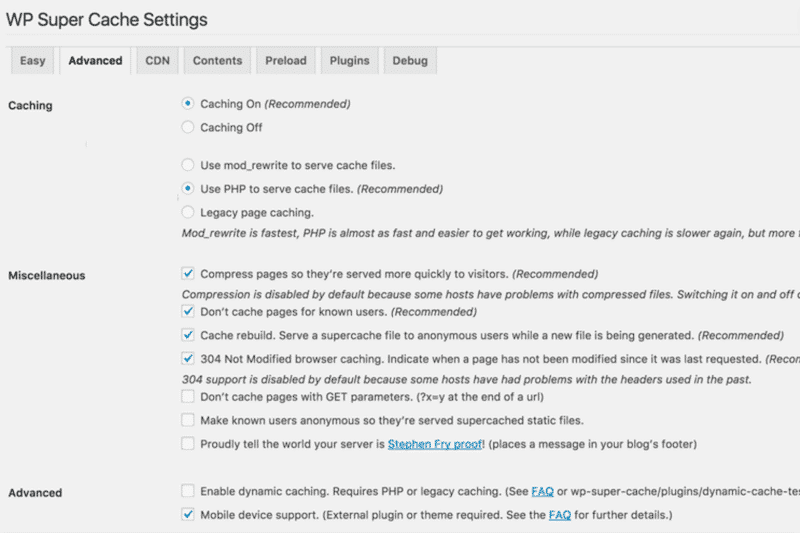
Three caching modes are available. Simple Mode is the right choice for most sites — it serves PHP-processed static files without requiring any server configuration changes. Expert Mode (mod_rewrite) is faster but requires editing your .htaccess file, which is best left to experienced users. The automated garbage collection feature cleans up expired cached files in the background, which prevents stale content from accumulating over time.
Where it falls short: WP Super Cache is genuinely a caching plugin — nothing more. There’s no JavaScript delay, no CSS optimization, no image lazy loading in the free version, and no Core Web Vitals features. You’ll need separate plugins to cover those optimization areas if they’re important to your site.
Pricing: Completely free, no premium version. Supported by Automattic via the WordPress.org forums.
Best for: Simple blogs and informational sites that need reliable page caching at no cost. If your hosting already handles CSS/JS optimization and you just want clean, fast page delivery, WP Super Cache is dependable and lightweight.
Hummingbird — Best for WPMUDEV Users
Hummingbird, developed by WPMUDEV, covers the full range of caching types in a single plugin: page cache, browser cache, and Gravatar cache. It pairs caching with performance scanning — a built-in feature that runs your site through PageSpeed Insights from within the WordPress dashboard and flags issues.
The free version is capable for most small sites. The Pro version unlocks advanced features and technical support, but its value is best realized as part of WPMUDEV’s all-inclusive subscription (around $7.50/month), which bundles Hummingbird with their SEO plugin, image optimizer (Smush Pro), security scanner (Defender), and other tools.
Pricing: Free version available. Pro included in WPMUDEV membership from ~$7.50/month (all plugins bundled).
Best for: Sites already using the WPMUDEV ecosystem, or anyone who wants performance scanning built into their caching plugin. Less compelling as a standalone purchase compared to WP Rocket or FlyingPress.
NitroPack — Controversial but Convenient
NitroPack occupies a unique position in the WordPress performance landscape. It’s not a traditional plugin — it’s a hosted optimization service that handles caching, CDN delivery, image optimization, and code minification from external servers. Setup is genuinely minimal: install the plugin, connect your account, and NitroPack handles the rest.
The controversy around NitroPack centers on a gap between benchmark scores and real-world performance. The service is optimized to produce high PageSpeed Insights numbers, which it does effectively. But some independent tests show actual load times slower than plugins like FlyingPress or LiteSpeed Cache, because NitroPack offloads work to external servers in ways that aren’t captured by score-based tools. If your primary goal is a high PageSpeed number, NitroPack delivers. If you want the fastest actual browsing experience, other options may serve you better.
Pricing (March 2026): Free plan (1,000 pageviews/month); Starter $8/month or $84/year (8,000 pv/month, 5GB CDN); Plus $22/month or $216/year (40,000 pv/month); Pro $100/month or $996/year (3 sites, 540,000 pv/month). Costs scale significantly as traffic grows.
Best for: Non-technical users who want a managed, all-in-one solution and prioritize setup simplicity over raw performance. Not ideal for high-traffic sites where the pageview-based pricing becomes expensive.
Caching Plugins vs Hosting-Level Caching: Which Should You Use?
Several managed WordPress hosting providers include server-level caching as part of their infrastructure — and in those cases, you may not need a page-caching plugin at all.
Kinsta uses a full-page caching system called Nginx FastCGI Cache. WP Engine has EverCache. SiteGround’s Dynamic Cache (powered by Nginx) is included on all plans and can improve speed by 50–500% according to their documentation. Cloudways handles caching at the Varnish and Redis level on most stacks.
On these platforms, running a page-caching plugin alongside the host’s built-in system can cause conflicts — cached pages being cleared by one system and immediately re-served by another, or worse, visitors seeing incorrect content from mismatched cache layers. Most managed hosts explicitly recommend against using a third-party page-caching plugin, and some (like WP Engine) actively block specific plugins for this reason.
That said, even on managed hosting, a plugin can still add value through features the host doesn’t provide: JavaScript optimization, CSS minification, lazy loading, image optimization, and CDN integration. If you’re on SiteGround, for example, using their Speed Optimizer plugin for server caching while enabling WP Rocket only for its optimization features (with page caching disabled) is a valid approach.
The bottom line: check what your host provides, don’t double up on page caching, and use a plugin for the optimization features your host doesn’t cover.
WordPress Caching Plugin Comparison at a Glance
Here’s a side-by-side comparison of the main plugins, with verified pricing as of March 2026. Always check vendor websites for current pricing before purchasing.
| Plugin | Free? | Server | Page Cache | Object Cache | Delay JS | Remove Unused CSS | CDN | Price/Year |
|---|---|---|---|---|---|---|---|---|
| WP Rocket | ❌ | All | ✅ | ✅ | ✅ | ✅ | ✅ RocketCDN + CF | From $59 |
| LiteSpeed Cache | ✅ | LiteSpeed only* | ✅ (LS server) | ✅ Redis/Mem | ✅ | ✅ (UCSS) | ✅ QUIC.cloud | Free |
| W3 Total Cache | ✅ | All | ✅ | ✅ Redis/Mem | ❌ (free) | ❌ (free) | ✅ multiple | Free / $99 Pro |
| FlyingPress | Trial only | All | ✅ | ❌ | ✅ | ✅ | ✅ CF Enterprise | From $59 |
| WP Super Cache | ✅ | All | ✅ | ❌ | ❌ | ❌ | ✅ basic | Free |
| Hummingbird | ✅ (basic) | All | ✅ | ❌ | ✅ (Pro) | ✅ (Pro) | ✅ Cloudflare | Free / ~$90 Pro |
| NitroPack | ✅ (1K pv) | All (hosted) | ✅ | ❌ | ✅ | ✅ | ✅ built-in | $84+ (by pageviews) |
*LiteSpeed Cache optimization features (CSS/JS, image optimization) work on any server. Page caching requires LiteSpeed or OpenLiteSpeed. Prices verified March 2026 — confirm at vendor sites before purchasing.
Which Caching Plugin Is Right for Your Site?
The comparison table gives you the data — but here’s the practical translation by site type:
| Site Type / Situation | Best Plugin | Key Reason |
|---|---|---|
| Personal blog, free hosting, zero budget | WP Super Cache | Reliable, maintained by Automattic, zero cost, minimal setup |
| Personal blog, willing to pay for convenience | WP Rocket | Instant results, handles everything automatically |
| On Hostinger, A2 Hosting, or any LiteSpeed host | LiteSpeed Cache | Best performance on compatible servers, completely free |
| Small business site on shared or VPS hosting | WP Rocket or W3 Total Cache | WP Rocket for ease; W3TC if you’re comfortable with configuration |
| WooCommerce store | WP Rocket | Automatically handles cart/checkout exclusions — critical for stores |
| Developer / power user wanting full control | FlyingPress or W3 Total Cache | FlyingPress for CWV focus; W3TC for granular server-level control |
| Agency managing 10+ client sites | WP Rocket (Multi plan) | $299/year covers up to 50 sites with consistent, reliable performance |
| Non-technical user, managed setup preferred | NitroPack | Fully managed, minimal configuration — but costs scale with traffic |
FAQ — Frequently Asked Questions About WordPress Caching Plugins
Do I need a caching plugin if my WordPress host already provides caching?
Not necessarily, at least not for page caching. Managed hosts like Kinsta, WP Engine, SiteGround, and Cloudways handle server-level page caching as part of their infrastructure, and running a plugin page cache on top of that can cause conflicts. However, a plugin can still add value for features your host doesn’t cover — JavaScript optimization, lazy loading, image compression, and CDN integration. If you use one, disable the plugin’s page caching feature and use it only for its optimization tools.
Can a WordPress caching plugin improve my Google PageSpeed score?
Yes — particularly by reducing server response time (TTFB) and enabling browser caching, which directly addresses recommendations in Google’s PageSpeed Insights report. Plugins that also delay JavaScript execution and remove unused CSS address additional PageSpeed items related to Core Web Vitals. That said, a high PageSpeed score doesn’t always equal a fast real-world experience; focus on actual load times alongside scores.
What is the difference between page cache and object cache?
Page caching saves complete HTML pages as static files, so the server doesn’t need to run PHP or query the database for each visitor. Object caching (using Redis or Memcached) stores the results of database queries in memory. Object caching speeds up dynamic parts of your site — like WooCommerce product lookups or membership checks — that page caching can’t pre-build. For most small sites, page caching alone is sufficient; object caching becomes more valuable as your site grows in complexity.
Can I use two caching plugins at the same time?
No. Running two page-caching plugins simultaneously almost always causes conflicts — cached files from one plugin interfere with the other, which can result in strange page behavior, slow performance, or broken layouts. Use one caching solution. You can, however, pair a caching plugin with a separate image optimization plugin or a CDN plugin, as long as they’re handling different tasks.
Which is the best free WordPress caching plugin?
It depends on your server. On LiteSpeed hosting, LiteSpeed Cache is the clear winner — it’s free, powerful, and specifically optimized for the platform. On Apache or Nginx, W3 Total Cache offers the most features in a free package, but it has a steep learning curve. For simplicity on any server, WP Super Cache is the most beginner-friendly free option.
Does WP Rocket work with WooCommerce?
Yes, and it handles WooCommerce-specific requirements automatically. WP Rocket recognizes cart, checkout, and account pages and excludes them from caching by default — which prevents customers from seeing incorrect prices, empty carts, or stale inventory from a cached version. This is one of the main reasons WP Rocket is widely recommended for WooCommerce stores.
How do I know if my caching plugin is actually working?
The fastest way to check is to look at your site’s response headers. When caching is active, you’ll see a header like X-Cache: HIT or X-WP-Cache: HIT in the browser’s developer tools (Network tab). You can also run a before/after speed test using tools like PageSpeed Insights or GTmetrix — a properly configured caching plugin should produce a noticeable improvement in server response time (TTFB).
What is TTFB and how much can caching improve it?
Time to First Byte (TTFB) measures how long it takes your server to start responding to a browser request. Uncached WordPress sites typically have TTFB values above 200ms — some poorly optimized sites can be 500ms or more. With caching enabled, TTFB commonly drops to 20–50ms, because the server is delivering a pre-built file rather than running PHP and database queries. That reduction in TTFB directly contributes to better Largest Contentful Paint (LCP) scores.
Is LiteSpeed Cache only for LiteSpeed servers?
For page caching — yes. LiteSpeed Cache’s full-page caching feature requires a LiteSpeed Web Server (Enterprise v5.0.10+) or OpenLiteSpeed. However, its other optimization features — CSS/JS minification, image optimization, lazy loading, database cleanup — work on any server including Apache and Nginx. So if you’re not on LiteSpeed hosting, you can still use it for optimization, but you won’t benefit from the server-level page cache that makes it so fast.
What is the difference between browser caching and server-side caching?
Server-side caching (page caching) stores a pre-built version of your pages on the server, so PHP doesn’t run on each request. Browser caching tells visitors’ browsers to store copies of static assets (images, CSS, JS) locally after their first visit — so those files don’t need to be downloaded again on subsequent visits. Both types work together and complement each other. Most good caching plugins handle both automatically.
Wrapping Up: Pick the Plugin That Fits Your Site
There’s no single “best” WordPress caching plugin — the right choice depends on your server environment, your technical comfort level, and your budget.
If you’re on LiteSpeed hosting, LiteSpeed Cache is an obvious starting point: it’s free, actively maintained, and consistently delivers strong real-world performance. If you’re on any other server and want the path of least resistance, WP Rocket earns its price tag by handling setup automatically and covering most optimization needs in one package. For developers who want maximum control without spending money, W3 Total Cache provides a depth of configuration that no free competitor matches.
Keep in mind that caching is one piece of the performance puzzle. The fastest WordPress sites also combine caching with a well-optimized theme, compressed images, a quality CDN, and reliable hosting. Caching alone can produce meaningful improvements — but the biggest gains come when it works alongside the rest of your performance setup.
