



Most WordPress tutorials jump straight into editing wp-config.php — but nobody tells you where to find the thing first. If you’re staring at your file manager wondering why the file isn’t showing up, or you’ve accidentally navigated to the wrong folder, you’re not alone.
The short answer: wp-config.php lives in the root folder of your WordPress installation — the same directory that contains wp-admin, wp-content, and wp-includes. On most shared hosting accounts, that’s public_html/wp-config.php.
But the exact path depends on your setup. Shared hosting, Local WP, managed hosting (Kinsta, WP Engine), VPS servers — each has its own location. This guide covers all of them, plus what to do when the file is missing or inaccessible.
More WordPress guides on wplasma.com
Quick Answer — Where to Find wp-config.php Right Now
Pick your environment from the table below for the exact path:
| Environment | Default wp-config.php Path | How to Access |
|---|---|---|
| Shared hosting (cPanel) | /public_html/wp-config.php |
cPanel File Manager or FTP |
| WordPress in a subfolder | /public_html/yourfolder/wp-config.php |
cPanel File Manager or FTP |
| Local WP — Windows | C:\Users\[username]\Local Sites\[site-name]\app\public\wp-config.php |
File Explorer (right-click site → Show Folder) |
| Local WP — Mac | /Users/[username]/Local Sites/[site-name]/app/public/wp-config.php |
Finder (right-click site → Show Folder) |
| Kinsta | /www/[site-name]/public/wp-config.php |
SFTP or SSH |
| WP Engine | WordPress root via SFTP or SSH | SFTP or SSH only (no cPanel) |
| SiteGround | /public_html/wp-config.php |
Site Tools → Site → File Manager |
| Bluehost / Hostinger | /public_html/wp-config.php |
cPanel or hPanel File Manager |
| VPS / Dedicated server | /var/www/html/wp-config.php (typical) |
SSH or SFTP |
| Above webroot (security move) | One directory above public_html |
SSH or SFTP (WordPress auto-detects) |
Before you touch anything: make a full backup of your site. Even a quick edit to wp-config.php can take your site offline if something goes wrong.
What Is wp-config.php — and Why Its Location Matters
Think of wp-config.php as the ignition key for your WordPress site. Without it, WordPress can’t start. The file stores your database credentials, security keys, site URL constants, debug settings, and a handful of performance options. Every page load begins by reading this file.
The location matters for two practical reasons. First, WordPress looks for it in a specific place — get that wrong and you’ll see a white screen or install loop. Second, it contains sensitive information (database username and password), so where it sits has security implications.
wp-config.php vs. wp-config-sample.php
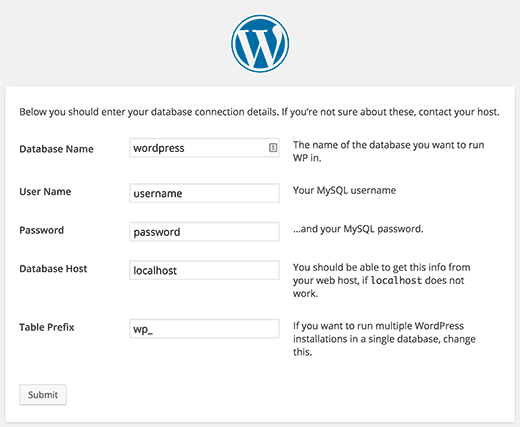
When you download WordPress, the package includes a file named wp-config-sample.php. This is a template — it has the correct structure but no real database credentials. During installation, WordPress either:
- Creates a
wp-config.phpautomatically based on the info you enter in the installer, or - Asks you to rename
wp-config-sample.phptowp-config.phpand fill in the database details yourself
If you see both files in your root directory, wp-config.php is the active one. You can leave wp-config-sample.php in place — it’s harmless.
How to check WordPress error logs
Where Is wp-config.php on Shared Hosting (cPanel)?
Shared hosting accounts are the most common WordPress environment, and they almost always use public_html as the web root. Here’s how to find wp-config.php using the two most common methods.
Using cPanel File Manager
- Log into your hosting account and open cPanel
- Click File Manager under the Files section
- Navigate to
public_html(or the folder where your WordPress is installed) - Look for
wp-config.phpin the file list — it’s in the same directory aswp-admin,wp-content, andwp-includes - Right-click the file and choose Edit to open it in the browser, or Download to edit locally
If you have WordPress installed in a subdirectory (for example, at example.com/blog/), look inside public_html/blog/ instead.
Can’t see the file? cPanel File Manager hides files starting with a dot by default, but wp-config.php doesn’t start with a dot. If it’s truly not visible, make sure you’re in the right directory — some hosts use www/ or htdocs/ instead of public_html/.
Using FTP or SFTP
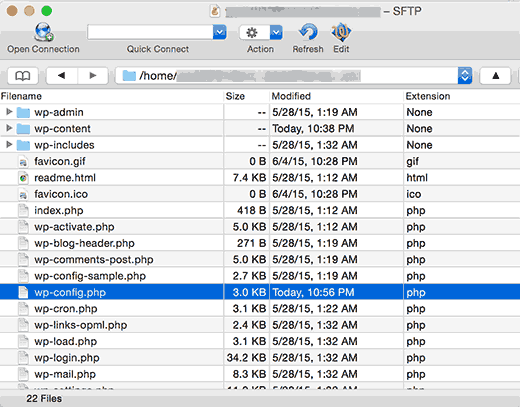
- Open your FTP client (FileZilla, Cyberduck, or WinSCP are popular choices)
- Connect using your hosting FTP credentials (host, username, password, port 21 for FTP or 22 for SFTP)
- In the remote site panel, navigate to your WordPress root — typically
/public_html/ - Download
wp-config.phpto edit it locally, then re-upload when done
SFTP (port 22) is preferred over plain FTP for security — most hosts support it. Check your hosting dashboard for SFTP credentials if needed.
Where Is wp-config.php in Local WP (Local by Flywheel)?
A common point of confusion: searching for wp-config.php in Local’s Adminer tool (the database viewer). Adminer manages your database — wp-config.php is a file on disk, not something inside the database.
The actual file is in your site’s app/public folder:
Windows Path
C:\Users\[your-username]\Local Sites\[site-name]\app\public\wp-config.phpMac Path
/Users/[your-username]/Local Sites/[site-name]/app/public/wp-config.phpThe fastest way to get there: in the Local app, right-click your site name in the left panel and choose Show Folder. This opens File Explorer (Windows) or Finder (Mac) with your site’s root folder selected. Open it, then go into app → public — wp-config.php will be right there.

Open the file with any plain-text editor — VS Code, Notepad++, or even Notepad. Avoid Word or similar word processors, as they can introduce invisible formatting characters.
Finding wp-config.php via SSH and WP-CLI
If you’re on a VPS, dedicated server, or any host that provides SSH access, there are two fast ways to track down wp-config.php without navigating folders manually.
Linux find Command
Search within your web directory:
find /var/www -name "wp-config.php"Or search the entire server (errors suppressed for unreadable directories):
find / -name "wp-config.php" 2>/dev/nullEither command prints the full path immediately.
WP-CLI
If WP-CLI is installed on your server, this single command returns the exact path:
wp config pathExample output:
/home/user/public_html/wp-config.phpWP-CLI’s wp config path command runs before WordPress finishes loading, so it works even when the site is experiencing errors — useful for debugging broken installations. WP-CLI official documentation covers additional config subcommands.
More WordPress developer tips on wplasma.com
wp-config.php Location on Popular Managed Hosting Platforms
Managed WordPress hosts often have non-standard file structures or restrict access methods. Here’s where to look on the most common platforms:
| Host | wp-config.php Path | Access Method | Notes |
|---|---|---|---|
| Kinsta | /www/[site-name]/public/ |
SFTP or SSH | No cPanel; use MyKinsta for SFTP credentials. Debug mode can be toggled in MyKinsta without editing wp-config.php. |
| WP Engine | WordPress root directory | SFTP or SSH | No cPanel. Some constants (like WP_POST_REVISIONS) may be overridden at server level. |
| SiteGround | /public_html/wp-config.php |
Site Tools → Site → File Manager, or SFTP | Uses Site Tools (not standard cPanel). SiteGround KB article has steps. |
| Bluehost | /public_html/wp-config.php |
cPanel File Manager or FTP | Standard cPanel setup. |
| Hostinger | /public_html/wp-config.php |
hPanel File Manager or FTP | Uses hPanel instead of cPanel; File Manager is in the same location. |
WP Engine vs Kinsta: a detailed comparison
Security Consideration: Can You Move wp-config.php?
WordPress has a built-in behavior worth knowing: it checks one directory above the WordPress root for wp-config.php if it doesn’t find the file in the standard location.
This means you can move wp-config.php from /public_html/wp-config.php to the directory above it (e.g., /home/user/wp-config.php). The file sits outside the web-accessible public folder, so a direct HTTP request can’t reach it — even if someone knows the URL pattern.
How it works in practice:
- Move
wp-config.phpone level abovepublic_htmlvia SFTP or SSH - WordPress automatically finds it on the next page load — no code changes needed
- Verify your site still loads correctly before closing your connection
Important caveats:
- This only works when WordPress is installed directly in the web root (not in a subfolder)
- Some managed hosts (like WP Engine or Kinsta) control the directory structure — this move may not be possible or supported there
- Security researchers at Wordfence note the benefit is modest: if an attacker can execute PHP on your server, they can access wp-config.php constants regardless of file location
It’s a low-effort improvement, not a silver bullet. Combined with strong database passwords, limited file permissions (644), and a security plugin, it contributes to a layered defense.
Common Errors — When wp-config.php Is Missing or Inaccessible

| Error Message | What It Means | Fix |
|---|---|---|
| “There doesn’t seem to be a wp-config.php file” | WordPress installer can’t find the config file — file hasn’t been created yet, or WordPress is pointing to the wrong directory | Run the installer to auto-create it, or rename wp-config-sample.php to wp-config.php and fill in your database details manually |
| “Unable to write to wp-config.php file” | The web server doesn’t have permission to create or write the file in that directory | Copy the configuration text from the installer screen, create wp-config.php manually via your file manager or SSH, paste the text in, and save. On Linux servers, you may need to create the file as root. |
| “Configuration Error: empty database table prefix” | $table_prefix is blank or missing in the file |
Open wp-config.php, find the $table_prefix line, and set it to 'wp_' (or whatever prefix your database tables use — check in phpMyAdmin) |
| White screen / fatal error after editing | A syntax error was introduced — missing semicolon, mismatched quote, or a stray character | Restore your backup immediately. If you don’t have a backup, re-open the file and compare it line by line against wp-config-sample.php |
| wp-config.php appears blank or returns a 403 | File permissions are too restrictive (000) or too permissive (777), or the file is corrupted | Set permissions to 644 via File Manager or run chmod 644 wp-config.php over SSH. Re-upload a clean copy if corrupted. |
How to read WordPress error logs for deeper debugging
FAQ — Frequently Asked Questions About wp-config.php Location
Is wp-config.php inside the wp-content folder?
No. wp-config.php is never inside wp-content. It sits one level above, directly in the WordPress root alongside wp-admin, wp-content, and wp-includes. If you’re browsing inside wp-content (which holds your themes and plugins), navigate up one level.
Can there be multiple wp-config.php files on one server?
Yes — if you have multiple WordPress installations on the same hosting account, each has its own wp-config.php in its own root directory. For example: /public_html/site1/wp-config.php and /public_html/site2/wp-config.php. Make sure you’re editing the right one.
What if WordPress is installed in a subfolder?
If your site lives at example.com/wordpress/, the config file is at /public_html/wordpress/wp-config.php. The file always stays with the WordPress core files, not at the domain root unless that’s also where WordPress is installed.
Where is wp-config.php on a WordPress Multisite network?
Multisite has one wp-config.php for the entire network, in the same root location as a standard install. The difference is what’s inside the file — Multisite adds define('WP_ALLOW_MULTISITE', true); and related constants. The path itself doesn’t change.
What’s the difference between wp-config.php and wp-config-sample.php?
wp-config-sample.php is a blank template included with every WordPress download. It has the correct structure but placeholder values — no real database credentials. During setup, WordPress either creates wp-config.php automatically, or you rename the sample file and fill it in manually. Once wp-config.php exists, the sample file is no longer needed.
Why can’t I see wp-config.php in cPanel File Manager?
Two likely causes: you’re in the wrong directory (try public_html if you’re elsewhere), or cPanel’s “Show Hidden Files” setting is toggling visibility. wp-config.php doesn’t start with a dot, so hidden file settings shouldn’t affect it — double-check your directory first.
What’s the difference between a self-hosted WordPress.org site and WordPress.com?
WordPress.com is a hosted service where you don’t have access to server files — there’s no wp-config.php you can edit. WordPress.org (self-hosted) gives you full access to your files, including wp-config.php. If you’re using WordPress.com, options like database settings and debug mode are handled by the platform, not by you.
Can I delete wp-config.php and start fresh?
Technically yes, but your site will immediately go offline — WordPress needs that file to connect to the database. If you want to reconfigure your database settings, edit the existing file rather than deleting it. If the file is corrupted beyond repair, you can recreate it from wp-config-sample.php, but you’ll need your database credentials handy.
Where is wp-config.php on a Bedrock or Roots installation?
Bedrock uses a different structure — the configuration lives in config/application.php instead of a traditional wp-config.php. There is a wp-config.php file generated in the web directory (web/wp-config.php), but it’s auto-generated from the application.php settings. If you’re on Bedrock, edit config/application.php and the environment-specific .env file instead.
Conclusion
To recap: on a standard WordPress installation, wp-config.php is in the root directory alongside your core WordPress folders. On shared hosting, that’s typically public_html/wp-config.php. In Local WP, it’s inside [site-name]/app/public/. On managed hosts like Kinsta, look for /www/[site-name]/public/.
If you’re using SSH, wp config path (WP-CLI) gives you the exact location in seconds. For anything in between, the environment table at the top of this guide covers the most common setups.
Whatever change you’re planning to make, back up the file — or the entire site — before you start. wp-config.php is central to how WordPress runs, and a small typo can take a site offline faster than almost any other single edit.
