


According to a Semrush study, 42.5% of all websites have broken internal links — and most site owners have no idea. A broken link doesn’t just annoy your visitors; it actively chips away at your search rankings and your site’s credibility over time. The good news is that finding them is much easier than it sounds, and several methods are completely free.
This guide covers six practical ways to locate broken links on your website, ranked from simplest to most thorough. Whether you’re running a WordPress blog, a small business site, or a large content operation, there’s a method here that fits your skill level and budget.

For a broader look at on-page and technical optimization, see wplasma.com — the WordPress resource hub where this guide lives.
Quick Answer: Which Method Should You Use?
If you’re in a hurry, here’s a fast decision table. For most small business owners and bloggers, combining Method 1 (Google Search Console) with Method 2 (WordPress plugin) covers 90% of broken link issues at zero cost.
| Method | Best For | Cost | Time to Results |
|---|---|---|---|
| Google Search Console | SEO-focused audits — links Google already flagged | Free | 5 minutes |
| WordPress Plugin (Broken Link Checker) | WordPress sites — continuous background monitoring | Free | Ongoing |
| Free Online Checkers | Quick spot checks, no install needed | Free | 2 minutes |
| Screaming Frog (free) | Full audits, sites up to 500 pages | Free | 15–30 minutes |
| Google Analytics 4 | Finding 404s that real users hit | Free | 10 minutes |
| Browser Extension | Quick single-page check before publishing | Free | 1 minute |
What Are Broken Links — and Why Do They Damage Your Site?
A broken link is any clickable URL on your site that leads to an error page instead of working content. When a visitor clicks it, they get an error page — usually a “404 Not Found” — instead of the page they expected. That dead end means lost visitors and a signal to Google that your site isn’t well-maintained.
The HTTP status codes you’re most likely to encounter when checking for broken links:
| Status Code | What It Means | Action Needed |
|---|---|---|
| 404 Not Found | Page doesn’t exist at this URL | Redirect or remove the link |
| 410 Gone | Page is permanently removed | Remove the link — no redirect needed |
| 500 / 503 | Server error (often temporary) | Check again later; contact host if persistent |
| 301 / 302 | Redirect to a new URL | Not broken, but check the destination is correct |
| 400 Bad Request | Malformed URL (typo, missing characters) | Fix the URL in your content |
Why broken links hurt your site:
- SEO impact: Google crawls broken internal links and treats repeated 404 errors as a maintenance signal. An Ahrefs study on link rot found that 66.5% of links from the last decade are now dead or broken — meaning nearly every established website has some cleanup to do.
- User experience: Visitors who click a dead link typically leave without checking another page. That bounce hurts conversion rates and brand trust.
- Crawl budget waste: On larger sites, Google’s crawlers waste crawl budget following dead-end links instead of indexing useful content.
Why Broken Links Happen in the First Place
Most broken links don’t appear because someone made an obvious mistake — they accumulate quietly over time. The most common causes:
- Deleted or moved content — A page was removed or its URL changed without setting up a redirect
- External sites changed their URL structure — You linked to a third-party article that later moved or went offline
- Typos in the original link — A wrong character in the href attribute that was never caught
- Site migrations — Moving to a new domain or switching from HTTP to HTTPS without updating all links
- Plugin or theme updates — URL slugs changed after editing a post title in WordPress, which doesn’t auto-update internal links inside content
- Third-party content removed — Linked YouTube videos deleted, PDFs removed, or partner pages taken down
The WordPress-specific case is worth noting: by default, WordPress does not update existing internal links when you rename a post slug. So if you publish “my-first-post” and later rename it to “getting-started-with-wordpress,” any internal link still pointing to “/my-first-post/” becomes a 404.
Method 1: Google Search Console (Free, No Install Required)
If your site is already connected to Google Search Console, you have a free broken link detector available right now. GSC shows you exactly which pages returned 404 errors when Google tried to crawl them — making it the highest-priority list to work from, since these are the errors affecting your SEO directly.
How to find broken links in Google Search Console:
- Log into Google Search Console and select your property
- In the left menu, go to Indexing → Pages
- Look for “Not Found (404)” in the “Why pages aren’t indexed” list and click it
- You’ll see a list of URLs Google crawled that returned 404 — these are the broken destinations
- For each URL, use the URL Inspection tool to see what links to it, or run a site search to find internal pages still linking to that dead URL
- Export the list using the export icon in the top-right corner
What GSC shows vs. what it doesn’t:
- ✅ Pages your site links to that returned 404 during Google’s crawl
- ✅ Historical 404s from the past month
- ❌ External links to other sites that are broken (only catches your own 404s)
- ❌ All broken links — only the ones Google has actually tried to crawl recently
When to use this method: Google Search Console is your first stop for any SEO-focused audit. Start here before using any other tool, because the errors listed in GSC are the ones actively affecting your rankings.
Method 2: WordPress Broken Link Checker Plugin (Best for WordPress Sites)
For WordPress sites, the most hands-off approach is a dedicated plugin that monitors your links in the background — notifying you when something breaks without you having to run a manual check every month.
Broken Link Checker by WPMU DEV is the most widely used option — it has 2.3 million+ active installs and over 22 million total downloads. Version 2.4.8 (updated March 11, 2026) is compatible with WordPress 6.8 and PHP 8.4.
How to install and use it:
- Go to Plugins → Add New in your WordPress admin
- Search for “Broken Link Checker” and install the one by WPMU DEV
- Activate it — it starts scanning automatically
- View results under Tools → Broken Links (or the Link Checker dashboard)
- From the results list, you can edit the URL directly, unlink it, or dismiss false positives
Key features:
- Scans posts, pages, comments, custom fields, and WooCommerce product links
- Two scan modes: local (runs on your server) or cloud-based (20x faster, zero server load)
- Email notifications when new broken links are found
- Bulk editing and unlinking directly from the dashboard
- Full WordPress Multisite support
Free vs. paid: All core scanning features are free. A free WPMU DEV Hub account gives you cloud dashboard access with some restrictions (15-minute wait between manual scans). Full cloud features require a WPMU DEV membership.
One caveat: On large sites with thousands of pages, the local scanning mode can slow down the server. Use the cloud-based mode for sites with significant traffic or switch to Screaming Frog for one-time audits on large installs.
Method 3: Free Online Broken Link Checkers (No Account Needed)
No plugin, no software, no account — just paste a URL and get results. Free online broken link checkers are the fastest way to spot-check a page before publishing or to run a quick audit on a small site.
The best free options available right now:
- Ahrefs Free Broken Link Checker — Enter any domain or page URL; returns external broken links quickly with no signup. Limited to a snapshot of known data.
- Dead Link Checker — Offers single-page and multi-page checks. Free tier includes scheduled auto-checks with email reports.
- BrokenLinkCheck.com — Checks your whole site for broken links and returns a full report. No signup required.
- W3C Link Checker — The official W3C link validator. Produces detailed, technical output; best for developers who want standards compliance data.
Limitations to know: These tools work well for sites under 200 pages. They may miss JavaScript-rendered links, dynamically generated URLs, and pages behind login. Rate limiting can also slow down checks on larger sites. For sites with hundreds of pages, Screaming Frog (below) gives more reliable results.
Method 4: Screaming Frog SEO Spider (Best for Full Site Audits)
Screaming Frog is as close to a professional-grade broken link audit as you can get — and the free version handles up to 500 URLs, which covers most small business websites entirely.
How to use Screaming Frog to find broken links:
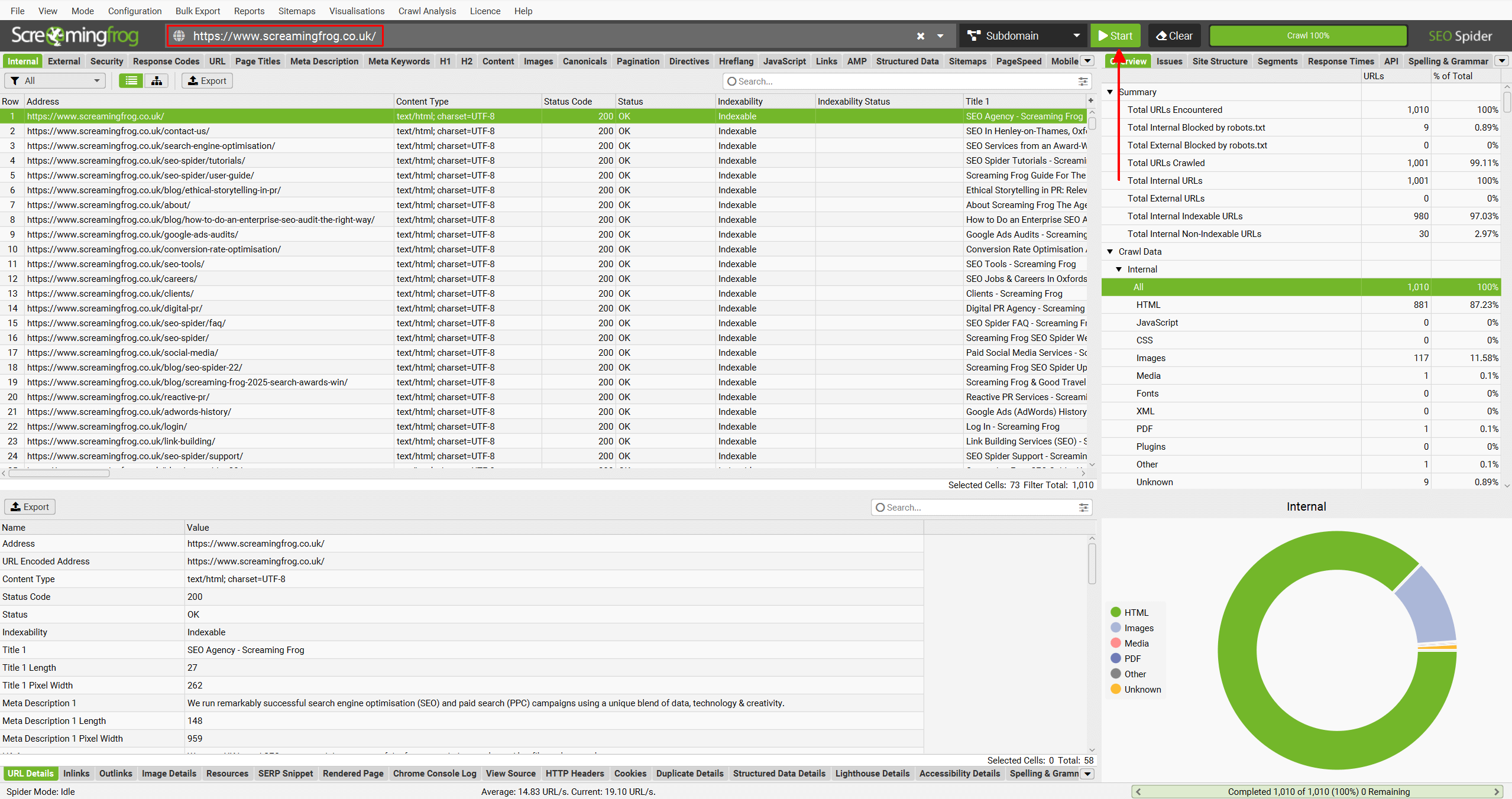
- Download and open the Screaming Frog SEO Spider (free for up to 500 URLs)
- Paste your website URL into the address bar and click Start
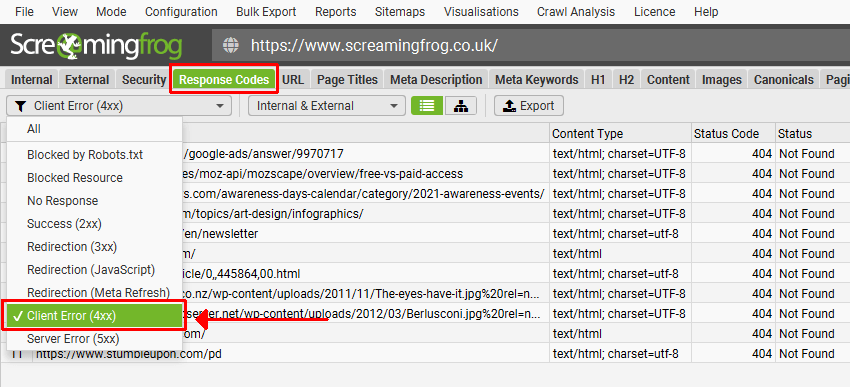
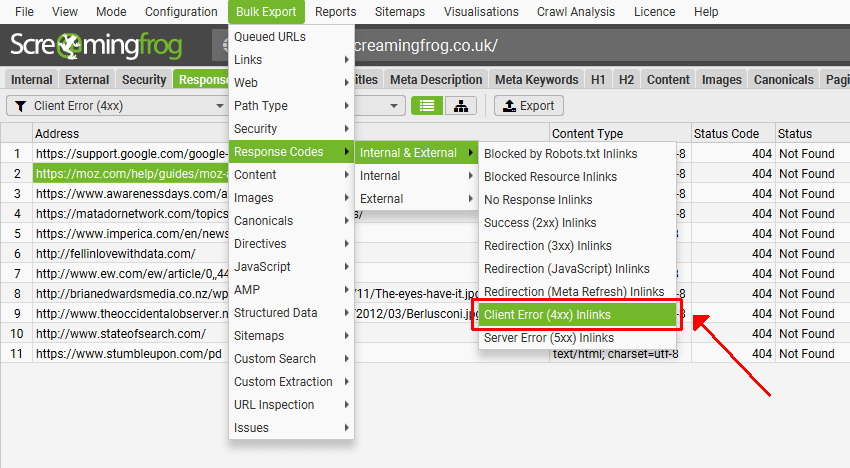
- Once the crawl finishes, click the Response Codes tab at the top
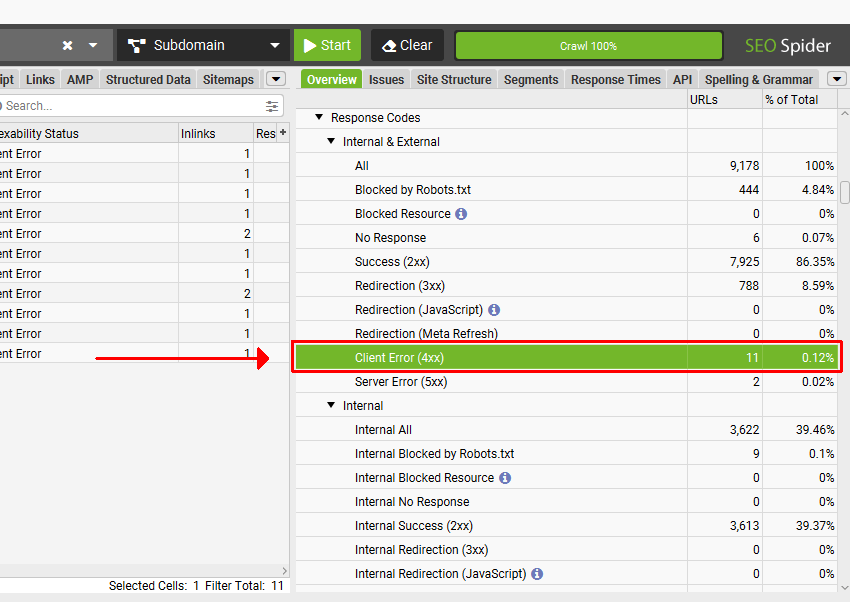
- Use the filter dropdown and select Client Error (4XX) — this shows all broken links
- Click any broken URL to select it, then click the Inlinks tab at the bottom to see which page on your site contains the broken link
- To export everything, use Bulk Export → Response Codes → Client Error (4XX) Inlinks — this gives you a spreadsheet with the source page and broken URL in each row

One thing to know about internal vs. external broken links: Screaming Frog classifies internal broken links as a high-priority issue and external broken links as a lower-priority warning. Fix the internal ones first — those have the biggest SEO impact.
Pricing (March 2026):
- Free: Up to 500 URLs per crawl — covers most small and medium sites
- Paid: £199/year (approximately $259 USD) for unlimited URL crawls and advanced features like JavaScript rendering and API integrations
Method 5: Google Analytics 4 (Find 404s That Real Users Actually Hit)
GA4 doesn’t have a dedicated broken link report, but it captures something the other methods miss: the pages real visitors landed on that returned 404. This tells you which broken links are actually affecting your audience — not just what Google found during a crawl.
How to find 404 pages in GA4:
- Go to Reports → Engagement → Pages and Screens
- In the search bar, type the title of your 404 page (e.g., “Page Not Found” or “404 Error” — whatever your theme uses)
- The results show every URL where users landed on that error page
- Sort by Views descending to see which broken pages got the most traffic
Limitation: GA4 only shows pages where real users actually landed — it won’t surface broken links that haven’t been clicked yet. Use it alongside Google Search Console (which shows what Google crawled) for a complete picture.
Method 6: Browser Extensions for Quick Manual Checks
Browser extensions check every link on a page in seconds without leaving your browser. They’re not ideal for site-wide audits, but they’re the fastest way to scan a page before you publish or after a major update.
Recommended extensions:
- Check My Links (Chrome) — Highlights valid links in green and broken links in red, with the HTTP status code shown on hover. One of the most popular options with clear visual feedback.
- Link Checker (Firefox) — Similar functionality for Firefox users.
Install the extension, open the page you want to check, and click the extension icon. Results appear in seconds — red links are broken, green links are fine. It’s that simple for single-page checks.
Comparison Table: Which Method Fits Your Situation?
Here’s how all six methods compare. Most small business owners and bloggers can cover their needs entirely with the free options.
| Method | Cost | Best For | Site Size | Technical Skill | Time to Results |
|---|---|---|---|---|---|
| Google Search Console | Free | SEO-priority broken links | Any | Low | 5 min |
| WordPress Plugin (Broken Link Checker) | Free / Premium | WordPress sites, ongoing monitoring | Small–Large | Low | Ongoing |
| Free Online Checkers | Free | Quick spot checks, no install | Small (<200 pages) | None | 2 min |
| Screaming Frog (free) | Free (≤500 URLs) | Full site audits, up to 500 pages | Up to 500 pages | Medium | 15–30 min |
| Screaming Frog (paid) | £199/year | Large site audits, agency use | Unlimited | Medium | 15–60 min |
| Google Analytics 4 | Free | Finding 404s real users hit | Any | Medium | 10 min |
| Browser Extension | Free | Pre-publish single-page checks | N/A (single page) | Low | 1 min |
| Ahrefs / Semrush | From ~$99/mo (verify current pricing) | Full SEO suite + backlink audits | Medium–Large | Medium | 20 min |
Quick recommendations by situation:
- WordPress site, small business: Broken Link Checker plugin + Google Search Console
- Non-WordPress site, small business: Free online checker + Google Search Console
- Agency managing multiple sites or 500+ pages: Screaming Frog paid
- Pre-publish page check: Browser extension (30 seconds)
What to Do After Finding Broken Links
Finding broken links is half the job. Here’s how to actually fix them — the right approach depends on what caused the break in the first place.
Option 1: Set up a 301 redirect
Use this when the page moved to a new URL and the content still exists. A 301 redirect automatically sends visitors (and Google) from the old URL to the new one. For WordPress, the Redirection plugin is free and handles this cleanly. Yoast SEO Premium also includes redirect management.
Option 2: Restore the missing content
If a page was accidentally deleted, check the Trash in your WordPress admin (Posts or Pages → Trash). If it’s not there, check your hosting backup. Most managed WordPress hosts keep daily backups for at least 30 days.
Option 3: Update or remove the link
If the destination is gone for good — an external article deleted, a product page removed, a partner’s site shut down — the cleanest fix is to edit the page and either remove the link or replace it with a working equivalent. There’s no need to create a redirect for external links you don’t control.
Option 4: For 410 errors, just remove the link
A 410 status code means the page is permanently gone. Unlike a 404 (which might be temporary), a 410 signals intentional removal. No redirect is needed — just clean up the link pointing to it.
Fix priority guide:
- 🔴 Internal broken links — Fix first. These waste crawl budget and directly affect your rankings.
- 🟡 External broken links — Fix when convenient. Less critical for SEO, but still hurts UX.
- 🟢 301/302 redirect chains — Clean up when you have time. Long redirect chains slow page load and dilute link equity.
How Often Should You Check for Broken Links?
Broken link audits shouldn’t be a one-time event. The right frequency depends on how actively your site changes.
| Site Activity Level | Recommended Check Frequency |
|---|---|
| Active blog (new posts weekly) | Monthly |
| Business site (updated occasionally) | Every 3 months |
| Static or portfolio site | Every 6 months |
| E-commerce site (many product pages) | Monthly (product links break frequently) |
The most efficient approach: install the Broken Link Checker plugin on WordPress (for continuous monitoring) and run a Screaming Frog crawl once a quarter as a cross-check. Set a calendar reminder so the quarterly audit doesn’t slip.
Frequently Asked Questions
- What is a broken link?
- A broken link is any clickable link on a web page that leads to an error page instead of valid content. The most common type returns a 404 Not Found error, which means the page doesn’t exist at that URL. Broken links can be internal (linking to pages on your own site) or external (linking to pages on other websites).
- Do broken links affect SEO?
- Yes, particularly broken internal links. Google crawls your site by following links — broken internal links waste crawl budget and prevent Googlebot from discovering or re-crawling your content. A Semrush study found that 42.5% of websites have broken internal links, making it one of the most common technical SEO issues. A few broken links won’t tank your rankings, but consistent neglect adds up over time.
- What’s the difference between a 404 and a 410 error?
- Both mean the page isn’t available, but with different implications. A 404 (Not Found) suggests the absence might be temporary — Google will keep checking. A 410 (Gone) is a permanent signal: the resource has been intentionally removed and won’t return. For 404 pages you want to keep gone, consider returning a 410 so Google stops recrawling the URL faster.
- How do I find broken links on a WordPress site?
- The easiest method is the Broken Link Checker plugin by WPMU DEV — it has 2.3 million+ active installs and runs automatically in the background. Install it from Plugins → Add New, and it will notify you of broken links as it finds them. For periodic deeper audits, combine it with Google Search Console’s Pages → Not Indexed → Not Found (404) report.
- Is there a free tool to check broken links without installing anything?
- Yes — several. Ahrefs offers a free broken link checker at ahrefs.com/broken-link-checker that requires no account. Dead Link Checker (deadlinkchecker.com) and BrokenLinkCheck.com also work without signup. These are best for sites under 200 pages or for checking a specific page rather than a full audit.
- How long does it take to audit a site for broken links?
- It depends on your site size and the tool. Google Search Console takes about 5 minutes to check. A free online checker on a 50-page site takes 2–5 minutes. Screaming Frog on a 500-page site typically runs 15–30 minutes. For very large sites (1,000+ pages), a Screaming Frog paid crawl can take up to an hour.
- What should I do if I have hundreds of broken links?
- Prioritize internal broken links first — these affect your SEO most directly. Export the full list from Screaming Frog or Google Search Console, then sort by type (internal vs. external). Fix internal links via 301 redirects or content restoration. For external links, update or remove them in batches, starting with the pages that get the most traffic.
- Can broken links affect my Google ranking?
- Broken internal links can reduce rankings indirectly — they interrupt internal link equity flow and waste Googlebot’s crawl budget. Broken external links don’t affect your rankings directly but signal poor maintenance. Google won’t penalize you for a handful of broken links, but a site riddled with them is harder for Google to crawl and index effectively.
- How do I find broken links on a single page without scanning the whole site?
- Install the Check My Links extension for Chrome. Open the page, click the extension, and it highlights broken links in red within seconds. Alternatively, paste the page URL into any free online broken link checker — most let you check a single page rather than the full domain.
Final Thoughts
Broken links are a routine reality of running a website — they appear naturally as content moves and external sources change. The goal isn’t to achieve zero broken links forever; it’s to have a consistent process for finding and fixing them before they accumulate.
For most small business owners and bloggers, two free tools cover everything: Google Search Console for SEO-critical broken links Google already knows about, and the Broken Link Checker plugin for continuous WordPress monitoring. Add a Screaming Frog crawl quarterly if you want a thorough audit.
Start with whichever method fits where you are right now. A quick Google Search Console check takes five minutes and often surfaces the most important issues immediately. From there, the fix strategies above keep the process straightforward.
