



Slow pages push visitors away before your content even loads — and Google factors site speed directly into search rankings. A content delivery network (CDN) is one of the most effective fixes available, serving your WordPress site’s static files from edge servers positioned close to each visitor worldwide.
This guide covers seven CDN services worth considering for WordPress in 2026. Each one has been evaluated across pricing, network coverage, WordPress integration, and honest use-case fit. No single sponsor. No affiliate arrangement shaping the rankings. The goal is to help you pick the right CDN for your site, not the most lucrative one to recommend.
Pricing data in this guide has been verified as of March 2026. CDN services update their plans regularly, so always confirm current rates before purchasing.

What Is a CDN and Why Does Your WordPress Site Need One?
How a CDN Works
When a visitor loads your WordPress site, their browser requests files — images, CSS stylesheets, JavaScript — from your hosting server. If that server is in Chicago and the visitor is in Tokyo, every request crosses half the planet. The result is latency: a noticeable delay before the page appears.
A content delivery network solves this by storing copies of your site’s static files on servers distributed across multiple geographic regions, called Points of Presence (PoPs). When someone visits your site, the CDN serves those cached files from the PoP nearest to them — reducing the distance data has to travel, and cutting load times significantly.
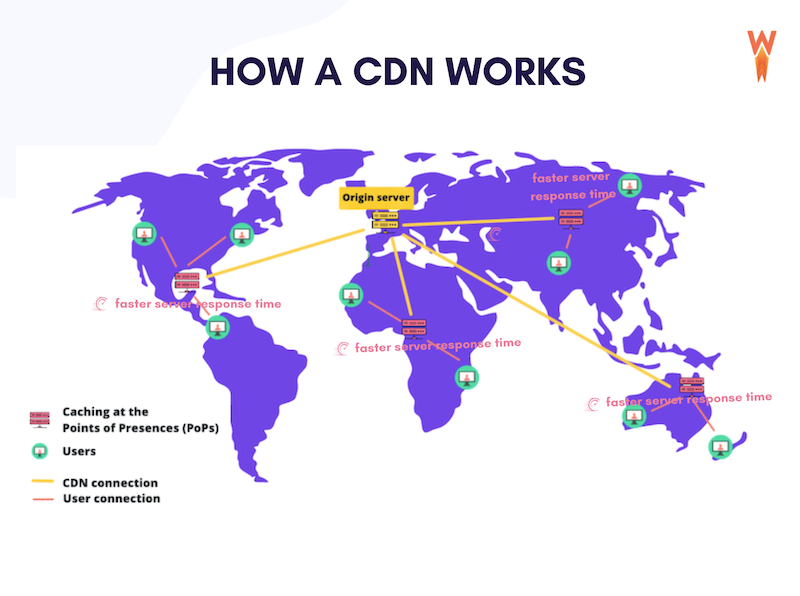
Your origin server — the WordPress hosting server where your site actually lives — handles dynamic requests like database queries for page content. The CDN handles the heavy static payload: images, fonts, theme files, plugin scripts. Together, they dramatically reduce the load on your host and the time visitors wait.
CDN vs. WordPress caching plugin — what’s the difference? A caching plugin (like WP Rocket or W3 Total Cache) stores pre-built HTML pages on your origin server to reduce database queries. A CDN distributes those cached files globally so they reach visitors faster. The two technologies complement each other — a caching plugin generates the cached files; a CDN delivers them efficiently. Using both together gives the best results.
Key Benefits for WordPress Sites
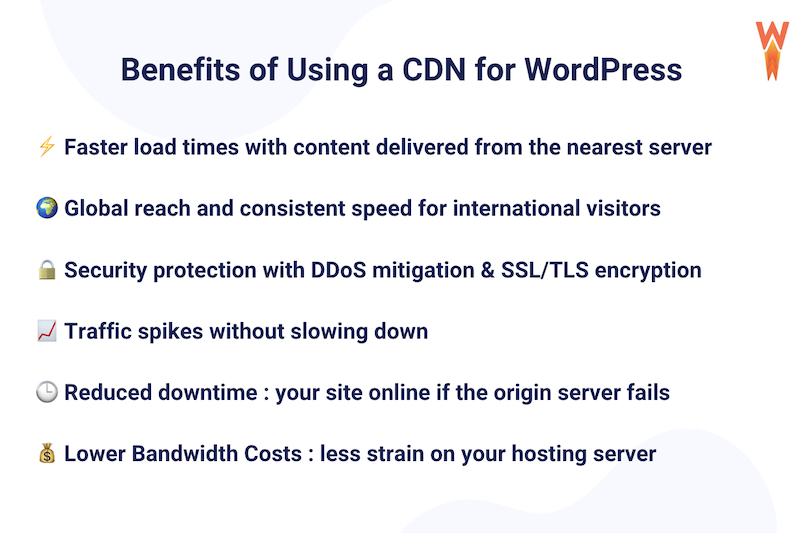
- Faster load times: Content arrives from a nearby edge server, reducing latency. Real-world data from a 42,000-test study across 10,500+ websites showed that enabling a CDN improved average Largest Contentful Paint (LCP) by 19.79% — dropping from 1,542ms to 1,237ms.
- Better Core Web Vitals and SEO: Google uses LCP as a ranking factor. Faster LCP and lower Cumulative Layout Shift (CLS) directly support better search performance.
- DDoS mitigation: CDN edge networks absorb distributed attack traffic before it reaches your origin server, protecting uptime during attacks.
- Bandwidth savings on your host: Files served from CDN edge servers don’t consume your hosting bandwidth quota, which matters if you’re on a shared or limited plan.
- Resilience during traffic spikes: When a post goes viral or a promotion drives a sudden surge, the CDN absorbs the spike instead of overwhelming your hosting server.
Quick Picks — Best WordPress CDN at a Glance
Not sure which CDN to choose? The table below summarizes each service covered in this guide. Jump to any section for the full breakdown, or use the “best for” column to find your fit quickly.
| CDN | Best For | Free Plan | Starting Price | PoPs |
|---|---|---|---|---|
| Cloudflare | Free CDN + security for any site | Yes | Free / $20/mo | 310+ cities |
| Bunny.net | Best value pay-as-you-go CDN | No (14-day trial) | $0.01/GB | 120+ |
| KeyCDN | Developer control, granular caching | No (14-day trial) | $0.04/GB | 45+ |
| RocketCDN | WP Rocket users; zero-config setup | No | $8.99/mo | 120+ |
| Sucuri | Security-first CDN (WAF bundled) | No | $199.99/yr | Global |
| Amazon CloudFront | AWS-hosted WordPress sites | Yes (1 TB/mo) | Pay-as-you-go | 600+ |
| Envira CDN | Image-heavy portfolios and galleries | No | ~$10/yr | 335+ |
The 7 Best WordPress CDN Services Reviewed
1. Cloudflare — Best Free CDN for WordPress

Cloudflare runs one of the largest CDN networks in the world — over 310 cities across 120+ countries. It handles more internet traffic than any other CDN provider, and its free tier is genuinely useful, not just a stripped-down teaser. For most small WordPress sites, the free plan delivers real performance gains with no monthly cost.
Unlike traditional CDNs that require a CNAME record setup, Cloudflare operates as a reverse proxy. You point your domain’s nameservers to Cloudflare, and all traffic flows through their network. This means Cloudflare handles both CDN delivery and DNS for your domain — a one-stop change with wide-ranging benefits.
Pricing (verified March 2026): Free plan available. Pro plan: $20/month per domain. Business plan: $200/month (100% uptime SLA). Enterprise: custom pricing. Core CDN bandwidth is unlimited on all plans — no per-GB charges.
WordPress integration: Official Cloudflare plugin available (slug: cloudflare). Allows cache purging from the WordPress dashboard, enables Automatic Platform Optimization (APO) for dynamic pages on paid plans, and exposes security settings without needing to leave WordPress.
- Pros: Largest free CDN tier in the market. Unlimited bandwidth on all plans. Built-in DDoS protection (unmetered, even on free). HTTP/3 support. Always Online mode serves cached pages if your origin goes down.
- Cons: No uptime guarantee for Free and Pro users. Advanced features like APO and image optimization require paid plans. Setup requires DNS change (nameserver update), which takes 24–48 hours to propagate.
Setup difficulty: 3/5. The nameserver change is straightforward but not instant. Non-technical users may need to contact their domain registrar for help. After setup, the WordPress plugin simplifies ongoing management.
Best for: Personal blogs, small business websites, and any site looking for free CDN + security without touching their hosting plan. Also ideal for sites that want WAF protection bundled with CDN delivery.
2. Bunny.net — Best Value CDN for Most WordPress Sites

Bunny.net consistently earns the top spot in CDN comparisons for good reason: $0.01 per GB for North America and Europe is as cheap as CDN bandwidth gets without sacrificing reliability. The network spans 120+ edge locations across six continents, customer support responds in under five minutes on average, and the WordPress plugin makes setup genuinely straightforward.
For small to medium WordPress sites consuming anywhere from a few GB to several hundred GB per month, Bunny.net offers measurable performance at a cost that won’t require a budget review. A site serving 100 GB of traffic per month would pay $1 — the minimum monthly charge — for most North American and European audiences.
Pricing (verified March 2026): $0.01/GB (North America, Europe). $0.03/GB (Asia, Oceania). $0.045/GB (South America). $0.06/GB (Middle East, Africa). Minimum charge: $1/month. Volume pricing available (as low as $0.005/GB). 14-day free trial available.
WordPress integration: Official BunnyCDN plugin available (slug: bunnycdn). Install the plugin, connect your API key, configure a Pull Zone, and static assets are served through Bunny.net’s network. Cache purging works from the WordPress dashboard.
- Pros: Lowest per-GB pricing on the market. 99.99% uptime SLA with credit compensation for outages. Image optimizer add-on available (WebP conversion, resizing). Real-time analytics dashboard. Video CDN option for video-heavy sites. Responsive 24/7 live chat support.
- Cons: No permanent free tier (only 14-day trial). Regional pricing means international audiences cost slightly more. No built-in WAF or security platform — purely a CDN.
Setup difficulty: 2/5. Plugin installation and API key connection take about 10–15 minutes. Pull Zone configuration is straightforward with the plugin guiding the process.
Best for: Small business owners and bloggers who want reliable, affordable global CDN without committing to a monthly flat fee. Also a strong choice for agencies managing multiple client sites on tight margins.
3. KeyCDN — Best for Developers and Custom Configurations
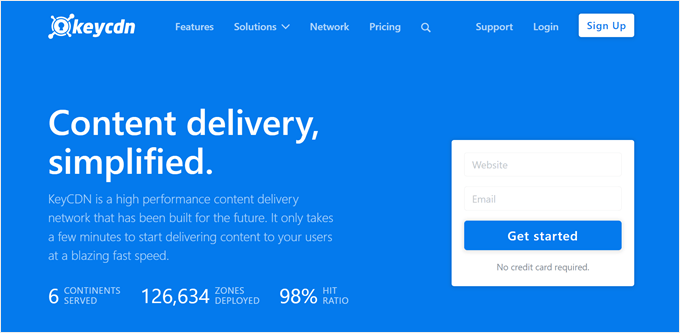
KeyCDN is built for users who want to understand exactly what their CDN is doing. Pull Zones fetch content from your origin server on demand; Push Zones let you pre-upload files directly to KeyCDN’s storage for immediate edge availability. This distinction matters for sites managing large assets like downloadable files or video segments.
The SSD-powered edge servers deliver fast data retrieval, and the free CDN Enabler plugin — maintained by KeyCDN — gives WordPress users granular control over which file types are served through the CDN. Real-time analytics expose cache hit/miss ratios, bandwidth, and traffic sources.
Pricing (verified March 2026): $0.04/GB (North America/Europe, first 10TB); $0.09/GB (Asia/Oceania); $0.11/GB (South America/South Africa). Volume pricing available — drops to $0.01/GB after 100TB. Minimum monthly usage fee: $4. Minimum credit purchase: $49. Free 14-day trial (no credit card required).
WordPress integration: CDN Enabler plugin (slug: cdn-enabler), maintained by KeyCDN. Allows file type selection for CDN delivery and instant cache purging from the WordPress admin area. HTTP Live Streaming (HLS) support for video delivery.
- Pros: SSD-powered servers for fast data retrieval. Granular Pull and Push Zone control. Real-time analytics with cache hit ratio reporting. GZIP compression and HTTP/2 included. 24/7 support via email, live chat, and ticketing system with strong reviews. Free 14-day trial.
- Cons: Higher per-GB cost than Bunny.net for North America/Europe. $49 minimum credit purchase is a barrier for casual or low-traffic users. Fewer PoP locations (45+) compared to Cloudflare or Bunny.net.
Setup difficulty: 3/5. Zone configuration requires understanding the difference between Pull and Push Zones. The CDN Enabler plugin simplifies WordPress integration, but advanced cache rules still require manual configuration.
Best for: Developers managing sites with mixed content types (static assets + large downloadable files), agencies who want detailed CDN analytics, and WordPress users comfortable with a bit of configuration for better control.
4. RocketCDN — Best CDN for WP Rocket Users
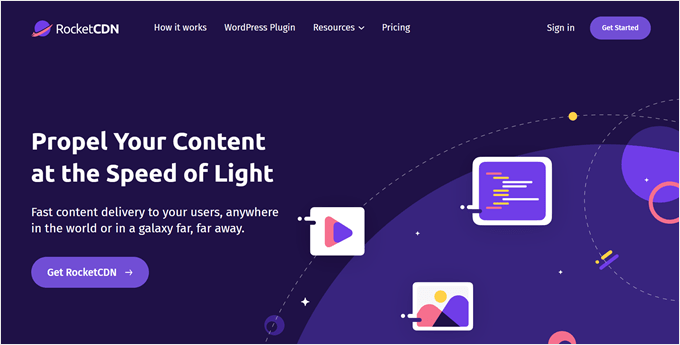
RocketCDN exists for a specific purpose: to give WP Rocket users a CDN that requires zero configuration. Install the plugin, add your API key, and every static asset on your site routes through the CDN automatically. Compression, HTTP/2 support, and HTTPS are pre-configured. There’s nothing to tweak.
It runs on Bunny.net’s infrastructure — the same 120+ PoP network — so the delivery quality is solid. The difference from using Bunny.net directly is the pricing model. RocketCDN charges a flat monthly or annual fee with unlimited bandwidth, while Bunny.net charges per GB. For high-traffic sites, Bunny.net’s pay-as-you-go model works out cheaper. For low-to-moderate traffic sites that want simplicity, RocketCDN’s flat fee removes the mental overhead of calculating bandwidth usage.
Pricing (verified March 2026): $8.99/month or $89.99/year (unlimited bandwidth, all regions). WP Rocket customers pay $7.99/month or $79/year per domain (excl. VAT). No free trial; 24-hour cancellation/refund window after signup.
WordPress integration: RocketCDN plugin (slug: rocketcdn). For WP Rocket users, the CDN can be activated directly from the WP Rocket settings tab without leaving the WordPress dashboard. Automatic SEO tag handling prevents duplicate content issues.
- Pros: True zero-configuration setup — no manual cache rules, no zone configuration. Unlimited bandwidth at a predictable monthly cost. Direct WP Rocket dashboard integration. Handles canonical tags automatically to prevent CDN-related SEO issues.
- Cons: No analytics dashboard for monitoring cache hit ratios or performance metrics. No free trial. Flat-rate pricing becomes poor value at very low traffic levels or very high traffic levels compared to alternatives. No WAF or security features included.
Setup difficulty: 1/5. Plugin + API key. Everything else is automatic. Realistically a 5-minute setup.
Best for: Non-technical WordPress site owners already using WP Rocket who want a CDN that “just works” without any configuration. Not ideal for developers who want analytics, custom caching rules, or security bundled in.
5. Sucuri — Best CDN for Security-First WordPress Sites
Sucuri is a security company that includes a CDN as part of its website protection platform. That distinction matters: you’re not buying a CDN with security add-ons; you’re buying a security platform that also accelerates your site. If you need both a WAF and CDN, Sucuri delivers both from a single setup. If you need CDN speed only, it’s an expensive way to get there.
The platform routes your site’s traffic through Sucuri’s global network via a DNS change. Sucuri’s Web Application Firewall sits between visitors and your origin server, blocking spam, malware attempts, and DDoS attacks before they reach WordPress. The CDN caches and delivers static content from the same network — data centers in North America, Europe, Asia, and AWS-backed nodes in Australia and Brazil.
Pricing (verified March 2026): Basic plan: $199.99/year (~$16.67/month) — one site, WAF + CDN + malware removal. Pro plan: $299.99/year (~$25/month) — adds SSL certificate management. Business plan: $499.99/year (~$41.67/month) — additional enterprise features. 30-day money-back guarantee. CDN cannot be purchased separately.
WordPress integration: Sucuri Security plugin available (slug: sucuri-scanner). CDN is activated by routing DNS through Sucuri’s WAF, not via a traditional plugin pull zone. Multiple caching options available (minimal, aggressive, custom) to accommodate dynamic content like WooCommerce carts.
- Pros: WAF + CDN combo in one platform — no separate security subscription needed. Malware removal included in all plans. Multiple caching modes to handle dynamic content properly. Automatic SSL certificate installation on the firewall layer. Sucuri claims up to 60% performance improvement for protected sites.
- Cons: CDN cannot be purchased alone — you’re paying for the full security platform. Annual entry price of ~$200 is significantly higher than CDN-only services. WAF-based setup means all traffic routes through Sucuri’s servers, which requires trust in their platform’s reliability.
Setup difficulty: 3/5. Requires DNS change to route traffic through Sucuri’s WAF. The Sucuri dashboard then handles CDN configuration. Not instant — DNS changes take time to propagate globally.
Best for: WooCommerce stores handling payment data, membership sites with user logins, or any WordPress site that has been hacked before or is a high-value target. If security is already a budget line item, Sucuri bundles it with CDN at reasonable total cost. If you only need CDN speed, choose something else.
6. Amazon CloudFront — Best CDN for AWS-Hosted WordPress Sites
Amazon CloudFront is the CDN component of Amazon Web Services. It’s not designed specifically for WordPress, and the setup process reflects that — this is infrastructure tooling, not a beginner-friendly product. But if your WordPress site is already running on AWS (EC2, Lightsail) or uses S3 for media storage, CloudFront integrates natively with your existing stack in ways no other CDN can match.
The network is massive: 600+ Points of Presence across 90+ cities in 47 countries. AWS Shield Standard — CloudFront’s DDoS protection — is automatically enabled at no extra cost. Lambda@Edge lets developers run custom code at edge locations, enabling things like A/B testing, geolocation-based content, and API response manipulation closer to the user.
Pricing (verified March 2026): AWS Free Tier includes 1 TB of data transfer out per month for the first 12 months. After the free tier, pricing is regional and pay-as-you-go (approximately $0.0085/GB for North America/Europe after the first 10TB). Complex regional pricing — check aws.amazon.com/cloudfront/pricing/ for your specific usage scenario.
WordPress integration: No official CloudFront WordPress plugin. Third-party options: WP Offload Media (for S3 + CloudFront integration), CDN Enabler (for general CNAME rewrites). Setup requires AWS Console access and familiarity with CloudFront distribution settings.
- Pros: Largest PoP network of any CDN covered here (600+). Deep AWS service integration (S3, EC2, Lambda, Route 53). AWS Shield Standard DDoS protection at no additional cost. Generous free tier (1TB/month for 12 months). Lambda@Edge for serverless compute at edge.
- Cons: Not beginner-friendly — AWS Console setup requires technical knowledge. No official WordPress plugin. Complex regional pricing is hard to estimate before you have data. Overkill for sites not already using AWS infrastructure.
Setup difficulty: 5/5. Requires AWS account, CloudFront distribution configuration, origin settings, cache behavior rules, and HTTPS certificate setup via ACM. Not suitable for non-technical users without documentation or a developer.
Best for: WordPress developers and agencies running sites on AWS infrastructure. Sites using S3 for media storage. High-traffic applications needing Lambda@Edge customization. Not recommended for shared-hosting WordPress sites or non-technical users.
7. Envira CDN — Best CDN for Image-Heavy WordPress Sites
Envira CDN does one thing: deliver images faster from a global network of 335+ locations. It doesn’t serve CSS, JavaScript, or fonts. It’s an image-only CDN integrated directly into the WordPress media library via the Envira Gallery plugin.
That narrow scope is also its strength. Setup is a toggle in the WordPress dashboard. After activation, every image in your Media Library is automatically offloaded to the CDN and served with automatic WebP conversion and responsive sizing based on the visitor’s device. For photographers, portfolio sites, and media-heavy blogs, this removes the complexity of configuring a full CDN while delivering the most impactful single optimization for image-dominated pages.
Pricing (verified March 2026): Included with certain Envira Gallery plans. Standalone CDN subscription approximately $10/year. Check enviragallery.com/cdn/ for current plan details, as pricing may vary. 14-day money-back guarantee.
WordPress integration: Native integration via Envira Gallery plugin. One-click activation from WordPress dashboard. Bulk offload tool migrates entire existing Media Library to CDN. Works with any WordPress site — not limited to galleries.
- Pros: Simplest setup of any CDN on this list — literally one toggle. Automatic WebP conversion and responsive image delivery. Bulk Media Library offload. Transparent flat pricing with no bandwidth overage charges. No technical configuration needed.
- Cons: Images only — does not serve CSS, JavaScript, or fonts. Not useful as a general-purpose CDN. No DDoS protection or security features. Requires Envira Gallery plugin.
Setup difficulty: 1/5. One-click activation. The simplest CDN setup available for WordPress.
Best for: Photographers, illustrators, and bloggers with image-heavy content who want CDN benefits without technical setup. Ideal as a complement to a general CDN — or as a standalone solution for sites where images are the primary performance bottleneck.
Full Comparison Table
The table below compares all seven CDNs across eight key attributes. “Origin Shield” refers to an additional caching layer that reduces load on your origin server during high-traffic events.
| CDN | Pricing | PoPs | Free Plan | WordPress Plugin | DDoS Protection | Origin Shield | Setup Difficulty |
|---|---|---|---|---|---|---|---|
| Cloudflare | Free – $200/mo | 310+ cities | Yes | Yes (official) | Yes (Free) | Paid | 3/5 |
| Bunny.net | $0.01/GB+ | 120+ | No (14-day trial) | Yes (official) | Yes (Free) | Yes (Free) | 2/5 |
| KeyCDN | $0.04/GB+ | 45+ | No (14-day trial) | Yes (CDN Enabler) | Yes (Paid) | Yes (Free) | 3/5 |
| RocketCDN | $8.99/mo | 120+ | No | Yes (official) | Yes | Yes | 1/5 |
| Sucuri | $199.99/yr+ | Global | No | Yes (plugin) | Yes | Yes | 3/5 |
| Amazon CloudFront | Pay-as-you-go | 600+ | Yes (1TB) | No (3rd party) | Yes (AWS Shield) | Paid | 5/5 |
| Envira CDN | ~$10/yr | 335+ | No | Yes (native) | No | No | 1/5 |
Pricing verified as of March 2026. Rates may change — confirm current pricing on each provider’s website before purchasing.
How to Choose the Right CDN for Your WordPress Site
The “best” CDN depends entirely on your site’s situation. Here’s a direct use-case matcher to cut through the noise:
On a tight budget (or free)
Start with Cloudflare’s free plan. It delivers real CDN performance, includes DDoS protection, and costs nothing. For low-to-moderate traffic sites, it covers most needs. If you outgrow the free plan, Cloudflare Pro at $20/month is a natural next step with significantly more features. Alternatively, Bunny.net at $0.01/GB is the cheapest paid option — a site using 50 GB per month pays 50 cents (plus the $1 minimum), making it more affordable than any flat-rate plan at low volumes.
Running WooCommerce or handling user data
Sucuri bundles WAF + CDN in one platform, protecting checkout processes, login pages, and payment flows from injection attacks and DDoS. Cloudflare Pro is the alternative if you want WAF without Sucuri’s annual commitment. For pure CDN speed on a WooCommerce site without specific security concerns, Bunny.net handles the static asset load affordably.
Already using WP Rocket
RocketCDN integrates directly into the WP Rocket dashboard and requires no configuration. The $8.99/month flat rate with unlimited bandwidth is predictable and the setup takes minutes. The only reason to choose Bunny.net over RocketCDN as a WP Rocket user is if you want analytics or pay-per-GB pricing at low traffic levels.
Image-heavy portfolio or photography site
Envira CDN is purpose-built for this use case — automatic WebP conversion, responsive delivery, and one-click activation from the WordPress dashboard. It’s the most specialized and easiest CDN on this list for image-focused sites.
Developer or agency managing multiple client sites
KeyCDN offers detailed analytics, pull and push zone control, and pay-as-you-go pricing that scales cleanly across multiple properties. Cloudflare Pro is also worth considering for its wide security and performance feature set at a fixed monthly cost.
Already running WordPress on AWS
Amazon CloudFront is the natural choice — it integrates with S3, EC2, and other AWS services, AWS Shield Standard is included at no extra cost, and you’re already familiar with the AWS ecosystem. For everyone else, it’s overkill.
How to Test Whether Your CDN Is Actually Working
Adding a CDN doesn’t guarantee performance improvement — configuration matters, and the results depend on where your visitors are. These are the metrics worth tracking, with target values to aim for.
| KPI | Target Value | Tool |
|---|---|---|
| Time to First Byte (TTFB) | Under 200ms | GTmetrix, WebPageTest, PageSpeed Insights |
| Largest Contentful Paint (LCP) | Under 2.5 seconds | PageSpeed Insights, GTmetrix |
| Round Trip Time (RTT) | Under 100ms | Pingdom, WebPageTest |
| Cache Hit Ratio | Above 90% | Your CDN’s analytics dashboard |
| Total Page Load Time | Under 3 seconds | GTmetrix, Pingdom, WebPageTest |
Testing approach: Use GTmetrix or WebPageTest to run tests from a location that matches your target audience — not from wherever you physically are. If your site serves Australian visitors, test from Sydney. Record your baseline metrics before enabling the CDN, enable it, then run the same tests again from the same location. The comparison gives you an honest picture of what the CDN is actually doing.
A cache hit ratio below 90% suggests something is misconfigured — either TTL values are too short, or files that should be cached aren’t being served from the edge. Check your CDN’s cache control rules if you see low hit ratios in the dashboard.
Real-world context: in a 42,000-test Lighthouse study across 10,500+ websites, CDN activation reduced average LCP from 1,542ms to 1,237ms — a 19.79% improvement. That’s a meaningful gain for Core Web Vitals and user experience, though individual results will vary based on site size, hosting location, and CDN configuration.
Common CDN Mistakes WordPress Site Owners Make
Even a well-chosen CDN delivers poor results if it’s set up incorrectly. These are the most common configuration errors worth avoiding:
- Testing from your own location: If your origin server and you are both in the same city, a CDN provides minimal benefit in your test. Always test from your audience’s geography to see the real impact.
- Setting TTL too low on images: Images rarely change. Setting a Time to Live (TTL) of 24 hours or less on image files forces the CDN to fetch fresh copies constantly from your origin server, eliminating the caching benefit. Set image TTL to 7–30 days; set HTML TTL much shorter (1 hour or less).
- Excluding CSS and JavaScript from CDN delivery: These files often represent 30–40% of a page’s total payload. Excluding them from the CDN leaves significant performance gains on the table.
- Choosing a CDN with no PoPs near your audience: A CDN with 10 PoPs in North America provides minimal benefit to a site whose visitors are in Southeast Asia. Check where your actual audience is (Google Analytics → Audience → Geo) before choosing a provider.
- Assuming CDN replaces a caching plugin: A CDN delivers cached files globally; a caching plugin generates those cached files and reduces server-side processing. Use both together for the best results.
Frequently Asked Questions About WordPress CDN Services
Does WordPress come with a built-in CDN?
No. WordPress is content management software, not a hosting or delivery platform. It doesn’t include CDN functionality by default. Some managed WordPress hosting providers (such as Hostinger Business and SiteGround) include CDN services in their plans, but standard WordPress installations require a third-party CDN service.
Is a CDN the same as a WordPress caching plugin?
No — they solve different parts of the performance problem. A caching plugin stores pre-built HTML pages and static assets on your origin server to reduce database load and server processing time. A CDN distributes those cached files to edge servers worldwide to reduce the distance data travels to reach visitors. Using both together is more effective than either one alone.
What is the best free CDN for WordPress?
Cloudflare’s free plan is the strongest free CDN option available. It includes unlimited bandwidth, unmetered DDoS protection, SSL/TLS encryption, and global coverage across 310+ cities — at no cost. The main limitation is that advanced features (like Automatic Platform Optimization for WordPress and image resizing) require a paid plan. Amazon CloudFront also offers a free tier: 1 TB of data transfer per month for the first 12 months of an AWS account.
How much does a WordPress CDN cost?
Costs range from free (Cloudflare) to several hundred dollars per year (Sucuri’s security + CDN platform). For most small to medium WordPress sites, expect to pay between $0 and $20 per month. Bunny.net’s pay-as-you-go pricing at $0.01/GB means many sites pay $1–5 per month. RocketCDN charges a flat $8.99/month. KeyCDN starts at $0.04/GB with a $4/month minimum fee.
Does Cloudflare slow down WordPress?
Properly configured, Cloudflare speeds up WordPress sites. However, some misconfigurations can cause issues — such as conflicts between Cloudflare’s caching and WordPress login cookies, or the Rocket Loader JavaScript feature breaking specific plugins. These are solvable with correct cache rules and the official Cloudflare WordPress plugin, which includes a WordPress-optimized configuration. Disable Rocket Loader if you experience plugin conflicts.
Can I use a CDN with shared hosting?
Yes, and CDNs are often more impactful on shared hosting than on dedicated or VPS hosting. Shared hosting typically has limited bandwidth and server resources — offloading static file delivery to a CDN reduces load on your shared server and can significantly improve load times without requiring a hosting upgrade.
What is a good cache hit ratio for a WordPress CDN?
A cache hit ratio above 90% indicates your CDN is effectively serving content from edge servers rather than repeatedly fetching from your origin. Below 80% suggests configuration problems — check your TTL settings, ensure static asset file types are included in CDN delivery, and verify that your WordPress URLs aren’t including cache-busting query strings that prevent caching.
How long does it take to set up a CDN on WordPress?
It depends on the CDN. RocketCDN and Envira CDN take 5–10 minutes (plugin + API key). Bunny.net typically takes 15–20 minutes including Pull Zone setup. Cloudflare requires a nameserver change that takes 24–48 hours to propagate globally, though the initial configuration takes about 15 minutes. Amazon CloudFront setup can take several hours for users unfamiliar with the AWS Console.
Final Verdict: Which WordPress CDN Should You Use?
There’s no universally “best” CDN — the right choice depends on your traffic volume, budget, technical comfort, and whether you need security features bundled in. Here’s the short version:
| Your Situation | Recommended CDN |
|---|---|
| Zero budget; any site type | Cloudflare (free plan) |
| Best value for most WordPress sites | Bunny.net |
| WP Rocket user, want zero config | RocketCDN |
| Security + CDN in one platform | Sucuri |
| Developer control and analytics | KeyCDN |
| AWS-hosted WordPress | Amazon CloudFront |
| Image-heavy portfolio or gallery | Envira CDN |
If you’re starting from scratch with no CDN, try Cloudflare’s free plan first. Run a GTmetrix test from your audience’s geography before and after enabling it. If you need more than the free plan offers — or you want pay-as-you-go pricing instead of Cloudflare’s plan structure — Bunny.net is the next logical step for most WordPress sites.
Pair whichever CDN you choose with a WordPress caching plugin and solid WordPress speed optimization practices for the best overall results. CDN is one lever in a broader performance stack — an important one, but not the only one. For context on choosing a WordPress hosting plan that complements CDN delivery, see our hosting comparison guide.
Author: WordPress Expert & Developer | Published: March 2026 | Domain: wplasma.com
