


You’re in the middle of editing a post, installing a plugin, or running an update — and you hit a wall. A fatal error stares back at you: “Allowed memory size of XXXXXXXX bytes exhausted.” Your site may go white, load at a crawl, or simply refuse to complete the action.
This is a PHP memory allocation problem — one of the most common technical headaches WordPress site owners run into. The good news: it’s almost always fixable in a few minutes once you understand what you’re actually dealing with.

This guide walks through what the WordPress memory cap actually is (including a part most guides skip), how to check your current setting, and which method to use to raise it based on your hosting setup. There’s also a section for when increasing the allocation doesn’t solve the problem — because sometimes the issue lies elsewhere.
BLUF — What You Need to Know Right Now
If you’re here because of an active error and need a fix immediately:
- WordPress’s memory limit is set to 40MB by default in the core software — most hosts pre-configure a higher value, but it may still be too low for your needs.
- The limit is controlled by a constant in your
wp-config.phpfile. - Quick fix: Open
wp-config.php, find the line that reads/* That's all, stop editing! Happy publishing. */, and add this line directly above it:
define('WP_MEMORY_LIMIT', '256M');Save the file, reload your site. For most shared hosting setups, that’s the entire fix.
If the quick fix didn’t work, or if you want to understand why it works and which value to set, keep reading — there’s more to this than a single line of code.
What the WordPress Memory Limit Actually Controls
Most tutorials hand you a code snippet and call it done. But the reason some people paste that snippet and still see the same error is that there are actually two separate memory thresholds involved — and they interact in a specific way.
The Two-Layer System
Layer 1 — PHP memory limit (server level): PHP itself has a memory_limit directive set in your server’s php.ini file. This is the absolute ceiling for any PHP process on your server. PHP ships with a default of 128MB, though hosting providers often adjust this.
Layer 2 — WordPress memory limit (application level): WordPress sets its own memory allocation via the WP_MEMORY_LIMIT constant. When WordPress loads, it calls ini_set() to raise PHP’s memory_limit up to the value of WP_MEMORY_LIMIT — but only if the current PHP limit is lower than what WordPress requests. If PHP already allows more memory, WordPress leaves it alone.
The critical rule: your WordPress memory limit can never exceed the PHP ceiling your host permits. If you set WP_MEMORY_LIMIT to 512MB but your host’s PHP ceiling is 256MB, PHP wins — you’ll get 256MB regardless of what’s in wp-config.php.
The Three Constants You Should Know
| Constant | Default (Single Site) | Default (Multisite) | Controls |
|---|---|---|---|
WP_MEMORY_LIMIT |
40 MB | 64 MB | Frontend (public pages) |
WP_MAX_MEMORY_LIMIT |
256 MB | 256 MB | wp-admin and backend processes |
PHP memory_limit |
128 MB (PHP default) | 128 MB (PHP default) | Absolute server ceiling |
WP_MAX_MEMORY_LIMIT is a separate constant that controls memory for the WordPress admin area and operations like image editing and resizing. Its default is 256MB. This is why you might see errors in the dashboard even when the front end loads fine — the admin area and the public site can have different memory allocations.
To set both in wp-config.php:
define('WP_MEMORY_LIMIT', '256M');
define('WP_MAX_MEMORY_LIMIT', '512M');
Where does the 40MB default come from? It’s set in WordPress core at wp-includes/default-constants.php — a file you shouldn’t edit, but worth knowing about. Most hosting providers override this with a higher value (64MB, 128MB, or 256MB) before you even touch wp-config.php.
How to Check Your Current WordPress Memory Limit
Before changing anything, confirm what you’re actually working with. The number in Site Health and the number in your wp-config.php can differ — and the one that matters is the one actually in effect.
The Fastest Method — WordPress Site Health
WordPress has a built-in tool that displays your effective PHP memory limit in seconds:
- In your WordPress dashboard, go to Tools → Site Health
- Click the Info tab
- Expand the Server section
- Look for PHP memory limit
The value shown here is the PHP-level limit your hosting environment is currently applying. This is what’s actually in effect — not what’s in your wp-config.php, which may or may not have overridden it.

Check Your wp-config.php File
Your wp-config.php file sits in the root directory of your WordPress installation. You can access it through:
- Your hosting file manager (cPanel File Manager, SiteGround Site Tools, etc.)
- An FTP client like FileZilla
Once open, search for WP_MEMORY_LIMIT. If the line exists, it shows what WordPress is requesting. If it’s absent, WordPress falls back to its 40MB core default (or whatever your host has pre-configured).
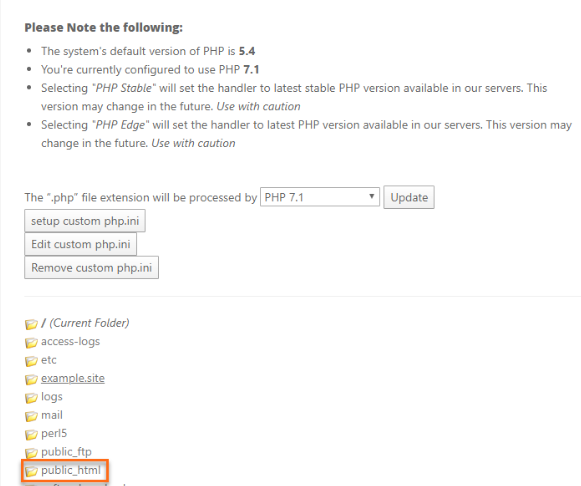
Check via cPanel PHP Selector
If you have cPanel access, you can see the PHP-level memory ceiling your host allows:
- Log into cPanel
- Under Software, click PHP Selector (or MultiPHP INI Editor)
- Navigate to your site’s document root
- Look for the
memory_limitvalue in the Options tab
Use a Plugin
If file access isn’t straightforward, a plugin can surface this information quickly:
- WP Healthcheck — overview of site health including current memory limit
- Health Check & Troubleshooting — shows memory info alongside other server configuration details
How Much Memory Does Your WordPress Site Actually Need?
Setting 256MB across the board has become a common default recommendation, but it’s genuinely overkill for a simple blog and potentially insufficient for a WooCommerce store running 20+ plugins. Here’s a more practical breakdown based on verified requirements from major platforms. For more WordPress guides and how-tos, you’ll find additional configuration topics covered on this site:
| Site Type | Recommended WP_MEMORY_LIMIT | Notes |
|---|---|---|
| Basic blog / portfolio | 128 MB | Minimal plugins, lightweight theme |
| Small business site | 128–256 MB | Contact forms, SEO plugin, 5–10 active plugins |
| WooCommerce store | 256 MB minimum | WooCommerce requires 256 MB; complex stores benefit from 512MB |
| Elementor-powered site | 256 MB minimum, 512 MB recommended | Elementor’s official requirements: 256MB min, 512MB recommended, 768MB optimal |
| Media-heavy / news site | 256 MB+ | Image processing and large uploads need headroom |
| WordPress Multisite | 256 MB+ | Core default is 64MB for multisite; multiple sub-sites share the same memory pool |
If you run both WooCommerce and Elementor together, lean toward 512MB. Both platforms recommend it independently, and running them together compounds the demand.
A note on WP_MAX_MEMORY_LIMIT: If you’re seeing errors specifically in wp-admin (while the front end loads fine), it’s the admin memory limit that needs raising — not WP_MEMORY_LIMIT. Set WP_MAX_MEMORY_LIMIT to 512M alongside the standard limit.
Four Ways to Increase Your WordPress Memory Limit
The right method depends on your hosting setup. Here’s a quick decision guide before the detailed instructions:
| Method | Best For | Pros | Cons |
|---|---|---|---|
| wp-config.php | Most shared hosting; WordPress-specific change | Easy, safe, scoped to WordPress | Can be overridden by server settings |
| php.ini | VPS / dedicated servers; server-wide change | Most powerful; affects all PHP scripts | Not available on most shared hosting |
| .htaccess | Apache servers where wp-config.php fails | Simple to add | Doesn’t work on Nginx/LiteSpeed; syntax errors can break the site |
| Hosting panel / contact host | Beginners; locked-down managed hosting | No file editing required | May require plan upgrade; not instant |
Method 1 — Edit wp-config.php (Recommended for Most Sites)
This is the standard approach and works on virtually all shared hosting environments. It changes the WordPress memory allocation without touching any server-level PHP configuration.
- Back up your site before making file changes (or at minimum, download a copy of wp-config.php before editing)
- Open
wp-config.phpin your hosting file manager or via FTP - Find this line:
/* That's all, stop editing! Happy publishing. */ - Add the following line directly above it:
define('WP_MEMORY_LIMIT', '256M');To also raise the admin memory limit:
define('WP_MAX_MEMORY_LIMIT', '512M');Save the file and reload your site. Check Site Health to confirm the new value is active.
For Local WP users (local development): wp-config.php lives at [site-name] → app → public → wp-config.php. The same code applies.
Method 2 — Edit php.ini (VPS and Dedicated Servers)
The php.ini file controls PHP configuration at the server level. Changes here affect all PHP scripts on that server — not just WordPress.
If you have cPanel, the MultiPHP INI Editor is the simplest path:
- In cPanel, find MultiPHP INI Editor under Software
- Select your domain from the dropdown
- Locate
memory_limitand change the value - Save — changes take effect immediately (no restart needed on most hosts)
To edit php.ini directly:
memory_limit = 256MMethod 3 — Edit .htaccess (Fallback Method)
The .htaccess file lives in your WordPress root directory. It’s a fallback when wp-config.php changes don’t take effect because the server overrides them.
Add this line to your .htaccess file:
php_value memory_limit 256MImportant: this directive only works on Apache servers. It won’t function — and may cause errors — on Nginx or LiteSpeed environments. If you’re unsure which server your host uses, ask support before adding this.
If .htaccess isn’t visible in your file manager, it’s hidden. In cPanel File Manager, click Settings in the top right and check Show Hidden Files (dotfiles).

Method 4 — Use Your Hosting Control Panel or Contact Your Host
Some managed WordPress hosts don’t allow direct file editing, or they enforce PHP limits at the server level that override anything you set in wp-config.php.
- Hostinger: hPanel → PHP Configuration → change
memory_limit - SiteGround: Site Tools → File Manager → edit wp-config.php (their servers are pre-set to 256MB on shared plans)
- Other managed hosts: Check your hosting dashboard for a PHP Settings or PHP Configuration section
If you’ve exhausted these options, open a support ticket with your host. Explain that you need the PHP memory_limit raised and ask what the maximum allowed value is for your plan.
Increasing the Limit Still Shows Errors — Now What?
You raised the allocation to 256MB, confirmed it in Site Health, and the error is still there. This happens — and the culprit is almost always a specific plugin or theme consuming far more RAM than normal.
Here’s a systematic way to track it down:
- Confirm the new limit is active — Tools → Site Health → Info → Server → PHP memory limit. If it still shows the old value, the wp-config.php change isn’t taking effect (try Method 3 or Method 4 instead).
- Deactivate all plugins — go to Plugins → Installed Plugins → select all → Deactivate. If the error disappears, one of those plugins is the problem. Reactivate them one by one until the error returns. The last plugin you activated is the culprit.
- Switch to a default theme — temporarily switch to Twenty Twenty-Four. If the error disappears, your theme is consuming excessive memory.
- Install Query Monitor — the free Query Monitor plugin shows memory usage per request in your admin bar. You can see exactly how much memory each page load consumes and identify which components are responsible.
A plugin that legitimately requires more memory isn’t necessarily broken — some functionality (WooCommerce product imports, complex page builders, caching plugins) is memory-intensive by design. In those cases, a higher memory limit is the correct solution. But if a simple contact form plugin is consuming 200MB per request, that’s a bug worth reporting to the plugin developer.
How High Is Too High? Safe Limits and What to Avoid
Once you know your site needs more headroom, there’s a temptation to set the PHP allocation to something enormous and never think about it again. Here’s why that’s worth approaching carefully.
Setting -1 (unlimited): This disables the memory limit entirely for PHP. On a VPS or dedicated server where you control all running processes, this can be acceptable. On shared hosting, it’s a poor idea — PHP could consume all available server RAM, affecting other sites on the server and potentially triggering your host’s resource limits, which can result in your account being suspended.
Setting a value higher than your PHP ceiling: As covered earlier, your WordPress memory limit cannot exceed what PHP allows at the server level. If your host caps PHP at 256MB, setting WP_MEMORY_LIMIT to 1024M does nothing useful.
Practical guidance by hosting type:
| Hosting Type | Typical PHP Ceiling | Practical Max WP_MEMORY_LIMIT |
|---|---|---|
| Shared hosting | 128–256 MB (host-enforced) | 256 MB (match host ceiling) |
| VPS hosting | 256 MB–1 GB+ (configurable) | 512 MB–1 GB (leave headroom for OS) |
| Dedicated server | Configurable up to server RAM | 1 GB+ (depends on total RAM and concurrent processes) |
| Managed WordPress (WP Engine, Kinsta) | Set by provider | Contact host for your plan’s limit |
When to upgrade your plan instead of increasing memory: If you’re consistently hitting your host’s maximum PHP memory ceiling and your site is legitimately growing (more products, more plugins, more traffic), the memory limit is a symptom rather than the root cause. A hosting plan with more RAM — or a move from shared to VPS hosting — is the appropriate next step, not endlessly trying to squeeze more out of a constrained environment.
Frequently Asked Questions
What is the default WordPress memory limit?
WordPress core sets WP_MEMORY_LIMIT to 40MB on single-site installs (64MB on Multisite) in the wp-includes/default-constants.php file. Most hosting providers pre-configure a higher value — commonly 64MB, 128MB, or 256MB — before you make any changes. Check yours via Tools → Site Health → Info → Server → PHP memory limit.
What is WP_MAX_MEMORY_LIMIT and how is it different from WP_MEMORY_LIMIT?
WP_MEMORY_LIMIT controls memory for the front end (your public-facing site). WP_MAX_MEMORY_LIMIT controls memory for the WordPress admin area and backend operations like image processing. Its default is 256MB. If you’re only seeing memory errors in the dashboard while the front end loads fine, raise WP_MAX_MEMORY_LIMIT: define('WP_MAX_MEMORY_LIMIT', '512M');
Can increasing the memory limit slow down my site?
Raising the memory limit doesn’t automatically cause slower performance — it just makes more memory available. Your site still only uses what it needs. The caveat: if you’re on shared hosting and other users on the server are also consuming memory, a very high limit setting could contribute to server-level resource contention. For most sites, setting 256MB is well within normal shared hosting parameters.
What causes “Fatal error: Allowed memory size of XXXXXXXX bytes exhausted”?
This error fires when a PHP script (WordPress core, a plugin, or a theme) tries to allocate more memory than the current limit allows. Common triggers include: installing or activating a resource-heavy plugin, running WordPress updates (especially major version upgrades), processing large image uploads, or executing complex WooCommerce queries on pages with many products.
How do I change the memory limit in Local WP?
In Local (by Flywheel), the wp-config.php file is located at: [your-site-name] → app → public → wp-config.php. Add the same line you’d use on a production site — define('WP_MEMORY_LIMIT', '256M'); — above the “stop editing” comment. No server restart is needed.
Why didn’t my wp-config.php change take effect?
Several reasons this happens: (1) Your host enforces a PHP-level memory ceiling below what you set — your WP_MEMORY_LIMIT value gets capped. (2) The line was added in the wrong location (it must go before the “stop editing” comment). (3) A hosting-level override in php.ini or the server configuration is taking precedence. Check Site Health after saving to confirm the effective value changed. If it didn’t, contact your host or try the php.ini / hosting panel method instead.
Does WordPress Multisite need more memory?
Yes — WordPress Multisite networks default to 64MB (compared to 40MB for single sites), and sub-sites share the same memory pool. A network with multiple active sites, each running plugins, benefits from 256MB or more. Large networks with heavy traffic or complex plugins should look at 512MB.
What is the maximum safe WordPress memory limit?
There’s no universal maximum — it’s bounded by your PHP ceiling, which is bounded by your server’s RAM. On shared hosting, 256MB is typically the highest your provider will allow. On VPS hosting, 512MB to 1GB is reasonable if your server has the RAM for it. Avoid setting -1 (unlimited) on shared hosting; it removes the safety valve that prevents runaway scripts from consuming all server resources.
Wrapping Up
The WordPress memory limit is one of those settings that looks deceptively simple on the surface — add one line to wp-config.php — but makes a lot more sense once you understand the two-layer system underneath it. PHP sets the server-level ceiling; WordPress sets its own allocation below that. Both constants (WP_MEMORY_LIMIT and WP_MAX_MEMORY_LIMIT) serve different parts of your site.
Before changing anything, use Site Health to check what’s actually in effect. Then match your memory allocation to your site type — 128MB for a simple blog, 256MB for WooCommerce, 512MB for Elementor-heavy setups. If raising the limit doesn’t resolve the error, the issue is usually a specific plugin or theme consuming more than its fair share, and Query Monitor is the right tool to find it.
Memory errors are fixable. Understanding why they happen makes fixing them — and preventing them — considerably more straightforward.
