



Most teams don’t have a communication problem — they have a tool problem. Email piles up. Slack messages get lost. Someone sends an update on WhatsApp and another in a Google Doc, and by Thursday nobody knows where the latest version lives. If that sounds familiar, you’re not alone: according to workplace collaboration research, 29% of remote employees say they actively struggle with gaps in team communication.
Picking the right team communication tool fixes most of that. But the choices can feel overwhelming — Slack, Microsoft Teams, Zoom, Google Chat, Notion, Chanty, Pumble, and more all compete for your attention (and your budget). This guide cuts through the noise. We tested and compared the top options specifically for small teams, personal use, and early-stage businesses — with real pricing, honest pros and cons, and clear guidance on which tool fits which situation.

The Quick Answer — Which Tool Fits Your Situation
Not everyone needs to read the whole article. Here’s a fast lookup based on your primary use case:
| Your Situation | Best Tool | Why |
|---|---|---|
| Primarily need group chat and channels | Slack | Best-in-class messaging UX, huge integration library |
| Video calls are your main need | Zoom | Reliability, large meeting capacity, AI summaries included |
| Already using Google apps (Docs, Drive, Calendar) | Google Workspace Chat + Meet | Already included, no friction, Gemini AI bundled |
| Embedded in Microsoft 365 or Office | Microsoft Teams | Already included in your subscription — no extra cost |
| Need free chat for a team under 5 people | Chanty | Unlimited messages, 20GB storage, no time limits |
| Want unlimited free users with no message limits | Pumble | Truly unlimited free tier — best free plan for basic chat |
| Need docs, wikis, and chat in one place | Notion | All-in-one workspace; not a pure chat tool, but covers more |
If none of those scenarios fit neatly, keep reading — the full tool comparisons and decision framework below will help.
Why Your Team Needs a Dedicated Communication Tool
Here’s what scattered communication actually costs: research from Zoom’s 2026 workplace communication report found that communication tasks now consume 34% of total work time. When that time is split across email, WhatsApp, text, and random app notifications, the overhead compounds fast.
The good news is the solution doesn’t require a big investment. Most of the tools we cover have meaningful free plans. The difference between a team that operates clearly and one that constantly chases down information usually comes down to a single, agreed-upon channel — whether that’s a group chat, a shared inbox, or a video standup.
Two communication styles matter here. Synchronous communication means real-time — video calls, live chat, voice. Asynchronous (async) communication means leaving messages your teammates read when they’re ready — recorded videos, threaded chat, shared docs. The best tools handle both. The right mix depends on your team’s working style and time zones.

The Top Team Communication Tools for Small Businesses (2026)
Below are the seven tools we recommend most often for small teams and personal/freelance use. Each has been evaluated on features, real-world usability, pricing, and how well it scales as your team grows.
best CRM plugins for WordPress
Slack — Best for Channel-Based Team Messaging
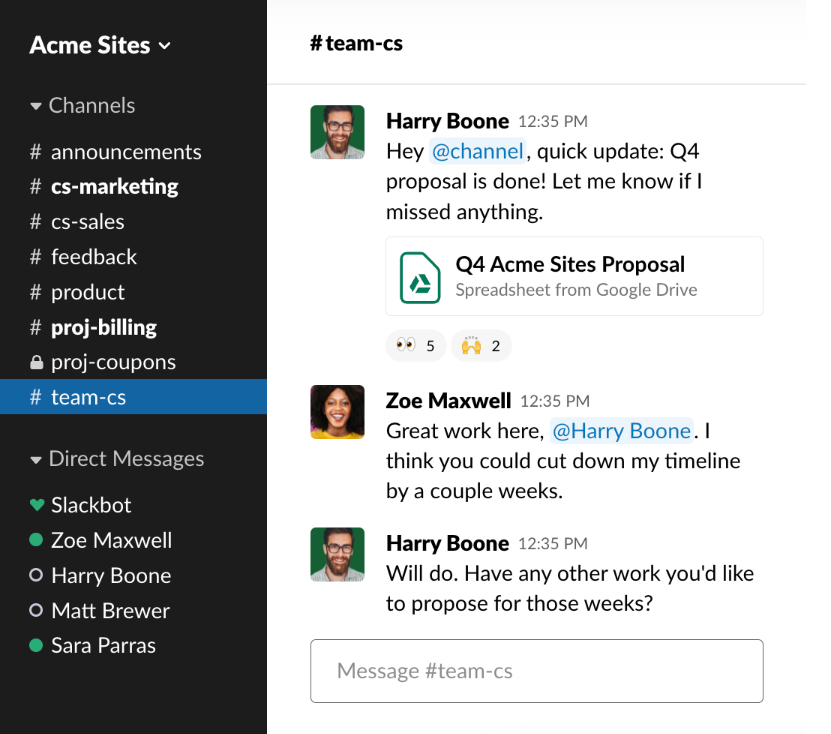
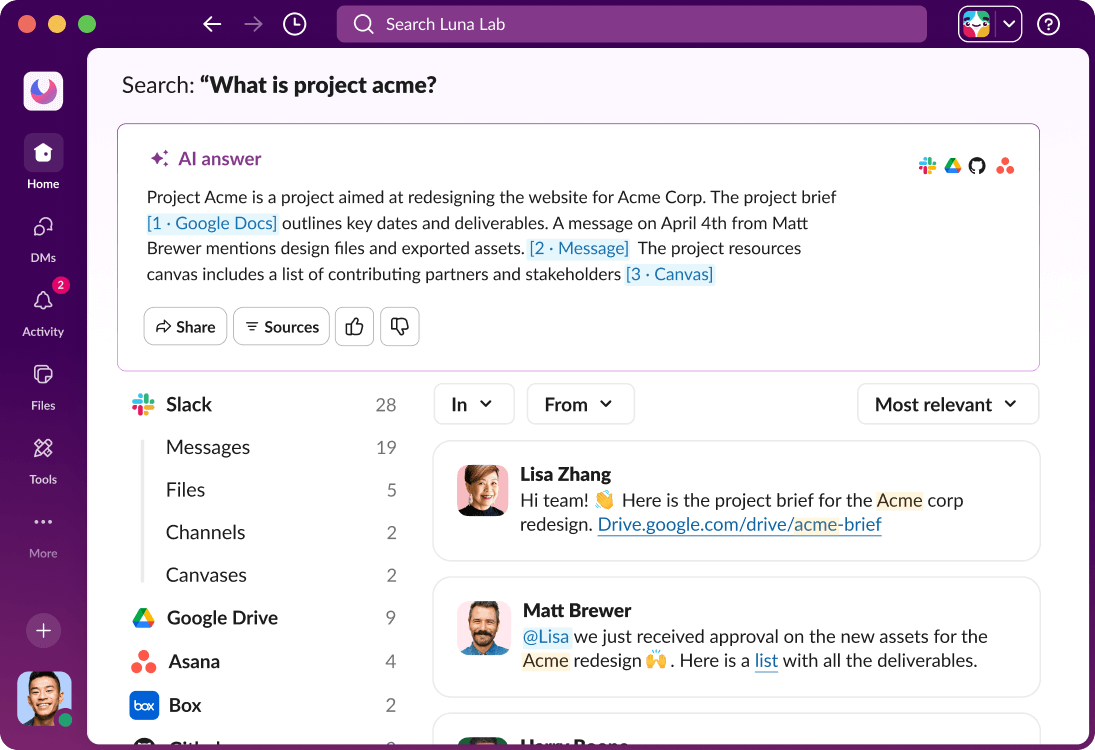
Slack is the default choice for teams that live in chat. It organizes conversations into channels (one per project, topic, or team), keeps your files and messages in one searchable place, and connects with more third-party tools than almost any other platform. Over 34 million users send messages through Slack Connect to external teams every week.
Best For: Teams that need organized, channel-based messaging with strong app integrations. Startups, agencies, remote teams, and tech companies are the core audience.
Key Features:
- Channels for organized group conversations
- Direct messages and group DMs
- Huddles (quick audio/video calls, AI-generated meeting notes)
- File sharing and search across messages
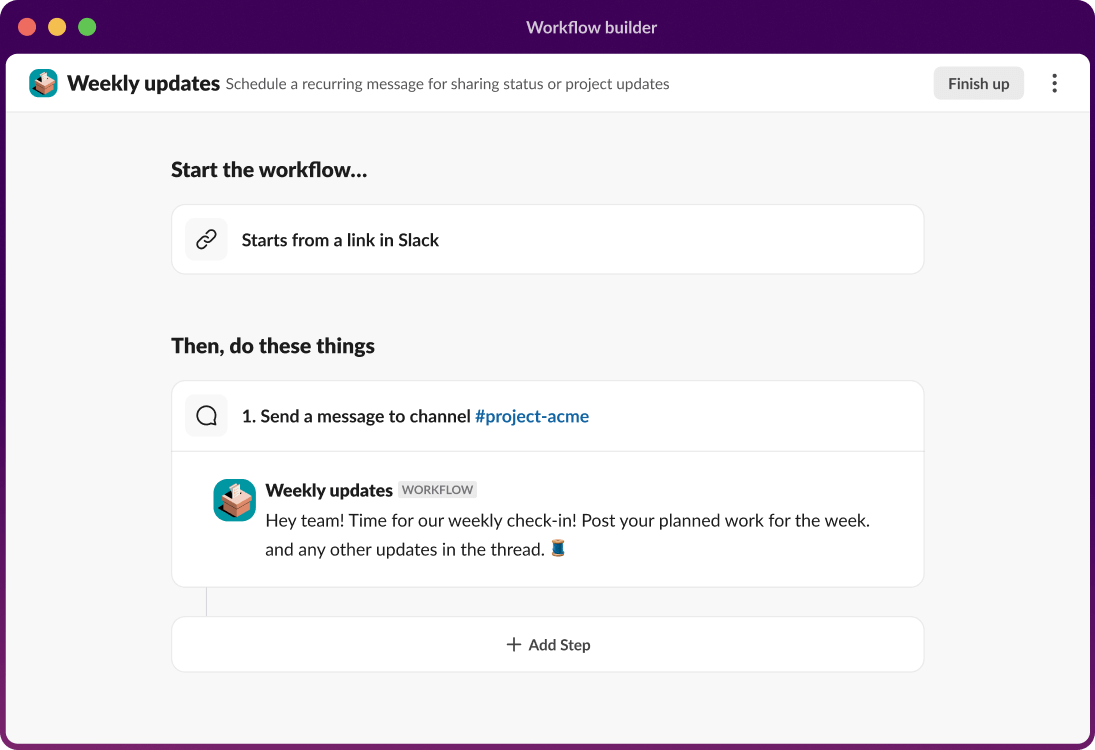
- Workflow automation (no-code)
- 2,400+ integrations (Zoom, Google Drive, GitHub, Salesforce, and more)
Pricing (2026):
- Free: 90-day message history, 10 integrations, 5GB storage, 1:1 huddles only
- Pro: $7.25/user/month (annual) — unlimited history, group huddles, more integrations
- Business+: $12.50/user/month (annual) — SSO, compliance features, 99.99% SLA
- Enterprise Grid: Custom pricing
Pros:
- Best-in-class messaging experience and interface
- Largest app integration library of any chat tool
- Excellent search — find anything across your entire message history
- Slack Connect lets you add external clients and vendors to shared channels
Cons:
- Free plan’s 90-day message cap is a real limitation for growing teams
- Gets expensive fast at scale ($72.50/month for 10 users on Pro)
- Notification overload is a common complaint — requires good channel hygiene
- No built-in task management; you need additional tools for project tracking
Microsoft Teams — Best for Microsoft 365 Users
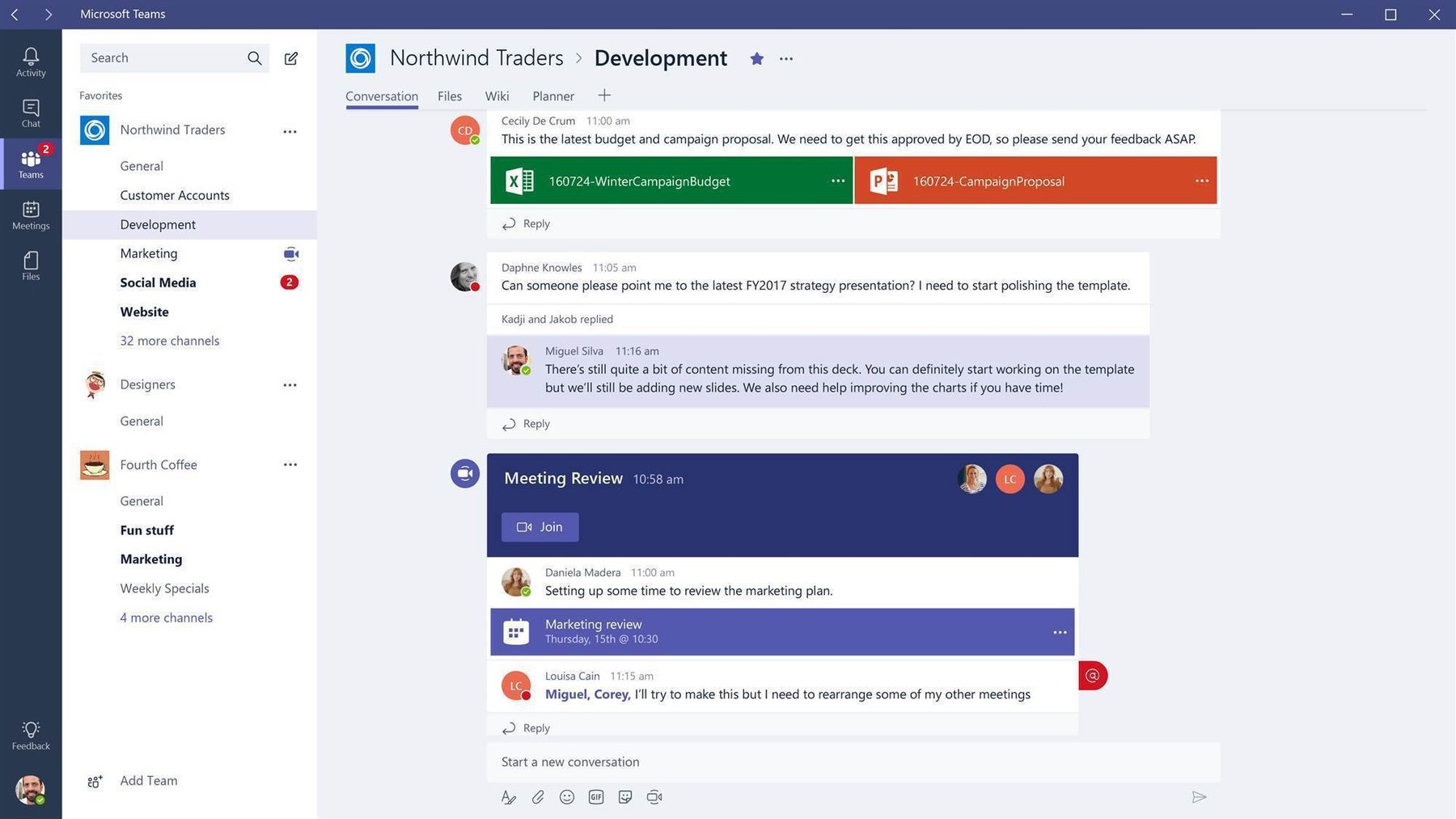
If your team already pays for Microsoft 365, Teams is essentially free — it’s bundled into every business subscription. For organizations that rely on Word, Excel, PowerPoint, SharePoint, and Outlook, it’s the most logical communication hub because everything lives in the same ecosystem.
Best For: Organizations running on Microsoft 365. Particularly strong for larger companies, regulated industries (healthcare, finance, government), and teams that do heavy document collaboration in Office apps.
Key Features:
- Chat, channels, and threaded conversations
- Video meetings (up to 1,000 participants on Business plans)
- Deep integration with Word, Excel, PowerPoint, OneNote, and SharePoint
- Meeting recording and transcription
- Guest access and external collaboration
- Compliance and security controls (HIPAA, GDPR, SOC 2)
Pricing (2026):
- Free: Unlimited chat, 60-min video meetings (up to 100 participants), 5GB storage
- Teams Essentials: $4/user/month — no meeting time limit, 10GB storage
- Microsoft 365 Business Basic: $6/user/month — adds web Office apps, 1TB storage/user, business email
- Microsoft 365 Business Standard: $12.50/user/month — desktop Office apps, webinar hosting
Pros:
- Often already included in your Microsoft 365 subscription — no extra cost
- Strongest compliance and security options of any tool on this list
- Seamless with Office document co-authoring
- Most affordable entry-paid plan at $4/user/month
Cons:
- Interface is more complex than Slack — higher learning curve for new users
- Difficult to use effectively alongside non-Microsoft tools (Google Docs, etc.)
- AI Copilot features require a separate license at $30/user/month — adds up fast
- Notification system can be confusing across Teams channels vs. chat vs. email
Zoom — Best for Video-First Communication

Zoom built its reputation on one thing: reliable video calls. Even as competitors have added video features, Zoom’s call quality, host controls, and webinar capabilities remain the benchmark. The 2026 version of Zoom Workplace has expanded into team chat and email, but video is still its strongest suit — and the inclusion of AI Companion in all paid plans at no extra charge is a genuine differentiator.
Best For: Teams that prioritize video communication — client calls, webinars, all-hands meetings, and interviews. Also strong for hybrid teams that need high-quality virtual face time.
Key Features:
- HD video meetings (up to 1,000 participants on Business plans)
- Team Chat (channel-based messaging)
- Zoom Phone (VoIP calling)
- Zoom AI Companion — meeting summaries, action items, real-time translation, included free on paid plans
- Webinar hosting
- Meeting recording and cloud storage
- 2,400+ app integrations
Pricing (2026):
- Basic (Free): 40-minute group meeting limit, unlimited 1:1 calls
- Pro: $13.33/user/month (annual) — unlimited meetings, AI Companion included, 5GB cloud recording
- Business: $18.33/user/month (annual) — 300 participants, managed domains, SSO
Pros:
- Most reliable video quality of any tool on this list
- AI Companion included with Pro and above — no extra license fee (unlike Teams)
- Strong webinar and large-meeting capabilities
- Familiar to most people — minimal onboarding needed for participants
Cons:
- Most expensive per user of the tools listed — $133/month for 10 users on Pro
- Free plan’s 40-minute limit is genuinely disruptive for group calls
- Team Chat is still less polished than Slack’s messaging experience
- “Zoom fatigue” is real — worth combining with async tools to reduce meeting load
Google Workspace (Chat + Meet) — Best for Google Ecosystem Teams
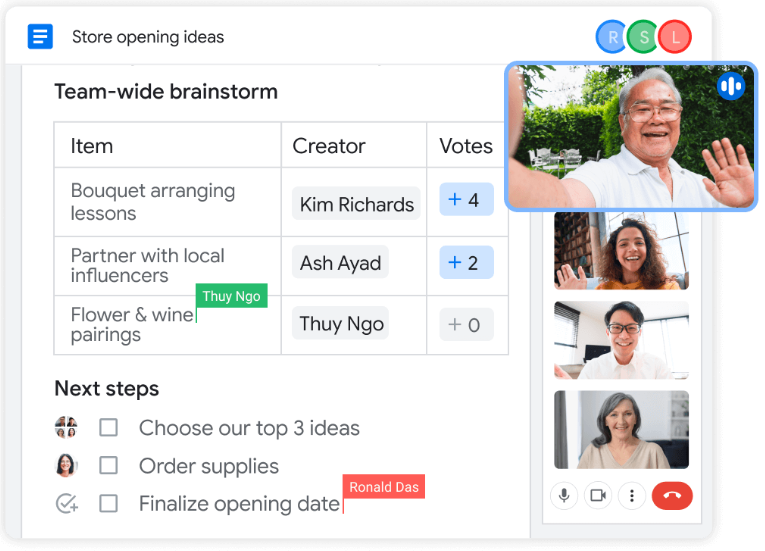
For teams already working in Google Docs, Drive, and Calendar, the communication layer is already there — you just have to use it. Google Chat handles channels and direct messaging. Google Meet handles video calls with no time limits on paid plans. And since early 2025, Gemini AI is bundled into Google Workspace plans, adding smart replies, meeting summaries, and document assistance without a separate license.
Best For: Small businesses and individuals already using Gmail and Google apps. Education institutions, early-stage startups, and distributed teams that live in Google Docs.
explore more tools on wplasma.com
Key Features:
- Google Chat (channels, group messaging, direct messages)
- Google Meet (video calls, screen sharing, recording)
- Integrates with Google Docs, Sheets, Slides, Drive, Calendar natively
- Gemini AI — smart replies, meeting summaries, document assistance (Business Starter+)
- Shared drives and file collaboration in real time
Pricing (2026):
- Free (via Gmail): Google Chat and Meet included with a personal Gmail account; 15GB shared storage
- Business Starter: $7/user/month (annual) — custom email, 30GB pooled storage, Meet up to 100 participants
- Business Standard: $14/user/month (annual) — 2TB pooled storage, Meet up to 150 participants, recording
Pros:
- Tightest integration with Google’s document and file ecosystem
- Gemini AI bundled into paid plans — no extra cost
- Google Meet has no time limit on paid plans (unlike Zoom free tier)
- Strong free tier if your team is already using Gmail
Cons:
- Google Chat’s interface is less intuitive than Slack for heavy messaging workflows
- Price increased 17-22% in 2025 to account for bundled Gemini features
- Not ideal if your team mixes Google and Microsoft apps heavily
- Free personal Gmail storage (15GB) fills up quickly across Drive, Gmail, and Photos combined
Notion — Best for Teams Who Need Docs + Communication Together
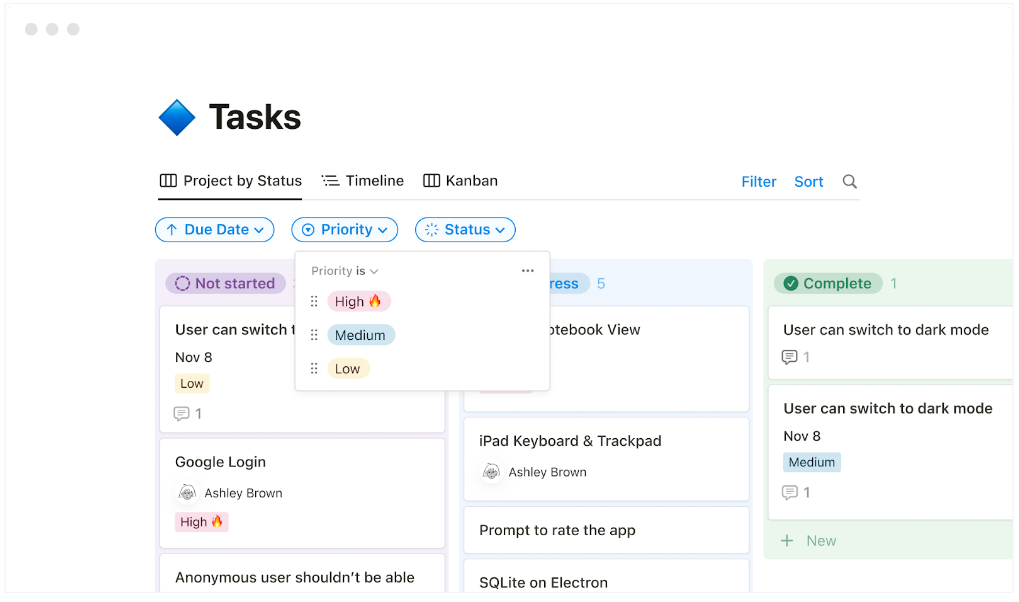
Notion isn’t a traditional chat app. It’s a workspace that combines documents, databases, wikis, and project boards — with some communication built in (comments, mentions, discussions). If your team constantly bounces between Google Docs and Slack to share context, Notion can consolidate that into one environment. It’s not a Zoom or Slack replacement, but for teams where written communication and knowledge management dominate, it’s worth considering.
Best For: Small teams, solo founders, and startups where documentation and written async updates matter as much as real-time chat. Content teams, product teams, and consultants are heavy Notion users.
Key Features:
- Flexible pages for notes, wikis, and structured databases
- Comments, mentions, and inline discussions
- Project and task tracking (Kanban, timeline, table views)
- Notion AI — writing assistance, summarize pages, generate databases (add-on)
- Shared workspaces with granular permissions
Pricing (2026):
- Free: Unlimited pages and blocks for individuals, up to 5 guests
- Plus: $10/user/month (annual) — unlimited guests, version history, advanced permissions
- Business: $15/user/month (annual) — advanced analytics, SAML SSO, private teamspaces
- Notion AI: +$8/member/month as an add-on
Pros:
- Consolidates documents, wikis, and project tracking in one tool
- Generous free tier for solo or very small teams
- Highly flexible — adapts to nearly any workflow structure
Cons:
- Not a real-time chat tool — no channels, no group messaging like Slack
- Notion AI costs extra ($8/user/month add-on) on top of paid plans
- Learning curve for setting up databases and page structures
- For fast-paced teams, the lack of real-time notifications can slow response times
Chanty — Best Budget Chat for Teams Under 5
Chanty is a lightweight chat tool designed for small and mid-sized teams. Its free plan is one of the most practical on this list for teams of up to 5 people — unlimited messages, 20GB storage, and no time limits on 1:1 voice/video calls. If you’re a micro-business or a small team tired of Slack’s message history cutoff, Chanty is worth a look.
Best For: Very small teams (2-5 people) that want a free, unlimited messaging tool without Slack’s 90-day history restriction. Also useful for non-profits and budget-conscious small businesses that need group chat without a monthly bill.
Key Features:
- Unlimited messaging and message history
- 1:1 voice and video calls (free tier)
- Task management built in (Kanban-style)
- File sharing up to 100MB per file
- Integrations with Jira, Trello, GitHub, Zapier (paid plan)
Pricing (2026):
- Free: Up to 5 users, unlimited messages, 20GB team storage, 1:1 calls, community support
- Business: $3/user/month — group meetings and screen sharing, 10GB/user storage, priority support
Pros:
- Unlimited message history on the free plan (Slack only gives 90 days)
- Built-in task management — reduces need for a separate to-do app
- Very affordable Business plan at $3/user/month
Cons:
- Free plan is capped at 5 users — a hard limit that forces an upgrade for larger teams
- Fewer integrations than Slack or Teams
- Free plan support is community-only — no agent or live chat
- Less widely known — harder to onboard external clients who aren’t familiar with it
Pumble — Best Completely Free Team Chat
Pumble’s free plan is unusually generous: unlimited users, unlimited message history, and no artificial caps on team size. The catch is that video calls and screen sharing require the paid Pro plan. For teams that primarily communicate via text and don’t need video conferencing built in, Pumble is the most capable free option available.
Best For: Teams of any size that primarily communicate via text chat and want the full message history without paying. Freelancers, non-profits, and distributed teams on tight budgets.
Key Features:
- Unlimited users and message history (free tier)
- Channels and direct messages
- File sharing and search
- Video conferencing and screen sharing (Pro only)
- Native integrations with Clockify and Plaky (time tracking / project management)
Pricing (2026):
- Free: Unlimited users, unlimited messages, 10GB storage, no video calls
- Pro: $3.99/user/month (annual) — video up to 50 members, screen sharing, 10 integrations, 10GB/user storage
Pros:
- Truly unlimited free tier — no user cap, no message history limit
- Lowest paid-plan price of any tool on this list ($3.99/user/month)
- Good search and file sharing functionality
Cons:
- No video or audio calls on the free plan — you’ll need a separate tool for meetings
- Fewer integrations than Slack (10 on Pro vs. 2,400+ for Slack)
- Less brand recognition — may require extra explanation with external collaborators
Pricing Comparison Table — What You Actually Pay (2026)
All prices below are per user, per month, billed annually. Free plan details show what’s genuinely included — not just what’s advertised.
| Tool | Free Plan? | Starting Paid Price | Free Tier Biggest Limit |
|---|---|---|---|
| Slack | Yes | $7.25/user/mo (Pro) | 90-day message history; no group calls |
| Microsoft Teams | Yes | $4/user/mo (Essentials) | 60-min meeting limit; 5GB storage |
| Zoom | Yes | $13.33/user/mo (Pro) | 40-min group meeting limit |
| Google Workspace | Free via Gmail | $7/user/mo (Business Starter) | 15GB shared storage (Gmail + Drive) |
| Notion | Yes | $10/user/mo (Plus) | No team features; max 5 guests |
| Chanty | Yes | $3/user/mo (Business) | Max 5 users; no group video |
| Pumble | Yes (most generous) | $3.99/user/mo (Pro) | No video calls on free plan |
wplasma.com for more tool comparisons
Free Plan Breakdown — What You Actually Get for Free
Most team communication tools offer a free tier, but there’s a wide gap between what “free” means across platforms. Here’s the honest breakdown:
| Tool | Free Users | Message History | Video Calls (Free) | Storage |
|---|---|---|---|---|
| Slack | Unlimited | 90 days (1yr = deleted) | 1:1 only | 5GB total |
| Microsoft Teams | Unlimited | Unlimited chat | 60-min limit, 100 participants | 5GB |
| Zoom | Unlimited | N/A | 40-min group limit | 5GB cloud |
| Google Chat/Meet | Unlimited | Unlimited | No time limit | 15GB shared |
| Chanty | Max 5 users | Unlimited | 1:1 only | 20GB team |
| Pumble | Unlimited | Unlimited | None on free | 10GB |
Who should start with the free plan? Freelancers, solo entrepreneurs, and teams of 2-5 people trying out structured communication for the first time. The free tiers from Pumble, Chanty (under 5 users), and Google Chat (via Gmail) are the most functional for day-to-day use without hitting walls.
When to upgrade: When you need group video calls (Pumble), when your team exceeds 5 members (Chanty), or when your message history starts disappearing (Slack). Pricing is reasonable enough that upgrading one tier is rarely a budget-breaker.
AI Features in Team Communication Tools (2026 Update)
AI is now a standard feature in most major communication platforms — but the cost model varies significantly. Some tools include it in paid plans. Others charge an extra license on top of an already expensive subscription.

discover AI-powered WordPress tools at wplasma.com
| Tool | AI Feature | Included in Paid Plan? | Extra Cost? |
|---|---|---|---|
| Slack | Slack AI (thread summaries, channel recaps, AI search) | Business+ and above | Add-on for Pro tier |
| Microsoft Teams | Microsoft 365 Copilot (meeting notes, Word/Excel/PPT AI) | No — requires separate license | +$30/user/month |
| Zoom | AI Companion (meeting summaries, action items, chat summaries) | Yes — all paid plans (Pro+) | No extra cost |
| Google Workspace | Gemini (smart replies, meeting summaries, doc assistance) | Yes — Business Starter and above | No extra cost |
| Notion | Notion AI (writing assist, auto-summarize, database generation) | No — separate add-on | +$8/member/month |
Best AI value: Zoom includes AI Companion in all paid plans at no extra charge — and it can even summarize Google Meet and Microsoft Teams meetings, not just Zoom calls. Google Workspace also bundles Gemini at no additional cost. Microsoft Copilot at $30/user/month is the most expensive AI add-on and should factor into any Teams cost calculation.
Real Cost for a 10-Person Small Business Team
Per-user pricing looks manageable on paper, but it adds up quickly once you factor in 10 real people. Here’s what a 10-person team would pay monthly and annually at the most common paid tier for each platform:
| Tool | Plan Used | Monthly (10 users) | Annual Cost |
|---|---|---|---|
| Pumble Pro | Pro ($3.99/user/mo) | $39.90/month | $478.80/year |
| Chanty Business | Business ($3/user/mo) | $30/month | $360/year |
| Teams Essentials | Essentials ($4/user/mo) | $40/month | $480/year |
| Microsoft 365 Basic | Business Basic ($6/user/mo) | $60/month | $720/year |
| Google Workspace Starter | Business Starter ($7/user/mo) | $70/month | $840/year |
| Slack Pro | Pro ($7.25/user/mo) | $72.50/month | $870/year |
| Notion Plus | Plus ($10/user/mo) | $100/month | $1,200/year |
| Zoom Pro | Pro ($13.33/user/mo) | $133.30/month | $1,599.60/year |
One caveat worth noting: if your team already pays for Microsoft 365 Business Basic ($6/user/month), Teams is already included in that cost — making it effectively free compared to adding a separate Slack subscription on top.
Which Tool Is Right for Your Situation?
The best team communication tool is the one that matches how your team already works. Here’s a practical guide for common scenarios:
- Freelancer or solopreneur working with clients: Start with Google Chat (free via Gmail) or Slack’s free tier. You get structured channels without a monthly bill.
- 2-5 person startup, mostly text communication: Chanty or Pumble. Both offer unlimited messaging on free plans; Chanty includes 1:1 calls, Pumble has a larger storage allowance.
- Remote team needing frequent video calls: Zoom Pro ($13.33/user/month). The AI Companion included at no extra cost adds real value for meeting-heavy teams.
- Team deeply in Google apps (Docs, Drive, Calendar): Google Workspace Business Starter ($7/user/month). Chat, Meet, and Gemini AI are all bundled.
- Team already paying for Microsoft 365: Teams is already included — don’t pay separately for Slack unless you have a specific reason to.
- Need wikis, docs, and project boards alongside communication: Notion Plus ($10/user/month). Not a real-time chat replacement, but strong for async, documentation-driven teams.
- Communicating with external clients or vendors: Slack Connect allows external guests in shared channels. Microsoft Teams External Access also works well for B2B communication.
- Security and compliance required (healthcare, legal, finance): Microsoft Teams or Slack Business+ both offer HIPAA and SOC 2 compliance options.
learn more about productivity tools for small businesses
Getting Your Team to Actually Use a New Tool
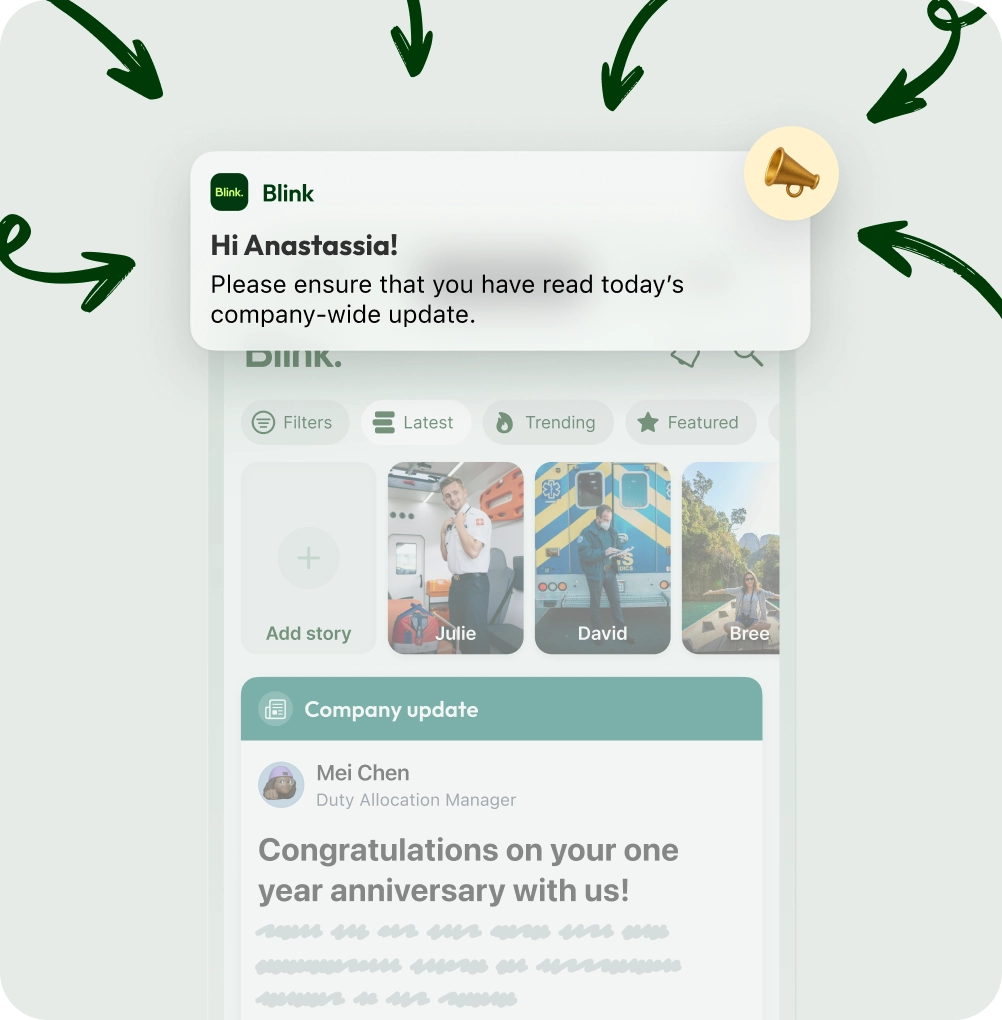
Choosing the right tool is 20% of the battle. Getting your team to adopt it — and stick with it — is the other 80%. Here are six practical steps that make a real difference:
- Start with leadership. If the founder, manager, or team lead doesn’t use it, nobody will. Leadership adoption signals that the tool is the official channel — not optional.
- Pick one tool and commit. Running Slack, WhatsApp, email, and a project management tool simultaneously creates fragmentation. Consolidate where you can.
- Set communication norms upfront. Decide what goes in chat vs. email vs. video call. “Urgent questions → chat. Project updates → channel post. Complex decisions → 30-min call.”
- Use the onboarding features. Most platforms have setup wizards, welcome bots, and tutorial channels. Spend 20-30 minutes with these before rolling out to the team.
- Give it 30 days. Every new communication tool feels uncomfortable for the first two weeks. Habit formation takes time — don’t judge the tool before you’ve built the habit around it.
- Designate a tool champion. One person per team (or the most tech-comfortable member) should be the go-to for questions. This reduces “I don’t know how to do X” as a reason to revert to email.
Frequently Asked Questions
What is the best team communication tool for small businesses?
There’s no single “best” — it depends on your existing software. Teams already on Microsoft 365 will find Teams the most cost-efficient since it’s bundled in. Google Workspace users should use Chat + Meet. For standalone communication, Slack is the most feature-complete, while Chanty and Pumble offer the most generous free plans for budget-constrained teams. Start with what your team already uses, and layer on new tools only when you hit clear limitations.
What’s the difference between a chat tool and a video conferencing tool?
Chat tools (Slack, Teams Chat, Chanty, Pumble) handle text-based messaging — both real-time and async. They’re built for quick questions, status updates, file sharing, and organized discussion threads. Video conferencing tools (Zoom, Google Meet) are designed for face-to-face meetings, webinars, and screen sharing. The distinction is blurring — most platforms now offer both — but video quality is still much stronger in dedicated video tools like Zoom.
Which team communication tools have a completely free plan?
Pumble, Chanty (up to 5 users), Google Chat (via Gmail), and Microsoft Teams all offer free plans with meaningful features. Slack’s free plan is functional but limited: only 90 days of message history and 10 integrations. Zoom’s free tier caps group calls at 40 minutes. For teams that want an unrestricted free option, Pumble’s plan — with unlimited users and unlimited message history — is the most capable at $0.
How many team communication tools do I actually need?
Ideally, one. Using multiple tools simultaneously creates fragmentation: people stop checking the ones they use less, and important messages get missed. Choose a platform that covers your primary needs — chat, video, or file collaboration — and commit to it. Most modern platforms handle all three reasonably well. The exception is if you need a specialized tool for a specific use case (e.g., adding Zoom for high-stakes client calls while using Slack for daily team chat).
Is Slack or Microsoft Teams better for small businesses?
If you already pay for Microsoft 365, Teams is typically the smarter choice — it’s already included in your subscription. If you’re choosing purely on communication experience, Slack has a more intuitive interface and better app integrations. Slack becomes expensive at scale ($7.25/user/month vs. Teams Essentials at $4/user/month), which often tips the decision for cost-conscious small businesses toward Teams.
Do team communication apps work for remote and hybrid teams?
Yes — and they were built specifically for this. Slack, Zoom, Teams, and Google Meet all have strong async features (channel posts, recorded meetings, threaded conversations) that work across time zones. The key is setting clear norms: what’s expected to be answered in real time vs. what can wait. Without those norms, even the best tool creates pressure and communication fatigue.
Are team communication tools secure for business use?
The major platforms — Slack (Business+), Microsoft Teams, and Zoom — all offer enterprise-grade security including end-to-end encryption, SOC 2 compliance, and GDPR compliance. Free plans typically have fewer security controls. For teams handling regulated data (healthcare, legal, finance), Teams and Slack Business+ have the most comprehensive compliance documentation. Chanty and Pumble are adequate for standard business use but have fewer third-party compliance certifications.
Which tool has the best AI features for the money?
Zoom is currently the best value for AI: AI Companion is included with all paid plans (starting at $13.33/user/month) at no extra charge. It summarizes meetings, generates action items, and can even summarize Google Meet and Teams calls. Google Workspace bundles Gemini into paid Business plans. Microsoft Copilot requires a separate license at $30/user/month — a significant addition to an already-paid subscription. Slack AI is available on Business+ but as an add-on for lower tiers.
Can I use these tools to communicate with clients outside my company?
Yes. Slack Connect lets you create shared channels with external clients and vendors without them needing a full Slack account. Microsoft Teams supports External Access (federated communication with other Teams users) and Guest Access (invite anyone via email). Google Chat also supports external guests in Spaces. For most small business and freelance use cases, Slack Connect or Teams Guest Access works well for client communication.
How long does it take to set up a team communication tool?
Most platforms can be set up and functional within 30 minutes for a team of 10 or fewer. You create a workspace, invite teammates, create channels, and connect your most-used apps. Larger rollouts — setting up integrations, migrating from email, training staff — typically take 1-2 weeks of active effort. Pumble and Chanty are the simplest to configure; Teams and Notion have steeper initial setup curves but offer more structure once they’re configured.
Final Thoughts on Choosing a Team Communication Tool
No single platform does everything perfectly for every team. Slack wins on messaging and integrations. Zoom wins on video reliability and AI value. Microsoft Teams wins on total cost if you’re already in Microsoft 365. Google Workspace wins if your team lives in Google apps. Chanty and Pumble win for teams that need a functional free option.
The practical advice: start with whatever your team already uses — even if it’s just Gmail and Google Chat — and upgrade only when you hit real limitations. The best tool is the one your team will actually open every day.
When evaluating options, focus on three factors: what communication channels your team primarily needs (chat, video, or both), what your existing software stack already includes, and whether your team’s size and budget make the free tier sufficient or requires a paid plan. Those three answers will narrow the field quickly.
