


Every time a WordPress theme updates, any changes you made directly to its files disappear. The theme’s style.css gets overwritten, your custom template edits are gone, and you’re back to square one. A child theme solves this problem permanently — it lets you store all your customizations in a separate set of files that the parent theme never touches.
Child themes have been the standard method for safe WordPress theme customization since WordPress 3.0. This guide covers three approaches: creating one manually (best for developers), using the Child Theme Configurator plugin (best for classic themes without coding), and using the Create Block Theme plugin (required for block/FSE themes). Both classic and block theme workflows are covered in full.
What Is a WordPress Child Theme (And Why You Need One)
A child theme is a WordPress theme that inherits everything from a parent theme — its templates, stylesheets, functions, and block patterns — while allowing you to override only the parts you want to change. You work in the child theme’s files; WordPress handles the rest by falling back to the parent for anything the child doesn’t explicitly override.
The update problem is the most common reason people create child themes. When a theme author releases an update (bug fixes, new features, security patches), WordPress replaces the theme’s files with the new version. Any PHP, CSS, or template edits you made are overwritten. With a child theme, your customization files are completely separate — theme updates affect only the parent’s files, never yours.
When You Actually Need a Child Theme
You need a child theme when you’re doing any of the following:
- Adding custom CSS that goes beyond what the Theme Customizer’s “Additional CSS” box can handle
- Modifying or overriding a theme’s PHP template files
- Adding custom functions via functions.php
- Building a site for a client where you need changes to persist through updates
- Customizing a block theme’s templates or patterns while keeping the parent theme intact
You probably do not need a child theme if you’re only making minor CSS tweaks — the Customizer’s Additional CSS field persists through theme updates and is perfectly fine for small adjustments. But once you start touching template files or writing PHP, a child theme is the right tool.
One Important Limitation: No Grandchild Themes
WordPress supports only two levels of theme inheritance. You can have a parent theme and a child theme, but you cannot create a child of a child (a “grandchild” theme). If you try, WordPress won’t load the middle theme as the parent — it will look for the folder name specified in the Template header, and the hierarchy breaks. Keep this in mind if you’re working with a theme that is itself a child theme.
Before You Start: Identify Whether You Have a Classic or Block Theme
The steps for creating a child theme differ depending on whether your parent theme is a classic theme or a block theme (also called a Full Site Editing or FSE theme). Getting this wrong is one of the most common sources of confusion, and none of the older tutorials cover the distinction clearly.
How to Tell Which Type You Have
The fastest way: go to your WordPress admin and look for Appearance > Editor in the left menu. If that menu item exists, you have a block/FSE theme. If you only see Appearance > Customize (and no “Editor”), you have a classic theme.
You can also check the theme’s folder in wp-content/themes/. Block themes contain a theme.json file and an /templates/ folder with .html files. Classic themes use PHP template files (like single.php, page.php, header.php).
How the Two Types Differ for Child Themes
| Aspect | Classic Theme | Block Theme (FSE) |
|---|---|---|
| Template files | PHP files (.php) | HTML block templates (.html) |
| Styling files | CSS in style.css | CSS in style.css + theme.json |
| Parent stylesheet loading | Often requires wp_enqueue_style in functions.php | Loaded automatically — no enqueue needed |
| Template override | Copy .php file to matching path in child | Copy .html file to matching path in child |
| functions.php behavior | Child loads before parent | Child loads before parent (same) |
| Site customization tool | Theme Customizer | WordPress Site Editor |
| Recommended plugin method | Child Theme Configurator | Create Block Theme |
The functions.php behavior is identical for both theme types — WordPress always loads the child theme’s functions.php before the parent’s, which lets you override parent functions without conflict. Everything else diverges significantly, which is why the method you use depends on which type of theme you’re working with.
Method 1: Create a Child Theme Manually (Classic Themes)
The manual method works with any classic theme and requires no plugins. You’ll create two files — style.css and functions.php — and upload them to your server. This takes about five minutes once you know what you’re doing. The steps follow the official WordPress developer documentation for child themes.
Step 1: Create the Child Theme Folder
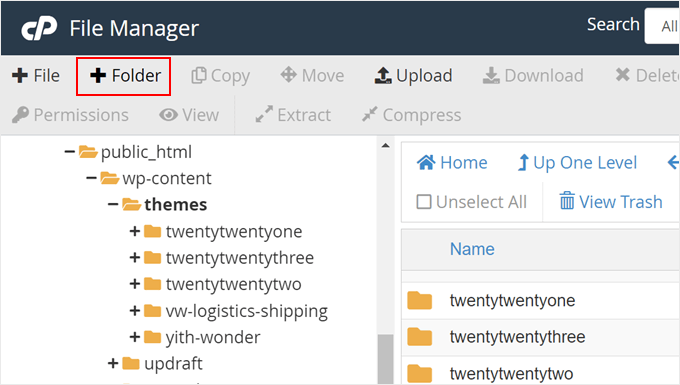
Navigate to wp-content/themes/ on your server using your host’s File Manager, an FTP client (like FileZilla), or SSH. Create a new folder for your child theme.
The naming convention is to append -child to the parent theme’s folder name. For example, if your parent theme’s folder is twentytwentyfour, name your child theme folder twentytwentyfour-child. This is a convention rather than a strict rule — any valid folder name works — but it keeps things organized.
Step 2: Create the style.css File
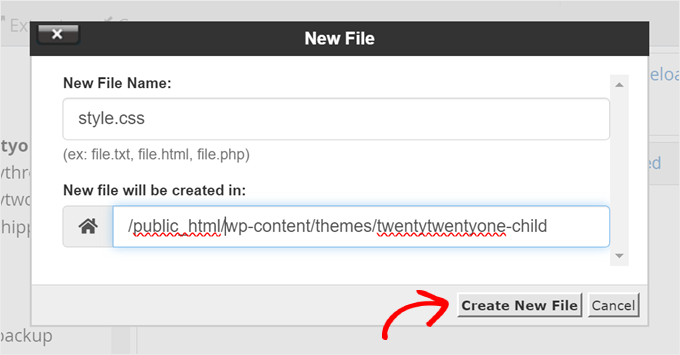
Inside your child theme folder, create a new file named exactly style.css. Add the following header block at the very top of the file:
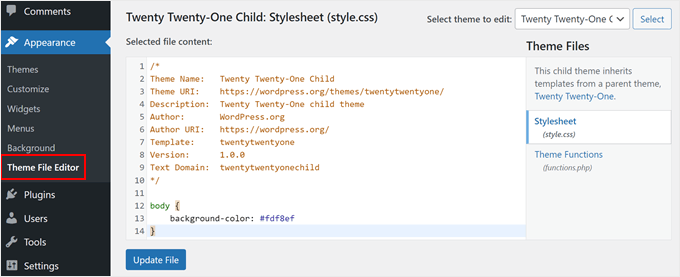
/*
 Theme Name:   Twenty Twenty-Four Child
 Theme URI:    https://example.com/twenty-twenty-four-child/
 Description:  A child theme of Twenty Twenty-Four
 Author:        Your Name
 Author URI:    https://example.com
 Template:      twentytwentyfour
 Version:       1.0.0
 License:       GNU General Public License v2 or later
 License URI:   http://www.gnu.org/licenses/gpl-2.0.html
 Text Domain:   twenty-twenty-four-child
*/
Two fields are mandatory. The Theme Name can be anything you like. The Template field is critical — it must exactly match the parent theme’s folder name, including case. If your parent theme’s folder is twentytwentyfour, the Template field must be twentytwentyfour — not “Twenty Twenty-Four” or “TwentyTwentyFour”. A mismatch here causes WordPress to either ignore the child theme or display an error.
After the header comment, you can add your custom CSS directly in this same file. WordPress loads child theme styles after the parent’s, so your rules override the parent’s without any extra work.
Step 3: Create functions.php to Load Stylesheets
Create a new file named functions.php in your child theme folder. For most classic themes, you’ll need this file to properly load both the parent and child stylesheets. Add the following code:
<?php
add_action( 'wp_enqueue_scripts', 'child_theme_enqueue_styles' );

function child_theme_enqueue_styles() {
    wp_enqueue_style(
        'parent-style',
        get_template_directory_uri() . '/style.css'
    );

    wp_enqueue_style(
        'child-style',
        get_stylesheet_uri(),
        array( 'parent-style' )
    );
}
The third parameter in the child style call — array( 'parent-style' ) — is a dependency declaration. It tells WordPress to always load the parent’s stylesheet before the child’s, ensuring your child CSS rules properly override the parent’s styles.
A common question: why not use @import in the style.css file to load the parent? You’ll see older tutorials recommend this. The problem is that @import creates a sequential CSS request — the browser downloads style.css, parses it, encounters @import, then makes a second HTTP request to fetch the parent stylesheet. wp_enqueue_style() uses WordPress’s asset management system to load both stylesheets efficiently, in the correct order, with proper caching support. The performance difference is real on slower connections.
Exception: some parent themes already enqueue their own stylesheet via functions.php using wp_enqueue_style(). In that case, you only need to enqueue the child style (not the parent again). Check your parent theme’s functions.php for a wp_enqueue_style call and note the handle name it uses — then declare that handle as your child style’s dependency.
Step 4: Add a screenshot.png (Optional)
WordPress displays a theme preview thumbnail in the Appearance > Themes screen. Without a screenshot.png file, your child theme will show a grey placeholder. Create an image that’s 880×660 pixels (the standard size as of WordPress 6.x) and save it as screenshot.png in your child theme folder. This won’t affect how your theme works — it makes the theme list cleaner and more professional.
Step 5: Install and Activate the Child Theme
If you created the files directly on the server via File Manager or FTP, the child theme already appears in Appearance > Themes. Click Activate.
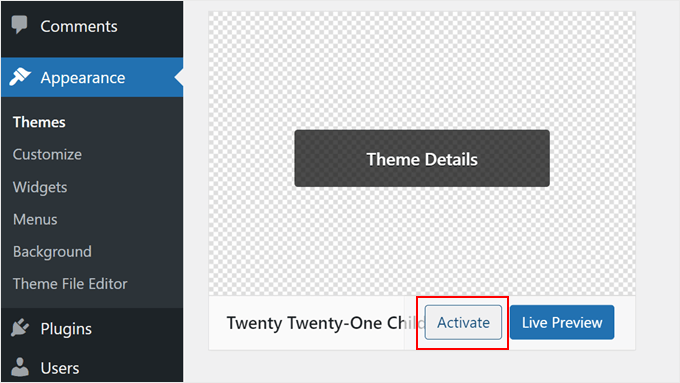
If you built the theme files locally and want to upload them as a ZIP, compress the child theme folder (not just its contents — the folder itself) into a .zip file, then go to Appearance > Themes > Add New > Upload Theme, upload the ZIP, and click Activate.
After activation, visit your site’s front end to confirm everything looks correct. If the page is blank or styled incorrectly, the most common cause is a typo in the Template field of style.css — double-check that it matches the parent folder name exactly.
Method 2: Child Theme Configurator Plugin (Classic Themes, No Coding Required)
The Child Theme Configurator plugin has been downloaded over 7 million times and carries a 4.7/5 star rating from 278 reviews on WordPress.org (version 2.6.7, last updated June 2025). For users who want to create and customize a classic child theme without writing code, it’s the most established option available.
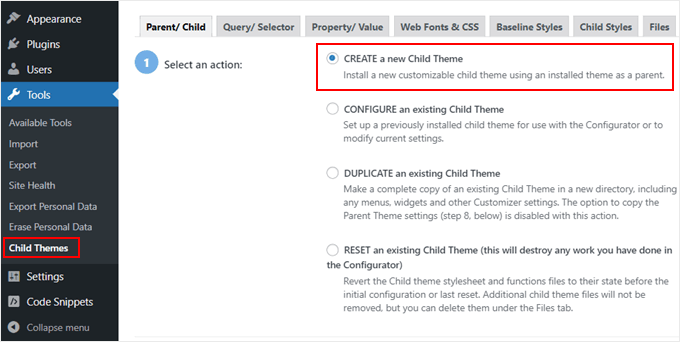
How to Use Child Theme Configurator
- Install the plugin: Go to Plugins > Add New, search for “Child Theme Configurator”, install, and activate it.
- Access the tool: Navigate to Tools > Child Themes in your WordPress admin.
- Select your parent theme: Choose the theme you want to create a child of from the dropdown menu.
- Name your child theme: Give it a display name (this becomes the Theme Name in style.css).
- Configure stylesheet handling: The plugin’s smart analyzer scans your parent theme and recommends the correct enqueue method. For most themes, accept the default.
- Click “Create Child Theme”: The plugin generates the child theme folder, style.css with the correct header, and functions.php with proper enqueue code.
- Activate: The plugin offers an option to activate the child theme immediately after creation.
Once the child theme is active, return to Tools > Child Themes to access the CSS editor. The editor lets you search by selector (find and edit h1, .header, etc.), by CSS property (find all font-size rules across the stylesheet), or use the raw CSS editor to add entirely new rules and media queries. A color picker, live preview, and export-to-ZIP feature are all included in the free version.
One thing to be aware of: Child Theme Configurator strips all CSS comments and doesn’t support @keyframes or @font-face rules. For animations or custom web fonts, you’ll need to handle those manually in your style.css file or load them via separate enqueued stylesheets.
Method 3: Create Block Theme Plugin (Block/FSE Themes)
Block themes work differently from classic themes, and the manual method above doesn’t fully apply to them. The official solution is the Create Block Theme plugin — built and maintained by WordPress.org itself. As of March 2026, it’s on version 2.9.0 (updated March 13, 2026) and requires WordPress 6.8 or higher.
How to Create a Block Theme Child Theme
- Make sure your parent block theme is active: The plugin works with whichever theme is currently activated.
- Install Create Block Theme: Plugins > Add New > search “Create Block Theme” > Install > Activate.
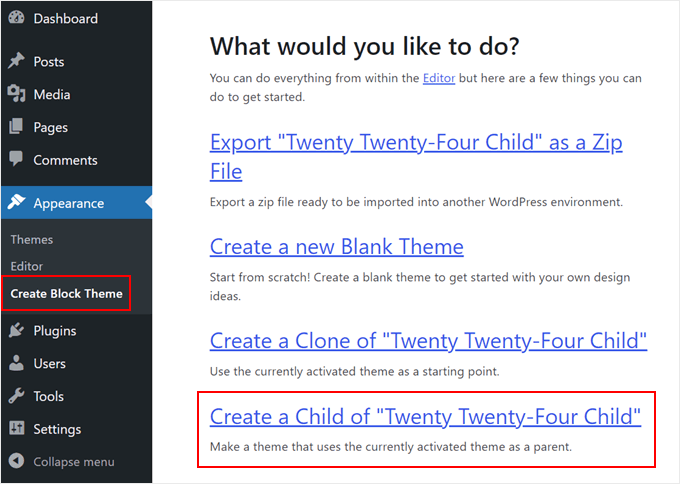
- Access the tool: Go to Appearance > Create Block Theme. (You can also access it from the panel inside the WordPress Site Editor — look for the icon to the right of the “Save” button.)
- Select “Create Child Theme”: Give it a name and description.
- Click Create: The plugin generates the child theme with a style.css header (including the correct Template field), an empty theme.json ready for your overrides, and optionally a functions.php.
- Activate the child theme: Go to Appearance > Themes and activate it.
A major advantage of this plugin for block themes: it preserves your Site Editor customizations. If you’ve already made changes to templates, patterns, or global styles while the parent theme was active, the plugin can carry those changes into the child theme so you don’t need to redo everything.
Customizing a Block Theme Child Theme
After activating your block child theme, customization happens primarily in the Site Editor (Appearance > Editor). When you edit a template or global style in the Site Editor and save, WordPress writes those changes to your child theme’s files — not the parent’s. This is how block themes implement the child theme concept: child-specific overrides are stored in the child’s templates and theme.json.
To override a specific template (like the single post template), open the Site Editor, navigate to the template, make your changes, and save. To override CSS, you can add rules directly to the child theme’s style.css after the header comment, or modify the child’s theme.json for design token changes (colors, typography, spacing).
How to Customize Your Child Theme After Creation
Creating the child theme is step one. Here’s how to actually use it to customize your site without breaking anything.
Adding Custom CSS
Open your child theme’s style.css and add your CSS rules below the header comment block. These rules load after the parent’s styles, so they automatically override anything the parent sets. No additional enqueue calls needed for CSS in this file.
/* Custom styles — add below the header comment */

.site-header {
    background-color: #1a1a2e;
}

.entry-title {
    font-size: 2rem;
    line-height: 1.3;
}
Overriding Parent Template Files
WordPress’s template hierarchy checks the child theme folder first. To override any parent template, copy it from the parent theme to the equivalent path in the child theme folder, then edit the copy.
For example, to override the single post template of a classic theme:
- Find
single.phpin the parent theme’s folder - Copy it to your child theme folder at the same relative path:
child-theme-folder/single.php - Edit the child’s copy — WordPress will use this version and ignore the parent’s
The same logic applies to block themes, but with .html template files in the /templates/ directory.
Adding Custom Functions in functions.php
Child theme’s functions.php runs before the parent’s, which means you can add hooks, filters, and custom functions without interfering with the parent. Add your code after the enqueue function (if you have one):
<?php
// ... your existing enqueue function above ...

/**
 * Add custom widget area to the footer
 */
function my_child_theme_widgets_init() {
    register_sidebar( array(
        'name'          => 'Child Theme Footer Widget',
        'id'            => 'child-footer-widget',
        'before_widget' => '<div class="child-widget">',
        'after_widget'  => '</div>',
        'before_title'  => '<h3 class="widget-title">',
        'after_title'   => '</h3>',
    ) );
}
add_action( 'widgets_init', 'my_child_theme_widgets_init' );
One absolute rule: never copy a function from the parent theme’s functions.php into your child’s functions.php. Since both files load, the function gets declared twice, and PHP throws a fatal error — “Cannot redeclare function…” — bringing down your site. If you need to modify parent behavior, use hooks and filters to override it, not by redefining the function.
Using get_theme_file_path() and get_theme_file_uri()
When referencing files in your child theme (images, includes, scripts), use these two functions instead of hardcoded paths. Both check the child theme first, then fall back to the parent — which means they work correctly regardless of where a file actually lives:
<?php
// For PHP file includes (returns a file system path)
require_once get_theme_file_path( 'inc/my-custom-functions.php' );

// For URLs (images, scripts, stylesheets)
$logo_url = get_theme_file_uri( 'assets/images/logo.png' );
Common Child Theme Mistakes and How to Fix Them
Most child theme problems come down to a handful of repeating errors. Knowing what they are makes troubleshooting much faster.
| Mistake | What Happens | Fix |
|---|---|---|
| Wrong Template field value | Child theme activates but displays incorrectly, or shows “Parent theme is missing” error | Open style.css, verify Template exactly matches the parent theme’s folder name (check wp-content/themes/) |
| Copying parent functions into child functions.php | Fatal error: “Cannot redeclare [function name]” — white screen or admin inaccessible | Remove the duplicate function; use hooks/filters to modify parent behavior instead |
| Using @import to load parent stylesheet | Parent styles may load slowly or not cascade properly; extra HTTP request on every page | Replace @import with wp_enqueue_style() in functions.php |
| Creating a child of a child theme | WordPress cannot find the “parent” (which is itself a child); theme breaks | Only create child themes of standalone parent themes — no grandchild support |
| Parent theme not installed | Fatal error when activating child theme — WordPress can’t find the parent files | Install the parent theme first (it needs to be installed but does not need to be activated) |
| Wrong enqueue handle for parent dependency | Parent styles load twice, or child styles load before parent | Check parent’s functions.php for the exact handle used in wp_enqueue_style() and use that same handle as the dependency |
| Editing parent theme files instead of child | Changes lost on next parent theme update | Always make changes in child theme files — check the active theme path in Appearance > Theme File Editor |
Comparing All Three Methods
| Method | Skill Level | Time Required | Best For | Theme Type |
|---|---|---|---|---|
| Manual (files only) | Beginner–Intermediate | 5–10 minutes | Developers, full control, any classic theme | Classic themes |
| Child Theme Configurator plugin | Beginner (no code) | 2–5 minutes | Non-coders, CSS customization, 7M+ proven installs | Classic themes |
| Create Block Theme plugin | Beginner–Intermediate | 2–5 minutes | Block/FSE themes, Site Editor workflows, WP 6.8+ | Block themes only |
Frequently Asked Questions
Does a child theme slow down my WordPress site?
A child theme itself adds negligible overhead. The only potential performance concern is if the stylesheet enqueue is done incorrectly (e.g., using @import or loading the parent stylesheet twice). Done correctly with wp_enqueue_style(), a child theme has no meaningful impact on page speed.
What happens to my child theme when I update the parent theme?
Nothing. Your child theme’s files are completely separate from the parent theme’s folder. When the parent updates, WordPress replaces only the parent’s files in wp-content/themes/parent-theme-folder/. Your child theme folder is untouched. This is the entire point of using a child theme.
Can I create a child theme of a child theme (grandchild theme)?
No. WordPress only supports one level of inheritance. If you set the Template field in your child theme to point to another child theme, WordPress will either fail silently or display an error because it cannot resolve the full inheritance chain. Always create child themes of standalone (non-child) parent themes.
If you’re evaluating which parent theme to use, see the best WordPress themes for a current comparison of popular options.
Do I need a child theme if I only want to add custom CSS?
For small CSS additions, the Customizer’s Additional CSS field (Appearance > Customize > Additional CSS) is sufficient and survives theme updates. A child theme becomes necessary when you’re adding significant custom CSS, modifying template files, or adding PHP functions — anything beyond a few dozen lines of CSS.
What is the difference between a child theme and a plugin for adding custom functionality?
Both are valid approaches. The general rule: if a customization is visual or template-related (CSS, layout, template structure), it belongs in a child theme. If it’s functional (custom post types, shortcodes, widgets, integrations), it belongs in a plugin. This separation means if you ever switch themes, your functional customizations in the plugin remain intact.
Does a child theme work with all WordPress themes?
Child themes work with virtually all well-coded themes. Occasionally, premium theme frameworks (like Sage, Divi’s Builder framework, or some WHMCS themes) have their own child theme systems or recommend against standard child themes. Always check the parent theme’s documentation before creating a child theme for a less common theme framework.
For a list of well-coded themes that work reliably with child themes, see the best free WordPress themes.
How do I update my child theme safely?
Child themes don’t receive automatic updates from a theme repository — you control them. If you need to change something, edit your child theme’s files directly. For version control, keep your child theme files in a Git repository so you have a history of changes. If you distribute your child theme or build it for clients, increment the Version number in style.css with each change.
Can I use a child theme with Elementor, Divi, or other page builders?
Yes. Page builders store their content in the WordPress database, not in theme files. Switching to a child theme doesn’t affect any page builder content. In fact, using a child theme with a page builder is recommended — it keeps your theme customizations (CSS tweaks, template changes) separate from the builder’s content.
What is the Template field in style.css and why does it matter?
The Template field tells WordPress which parent theme folder to inherit from. It must match the parent theme’s folder name in wp-content/themes/ exactly — including capitalization. If it doesn’t match, WordPress either cannot find the parent theme or loads the wrong one, causing broken styling or a fatal error on activation.
To learn more about how block themes work, see the WordPress block themes guide.
Do block themes need child themes differently than classic themes?
Yes. Block themes handle inheritance differently under the hood. Block theme child themes can be created with a minimal style.css (same as classic), but customization happens primarily through the Site Editor rather than by editing PHP template files. Block theme child themes also include a theme.json for design token overrides, and templates are HTML files edited visually. The Create Block Theme plugin handles this workflow automatically — attempting to manually create a block theme child theme without understanding theme.json inheritance can lead to styling conflicts.
Which Method Should You Use?
For most WordPress users, the decision is straightforward. If you have a block theme (you see Appearance > Editor in your admin), use the Create Block Theme plugin — it’s the official tool and handles the block theme file structure for you. If you have a classic theme and don’t want to write code, use Child Theme Configurator — 7 million downloads and a 4.7-star rating put it in reliably tested territory. If you’re a developer or want full control, the manual method takes five minutes and gives you complete visibility into what’s happening.
The underlying principle is the same regardless of method: your customizations live in a separate folder that theme updates can’t touch. Once your child theme is active, you can update the parent theme, install new parent versions, or even switch child themes without losing your work. That stability is what makes child themes worth understanding properly.
Related reading: how to update a WordPress theme safely — including what to check before updating a parent theme when you have an active child theme.
