


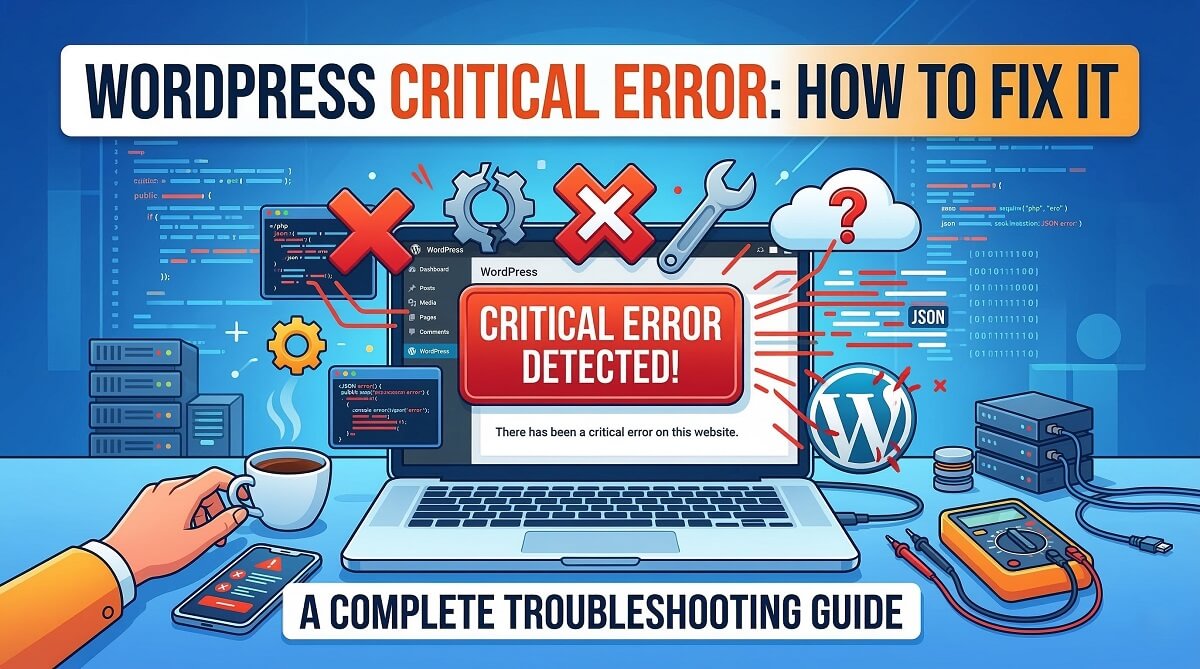
You open your browser, type in your site URL, and see it: “There has been a critical error on this website. Please check your site admin email inbox for instructions.” No dashboard. No homepage. Just that message, and a knot in your stomach.
Here’s the thing — this error looks worse than it is. Most of the time, it points to a single broken plugin, an incompatible theme, or a PHP configuration problem. Your content is safe. Your database is untouched. With the right approach, most site owners can get back online in under 30 minutes without touching a single line of custom code.

This guide covers every fix method available — from the easiest (clicking the recovery link WordPress emails you) to the manual (using FTP to rename plugin folders). There’s a section on reading WP_DEBUG logs, fixing PHP memory limits, updating PHP versions, and a comparison table so you can choose the fastest path for your specific situation. For more WordPress troubleshooting guides, visit wplasma.com.
—
BLUF — What You Need to Know Right Now
If you’re in panic mode and need the short version before reading everything else, here it is:
- Your content is safe. WordPress stores content in the database. A critical error doesn’t delete posts, pages, or orders.
- The most common causes (covering roughly 80% of all cases): a broken plugin, an incompatible theme, or a PHP memory/version problem.
- Fastest fix path: Check your email → Find the WordPress recovery link → Click it → Deactivate the faulty plugin.
- If no email arrives: Use FTP to rename your plugins folder. Your site will load. Then you identify the culprit.
- Time to fix: 5 minutes (recovery email method) to 30-45 minutes (FTP + debug method).
Error Triage — Which Fix to Try First
Before you dive into the fix steps, use this table to narrow down your starting point based on what happened right before the error appeared:
| When did the error appear? | Most likely cause | Try this first |
|---|---|---|
| Right after installing or updating a plugin | Plugin conflict or compatibility issue | Method 2: FTP Plugin Deactivation |
| Right after installing or updating a theme | Theme incompatibility | Method 3: FTP Theme Switch |
| Right after manually editing a file (functions.php, wp-config.php) | PHP syntax error in custom code | Method 4: WP_DEBUG to identify the exact line |
| Right after a WordPress core update | Plugin/theme incompatibility with new WP version | Recovery email → deactivate plugins one by one |
| Right after your host changed the PHP version | PHP version incompatibility | Method 6: Change PHP Version |
| No recent changes — error appeared out of nowhere | PHP memory exhaustion, malware, or core file corruption | Method 4: WP_DEBUG to read the error log |
—
What Does “There Has Been a Critical Error on This Website” Mean?
This message appears when WordPress encounters a PHP fatal error — the kind that stops script execution dead in its tracks. Before WordPress 5.2 (released April 2019), the site would just show a blank white screen (the infamous “white screen of death”). Starting with WordPress 5.2, the platform introduced Recovery Mode: instead of a blank screen, you see a human-readable error message, and WordPress sends a recovery link to the admin email address.
A PHP fatal error is different from a PHP warning or notice. Warnings don’t break the site — they log a message and keep running. Fatal errors do exactly what the name suggests: they kill the PHP process. Common fatal error types include:
- Fatal error: Uncaught Error: A function or class referenced in code doesn’t exist (usually from a deactivated dependency)
- Fatal error: Allowed memory size of X bytes exhausted: PHP ran out of allocated memory
- Parse error: syntax error, unexpected token: A typo in PHP code — missing semicolon, bracket, or quote
- Fatal error: Maximum execution time exceeded: Script ran too long before completing
When WordPress detects a fatal error, it does three things simultaneously: logs the problem internally, sends a recovery email to the admin address, and displays the generic critical error message to all visitors. Your visitors see a sanitized version — they don’t see your file paths, PHP version, or any debug information. That’s by design.
The key thing to understand: recovery mode is your friend. It’s WordPress protecting your site and giving you a controlled path to resolve the issue from the dashboard, without requiring FTP access. The first thing to check is always your email inbox.
—
The 6 Most Common Causes of the WordPress Critical Error
Knowing what broke your site isn’t academic — it directly determines which fix method to start with. Here are the six most frequent triggers, along with their tell-tale signs:

| Cause | Est. frequency | Tell-tale signs | First fix to try |
|---|---|---|---|
| Faulty or updated plugin | ~60–70% | Error appeared right after plugin install/update | Deactivate all plugins via FTP or recovery mode |
| Broken or incompatible theme | ~15% | Error appeared after theme install/update | Switch to default theme via FTP |
| Insufficient PHP memory | ~10% | Debug log says “Allowed memory size exhausted” | Add WP_MEMORY_LIMIT = 256M to wp-config.php |
| Incompatible PHP version | ~8% | Debug log shows “Deprecated” or “Parse error” on core file | Upgrade PHP to 8.1+ in hosting panel |
| Corrupted core files | ~5% | No recent plugin/theme change; core functions broken | Reinstall WordPress core via FTP |
| Syntax error in custom code | ~5% | Error appeared right after editing functions.php or wp-config.php | Enable WP_DEBUG and check exact line number in error |
1. A Faulty or Recently Updated Plugin
Plugins are the most common source of WordPress critical errors — they account for an estimated 60–70% of all cases. A plugin can trigger a fatal error in several ways: it might call a PHP function that doesn’t exist in your current PHP version, it might conflict with another active plugin that uses the same function name, or the new version might have a bug that the developer hasn’t patched yet.
The tell-tale sign: the error appeared within minutes of installing, activating, or updating a specific plugin. If you track your site changes in a changelog (a habit worth starting), you’ll identify the culprit immediately.
2. A Broken or Incompatible Theme
Themes can cause the same class of PHP fatal errors as plugins, and they’re the second most common trigger. A theme update that introduces a breaking change in functions.php, or a new theme that requires a minimum PHP version your server doesn’t meet, will crash the site the moment WordPress tries to load it.
One scenario that catches people off guard: a parent theme update can break a child theme if the child theme calls parent theme functions that were removed or renamed in the update.
3. Insufficient PHP Memory Limit
WordPress starts with a default PHP memory allocation of 40MB for single sites. For many modern sites — especially those running WooCommerce, page builders like Elementor or Divi, or multiple high-feature plugins — 40MB isn’t enough. When PHP exhausts its memory mid-execution, it throws a fatal error.
You’ll see this exact line in your debug log: Fatal error: Allowed memory size of 41943040 bytes exhausted (the number varies based on your limit). This is a clean, diagnosable error with a direct fix.
4. Incompatible PHP Version
WordPress officially recommends PHP 8.3 or greater as of February 2026 (verified at wordpress.org/about/requirements/). The minimum supported version is PHP 7.2.24, though those legacy versions have reached End of Life and carry security risks.
If your hosting environment is running PHP 7.0 or earlier, you’ll likely see parse errors and deprecated function warnings in the debug log. Running PHP 8.x on a site with old plugins that haven’t been updated is equally problematic — newer PHP is stricter about certain function calls that older plugins relied on.
5. Corrupted WordPress Core Files
Core file corruption is less common than plugin/theme issues, but it does happen — typically after a failed WordPress update, a server error during file transfer, or in rare cases, malware that alters core PHP files. When core files are damaged, basic WordPress functions fail before any plugin or theme even loads.
If disabling all plugins and switching themes doesn’t clear the error, core file corruption becomes a likely candidate.
6. Syntax Error in Manually Edited PHP Code
A missing semicolon. An unclosed bracket. A mismatched quote. These tiny typos in functions.php or wp-config.php are enough to throw a parse error that brings down the entire site. This cause is entirely self-inflicted — and entirely fixable once you identify the exact line.
The debug log will tell you precisely which file and which line triggered the parse error, making this one of the easier ones to fix despite how alarming the crash feels.
—
The First 5 Minutes — Emergency Triage Protocol
When the critical error screen appears, the instinct is to start clicking and changing things immediately. Resist that. A structured first five minutes saves time and prevents you from making things worse.
Step 1: Verify your content is safe. Open your hosting control panel and confirm your database is still running. WordPress stores all posts, pages, WooCommerce orders, and user accounts in MySQL. A PHP fatal error doesn’t touch the database. Your content is fine.
Step 2: Check your email inbox for the recovery message. WordPress sends an email to the address listed under Settings > General in your WordPress admin. Look for the subject line: “[Your Site Name] Your Site is Experiencing a Technical Issue”. Check your spam folder too. This email contains a special recovery link that bypasses the error and lets you log in to a limited WordPress dashboard.
Step 3: Think back — what changed in the last 24–48 hours? Did you update a plugin? Install a new theme? Edit a PHP file directly? Have your hosting company change your PHP version? Ask your team if someone else made a change. The answer to “what changed?” almost always reveals the cause.
Step 4: Use the triage table. Match your recent change to the appropriate fix method from the BLUF table above. Starting with the right method cuts your troubleshooting time significantly.
Step 5: Take a backup before you start. Even if your site is broken, your hosting provider’s panel likely has a server-level backup option (Softaculous, JetBackup, or similar). Take a snapshot now. If a fix attempt makes things worse, you can restore from this point.
—
Method 1 — Fix via WordPress Recovery Mode Email
This is the easiest path to recovery, and it doesn’t require FTP access or command-line knowledge. WordPress has had this system since version 5.2 (April 2019).
Finding the Recovery Email
Check the inbox of the email address you used when setting up WordPress (typically listed under Settings > General as “Administration Email Address”). The email arrives from WordPress using your site’s email configuration. If your email plugin was the one that crashed (rare but possible), the email may not arrive — in that case, skip to Method 2.
Important detail: the recovery mode link expires after 24 hours. If you received the email but it’s been more than a day, the link is invalid. Use FTP methods instead.
What Recovery Mode Looks Like
When you click the recovery link, WordPress lets you log in despite the fatal error. Inside the WordPress admin, you’ll see a yellow or red banner at the top identifying the exact plugin or theme file that threw the fatal error. The message includes the file name and a brief description of the error.
How to Fix Inside Recovery Mode
- Read the error notice at the top of the admin screen — it names the specific plugin or theme causing the issue.
- Navigate to Plugins > Installed Plugins.
- Deactivate the identified plugin (click “Deactivate”).
- Reload your site’s front end to verify the error is gone.
- Click “Exit Recovery Mode” in the admin toolbar to restore normal site operation.
If recovery mode identifies a theme as the cause, go to Appearance > Themes and switch to a default theme (Twenty Twenty-Four or similar).
What to Do After Fixing via Recovery Mode
- Check for a plugin update that addresses the issue (visit the plugin’s changelog or support forum)
- If no update is available, delete the plugin and search for an alternative
- Contact the plugin developer — they need to know about the compatibility issue
Known limitation: Recovery mode only activates during regular page loads. If the fatal error occurs during a WP-Cron job or background task, no recovery email is sent. In those cases, proceed to the FTP methods below.
—
Method 2 — Fix via FTP (Plugin Deactivation)
When no recovery email arrives, or when you prefer direct access to your files, FTP is the most reliable fix path. Don’t let “FTP” intimidate you — it’s essentially a file browser for your website’s server, and the free tool FileZilla makes it as straightforward as dragging folders.

Step 1 — Connect to Your Site via FTP
What you need:
- FTP client: Download FileZilla for free at filezilla-project.org (available for Windows, Mac, Linux)
- FTP credentials: Find these in your hosting control panel under “FTP Accounts” or “FTP Access”. You need: Host (usually your domain or an IP), Username, Password, and Port (21 for FTP, 22 for SFTP)
Open FileZilla. At the top, enter your Host, Username, Password, and Port, then click “Quickconnect.” You’ll see your local files on the left panel and your server files on the right panel.
Tip: If your host offers a File Manager in cPanel or Plesk, you can do everything in Method 2 through the browser-based File Manager without installing FileZilla. The steps are identical — just different interface.
Step 2 — Navigate to the WordPress Plugin Folder
In the right panel (server files), navigate to your WordPress installation directory. For most shared hosting setups, this is:
/public_html/wp-content/plugins/(most common)/wp-content/plugins/(if WordPress is installed in a subdirectory)/httpdocs/wp-content/plugins/(some European hosts)
If you’re not sure which applies to you, look for the folder that contains wp-admin, wp-includes, and wp-content side by side — that’s your WordPress root.
Step 3 — Rename the Entire Plugins Folder
Here’s the smartest approach, and it’s faster than renaming individual plugin folders: rename the entire plugins directory.
- Right-click the
pluginsfolder in FileZilla’s right panel - Select “Rename”
- Change the name to
plugins-disabled - Press Enter
Why this works: WordPress activates plugins by looking for their folders inside /wp-content/plugins/. When that folder doesn’t exist or has been renamed, WordPress can’t find any plugins — so it runs with zero plugins active. If your site loads now, the cause was a plugin.
- Reload your site in a browser. If it loads (even without styling or features), the error was plugin-related.
Step 4 — Identify the Specific Plugin
Now you know a plugin caused the error. Next: find out which one.
- In FileZilla, create a new empty folder named
pluginsinside/wp-content/ - Open the
plugins-disabledfolder — you’ll see all your individual plugin folders - Move plugins back to
pluginsin batches (e.g., move 5 at a time) - Reload the site after each batch
- When the critical error returns, the culprit is in the last batch you moved
- Move those plugins back out, then move them back in one by one to identify the exact plugin
Step 5 — Resolve the Plugin Issue
Once you’ve identified the broken plugin:
- Delete it via FTP (right-click > Delete) and reinstall a fresh copy from WordPress.org
- Check the plugin’s changelog on its WordPress.org page for known conflicts or recent bug reports
- Look for an alternative plugin that performs the same function without the conflict
- Contact the plugin developer through the WordPress.org support forum — they need this bug report
—
Method 3 — Fix via FTP (Theme Switch)
If Method 2 (plugin deactivation) didn’t resolve the error, or if you suspect the theme is the cause (especially after a recent theme update), test the theme next.
- In FileZilla, navigate to
/wp-content/themes/ - Locate your active theme’s folder (e.g.,
astra,divi,hello-elementor) - Rename it by adding
-disabledto the end (e.g.,astra-disabled) - Reload your site
When WordPress can’t find the active theme, it automatically falls back to the most recently installed default theme (Twenty Twenty-Four, Twenty Twenty-Three, etc.). If your site loads after this rename, the theme was causing the error.
Resolution options:
- Check for a theme update that addresses the issue
- Contact the theme developer (for premium themes, use their support ticket system)
- If the issue is in a child theme’s
functions.php, edit that file to remove the problematic code - Consider switching to a different theme if the developer is unresponsive
—
Method 4 — Enable WP_DEBUG to Diagnose the Exact Error
Sometimes the plugin/theme deactivation methods don’t work cleanly — maybe you have 40+ plugins, or the error persists even with everything disabled. In those cases, WP_DEBUG is your best diagnostic tool. It tells you exactly which file, which line, and what PHP error caused the crash.
The Complete Safe WP_DEBUG Configuration
Most guides show only define('WP_DEBUG', true) — just one constant. That’s incomplete and potentially unsafe on a live site, because it displays error messages directly on screen for all visitors (exposing your server file paths and potentially sensitive information).
The correct configuration for a live WordPress site uses three to four constants working together:
define( 'WP_DEBUG', true );
define( 'WP_DEBUG_LOG', true );
define( 'WP_DEBUG_DISPLAY', false );
@ini_set( 'display_errors', 0 );
What each constant does:
- WP_DEBUG = true: Activates debug mode throughout WordPress
- WP_DEBUG_LOG = true: Writes all errors to
/wp-content/debug.loginstead of displaying them - WP_DEBUG_DISPLAY = false: Prevents errors from appearing on screen for visitors
- display_errors = 0: A PHP-level reinforcement of the screen suppression (extra safety layer)
Source: WordPress Developer Documentation — Debugging in WordPress (verified February 2026)
How to Add the Debug Config to wp-config.php
- Connect via FTP (FileZilla) or use your hosting panel’s File Manager
- In your WordPress root directory, find and download
wp-config.php - Open it in a text editor (Notepad++, VS Code, or any plain text editor)
- Find this line near the bottom:
/* That's all, stop editing! Happy blogging. */ - Insert the four debug constants immediately before that line
- Save the file and upload it back to the server, overwriting the original
- Reload your site — visitors still see the generic error message, but errors are now being logged
How to Read the Debug Log
The debug log is saved at /wp-content/debug.log. Download it via FTP and open it in a text editor. Look for entries marked PHP Fatal error — these are your priority.

Common error patterns and what they mean:
PHP Fatal error: Uncaught Error: Call to undefined function X()in/wp-content/plugins/plugin-name/file.php→ That plugin is calling a function that doesn’t exist. The plugin is the cause. Deactivate it.PHP Parse error: syntax error, unexpected tokenin/wp-content/themes/theme-name/functions.phpon line 47 → There’s a PHP syntax error at that exact line. Open the file and check around line 47 for a missing semicolon, bracket, or quote.PHP Fatal error: Allowed memory size of 41943040 bytes exhausted→ PHP ran out of memory. Proceed to Method 5 (Memory Limit) after disabling debug mode.PHP Deprecated: Function X is deprecated since PHP 8.x→ A plugin or theme uses old PHP functions not compatible with your current PHP version. Either update the plugin or downgrade PHP (see Method 6).
⚠️ Critical: Turn Off WP_DEBUG After Fixing
Debug mode is a temporary diagnostic tool — not something to leave on permanently. The debug.log file accumulates sensitive information about your site’s file structure and server environment. Once you’ve identified and fixed the error:
- Open
wp-config.phpagain - Change
WP_DEBUGback tofalse(or remove the four debug constants entirely) - Save and upload the file
- Delete the
debug.logfile from/wp-content/via FTP
—
Method 5 — Increase the PHP Memory Limit
If your debug log shows “Allowed memory size exhausted,” the fix is adding more memory to the PHP process WordPress runs on. This is one of the simpler fixes — it requires editing just one line in wp-config.php.
Memory Limit Defaults and Recommendations
| Context | Default (WordPress) | Recommended | WooCommerce stores |
|---|---|---|---|
| Single site | 40 MB | 256 MB | 512 MB |
| Multisite | 64 MB | 256 MB | 512 MB |
| WP Admin area | 256 MB (WP_MAX_MEMORY_LIMIT) | 256 MB | 512 MB |
Source: WordPress Developer Documentation — wp-config.php (verified February 2026)
How to Increase Memory in wp-config.php
Open wp-config.php and add these two lines before the /* That's all, stop editing! */ comment:
/** Increase memory allocated to PHP */
define( 'WP_MEMORY_LIMIT', '256M' );
define( 'WP_MAX_MEMORY_LIMIT', '256M' );
Save and upload the file. Reload your site. If the memory error was the only cause, the site loads normally.
Alternative Methods if wp-config.php Doesn’t Work
Some hosting environments lock the PHP memory limit and won’t allow wp-config.php to override it. In those cases:
- Via php.ini: Add
memory_limit = 256Mto your php.ini file (location varies by host) - Via .htaccess (Apache servers only): Add
php_value memory_limit 256M - Via hosting panel: Many hosts (SiteGround, WP Engine, Kinsta) have a PHP settings panel where you can directly adjust the memory limit
- Contact your host: If none of the above work, your host’s support team can increase the server-level limit
—
Method 6 — Fix an Incompatible PHP Version
When your debug log shows deprecated function warnings, parse errors in core files, or your error appeared right after a hosting-side PHP upgrade, the PHP version is likely the problem.
WordPress PHP Version Requirements (February 2026)
| PHP Version | Status | Notes |
|---|---|---|
| PHP 5.x | ❌ Not supported | EOL — serious security vulnerabilities |
| PHP 7.0–7.3 | ❌ Legacy (EOL) | No longer officially supported |
| PHP 7.4 | ⚠️ Minimum functional | EOL since November 2022 — upgrade soon |
| PHP 8.0 | ⚠️ Supported | EOL December 2023 |
| PHP 8.1 | ✅ Supported | Active security support |
| PHP 8.2 | ✅ Supported | Stable LTS |
| PHP 8.3 | ✅ Recommended | Latest stable — recommended by WordPress.org (verified February 2026) |
Source: wordpress.org/about/requirements/ (verified February 2026)
How to Check Your Current PHP Version
- Via WordPress admin (if accessible): Go to Tools > Site Health > Info > Server. Your PHP version is listed there.
- Via hosting panel: Look for “PHP Version” in cPanel or Plesk
- Via phpinfo.php: Create a file named phpinfo.php in your WordPress root containing
<?php phpinfo(); ?>, visit it in a browser, find the PHP version, then delete the file
How to Change PHP Version by Host Type
- cPanel (Bluehost, Namecheap, HostGator): cPanel > Software > Select PHP Version > Choose 8.1 or 8.3
- SiteGround: Site Tools > Devs > PHP Manager > Select version per domain
- WP Engine: User Portal > Your Install > Environment Settings > PHP Version
- Kinsta: MyKinsta > Sites > Your Site > Tools > PHP Engine > Change version
- Flywheel/Local: Environment settings panel in the dashboard
Important note after upgrading PHP: A PHP version upgrade can itself trigger new compatibility warnings from older plugins. After changing PHP version, check your site thoroughly and run through the plugin list — any plugin that hasn’t been updated in 2+ years may need replacing.
—
Method 7 — Reinstall WordPress Core Files
If you’ve tried disabling all plugins, switching themes, and running WP_DEBUG, and the error persists with no clear plugin or theme cause in the logs, corrupted core files become the most likely remaining culprit. Reinstalling core files is safe — it only replaces core WordPress PHP files and doesn’t touch your wp-content folder (your themes, plugins, uploads, and media).
- Download fresh WordPress from wordpress.org/download/ — get the same version you currently run if possible (check your current version in wp-includes/version.php)
- Extract the downloaded zip on your local computer
- Delete the
wp-contentfolder from the extracted files — this folder contains your site-specific data and should NOT be uploaded - Upload the remaining files via FTP to your WordPress root directory, choosing to overwrite existing files when prompted
- This replaces all WordPress core PHP files with fresh copies while leaving your
wp-contentuntouched - Reload your site
After a successful core reinstall, WordPress may prompt you to update the database — do it. Then check your plugins and themes are working correctly.
—
Fix Method Comparison — Which Approach is Right for You?
Not all repair methods are equal in terms of difficulty, time, and risk. Here’s a side-by-side comparison to help you choose based on your technical comfort level and the tools you have available:
| Method | Difficulty | Est. Time | Access Needed | Risk Level | Best For |
|---|---|---|---|---|---|
| Recovery Mode Email | Easy | 5–10 min | Email + WordPress admin | Very Low | Everyone — try this first |
| FTP Plugin Deactivation | Medium | 15–30 min | FTP or File Manager | Low | Plugin-related errors (60–70% of cases) |
| FTP Theme Switch | Medium | 10–15 min | FTP or File Manager | Low | Theme-related errors, after theme updates |
| WP_DEBUG Diagnostic | Medium | 20–40 min | FTP + text editor | Low* | Any cause — best diagnostic tool |
| PHP Memory Limit Increase | Medium | 10 min | FTP + text editor or hosting panel | Low | Memory exhaustion errors |
| PHP Version Change | Medium | 10–15 min | Hosting panel | Medium | PHP incompatibility errors |
| Core File Reinstall | Medium-Hard | 30–45 min | FTP access | Low | Core file corruption — last resort |
*WP_DEBUG risk is low only when using all three/four constants correctly and removing debug mode after fixing. Using only WP_DEBUG = true without the other constants is unsafe on a live site.
—
Special Case — WooCommerce Store Down? Use This Protocol First
A WordPress critical error on a blog is frustrating. A WordPress critical error on a WooCommerce store is a financial emergency. Every minute your store is down, you’re potentially losing orders. The protocol here is slightly different from a regular WordPress site.
- Contact your hosting provider immediately and explicitly state that a live e-commerce store is down. Most hosts have an SLA for urgent issues — this qualifies. They may have server-level access to help you faster than FTP methods allow.
- Check your last backup timestamp. If you have an automatic backup from the past 24 hours and you know what change caused the error, restoring the backup is often faster than debugging. Calculate which is faster: restore or debug.
- Enable maintenance mode if any admin access is available. This prevents customers from seeing the error page and gives you time to fix it. Even a simple maintenance mode plugin or a manual maintenance file can help manage customer expectations.
- Identify the exact trigger. Was it a WooCommerce update? A payment gateway plugin update? A shipping plugin? Start with the most recent change to WooCommerce-related plugins.
- After fixing: Before reopening to the public, verify the entire checkout flow — add to cart, checkout, payment gateway response, order confirmation email. Don’t assume the fix is complete until you’ve completed a test transaction.
For additional WordPress maintenance and troubleshooting resources, wplasma.com covers plugin reviews, hosting guides, and step-by-step WordPress how-tos.
—
After Fixing — The 8-Step Safety Checklist
Getting the error to disappear is step one. Making sure everything is clean and protected is step two. Run through this checklist before considering the incident closed:
- Turn off WP_DEBUG. Open wp-config.php, change WP_DEBUG to false (or remove the debug constants entirely). Upload the file.
- Delete the debug.log file. Navigate to /wp-content/ via FTP and delete debug.log. This file may contain sensitive path and configuration information.
- Clear all caches. Use your caching plugin’s “Clear Cache” button, and if your host has server-level caching (SiteGround SuperCacher, WP Engine’s cache, Cloudflare), purge those too. Caches can serve the error page even after the fix.
- Test all major pages. Visit your homepage, a sample blog post, your contact page, and your shop page (if WooCommerce is installed). Don’t assume the fix worked on all pages — check them.
- Test user login. Log out of WordPress and log back in as a regular subscriber to confirm the login flow works.
- Test payment gateway (WooCommerce only). Run a test transaction with your payment gateway’s test mode. Verify that the order appears in WooCommerce > Orders.
- Take a fresh backup. Now that the site is working, create a new backup. This becomes your clean restore point going forward.
- Document what happened. Write down what changed, what broke, and what fixed it. This 2-minute note prevents hours of guesswork if the same issue recurs.
—
How to Prevent the WordPress Critical Error in the Future
The most common causes of the critical error are also the most preventable. These habits reduce your risk significantly:
- Back up before every update. Before updating any plugin, theme, or WordPress core, run a backup. Most backup plugins (UpdraftPlus, BackWPup, Duplicator) can be triggered on demand. This takes 2 minutes and gives you a clean restore point if the update breaks something.
- Use a staging environment for major updates. Most managed WordPress hosts (WP Engine, Kinsta, SiteGround, Flywheel) include a one-click staging site. Test major plugin or PHP updates on staging before pushing to production.
- Update one thing at a time. Don’t select all plugins and update them simultaneously. If something breaks, you won’t know which update caused it. Update one, test the site, then move to the next.
- Keep PHP current. Check your PHP version annually and upgrade when your current version reaches End of Life. WordPress recommends PHP 8.3 as of February 2026.
- Audit your plugins regularly. Remove plugins you no longer use. Every inactive plugin is still a potential attack surface and compatibility liability. If a plugin hasn’t been updated in two years, look for an actively maintained alternative.
- Check plugin compatibility before installing. On a plugin’s WordPress.org page, look for “Compatible up to [WordPress version]” and “Last updated.” A plugin last updated three years ago is a risk on a current WordPress install.
- Monitor your site with uptime monitoring. Free tools like UptimeRobot alert you within minutes when your site goes down. Without monitoring, you might not know about a critical error for hours.
- Use a quality hosting provider with good PHP resource limits. Budget shared hosting often limits PHP memory to 64MB or lower. That’s frequently not enough for a feature-rich WordPress site. Check your host’s PHP memory limit and request an increase if needed.
—
Who Should Fix This Themselves — And Who Should Call a Developer
✅ You Can Fix This Yourself If:
- You have FTP credentials and know how to connect (or are willing to follow the steps above)
- The error appeared right after a specific plugin or theme update
- You can access your hosting panel’s File Manager as an FTP alternative
- You have a recent backup (even a partial one) to fall back on
- Your site has moderate traffic and losing a few hours of activity isn’t catastrophic
❌ Consider Calling a Developer If:
- Debug log shows errors in WordPress core files and no plugin/theme is identified as the cause
- You’ve tried all methods in this guide and the error persists
- Your site is a high-revenue WooCommerce store and every additional hour down is costing you significantly
- You’re not comfortable editing wp-config.php directly
- The site has complex custom code that a non-developer might inadvertently break
⚠️ Gray Zone Considerations:
- First-time FTP user: Start with the recovery mode email method. If that doesn’t work and you need FTP, follow the steps in this guide carefully — they’re written for beginners. The risk of the FTP steps themselves is low (renaming a folder is reversible).
- No backup available: Contact your hosting provider before making changes. Most hosts keep rolling server snapshots (24-48 hours) even if you haven’t set up your own backup plugin. Ask them to restore or at least give you a backup to work from.
—
Frequently Asked Questions
What does “There has been a critical error on this website” mean in WordPress?
It means WordPress encountered a PHP fatal error — the type of error that stops code execution completely. Starting with WordPress 5.2 (released April 2019), instead of displaying a blank white screen, WordPress shows this human-readable message and sends a recovery link to the admin email address. The error is almost always caused by a faulty plugin, an incompatible theme, insufficient PHP memory, or a PHP version mismatch. Your content (posts, pages, database) is safe.
How do I fix the WordPress critical error without FTP access?
Check your email inbox for the recovery message with subject “[Your Site Name] Your Site is Experiencing a Technical Issue.” Click the link inside — it lets you log in to a limited WordPress dashboard despite the error. From there, you can identify and deactivate the broken plugin or switch themes without any FTP access. If the email didn’t arrive, contact your hosting provider — most offer a browser-based File Manager in cPanel or Plesk that works the same as FTP.
Will I lose my content when fixing the critical error?
No. WordPress stores all content — posts, pages, WooCommerce orders, user accounts, settings — in the MySQL database. A PHP fatal error doesn’t affect the database. The troubleshooting steps in this guide (renaming plugin folders, switching themes, editing wp-config.php) all work on PHP files, not the database. The only risky step would be deleting a database table, which none of these methods involve.
How long does it take to fix a WordPress critical error?
It depends on which method applies to your situation. Using the recovery mode email link (if WordPress sent it): 5–10 minutes. Using FTP to deactivate plugins: 15–30 minutes. Enabling WP_DEBUG to diagnose a complex error: 30–60 minutes. Reinstalling core files: 30–45 minutes. The triage table at the top of this guide helps you start with the most likely fix for your specific situation, minimizing time spent on methods that won’t work.
What’s the difference between WordPress recovery mode and manual FTP fixing?
Recovery mode is a WordPress-built system (available since 5.2) that automatically activates when it detects a fatal error. It sends you an email, lets you log in through a special link, identifies the broken component, and lets you deactivate it from the dashboard — no technical knowledge or server access needed. Manual FTP fixing bypasses WordPress entirely and directly modifies files on the server. FTP is more powerful and reliable when recovery mode email doesn’t arrive, but it requires FTP credentials and basic file navigation knowledge.
How do I know which plugin caused the critical error?
Three ways, in order of precision: (1) Recovery mode email identifies the broken plugin by name in the admin dashboard. (2) WP_DEBUG log names the exact file and line — usually something like /wp-content/plugins/plugin-name/file.php on line 42. (3) The binary search method via FTP — rename the entire plugins folder, confirm the site loads, then move plugins back in batches until the error returns. The last batch you moved contains the culprit.
Is it safe to enable WP_DEBUG on a live WordPress site?
Yes, if you use the complete configuration. Using only define('WP_DEBUG', true) is NOT safe for live sites — it displays error messages including server file paths directly to visitors. The safe approach requires setting WP_DEBUG_LOG to true (logs errors to a file) AND WP_DEBUG_DISPLAY to false (hides errors from the screen). Always remove the debug constants and delete debug.log after fixing.
What PHP version should WordPress use in 2025-2026?
WordPress recommends PHP 8.3 or greater as of February 2026 (verified at wordpress.org/about/requirements/). PHP 8.1 and 8.2 are also actively supported and safe. PHP 7.4 is functional but has been End of Life since November 2022 and carries security risks. PHP 7.3 and earlier are not officially supported by WordPress. You can change your PHP version from your hosting panel without any file changes required.
Can a WordPress critical error happen after an automatic update?
Yes. WordPress can be configured to update automatically (core, plugins, or themes), and an automatic update to a plugin with a bug or compatibility issue can trigger a critical error. To prevent this, you can disable automatic updates for plugins in WordPress settings, or configure automatic updates to require your approval. If you prefer automatic updates (for security patches), use a staging site to test first and enable uptime monitoring to catch any failures quickly.
What do I do if none of the fixes work?
If you’ve disabled all plugins, switched to a default theme, reinstalled core files, and the error persists with no clear cause in the debug log: first, restore from a known good backup if you have one. If you don’t have a backup, contact your hosting provider — they keep server-level snapshots and can often restore to a point before the error appeared. After restoring, identify what changed before the error (plugin updates, theme updates, PHP version changes) and address those changes one at a time on a staging environment before applying them again to production.
—
Conclusion — Most Critical Errors Are a One-Hour Problem
The “there has been a critical error on this website” message is alarming, but it’s rarely catastrophic. In the vast majority of cases — probably 90% or more — the fix is finding and deactivating one broken plugin, switching to a stable theme, or adjusting a PHP configuration setting. Your content is untouched throughout.
The key insight from this guide: diagnose before you fix. The triage table and the WP_DEBUG diagnostic method exist because guessing your way through fix steps wastes time. When you know whether the error is plugin-related, PHP memory-related, or version-related, you go directly to the right method and bypass the ones that won’t help.
Prevention is worth building into your workflow permanently. Backing up before updates, using a staging environment for major changes, keeping PHP current, and monitoring uptime reduces your exposure to this type of error significantly. The critical error you prevent with a 2-minute backup is the one that doesn’t cost you an hour of troubleshooting.
