


You’re in the WordPress media library, dragging in a client logo or a PDF brochure, and you get the error: “The uploaded file exceeds the maximum upload size for this site.” It’s one of the most common frustrations in WordPress — and it has nothing to do with WordPress itself.
The upload limit is controlled by PHP, your server’s scripting engine. WordPress reads whatever PHP allows and enforces that as the ceiling. So changing the limit means changing a few PHP directives — and there are several ways to do that depending on how your hosting is set up. This guide covers all of them, sorted by how much server access you have, so you can jump straight to what works for your situation.

Understanding how WordPress memory limit settings interact with your upload configuration is worth a few minutes — they’re part of the same PHP directive stack.
What You Need to Know Before You Start (Quick Summary)
If you’re short on time, here’s the bottom line:
- WordPress’s upload limit is set by PHP — not WordPress — and defaults to 2MB on bare-bones installs (like the official Docker image). Most managed hosts set it between 32MB and 128MB.
- Three PHP settings work together to control uploads. All three need to be in sync — change one without the others and the upload will still fail.
- There are 7 methods covered below, sorted from easiest (hosting control panel GUI) to most technical (editing Nginx config directly).
- Most people fix this in under five minutes once they know which method applies to their setup.
The Three PHP Settings That Control Your Upload Size
Before touching any config file, it helps to know what you’re actually changing. These three directives are interdependent — WordPress uses whichever value is lowest as the effective limit.
| PHP Setting | What It Controls | Rule | Recommended Value |
|---|---|---|---|
upload_max_filesize |
Maximum size of a single uploaded file | Must be ≤ post_max_size | 64M – 256M |
post_max_size |
Maximum total size of all POST data (file + form fields) | Must be > upload_max_filesize | 128M – 512M |
memory_limit |
PHP memory available per request | Should be ≥ post_max_size | 256M – 512M |
A common mistake: raising upload_max_filesize to 128M but leaving post_max_size at 8M. The upload will still fail because the total POST request exceeds the limit. Always update all three together.
Two additional settings matter when uploading large files:
max_execution_time— how long PHP keeps running. Set to300(5 minutes) for large file uploads.max_input_time— how long PHP spends parsing the uploaded data. Also set to300.
How to Check Your Current WordPress Upload Limit
Before changing anything, confirm your current limit. There are two fast ways:
Option 1 — Media Library: Go to Media > Add New in your WordPress admin. The maximum upload file size is displayed right below the upload area. No clicking required.
Option 2 — Site Health: Navigate to Tools > Site Health > Info > Server. Scroll to find “PHP post max size” and “Max upload file size” — both values are listed.
Want to know exactly which config file PHP is reading? Create a temporary file in your WordPress root called info.php containing:
<?php phpinfo(); ?>Browse to yoursite.com/info.php and search for “Loaded Configuration File” — that’s the exact php.ini PHP is reading. Delete the file immediately after checking (leaving phpinfo files public is a security risk).
Which Method Should You Use?
Not all servers work the same way. The right fix depends on what kind of access you have. Use this table to find your starting point.
| Your Setup | Best Method | Skill Level |
|---|---|---|
| Shared hosting with cPanel | Method 1 — MultiPHP INI Editor | Beginner |
| Shared hosting with Plesk | Method 1 — PHP Settings panel | Beginner |
| Managed WordPress hosting (WP Engine, Kinsta) | Method 1 — Contact support or dashboard | Beginner |
| VPS/dedicated server with SSH, Apache | Method 2 — Edit php.ini directly | Intermediate |
| Apache server, no SSH (FTP only) | Method 3 — Edit .htaccess | Intermediate |
| PHP-FPM environment (Nginx or Apache+FPM) | Method 4 — Edit .user.ini | Intermediate |
| Nginx server | Method 5 — Nginx config + PHP settings | Advanced |
| WordPress admin access only (no server) | Method 6 — Plugin | Beginner |
| WordPress Multisite | Method 7 — Network Admin Settings | Intermediate |
Method 1 — Use Your Hosting Control Panel (Easiest)
If you’re on shared hosting, this is where to start. Most control panels let you edit PHP settings through a GUI — no FTP or SSH needed.

cPanel — MultiPHP INI Editor
- Log into cPanel and click MultiPHP INI Editor (under the Software section).
- Select the PHP version your site uses from the dropdown.
- Find
upload_max_filesizeand set your desired value (e.g.,128M). - Find
post_max_sizeand set it higher (e.g.,256M). - Click Apply. Changes take effect immediately — no restart needed.
Plesk — PHP Settings
- Open the Plesk dashboard and click on your domain.
- Go to PHP Settings (or Websites & Domains > PHP Settings).
- Change
upload_max_filesizeandpost_max_sizeto your target values. - Click OK to save.
Managed WordPress Hosts
Managed hosts like WP Engine and Kinsta set their own upload defaults. WP Engine’s default is 50MB for standard installs (just 1MB for WordPress Multisite networks). You can request an increase up to 256MB by contacting WP Engine support — anything larger than 256MB requires SFTP or SSH upload. Kinsta and SiteGround offer similar options through their respective dashboards or support tickets.
Contacting support is often faster than trying to find hidden config files on managed hosts, where direct php.ini access is typically blocked by design.
For more hosting-specific WordPress configuration tips, the wplasma.com WordPress guides cover a range of server and admin-level how-tos.
Method 2 — Edit php.ini Directly (Most Reliable)
On a VPS, dedicated server, or any environment where you have SSH or FTP access, editing php.ini is the most direct and reliable approach. It works on Apache and Nginx alike.
Finding Your php.ini File
The php.ini file location varies by server setup:
- cPanel servers:
/usr/local/lib/php.inior via MultiPHP INI Editor (preferred) - Ubuntu/Debian with PHP-FPM:
/etc/php/8.x/fpm/php.ini - Ubuntu/Debian with Apache mod_php:
/etc/php/8.x/apache2/php.ini - WordPress root (some hosts): create or edit
php.iniin/public_html/
If you’re not sure which file PHP is loading, use the phpinfo() method described in the “Check Your Limit” section above.
Settings to Change
Open the file and find these directives (or add them if missing):
upload_max_filesize = 128M
post_max_size = 256M
memory_limit = 512M
max_execution_time = 300
max_input_time = 300
Adjust the values to fit your situation. Uploading video files or large database backups? Go higher — 256M and 512M respectively. Running a standard blog that just needs room for slightly larger images? 64M and 128M are plenty.
After Editing
Reload PHP to apply the changes:
- Apache + mod_php:
sudo service apache2 restart - PHP-FPM:
sudo systemctl restart php8.x-fpm(replace 8.x with your version)
Then verify via Media > Add New or phpinfo().
Method 3 — Edit .htaccess (Apache Only)
If you can’t access php.ini but you have FTP access and you’re on an Apache server, the .htaccess file in your WordPress root can override PHP settings.

Open your WordPress root .htaccess file (the same one that contains the WordPress rewrite rules) and add these lines:
php_value upload_max_filesize 128M
php_value post_max_size 256M
php_value max_execution_time 300
php_value max_input_time 300
Important caveat: This method only works on Apache running PHP as a module (mod_php). If your server uses PHP-FPM — which is common on modern VPS setups and many cPanel servers — Apache ignores php_value directives in .htaccess entirely. You’ll get no error; the settings just won’t apply. If you try this and nothing changes, switch to Method 4.
Method 4 — Edit .user.ini (PHP-FPM Environments)
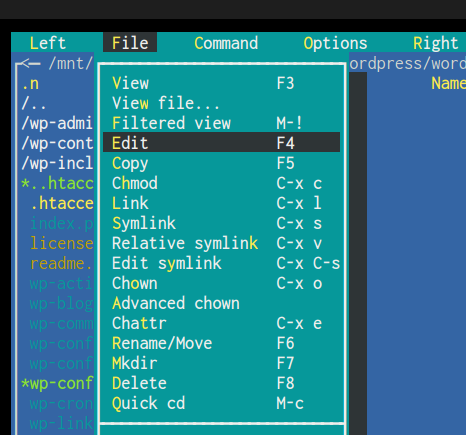
PHP-FPM environments don’t read php_value from .htaccess. Instead, they respect a per-directory configuration file called .user.ini. It works the same way as php.ini but applies only to files in that directory and below.
Create or edit a file named .user.ini in your WordPress root directory:
upload_max_filesize = 128M
post_max_size = 256M
memory_limit = 512M
max_execution_time = 300
One thing to be aware of: PHP-FPM caches .user.ini files and doesn’t pick up changes instantly. The cache TTL defaults to 300 seconds (5 minutes). If you don’t see the change in WordPress right away, wait a few minutes and check again. You can also restart PHP-FPM to force an immediate reload.
If you run into unexpected server behavior after making config changes, knowing how to check WordPress error logs will help you pinpoint what’s going wrong.
Method 5 — Nginx Server Configuration
Nginx doesn’t use .htaccess at all. It has its own upload size directive, and it needs to be set separately from the PHP settings.
The Nginx directive that controls maximum request body size (including uploaded files) is client_max_body_size. By default it’s 1MB on many Nginx installs. Without changing this, Nginx will reject the upload before PHP even sees it.
Find your Nginx server block configuration (typically in /etc/nginx/sites-available/yoursite or /etc/nginx/nginx.conf) and add or update this line:
client_max_body_size 256M;You can place it in the http block (applies globally), server block (applies to this site), or location block (applies to specific paths). The server block is the most common placement.
After editing, reload Nginx:
sudo systemctl reload nginxYou still need to update the PHP settings too (via php.ini or .user.ini) — Nginx’s directive only controls what Nginx accepts; PHP’s upload_max_filesize still determines what PHP processes.
Method 6 — Use a WordPress Plugin (No Server Access Needed)
Not everyone has FTP credentials or hosting panel access. If you can log into WordPress admin, plugins can increase the upload limit without touching a single config file.
That said, plugins work by calling PHP’s ini_set() function to request a higher limit at runtime. They can only raise the limit up to what the server’s global PHP configuration already permits. If your host has capped uploads at 64MB, no plugin can push it higher — you’d need to contact support for that.
You can also explore more WordPress how-to guides on wplasma.com if you’re troubleshooting related admin or server issues.
Three Plugins Worth Knowing
| Plugin | Cost | How It Works | Best For |
|---|---|---|---|
| Big File Uploads | Free (no premium tier) | File chunking — breaks large files into smaller pieces and reassembles on server | Uploading very large files (video, full site backups) |
| EasyMedia | Free core | PHP ini_set() at runtime; role-based limits per user role | Multi-author sites needing different limits per role |
| WP Increase Upload Filesize | Free | PHP ini_set() at runtime; simple dropdown UI | Single-author sites wanting the simplest option |
Big File Uploads stands out because it uses file chunking — the browser sends the file in segments, which bypasses PHP’s post_max_size limit entirely. This makes it genuinely capable of handling files larger than what PHP would normally allow, unlike the ini_set approach which is still bound by the server ceiling.
Method 7 — WordPress Multisite Network Settings
If you run WordPress Multisite, you’re dealing with two separate upload limits and both need to match.
The first is the PHP-level limit, handled by any of the methods above. The second is a WordPress-specific limit set in the Network Admin dashboard. Even after raising the PHP limit, Multisite can still block uploads if its internal setting is lower.
To update the WordPress Multisite limit:
- Log into your Network Admin dashboard (
/wp-admin/network/). - Go to Settings > Network Settings.
- Scroll down to the Upload Settings section.
- Find Max upload file size and enter your new value in kilobytes (e.g.,
131072for 128MB). - Click Save Changes.
Note that WP Engine’s default Multisite upload limit starts at just 1MB — significantly lower than the 50MB standard for single-site installs. If you’re on WP Engine Multisite, contact support to raise both the network limit and the PHP ceiling.
Troubleshooting — When the Limit Still Won’t Change
You’ve edited the config, refreshed WordPress, and the old limit is still showing. Here’s a systematic checklist to find the culprit.
1. You edited the wrong php.ini. Servers with multiple PHP versions installed have multiple php.ini files — one per version. Check which one PHP is actually using by running phpinfo() (see the “Check Your Limit” section) and look at the “Loaded Configuration File” value. Edit that specific file.
2. PHP-FPM wasn’t reloaded. Config changes to php.ini and .user.ini don’t apply until PHP-FPM restarts. Run:
sudo systemctl restart php8.x-fpmReplace 8.x with your installed PHP version (e.g., 8.1, 8.2, 8.3).
3. post_max_size is smaller than upload_max_filesize. WordPress displays whichever value is lower. If you set upload_max_filesize = 256M but left post_max_size = 8M, the effective limit is 8MB. Always set post_max_size higher.
4. Your host has a server-level cap. Some managed hosts and shared hosting plans impose a hard ceiling that overrides php.ini entirely. If your changes aren’t taking effect despite editing the right file, contact your host and ask what the server-level maximum is.
5. You used .htaccess on a PHP-FPM server. PHP-FPM ignores php_value directives in .htaccess. Switch to the .user.ini method instead.
6. A caching layer is serving stale data. Some object caches or OPcache setups can serve outdated PHP configuration values. Try clearing all caches (plugin cache, server-level OPcache, CDN cache) and revisiting the Site Health page to confirm the new value is live.
Our guide to the best WordPress caching plugins covers what each type caches and how to flush OPcache specifically.
Frequently Asked Questions
- What is the default WordPress upload file size?
- It depends on your hosting environment. The official WordPress Docker image defaults to 2MB. Most shared hosting providers set it between 32MB and 128MB. Managed hosts like WP Engine default to 50MB for standard installs. The limit isn’t set by WordPress — it’s inherited from PHP’s configuration.
- What’s the difference between upload_max_filesize and post_max_size?
upload_max_filesizecaps the size of any single file being uploaded.post_max_sizecaps the total size of an entire HTTP POST request, which includes the file plus any other form data sent at the same time. Since a file upload is delivered via POST,post_max_sizemust always be set larger thanupload_max_filesize— otherwise WordPress will reject uploads that are technically within the file size limit.- How do I check my current WordPress upload limit?
- Go to Media > Add New in the WordPress admin. The maximum upload size is printed directly below the upload area. You can also check Tools > Site Health > Info > Server for a full breakdown of PHP settings.
- Can I increase upload size without server access?
- Yes — install a plugin like Big File Uploads or EasyMedia. These work from inside the WordPress admin with no need for FTP or SSH. Keep in mind that plugins using
ini_set()are limited by what the server allows; only file-chunking plugins like Big File Uploads can work around that ceiling. - Why does my upload still fail after changing php.ini?
- The most common reasons: you edited the wrong php.ini (run phpinfo() to find the active one), PHP-FPM wasn’t reloaded after the change, or post_max_size is still lower than upload_max_filesize. Check all three before anything else.
- How large should I set the upload limit?
- It depends on what you’re uploading. For images and PDFs, 64MB is generous. For WooCommerce product files, audio files, or plugin/theme zip files, 128MB is reasonable. For video or full-site backup imports, 256MB or higher — but for large video files, it’s almost always better to upload directly via SFTP or use a dedicated video hosting platform and embed rather than host on WordPress.
- Do I need to restart my server after editing php.ini?
- It depends on how PHP runs on your server. Apache with mod_php picks up php.ini changes without a restart. PHP-FPM requires a reload:
sudo systemctl restart php-fpm. For .user.ini files on PHP-FPM, changes take effect after the cache TTL expires (5 minutes by default) or immediately after restarting PHP-FPM. - Does increasing the upload size slow down my WordPress site?
- Raising the limit itself doesn’t slow anything down — it just changes what PHP is willing to accept. The actual performance impact comes from what you upload. Large uncompressed images slow page load times; hosting video files directly in WordPress is resource-intensive. The best practice is to compress images before uploading and use YouTube, Vimeo, or a CDN for video content.
Wrapping Up
The WordPress upload size limit sounds like a WordPress problem, but it’s really a PHP configuration issue. Once you know that, fixing it becomes straightforward: find the right config file for your hosting environment, update the three PHP directives in the correct order (post_max_size must be larger than upload_max_filesize, and memory_limit should be at least as large), reload PHP, and you’re done.
The method that works for you depends entirely on your server type and what access you have. Shared hosting users on cPanel will find it fastest through the MultiPHP INI Editor. Those on VPS or dedicated servers can go straight to php.ini. And if you can’t touch server files at all, plugins like Big File Uploads handle the heavy lifting without a single line of config editing.
One last thing worth remembering: larger files don’t always mean a better WordPress site. Compress images, link to external video rather than hosting it directly, and set the upload limit to what you actually need — not the highest number you can get.
