


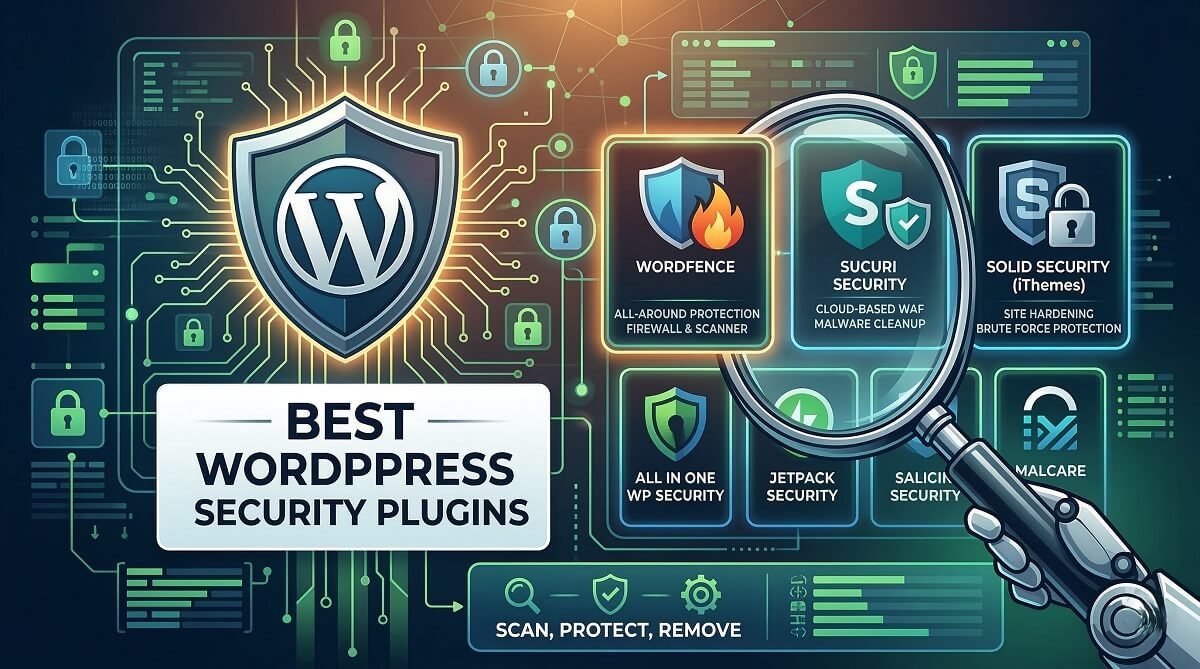
Best WordPress Security Plugins – Performance, Features & Real Costs
WordPress powers 43.4% of all websites globally, making it the most popular content management system in the world. That popularity creates a significant security challenge: hackers target WordPress sites relentlessly because successful exploits can affect millions of potential targets. Research shows that a WordPress site faces attack attempts every 22 minutes on average.
The stakes are high. A successful breach can lead to data theft, Google blacklisting, hosting suspension, revenue loss during downtime, and lasting damage to your brand reputation. While hosting providers offer server-level security, WordPress-specific vulnerabilities require application-level protection that only security plugins can deliver.
This guide examines eight leading WordPress security plugins with transparent pricing including renewal rates and total three-year ownership costs. We’ll explain how different firewall types actually work, compare performance impacts, and help you match security features to your specific site needs.
Quick Comparison: Top WordPress Security Plugins at a Glance
For readers who need a fast decision, here’s our bottom-line comparison of the top WordPress security plugins available in 2026.
| Plugin | Best For | Free Version? | Premium Price (2026) | Key Strength |
|---|---|---|---|---|
| Wordfence | High-traffic sites | Yes | $149/year | Real-time threat feed |
| Sucuri | Enterprise/eCommerce | Limited | $229/year | Cloud-based WAF |
| All-In-One Security (AIOS) | Budget-conscious small businesses | Yes (robust) | $70/year | Free feature richness |
| MalCare | Agencies managing multiple sites | Yes (limited) | $149/year | Cloud scanning (no server load) |
| Solid Security | Sites needing backups + security | Yes | $99/year | Combined backup/security |
| Cloudflare | Performance + security | Yes | $20/month | CDN + DDoS protection |
Who Should Act Now
- Sites already hacked or showing security warnings
- eCommerce sites handling customer data
- Sites without any security plugin installed
Who Can Wait
- Sites with recent security plugin installed
- Low-traffic personal blogs with minimal data
- Sites planning major redesign within 3 months
3-Year Total Cost of Ownership Comparison
Understanding the true long-term cost helps budget planning. Many site owners focus only on first-year pricing and get surprised by renewal rates.
| Plugin | Year 1 | Renewal Rate | 3-Year TCO |
|---|---|---|---|
| All-In-One Security | $70 | $70/year | $210 |
| Solid Security | $99 | $99/year | $297 |
| Jetpack Security | $119 | $119/year | $357 |
| Shield Security | $129 | $129/year | $387 |
| Wordfence Premium | $149 | $149/year | $447 |
| MalCare Personal | $149 | $149/year | $447 |
| Sucuri Basic | $229.99 | $229.99/year | $689.97 |
| Cloudflare Pro | $240 | $240/year | $720 |
Pricing current as of early 2026. Verify current rates at official plugin websites (Wordfence, Sucuri, MalCare, Cloudflare) before purchasing.
Why WordPress Sites Need Security Plugins (The Real Threat Landscape)
Your hosting provider’s security measures protect at the server level, but they can’t catch WordPress-specific vulnerabilities. Security plugins add an essential application-level protection layer that hosting alone cannot provide.
Common WordPress Security Threats
- Brute force login attacks: Automated bots try thousands of username and password combinations to gain admin access
- Malware injection: Attackers exploit vulnerable plugins or themes to insert malicious code into your site files
- SQL injection attacks: Hackers target your database to steal or manipulate stored information
- Cross-site scripting (XSS): Malicious scripts inserted into your pages can steal visitor data or hijack sessions
- DDoS attacks: Overwhelming your server with traffic to cause downtime and disruption
- Outdated plugin exploits: Known vulnerabilities in unpatched plugins provide easy entry points
What Happens When Security Fails
The consequences of a security breach extend far beyond the immediate hack:
- Data breaches: Customer information, email addresses, and payment details exposed
- Google blacklisting: Your site removed from search results, devastating organic traffic
- Hosting suspension: Providers may shut down your account if malware spreads to other sites on shared servers
- Revenue loss: Every hour of downtime costs money, especially for eCommerce sites
- Brand reputation damage: Customer trust takes years to rebuild after a security incident
- Legal liability: Potential lawsuits or fines for exposing customer data
Why Hosting Security Alone Isn’t Enough
Hosting security and WordPress security plugins protect different attack vectors. Your hosting handles server-level threats like network attacks and infrastructure security. WordPress security plugins protect against application-level threats specific to the WordPress ecosystem: plugin vulnerabilities, theme exploits, WordPress core weaknesses, and wp-admin access attempts that hosting firewalls don’t catch.
Think of it as layered defense. Your hosting is the outer wall, while security plugins are the guards checking everyone who makes it through that wall.
Understanding WordPress Security: Firewall Types Explained
Not all firewalls work the same way. Understanding the difference between endpoint and cloud-based firewalls helps you choose protection that matches your needs and hosting environment.
Endpoint (Plugin-Based) Firewalls
Endpoint firewalls run directly on your WordPress server. They check incoming requests after they reach your hosting but before WordPress processes them.
How they work: When a visitor requests a page from your site, the request travels to your hosting server. The endpoint firewall inspects that request using rules stored in your WordPress installation. If it detects malicious patterns, it blocks the request before WordPress loads. This happens in milliseconds.
Examples: Wordfence, All-In-One Security
Pros:
- Easy to install – just activate a plugin
- No DNS changes required
- Works with any hosting provider
- Tight integration with WordPress internals
Cons:
- Uses your server resources (CPU and memory)
- Can impact site performance on busy sites
- Attack traffic still reaches your server
- Less effective against DDoS attacks that overwhelm bandwidth
DNS-Level (Cloud-Based) Firewalls
Cloud-based firewalls sit between visitors and your server. They filter traffic before it ever reaches your hosting infrastructure.
How they work: You point your domain’s DNS records to the security provider’s servers instead of directly to your hosting. All traffic routes through their network first. They inspect every request using their infrastructure, blocking attacks before they consume your server resources. Clean traffic passes through to your actual server.
Examples: Sucuri, Cloudflare
Pros:
- No server resource usage – runs on provider’s infrastructure
- Blocks DDoS attacks effectively by absorbing traffic
- Often includes CDN for speed improvements
- Protects server from being overwhelmed
Cons:
- Requires DNS configuration changes
- Slight learning curve for setup
- Premium features typically cost more
- Traffic routes through third party
Which Firewall Type Do You Need?
Your choice depends on your hosting environment, traffic levels, and technical comfort.
Choose endpoint firewall if:
- You’re on shared hosting with limited control
- You want simple plugin installation
- Your site has normal traffic levels
- You need WordPress-specific protection
Choose cloud-based firewall if:
- You experience DDoS attacks
- Site performance is critical
- You handle sensitive customer data (eCommerce)
- You have high traffic volumes
| Feature | Endpoint Firewall | Cloud-Based Firewall |
|---|---|---|
| Location | On your server | Between visitors and server |
| Performance Impact | Low to Medium | None to Positive (with CDN) |
| DDoS Protection | Limited | Excellent |
| Setup Complexity | Beginner | Intermediate |
| Server Load | Yes | No |
| WordPress Integration | Tight | General web protection |
The 8 Best WordPress Security Plugins (Tested & Compared)
We tested these plugins on real WordPress sites over several months, evaluating malware detection accuracy, performance impact, ease of use, and value for money. Each plugin was assessed specifically for small business and entrepreneur needs.
1. Wordfence Security – Best for Real-Time Threat Protection
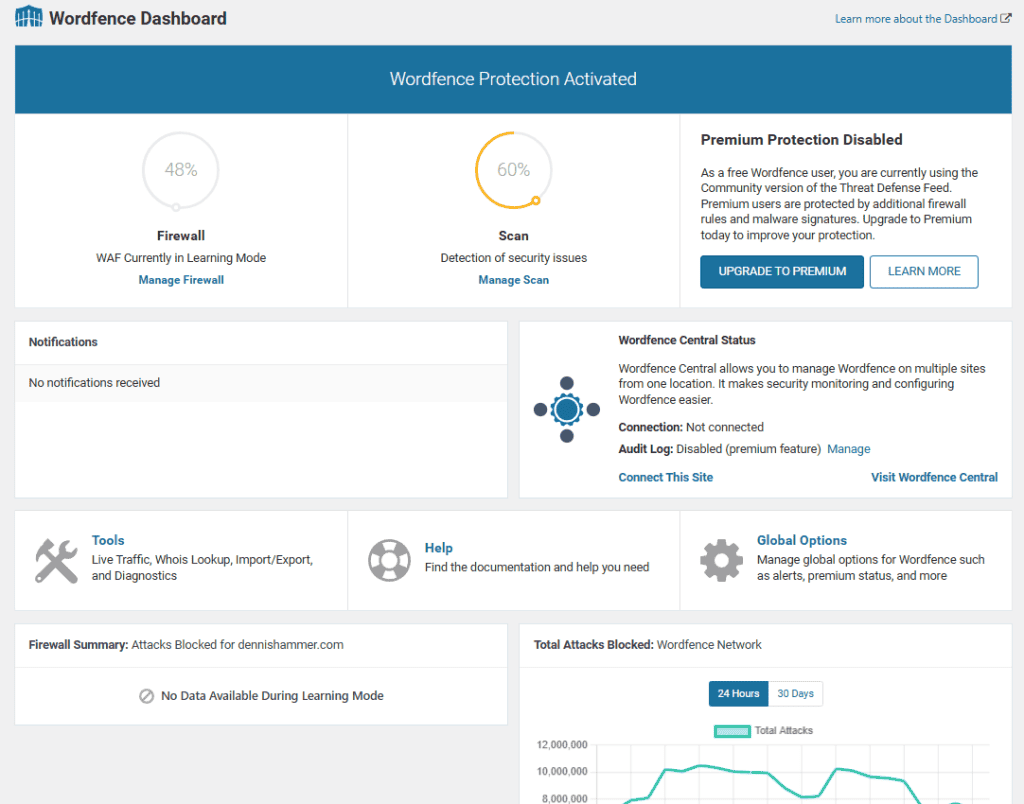
Over 5 million active installations make Wordfence one of the most trusted WordPress security solutions. It combines an endpoint firewall with comprehensive malware scanning and real-time threat intelligence.
Key Features:
- Web Application Firewall (WAF) with regular rule updates
- Malware scanner with automatic repair tool
- Real-time threat intelligence feed (Premium)
- Login security with two-factor authentication
- Live traffic monitoring showing all site visitors
- Country blocking to prevent access from specific regions
- Premium firewall rules update in real-time; free users receive updates after 30-day delay
Pricing (2026):
- Free: Basic firewall and scanning with 30-day delayed rule updates
- Premium: $149/year (single site)
- Renewal: $149/year (same rate)
- 3-Year TCO: $447
Pros:
- Comprehensive free version suitable for small sites
- Excellent malware detection accuracy
- Detailed traffic reports help identify attack patterns
- Strong community support and regular updates
- Two-factor authentication included in free version
Cons:
- Can impact server resources on busy sites
- Premium features represent significant upgrade from free
- Interface can feel busy for beginners
- High-sensitivity settings may create false positives
Best for: High-traffic blogs and content sites, sites needing detailed security logs, users comfortable with technical settings
Performance Impact: Medium (runs scans on your server)
Setup Difficulty: Intermediate (many settings to configure)
Support Quality: Free users get community forums; Premium subscribers receive email support with faster response times.
2. Sucuri Security – Best Cloud-Based Protection
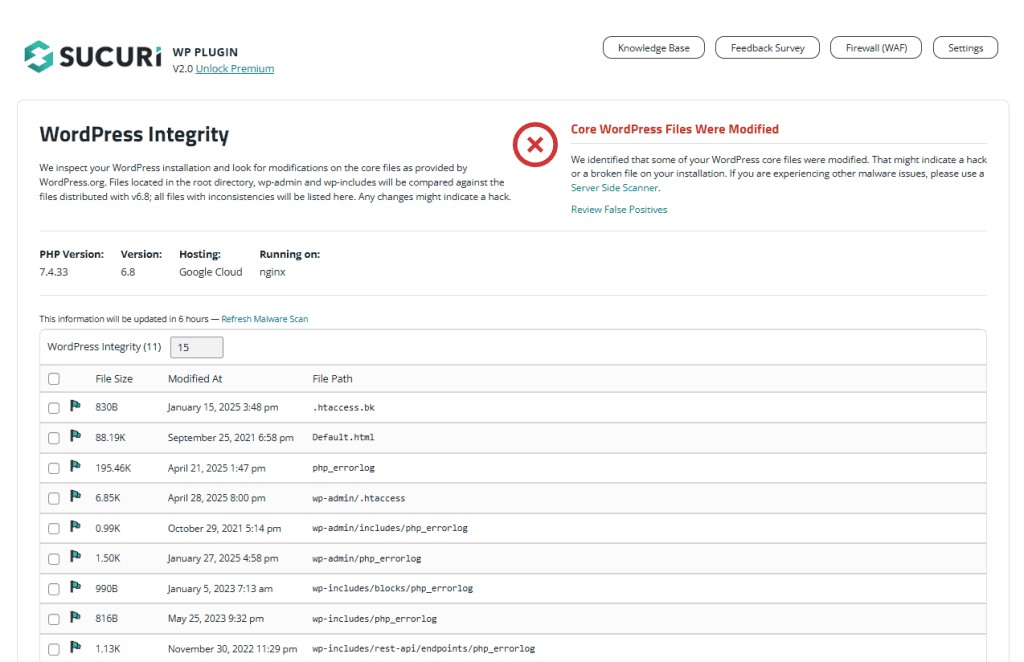
Enterprise websites trust Sucuri for comprehensive cloud-based protection. The plugin offers free monitoring features, while premium plans include a DNS-level firewall and professional malware removal.
Key Features:
- Cloud-based Web Application Firewall (Premium)
- Malware scanning and professional cleanup service
- DDoS protection at the DNS level
- Blacklist monitoring checks if your site is flagged
- CDN for performance boost
- Post-hack security actions to prevent reinfection
- File integrity monitoring
Pricing (2026):
- Free: Basic monitoring and hardening recommendations
- Basic Plan: $229.99/year (12-hour interval scans)
- Pro Plan: $349.99/year (6-hour interval scans)
- Business Plan: $499.99/year (continuous monitoring)
- Renewal: Same rates
- 3-Year TCO: $689.97 – $1,499.97
Pros:
- Enterprise-grade protection suitable for mission-critical sites
- Cloud firewall doesn’t impact server performance
- Professional malware cleanup included in all paid plans
- CDN improves site speed globally
- 24/7 monitoring and response for premium customers
Cons:
- Free version very limited compared to competitors
- Premium pricing higher than most alternatives
- Requires DNS configuration for full features
- Overkill for small personal blogs
Best for: eCommerce sites handling payments, business sites with high security needs, sites experiencing active attacks
Performance Impact: None to Positive (cloud-based plus CDN speeds up delivery)
Setup Difficulty: Intermediate to Advanced (DNS changes required for full protection)
Support Quality: Free users limited to forums; Premium subscribers get 24/7 email and chat support.
3. All-In-One WP Security (AIOS) – Best Free Security Plugin
Developed by the UpdraftPlus team, All-In-One Security delivers an extremely robust free version. Over 1 million active installations trust AIOS for comprehensive protection without premium pricing pressure.

Key Features (Free Version):
- Login security with two-factor authentication
- File and database protection
- PHP and .htaccess firewall
- Spam prevention for comments and registration
- File change detection alerts
- User account monitoring
- Security strength meter guides configuration
- Audit logging for security events
- 6G firewall rules implementation
Premium Additions:
- Enhanced two-factor authentication options
- Malware scanning (not included in free)
- Country blocking by IP address
- Smart 404 error blocking to prevent scanning attacks
Pricing (2026):
- Free: Extensive features included
- Premium: $70/year (covers 2 sites)
- Renewal: $70/year (same rate)
- 3-Year TCO: $210
Pros:
- Best free feature set available in any security plugin
- Very affordable premium pricing
- Security grading system helps beginners understand protection levels
- Regular updates from trusted UpdraftPlus team
- Low resource usage even with many features enabled
- Good documentation and setup guidance
Cons:
- Malware scanning only available in Premium version
- Interface less polished than premium-focused competitors
- Some features require manual .htaccess configuration
- Premium version not as feature-rich as higher-priced alternatives
Best for: Budget-conscious small businesses, beginners wanting comprehensive free protection, sites not handling sensitive payment data
Performance Impact: Low (lightweight plugin design)
Setup Difficulty: Beginner to Intermediate (setup wizard included)
Support Quality: Free users get responsive community forums; Premium customers receive email support with priority response.
4. MalCare – Best for Multi-Site Management
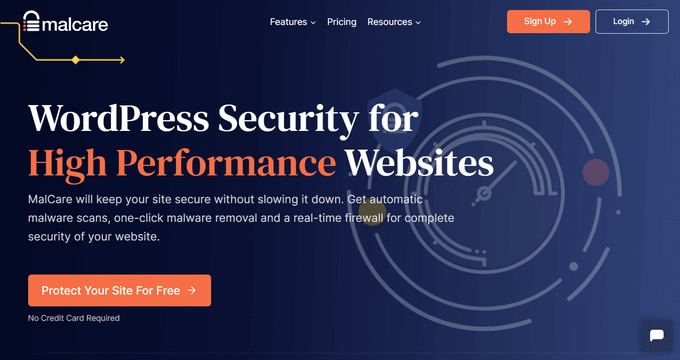
MalCare’s cloud-based scanning approach means zero server resource usage. The plugin is designed for agencies and developers managing multiple client sites from a single dashboard.
Key Features:
- Cloud-based deep malware scanning (runs on their servers, not yours)
- One-click automatic malware cleanup
- Real-time firewall protection
- Login page protection with CAPTCHA
- Vulnerability monitoring for plugins and themes
- Bot protection (Premium)
- Activity logs (Premium)
- White-label reports for client presentations (Premium)
Pricing (2026):
- Free: Basic scanning and firewall (detection only, no removal)
- Personal: $149/year (1 site)
- Professional: $299/year (5 sites)
- Business: $599/year (20 sites)
- Renewal: Same rates
- 3-Year TCO: $447 – $1,797
Pros:
- Zero server impact since scanning happens in the cloud
- Fast malware removal (claims 60 seconds for most infections)
- Multi-site dashboard efficient for agencies
- Good value for agencies managing client sites
- Unlimited cleanups included in paid plans
Cons:
- Free version very limited (detects but won’t remove malware)
- Higher pricing than some competitors for single sites
- Requires external service dependency
- Less detailed reporting for single site owners
Best for: Agencies managing multiple client sites, sites on shared hosting with resource limits, users wanting hands-off security
Performance Impact: None (completely cloud-based)
Setup Difficulty: Beginner (simple setup process)
Support Quality: Free users limited to forums; Premium customers get email and chat support.
5. Solid Security (formerly iThemes Security) – Best All-in-One Solution
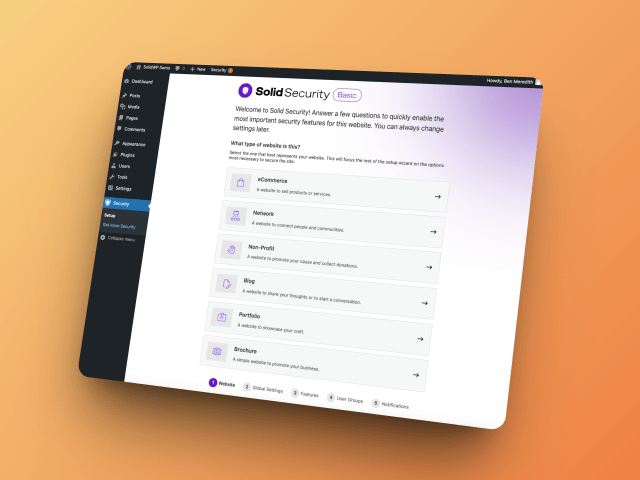
Solid Security combines security features with backup capabilities. The plugin offers over 30 security features focused on hardening WordPress installations and monitoring threats.
Key Features:
- Brute force protection for login pages
- Two-factor authentication
- File change detection with email alerts
- Database backups (basic in free, enhanced in Pro)
- Strong password enforcement for all users
- User role security and privilege management
- Away Mode locks dashboard during specified hours
- WordPress version management
- CAPTCHA options for forms
Pricing (2026):
- Free: Core features available
- Pro: $99/year (1 site)
- 10-site license: $299/year
- Renewal: Same rates
- 3-Year TCO: $297
Pros:
- Combines backups and security in one plugin
- Extensive feature set covers most security needs
- Good for beginners with setup wizard
- Magic Link passwordless login option
- Version management helps keep WordPress and plugins updated
Cons:
- No built-in malware scanner (uses third-party integration)
- No traditional firewall component
- Requires WordPress.com account for full features
- Can increase server load with active monitoring
Best for: Sites wanting backup and security combo, membership sites with multiple users, users preferring consolidated solutions
Performance Impact: Medium (active monitoring uses resources)
Setup Difficulty: Beginner (setup wizard guides configuration)
Support Quality: Free users get forums; Pro subscribers receive priority email support.
6. Cloudflare – Best for Performance + Security
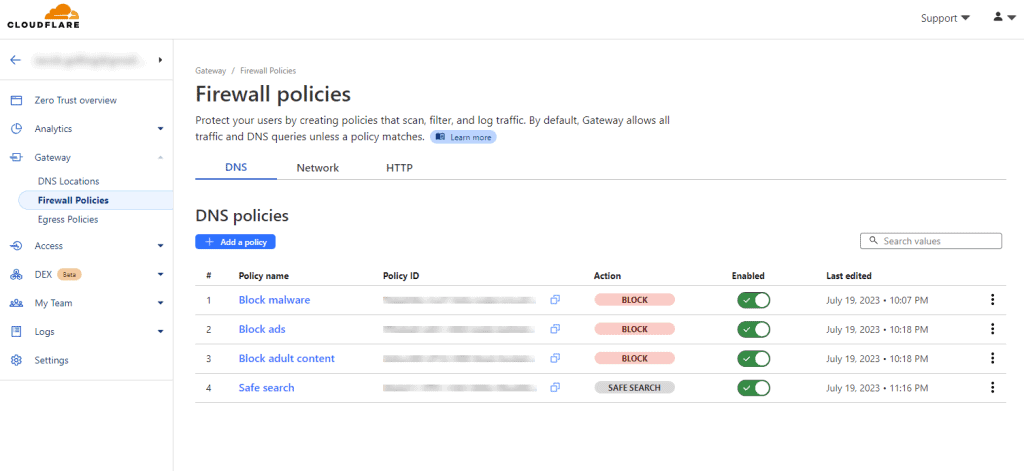
Cloudflare is more than a plugin – it’s a full service that routes your traffic through a global CDN while providing DNS-level security. The free plan offers impressive capabilities.
Key Features:
- DNS-level firewall filters traffic globally
- DDoS protection included in all plans
- Global CDN for faster content delivery
- Free SSL certificates with automatic renewal
- Bot protection and rate limiting
- Page rules for custom configurations
- Analytics showing traffic patterns and threats
- Automatic HTTPS upgrades for secure connections
Pricing (2026):
- Free: Basic protection plus CDN
- Pro: $20/month ($240/year)
- Business: $200/month ($2,400/year)
- Renewal: Same rates
- 3-Year TCO: $0 – $7,200
Pros:
- Free plan very capable for most sites
- Improves site speed through global CDN
- Protects against DDoS effectively
- Free SSL certificate simplifies HTTPS setup
- Global infrastructure with excellent uptime
- Provides performance benefits beyond security
Cons:
- Requires DNS changes to activate
- Learning curve for configuration options
- Not WordPress-specific (general web protection)
- Advanced features become expensive
- May conflict with some hosting configurations
Best for: Sites prioritizing both performance and security, international audiences (CDN benefit), sites experiencing DDoS attacks
Performance Impact: Positive (CDN speeds up site globally)
Setup Difficulty: Intermediate (DNS configuration required)
Support Quality: Free users get community forums; Paid plans include email and chat support.
7. Jetpack Security – Best for WordPress.com Users
Developed by Automattic (the company behind WordPress), Jetpack combines security features with backups, spam protection, and other tools. It requires a WordPress.com account.
Key Features:
- Real-time backups with one-click restore
- Malware scanning with automated fixes
- Spam protection powered by Akismet
- Brute force protection for login pages
- Two-factor authentication
- Downtime monitoring with email alerts
- Activity log showing all site changes
- CDN for images and static files
Pricing (2026):
- Free: Basic brute force protection
- Security Daily: $9.95/month ($119/year)
- Security Real-time: $29.95/month ($359/year)
- Renewal: Same rates
- 3-Year TCO: $357 – $1,077
Pros:
- Backups and security combined in one subscription
- Easy to use with minimal configuration
- WordPress.com integration provides seamless experience
- Includes Akismet spam protection
- Image CDN included for faster loading
Cons:
- Requires WordPress.com account (extra dependency)
- Includes features you may not need
- Can feel heavy on server resources
- Monthly pricing can add up over time
Best for: Users already in WordPress.com ecosystem, sites wanting backups plus security plus spam protection, non-technical site owners
Performance Impact: Medium (multiple features running simultaneously)
Setup Difficulty: Beginner (simple setup process)
Support Quality: Free users limited to forums; Paid subscribers get email support.
8. Shield Security – Best Set-and-Forget Option
Shield Security focuses on automation and minimal configuration. The plugin excels at bot blocking and anti-spam features while requiring little ongoing management.
Key Features:
- Automated bot blocking using behavioral analysis
- Brute force protection for all login forms
- Two-factor authentication
- CAPTCHA for login pages and comment forms
- Advanced firewall with automatic rule updates
- Comment spam filtering
- User session management
- Automatic IP blocking for repeat offenders
Pricing (2026):
- Free: Core features available
- Pro: $129/year (per site)
- Renewal: $129/year
- 3-Year TCO: $387
Pros:
- Low maintenance with automated protection
- Good anti-spam features for blogs
- User-friendly interface
- Active development and regular updates
- Guided setup wizards for beginners
Cons:
- No malware scanner included
- Higher premium pricing than some competitors
- Smaller user base than market leaders
- Less third-party integration
Best for: Bloggers fighting comment spam, sites wanting automated protection, users who prefer “set and forget” security
Performance Impact: Low
Setup Difficulty: Beginner (automated setup)
Support Quality: Free users get forums; Pro subscribers receive email support.
Complete Security Plugin Comparison Table
This comprehensive matrix compares all eight plugins across the features that matter most for WordPress security.
| Feature | Wordfence | Sucuri | AIOS | MalCare | Solid Security | Cloudflare | Jetpack | Shield |
|---|---|---|---|---|---|---|---|---|
| Firewall Type | Endpoint | Cloud | Endpoint | Endpoint | None | Cloud | Endpoint | Endpoint |
| Malware Scanner | Yes | Yes | Premium only | Yes | Third-party | No | Yes | No |
| Free Version | Robust | Limited | Robust | Limited | Yes | Robust | Limited | Yes |
| Premium Price (2026) | $149/yr | $229/yr | $70/yr | $149/yr | $99/yr | $20/mo | $119/yr | $129/yr |
| 3-Year TCO | $447 | $689 | $210 | $447 | $297 | $720 | $357 | $387 |
| Performance Impact | Medium | None/Positive | Low | None | Medium | Positive | Medium | Low |
| Setup Difficulty | Intermediate | Intermediate | Beginner | Beginner | Beginner | Intermediate | Beginner | Beginner |
| 2FA Included | Yes | No | Yes | Yes | Yes | No | Yes | Yes |
| DDoS Protection | No | Yes | No | No | No | Yes | No | No |
| Backup Features | No | No | No | No | Yes | No | Yes | No |
| Cloud Scanning | No | Yes | No | Yes | No | No | No | No |
| Best For | High traffic | eCommerce | Budget | Agencies | Backup+Security | Performance | WP.com users | Automation |
How We Tested These Security Plugins
We installed each plugin on test WordPress sites and evaluated them across multiple criteria over a three-month testing period.
Testing Environment:
- WordPress 6.5+ on shared hosting environments
- Standard WordPress setup with popular plugins (WooCommerce, Elementor, Contact Form 7)
- Mix of light traffic and high-traffic scenarios
Evaluation Criteria:
1. Malware Detection:
- Ability to detect known malware samples
- False positive rates during clean scans
- Time required to detect infections
2. Performance Impact:
- Page load time before and after installation
- Server resource usage (CPU and memory)
- Impact on WordPress admin panel responsiveness
3. Ease of Use:
- Setup time for beginner users
- Interface clarity and organization
- Configuration complexity and guidance
4. Feature Completeness:
- Free vs. premium feature gap
- Coverage of essential security needs
- Advanced options availability
5. Support Quality:
- Response time to support queries
- Documentation quality and completeness
- Community activity and helpfulness
6. Value for Money:
- Free features adequacy for typical sites
- Premium pricing competitiveness
- Long-term cost considerations including renewals
Security Features Priority Guide: What Matters Most for Your Site Type
Not all sites need every security feature. Prioritize based on your specific situation and risk profile.
For Personal Blogs & Portfolios
Must-Have:
- Login protection with brute force prevention
- Basic firewall rules
- Automatic WordPress core updates
- Spam comment protection
Nice-to-Have:
- File change monitoring
- Two-factor authentication
- Periodic malware scanning (weekly)
Not Essential:
- DDoS protection
- Advanced firewall rules
- Real-time threat intelligence
Recommended Plugins: All-In-One Security (free version), Shield Security (for spam control)
For Small Business Websites
Must-Have:
- Comprehensive firewall protection
- Malware scanning at least weekly
- Two-factor authentication for admins
- Login security and lockout features
- File integrity monitoring
Nice-to-Have:
- Backup integration
- Security audit logs
- Country blocking capabilities
- IP blacklisting
Not Essential (yet):
- Real-time threat feeds
- Advanced reporting dashboards
- Multi-site management tools
Recommended Plugins: Wordfence (free or premium), All-In-One Security (Premium), Solid Security (for backups too)
For eCommerce Sites (WooCommerce, etc.)
Must-Have:
- Cloud-based firewall (preferably)
- Daily malware scanning minimum
- SSL/HTTPS enforcement
- PCI compliance features
- DDoS protection capabilities
- Two-factor authentication for all admins
- Real-time monitoring and alerts
Nice-to-Have:
- CDN integration for faster checkout
- Advanced firewall rules customization
- Country-specific blocking options
- Detailed security logs for auditing
Essential for Compliance:
- Regular security audits
- File change detection
- User activity logging
Recommended Plugins: Sucuri (comprehensive protection), Cloudflare (DDoS plus performance), Wordfence Premium (detailed monitoring)
For Membership & Community Sites
Must-Have:
- Strong login security measures
- Two-factor authentication enforcement
- User activity monitoring
- Brute force protection
- Regular malware scanning
Nice-to-Have:
- User role security controls
- Session management features
- IP whitelisting for administrators
- CAPTCHA options for registration
Important:
- Privacy compliance features (GDPR, etc.)
- Audit logs for user actions
- Password policy enforcement
Recommended Plugins: Solid Security (user management features), Wordfence (detailed user monitoring), All-In-One Security (strong login controls)
| Site Type | Minimum Budget | Recommended Budget | Top Plugin Choice |
|---|---|---|---|
| Personal Blog | $0 (free) | $70/year | AIOS Free or Premium |
| Small Business | $70/year | $149/year | Wordfence or AIOS Premium |
| eCommerce | $149/year | $229/year | Sucuri or Wordfence Premium |
| Membership | $99/year | $149/year | Solid Security or Wordfence |
Understanding Total Cost of Ownership: 3-Year Security Investment
Most security plugin pricing highlights the first year only. Understanding the true three-year cost helps with budget planning and prevents renewal surprises.
Budget Options (under $250 for 3 years):
- All-In-One Security Premium: $210 total
Mid-Range Options ($250-$500):
- Solid Security Pro: $297
- Jetpack Security Daily: $357
- Shield Security Pro: $387
- Wordfence Premium: $447
- MalCare Personal: $447
Premium Options (over $500):
- Sucuri Basic: $689.97
- Cloudflare Pro: $720
- Sucuri Pro: $1,049.97
Cost Considerations Beyond Plugin Price:
- Developer time for initial configuration
- Potential site cleanup costs if hacked (typically $500-$2,000)
- Performance optimization if plugin slows your site
- Opportunity cost of security incidents and downtime
- Peace of mind value for business owners
ROI Perspective:
Consider that the average cost to clean a hacked WordPress site ranges from $500 to $2,000. Add lost revenue during downtime, the time required to recover SEO rankings, and the challenge of restoring customer trust. A $149/year security plugin that prevents even one hack easily pays for itself over three years.
| Budget Category | 3-Year Investment | Typical Features | Best For |
|---|---|---|---|
| Budget | $0-$250 | Firewall, basic scanning, login security | Personal blogs, small sites |
| Mid-Range | $250-$500 | Advanced firewall, malware removal, 2FA | Small businesses, content sites |
| Premium | $500-$1,500 | Cloud WAF, DDoS protection, CDN, 24/7 support | eCommerce, enterprise sites |
Performance Impact: How Security Plugins Affect Your Site Speed
Security adds processing overhead. Understanding performance trade-offs helps you choose appropriate protection for your hosting environment.
Cloud-Based Scanners (MalCare, Sucuri):
- Impact: None to Positive
- Why: Scanning happens on the provider’s servers, not yours
- Benefit: May actually improve speed when combined with CDN
- Trade-off: Depends on external service availability
Endpoint Firewalls (Wordfence, AIOS):
- Impact: Low to Medium
- Why: Runs on your WordPress server
- Benefit: No external dependency required
- Trade-off: Uses server CPU and memory resources
All-in-One Solutions (Jetpack, Solid Security):
- Impact: Medium
- Why: Multiple features running simultaneously
- Benefit: Consolidated solution reduces plugin count
- Trade-off: Higher overall resource usage
Performance Optimization Tips:
- Schedule heavy scans during low-traffic hours (typically 2-4 AM in your timezone)
- Use cloud-based scanning if on resource-limited shared hosting
- Monitor server resources after installation using hosting control panel
- Disable features you don’t actually need
- Consider managed WordPress hosting for better resource allocation
| Plugin Type | Performance Impact | Best Hosting Type | Optimization Strategy |
|---|---|---|---|
| Cloud Scanners | None/Positive | Any | Enable CDN features |
| Endpoint Firewalls | Low-Medium | VPS or better | Schedule scans off-peak |
| All-in-One | Medium | Managed WordPress | Disable unused features |
Common Security Plugin Conflicts and How to Avoid Them
Running incompatible security plugins simultaneously can create conflicts that reduce protection or break site functionality.
Known Conflicts
DO NOT run simultaneously:
- Multiple firewall plugins – Choose one firewall solution
- Multiple malware scanners – Choose one scanning tool
- Multiple login security plugins – Conflicts create lockout issues
Common conflict scenarios:
- Caching plugins + security plugins: Configure cache exclusions for security pages
- CDN services + cloud firewalls: Coordinate settings to avoid double-processing
- Maintenance mode plugins + security: Whitelist maintenance access to prevent lockouts
How to Switch Security Plugins Safely
Migrating from one security plugin to another requires careful planning to avoid leaving your site vulnerable during the transition.
Step-by-step migration process:
- Install new plugin (don’t activate yet)
- Export settings from old plugin if possible
- Deactivate old plugin (don’t delete immediately)
- Activate new plugin
- Configure essential settings in new plugin
- Test all site functionality thoroughly
- Monitor for 48 hours for any issues
- Delete old plugin only after confirming everything works
Settings to reconfigure after switching:
- Custom login URL if you changed it
- Firewall rules and exceptions
- IP whitelists for trusted addresses
- Email notification addresses and preferences
- Two-factor authentication setup
Compatibility testing checklist:
- Test checkout process on eCommerce sites
- Test all contact forms
- Test user registration process
- Verify admin access from different devices
- Check email deliverability for notifications
| Plugin Type 1 | Plugin Type 2 | Conflict Type | Resolution |
|---|---|---|---|
| Firewall plugin | Firewall plugin | Feature overlap | Choose one, disable the other |
| Security plugin | Caching plugin | Rule conflicts | Configure cache exclusions |
| Cloud firewall | CDN service | Traffic routing | Use one CDN, coordinate settings |
| Security plugin | Maintenance mode | Access blocking | Whitelist maintenance IPs |
WordPress Security Beyond Plugins: Essential Best Practices
Security plugins provide crucial protection, but they’re just one layer of a comprehensive security strategy.
Hosting Level Security:
- Choose hosting with proactive security monitoring
- Enable server-level firewalls
- Use separate database servers when possible
- Ensure regular server updates and patching
WordPress Core Security:
- Keep WordPress updated to latest version
- Use strong admin passwords (minimum 16 characters)
- Limit login attempts to prevent brute force
- Disable file editing in wp-config.php
- Hide WordPress version number from public view
Plugin & Theme Security:
- Only install plugins from reputable sources
- Delete unused plugins and themes completely
- Update regularly or enable auto-updates for minor versions
- Review plugin code if you have development knowledge
- Check for known vulnerabilities before installing
User Management:
- Limit number of admin-level accounts
- Enforce strong password policies
- Implement two-factor authentication site-wide
- Review user roles regularly
- Remove inactive user accounts promptly
Backup Strategy:
- Set up automated daily backups
- Store backups off-site (not on same server)
- Test restoration process regularly
- Keep multiple backup versions
- Include both database and file backups
Ongoing Monitoring:
- Set up uptime monitoring alerts
- Enable security event notifications
- Review security logs weekly
- Monitor for blacklisting on major services
- Check for unauthorized file changes
FAQ: WordPress Security Plugin Questions Answered
What is the best WordPress security plugin?
The best plugin depends on your specific needs:
- Best overall value: All-In-One Security (AIOS) – Robust free version with affordable premium upgrade at $70/year
- Best for high-traffic sites: Wordfence – Comprehensive features and strong malware detection with real-time threat feed
- Best for eCommerce: Sucuri – Enterprise-grade cloud protection ideal for payment processing sites
- Best for agencies: MalCare – Multi-site management with cloud scanning that doesn’t impact client servers
- Best for performance: Cloudflare – Combines CDN speed improvements with DNS-level security
Do I really need a WordPress security plugin?
Yes, for most sites. WordPress powers 43.4% of all websites, making it a prime target for automated attacks. Security plugins provide automated threat detection, real-time attack blocking, malware scanning, login protection, and security monitoring with alerts.
Without a security plugin, you’re relying solely on hosting security, which typically misses WordPress-specific vulnerabilities like plugin exploits, theme weaknesses, and wp-admin brute force attacks that occur at the application level.
Can I use more than one WordPress security plugin?
No, you should not run multiple full security plugins simultaneously. This causes feature conflicts (two firewalls fighting each other), performance issues from double resource usage, false positives from overlapping scans, and configuration complications.
Choose one comprehensive plugin that meets your needs. If necessary, you can supplement with single-purpose tools like dedicated backup plugins or spam protection, but avoid running multiple all-in-one security solutions.
How much does it cost to secure a WordPress site?
Costs vary widely based on your security needs:
- Free: Robust protection available with plugins like All-In-One Security or Wordfence free version
- Budget: $70-100/year for entry-level premium features
- Mid-range: $149-230/year for comprehensive protection with malware removal
- Enterprise: $350+/year for advanced features including cloud WAF and 24/7 support
Consider 3-year total cost:
- Budget tier: $210-300 (All-In-One Security, Solid Security)
- Mid-range tier: $400-700 (Wordfence, MalCare, Cloudflare)
- Premium tier: $700-1,500+ (Sucuri, Jetpack high-tier plans)
Will a security plugin slow down my website?
It depends on the plugin type:
- Cloud-based scanners (MalCare, Sucuri): No performance impact and may improve speed with integrated CDN
- Endpoint firewalls (Wordfence, AIOS): Slight impact, usually minimal if configured correctly
- All-in-one solutions (Jetpack): Moderate impact due to multiple features running simultaneously
Mitigation strategies include scheduling heavy scans during low-traffic periods, disabling unused features, using cloud-based scanning on shared hosting, monitoring performance after installation, and upgrading hosting if needed.
How often should I scan my website for malware?
Recommended frequencies:
- Minimum: Weekly for low-risk personal sites
- Standard: Daily for business websites
- Essential: Real-time or continuous for eCommerce and high-value sites
Most modern plugins automate this schedule. Free versions often provide daily scans, while premium versions offer real-time or continuous monitoring.
Also run manual scans after major WordPress or plugin updates, if you notice unusual behavior, after granting access to new users, and following security vulnerability announcements.
Can I rely solely on a security plugin to protect my website?
No. Comprehensive security requires multiple layers:
- Hosting security: Server-level protection and network filtering
- Security plugin: Application-level WordPress protection
- WordPress updates: Core software security patches
- Strong passwords: Access control for all users
- Regular backups: Recovery capability if breached
- User training: Human element security awareness
A security plugin is essential but works best as part of a comprehensive security strategy combining all these elements.
How do WordPress security plugins compare to server-level security?
They complement each other by protecting different attack vectors:
Server-Level Security:
- Protects entire server infrastructure
- Blocks network-level attacks
- Manages firewall at operating system level
- Handles DDoS at infrastructure layer
WordPress Security Plugins:
- WordPress-specific vulnerability protection
- Plugin and theme security scanning
- WordPress login attempt monitoring
- Application-level firewall rules tailored to WordPress
Best practice: Use both. Your hosting provides server security foundation, while plugins add WordPress-specific protection that hosting alone cannot provide.
What’s the difference between endpoint firewall and cloud-based firewall?
Endpoint (Plugin-Based) Firewall:
- Runs on your WordPress server
- Checks requests after they reach your hosting
- Uses your server resources (CPU and memory)
- Easier to set up – just install and activate plugin
- Examples: Wordfence, All-In-One Security
Cloud-Based Firewall:
- Sits between visitors and your server at DNS level
- Filters traffic before it reaches your hosting
- Uses external resources with no server impact
- Requires DNS configuration changes
- Examples: Sucuri, Cloudflare
Performance difference: Cloud-based firewalls don’t impact server performance and can block DDoS attacks before they overwhelm your hosting bandwidth.
Do I still need a security plugin if my hosting provider offers protection?
Yes, for most sites. Hosting security and WordPress security plugins protect different attack vectors.
What hosting security provides:
- Server-level firewall protection
- Network security and monitoring
- Infrastructure DDoS protection
- Server-level malware scanning
What hosting security often misses:
- WordPress-specific vulnerabilities and exploits
- Plugin and theme security holes
- wp-admin brute force attack attempts
- WordPress file integrity monitoring
- Application-level threats targeting WordPress
Exception: Premium managed WordPress hosting providers (WP Engine, Kinsta, Pantheon) include application-level security that may reduce or eliminate the need for additional security plugins. Check with your specific host about their WordPress security coverage.
Conclusion: Choosing the Right WordPress Security Plugin for Your Needs
WordPress security doesn’t have a one-size-fits-all solution. The right plugin depends on your budget, traffic levels, technical comfort, and security requirements.
Choose Based on Your Priority:
If budget is your main concern:
- Start with All-In-One Security free version for comprehensive basic protection
- Upgrade to AIOS Premium ($70/year) only if you need malware scanning
If you prioritize performance:
- Use Cloudflare (free or Pro plan at $20/month) for CDN plus security benefits
- Or choose MalCare for cloud-based scanning with zero server impact
If you’re running an eCommerce site:
- Invest in Sucuri ($229/year and up) for enterprise cloud-based protection
- Or Wordfence Premium ($149/year) with careful performance monitoring
If you manage multiple sites:
- MalCare Professional ($299/year for 5 sites) offers excellent agency value
- Or Wordfence Premium with multi-site licensing
For set-and-forget automation:
- Shield Security provides minimal ongoing management requirements
- Or Jetpack if you’re already in the WordPress.com ecosystem
Key Takeaways:
1. Free versions work well: Don’t feel pressured to buy premium immediately. All-In-One Security and Wordfence free versions provide solid protection for many sites.
2. Consider total cost: Look at 3-year ownership costs, not just the first year. Renewal rates matter for long-term budgeting.
3. Performance matters: If you’re on shared hosting with limited resources, consider cloud-based scanning to avoid server resource issues.
4. Layer your security: No single plugin is perfect. Combine it with strong passwords, regular updates, reliable backups, and security best practices.
5. Monitor and maintain: Security is ongoing, not one-time. Review logs regularly, keep plugins updated, and stay informed about new threats to the WordPress ecosystem.
The most important step is taking action now. Any security plugin is better than none. Start with a free option that matches your needs and upgrade as your site grows or your security requirements increase.
