



WordPress doesn’t protect your uploaded files by default. Every PDF, ebook, video, and image you upload to your site gets a public URL — and anyone who finds that URL can access the file directly, bypassing your login pages, membership restrictions, and paywalls entirely. That’s a separate problem from protecting your site against hackers, and it requires a different category of plugin.
Most “best WordPress security plugin” articles never explain this distinction. They round up the usual suspects — Wordfence, Sucuri, iThemes — and call it file protection. But those tools scan for malware and block login attacks. They don’t prevent someone from sharing a direct link to your $47 ebook or scraping your paid video content. For that, you need a file protection plugin.
This guide covers both categories: plugins that lock down your uploaded files from direct access, and security plugins that monitor and protect WordPress core files from tampering. Understanding which problem you actually have is the first step to picking the right tool.
Quick Summary: Two Types of File Protection
Before comparing individual plugins, here’s the core distinction that most articles skip:
| Problem | Plugin Type Needed | Example Plugins |
|---|---|---|
| Someone accesses your PDF/video/image directly via URL without permission | File Protection Plugin | Prevent Direct Access, WP Download Manager |
| Hackers inject malicious code into your theme, plugin, or core files | Security Plugin with File Monitoring | Wordfence, Sucuri, Solid Security |
| Both — you need to lock down uploads AND protect core files | Both types, running together | PDA + Wordfence is a common pairing |
Most WordPress sites with valuable content need both. A file protection plugin controls who can access what you’ve uploaded. A security plugin watches over your WordPress installation itself. They handle different attack surfaces and don’t conflict when used together.
Why WordPress Files Are Vulnerable by Default
Every file you upload to WordPress lands in the wp-content/uploads folder. WordPress doesn’t apply any access control to that folder — it’s configured to be readable by the web server, which means the files inside are publicly accessible to anyone who knows the URL.
The structure is predictable: yourdomain.com/wp-content/uploads/2026/03/your-ebook.pdf. Search engines index these URLs. Users share them. Once someone has the direct link, no login page, membership plugin, or paywall can stop them from accessing the file — because direct requests to the uploads folder never go through WordPress at all.
File protection plugins fix this by adding server-level rules (via .htaccess on Apache, or Nginx configuration) that intercept those direct requests and route them through WordPress, where access restrictions can actually be enforced. For a deeper look at how the WordPress Media Library organizes your uploaded files, that context helps understand why this matters.

Best WordPress File-Specific Protection Plugins
These plugins solve the direct URL access problem. They don’t claim to be malware scanners — their job is to control who can reach your uploaded files.
Prevent Direct Access (PDA)
PDA is the most purpose-built solution for this specific problem. It integrates directly into the WordPress Media Library, adding a “Configure file protection” column to the file list so you can protect files in seconds without touching any code.
What the free version (PDA Lite) includes:
- Protect unlimited files across your entire Media Library
- Auto-generate private download URLs with random strings
- Restrict access by IP address
- Block Google and other search engines from indexing protected files
- Prevent image hotlinking (stops other sites from embedding your images)
- Disable right-click and text selection site-wide
- Custom redirect for unauthorized users (e.g., to a login or registration page)
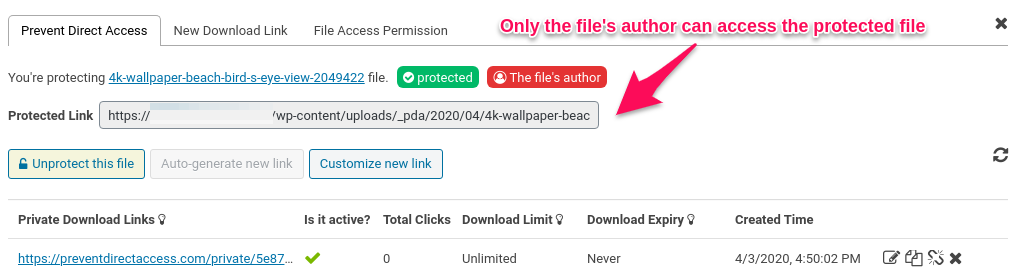
PDA Gold adds: File encryption to prevent unauthorized downloads even from direct server access, role-based access control (restrict files to specific WordPress user roles), auto-protect new uploads, expiring download links (by time or click count), WooCommerce order page integration, Amazon S3 and Wasabi file sync, WordPress Multisite support, and LearnDash LMS integration for course material access.
Pricing (verified March 2026):
- PDA Lite: Free (unlimited files)
- PDA Gold Personal: $179/year or $599 lifetime — 3 websites
- PDA Gold Plus: $349/year or $899 lifetime — 10 websites
- PDA Gold Pro: $389/year or $989 lifetime — 15 websites
Active installs: 200,000+ | Last updated: December 23, 2025 | Rating: 4.7/5 (292 reviews)
Works with: Apache servers out of the box. Nginx and IIS require manual server configuration changes — check the PDA documentation if you’re on WP Engine or another Nginx-based host.
Best for: Course creators, bloggers selling premium content, membership sites, anyone needing to lock down PDFs, ebooks, or video files in their Media Library.
WordPress Download Manager (WPDM)
WPDM approaches file protection from a file distribution angle rather than pure security. It’s built for sites that actively share files — and want to control exactly who can access them, how many times, and under what conditions.
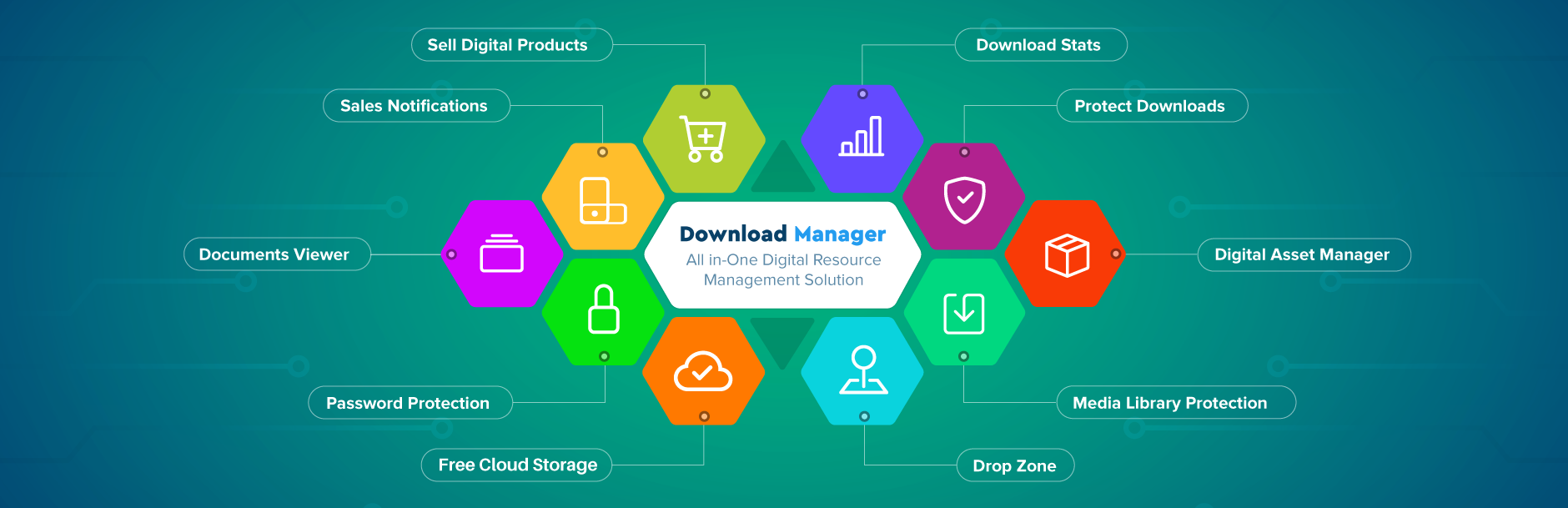
Key protection features:
- Password protection for individual files or file packages
- CAPTCHA verification before download
- Hotlink prevention with encrypted, expiring download URLs
- IP-based access blocking
- User role restrictions (restrict downloads by WordPress membership level)
- Email gate — capture an email address before allowing download
- Social login for frictionless access (Google, Facebook, LinkedIn)
Beyond protection: WPDM doubles as a digital storefront. You can sell files directly through the plugin with built-in PayPal, Stripe, and 20+ payment gateways — no WooCommerce required for basic digital sales. It also tracks every download with detailed analytics (user, IP, timestamp, country, referrer) and supports cloud storage hosting via Amazon S3, Google Drive, Dropbox, and OneDrive.
Pricing: The core plugin is free and includes most protection features. Premium add-ons for e-commerce, cloud storage, and advanced analytics are sold separately via wpdm.pro.
Active installs: 200,000+ | Last updated: February 19, 2026 | Rating: 4.1/5 (995 reviews)
Trusted by: UCLA, Microsoft, UN Habitat, and 200,000+ sites worldwide.
Best for: Sites selling digital products, download portals, organizations distributing documents or course materials, anyone who needs both file distribution management and granular access control. It’s worth comparing it against other WordPress download plugins if your primary need is file delivery rather than security.
Best Security Plugins with File Monitoring
These plugins don’t protect your uploads from direct access. Their job is different: watching over WordPress core files, themes, and plugins for unauthorized changes, malware injections, and known vulnerability patterns. If you run a site with user data, payment processing, or any sensitive information, you want at least one of these running.

Wordfence Security
With 5 million+ active installs, Wordfence is the most widely used security plugin in the WordPress ecosystem — and for most sites, it earns that position. Its malware scanner compares your core files, themes, and plugins against verified originals, highlights the differences, and lets you repair compromised files directly from the WordPress dashboard.
Key file-related features:
- File integrity checker against the official WordPress repository
- Malware scanner for themes, plugins, and core files
- File repair tool to restore hacked files to their original state
- Web Application Firewall (WAF) that filters traffic before WordPress loads
- Real-time traffic monitoring with live attack view
One important limitation to know: The free version delays malware signature updates by 30 days, per Wordfence’s own pricing page. That means if a new malware pattern surfaces, the free version won’t detect it for a month. For most personal blogs and small sites, that delay is acceptable. For WooCommerce stores handling payments or membership sites with sensitive user data, the premium version’s real-time signatures are worth the cost.
Pricing (verified March 2026):
- Free: Full scanner + basic firewall, 30-day threat intelligence delay
- Premium: $149/year per site — real-time threat intelligence, country blocking
- Care: $590/year — Premium features + hands-on Wordfence team support
- Response: $1,250/year — 24/7 incident response with 1-hour response guarantee
Active installs: 5 million+ | Last updated: December 20, 2025 | Rating: 4.7/5
Best for: High-traffic blogs, WooCommerce stores, any site that needs comprehensive malware scanning and firewall protection. The free version is genuinely useful — unlike many freemium security plugins that hobble their core features.
Sucuri Security
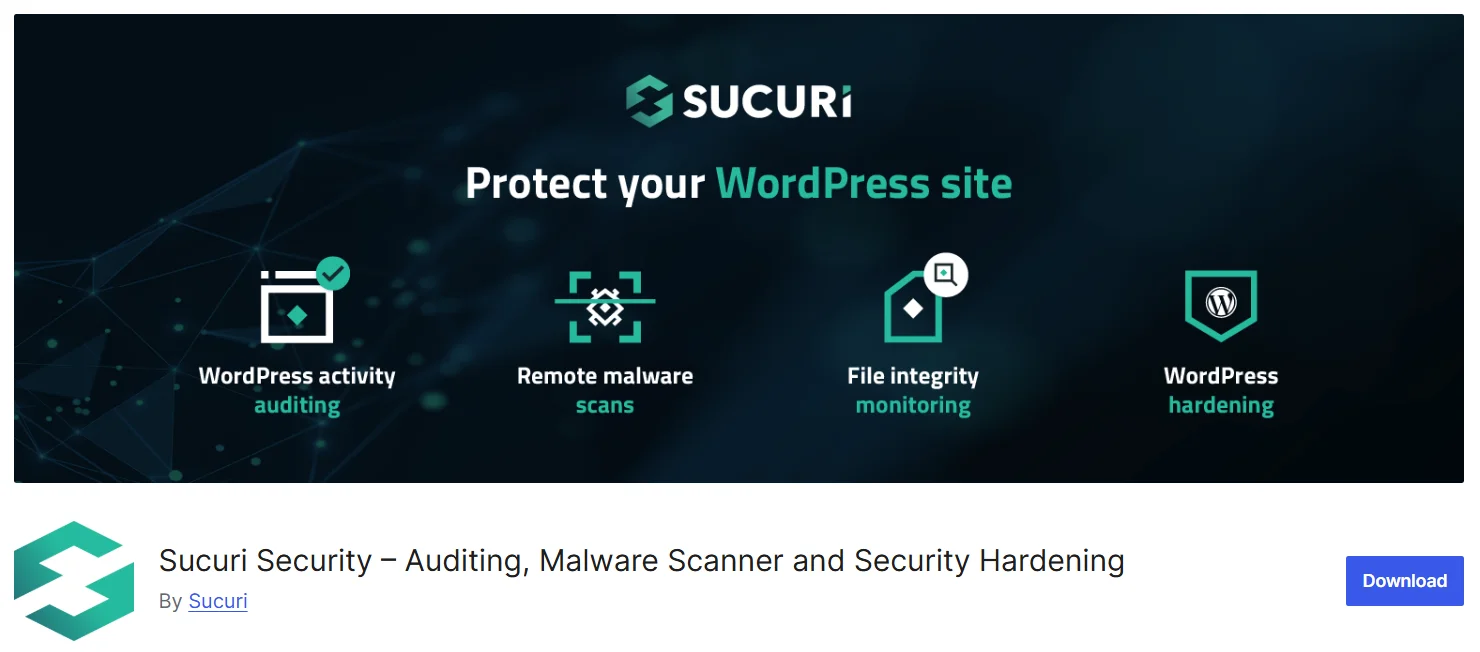
Sucuri takes a cloud-first approach. Unlike Wordfence’s endpoint firewall (which runs on your server), Sucuri’s WAF operates at the DNS level — malicious requests are filtered before they ever reach your hosting environment. That’s a meaningful architectural difference for high-traffic sites and sites under active DDoS attack.
Key file-related features:
- File integrity monitoring — detects changes to core WordPress files
- Security activity auditing and event logging
- Post-hack cleanup tools and step-by-step remediation
- Blacklist monitoring across Google, Norton, McAfee, and other services
- Cloud WAF blocks DDoS, SQL injections, XSS, and known exploit patterns
The free plugin vs. the paid platform: The free Sucuri plugin gives you file integrity monitoring, security hardening recommendations, and audit logs — useful tools, but no firewall. The cloud WAF and guaranteed malware cleanup require a paid platform plan. This is worth understanding before you install it expecting full protection from the free version.
Pricing (verified March 2026):
- Free plugin: File monitoring, audit logs, hardening recommendations
- Basic Platform: $229/year — Cloud WAF, malware cleanup, CDN, 12-hour scans
- Pro Platform: $339/year — 6-hour scan frequency, 12-hour response SLA
- Business Platform: $549/year — 30-minute scans, 6-hour response SLA
- All paid plans include unlimited malware removal with a 30-day guarantee
Best for: Medium to large business sites, healthcare or e-commerce sites requiring guaranteed malware cleanup, sites that need DDoS mitigation at the network level.
Solid Security (formerly iThemes Security)
Solid Security’s strength is its combination of login hardening and file change detection. It’s less about blocking active attacks (that’s Wordfence’s territory) and more about detecting when something has changed that shouldn’t have, and enforcing policies that prevent weak points from being exploited.
Key file-related features:
- File change detection — alerts you when any file on your site is modified
- Enforces DISALLOW_FILE_EDIT to prevent dashboard-based file editing
- Patchstack virtual patching (Pro) — blocks exploits for vulnerable plugins before a patch is released
- Two-factor authentication including hardware key support
- Brute force protection with adaptive rate limiting
- Password policy enforcement
Honest limitation: Solid Security doesn’t include built-in malware removal. It can tell you a file has changed — but cleaning up an infected site requires manual work or a separate paid addon (Solid Fix). If automated cleanup is a priority, MalCare or Sucuri’s paid plans are better fits.
Pricing (verified March 2026):
- Free: File change detection, login hardening, basic 2FA
- Starter: $99/year — 1 website (Pro features: Patchstack, advanced reporting)
- Plus: $199/year — 5 websites
- Agency: $299/year — 10 websites
Active installs: 1 million+ | Last updated: February 25, 2026 | Rating: 4.6/5
Best for: Sites wanting proactive vulnerability patching, file integrity monitoring, and strong login security — especially useful when paired with a standalone scanner like MalCare or the free Wordfence scanner.
MalCare Security
MalCare’s cloud-based scanning architecture is its defining characteristic. Scans run on MalCare’s servers, not yours, which means even intensive deep scans don’t slow your site or spike server resources. The paid version’s one-click malware removal is genuinely useful — you don’t need to know which files are infected or have FTP access to clean them.
Key features:
- Deep cloud-based malware scanning (no server performance impact)
- AI-powered detection with behavioral analysis
- One-click automated malware removal (paid)
- 7-layer firewall with OWASP rule protection
- Geo-blocking and bot detection
- Real-time IP blacklisting
Free vs. paid: The free plan scans and detects malware but won’t clean it. Cleanup requires the Plus plan or above. This is a deliberate freemium model — worth knowing before you install it and then discover you need to pay to remove what was found.
Pricing (verified March 2026):
- Free: Detection only (no auto-clean)
- Plus: $149/year — AI scan + instant auto-removal + real-time firewall
- Prime: $199/year — Plus + one-click restore
- Pro: $299/year — Staging, visual monitoring
Active installs: 400,000+ | Last updated: January 29, 2026
Best for: Site owners who want hands-off malware cleanup — find it and remove it with one click, no manual file hunting required. For a broader look at how these tools stack up, the full WordPress security plugin comparison covers additional options.
Comparison Table: WordPress File Protection Plugins
All pricing verified March 2026 from official sources.
| Plugin | Type | Free Version | Paid Entry Price | Active Installs | Best For |
|---|---|---|---|---|---|
| Prevent Direct Access | File Protection | ✓ Unlimited files | $179/yr (3 sites) | 200,000+ | Media/content creators, membership sites |
| WP Download Manager | File Management | ✓ Full core plugin | Add-ons separately | 200,000+ | Digital product distribution, download portals |
| Wordfence | Security (file monitoring) | ✓ (30-day delay) | $149/yr (1 site) | 5 million+ | All-around security, WooCommerce stores |
| Sucuri | Security (cloud WAF) | ✓ Monitoring only | $229/yr (1 site) | 800,000+ | High-traffic sites, DDoS protection |
| Solid Security | Security (file monitoring) | ✓ Core features | $99/yr (1 site) | 1 million+ | Login hardening + file change detection |
| MalCare | Security (cloud scanning) | ✓ Detect only | $149/yr (1 site) | 400,000+ | Automated malware cleanup |
Note on WP Cerber: WP Cerber was removed from WordPress.org in September 2022. It’s still available directly from wpcerber.com ($99/year for one site), but its absence from the official repository means you won’t get automatic updates through the WordPress dashboard and can’t verify the plugin through the standard WordPress trust chain. Factor that into your decision if you’re considering it.
Simple File Hardening Steps That Don’t Require a Plugin
Three configuration changes take about 10 minutes and add meaningful protection to any WordPress site, with or without a plugin.
1. Set Correct File Permissions
WordPress files and directories should have restrictive permissions. From your server via SSH:
# Set all directories to 755
find /path/to/your/wordpress/ -type d -exec chmod 755 {} \;

# Set all files to 644
find /path/to/your/wordpress/ -type f -exec chmod 644 {} \;
This prevents the web server from executing files it shouldn’t, and stops any process from writing to directories that don’t require write access. Source: WordPress Developer Docs — Hardening WordPress.
2. Disable File Editing from the Dashboard
By default, any WordPress administrator can edit PHP files directly from the dashboard (Appearance → Theme Editor, Plugins → Plugin Editor). If an attacker gains admin access, this is often the first tool they’ll use. Add this line to your wp-config.php to disable it:
define( 'DISALLOW_FILE_EDIT', true );This removes the file editor entirely. It won’t stop an attacker who already has server access, but it eliminates a common exploitation path for compromised admin accounts.
3. Protect wp-config.php
Your wp-config.php contains your database credentials. Add this to your .htaccess file to block direct access:
<Files "wp-config.php">
Require all denied
</Files>
Alternatively, move wp-config.php one directory above your WordPress root — WordPress will find it automatically there. These are just the foundational steps; the complete WordPress security hardening guide covers additional server-level measures worth reviewing.
Which Plugin Is Right for Your Site?
The right choice depends on what you’re actually trying to protect. Here’s a practical breakdown by site type — a useful shortcut if you’re not sure which category applies to your situation. For general guidance on choosing WordPress plugins for your site, that reference covers the broader decision framework.
| Site Type | Primary Problem | Recommended Plugin | Why |
|---|---|---|---|
| Blog with premium content (PDFs, ebooks) | Direct URL file access | Prevent Direct Access (free) | Media Library integration, unlimited file protection, no server config needed on Apache |
| Digital product store | File selling + access control + analytics | WP Download Manager | Payment gateway integration, detailed download tracking, cloud storage support |
| WooCommerce store | Security + file integrity + checkout protection | Wordfence (free or premium) | File repair tool, real-time threat detection, login security — all essential for e-commerce |
| Membership / LMS site | Role-based file access for enrolled students | PDA Gold + Wordfence | PDA Gold for content-level access by user role; Wordfence for site security |
| Healthcare / compliance-sensitive site | Audit trails, guaranteed cleanup, DDoS protection | Sucuri Business Platform | Unlimited malware removal, file integrity monitoring, activity logs, cloud WAF |
| High-traffic business site | DDoS + malware + file integrity | Sucuri or Wordfence Premium | Both offer real-time protection; Sucuri’s cloud WAF reduces server load under attack |
| Personal blog or small site | Basic protection without complexity | Wordfence (free) + DISALLOW_FILE_EDIT | Free Wordfence covers the essentials; the hardening constant costs nothing |
Frequently Asked Questions
What is the best WordPress file protection plugin?
For protecting uploaded files (PDFs, images, videos) from direct URL access, Prevent Direct Access is the strongest purpose-built option. Its free version protects unlimited files from your Media Library with no coding required. If you also need to sell those files or distribute them to specific user groups, WP Download Manager adds e-commerce and analytics features on top of the protection layer.
How do I protect PDF files from being downloaded in WordPress?
Install Prevent Direct Access (free version). Go to your Media Library, switch to List View, and click “Configure file protection” on the PDF you want to restrict. Toggle “Protect this file” and save. The plugin adds server-level rules that prevent direct URL access to the file — anyone trying to reach the PDF directly gets redirected to your 404 page or a custom access-denied page instead.
Does Wordfence protect files in the uploads folder?
Not directly. Wordfence scans your entire WordPress installation for malware and monitors core files for unauthorized changes — but it doesn’t restrict who can access files in wp-content/uploads via direct URL. For that, you need a file protection plugin like Prevent Direct Access running alongside Wordfence.
What’s the difference between a file protection plugin and a security plugin?
A file protection plugin controls access to your uploaded media and documents — it stops unauthorized users from accessing files directly by URL. A security plugin monitors your WordPress installation for malware, blocks attack attempts, and alerts you to suspicious file changes. Both protect “files” in a sense, but they solve different problems. Most sites that handle valuable content benefit from running both.
Can I protect WordPress files for free?
Yes. Prevent Direct Access Lite (free) protects unlimited Media Library files at no cost. Wordfence’s free version provides malware scanning and file integrity monitoring. The DISALLOW_FILE_EDIT constant and correct file permissions require no plugin at all. You can build a solid protection layer for free — paid versions add convenience features, automation, and faster threat response.
How do I stop direct URL access to my WordPress media files?
Install Prevent Direct Access and protect your files from the Media Library. The plugin adds .htaccess rules (on Apache) or equivalent Nginx directives that intercept direct requests to your uploads folder and route them through WordPress, where access control can be enforced. Without a plugin, you’d need to manually add these server rules yourself — PDA handles that automatically.
Which file protection plugin works with WooCommerce?
PDA Gold includes a WooCommerce integration that restricts access to downloadable product files based on order status — only customers who have completed a purchase can access the file. WP Download Manager supports WooCommerce through its premium add-ons. For the security side of WooCommerce, Wordfence is the most commonly used plugin with WooCommerce stores.
How do I harden WordPress without a plugin?
Three steps cover the most critical gaps: set file permissions to 644 for files and 755 for directories using chmod commands via SSH; add define('DISALLOW_FILE_EDIT', true); to wp-config.php to disable dashboard file editing; and protect wp-config.php from direct access via .htaccess. These changes don’t require any plugin and address some of the most common exploitation paths in compromised WordPress sites.
Conclusion
The key takeaway from this comparison is straightforward: “file protection” in WordPress covers two distinct problems that require different tools. Plugins like Prevent Direct Access and WP Download Manager lock down your uploaded content from direct URL access — something general security plugins simply don’t do. Plugins like Wordfence, Sucuri, and Solid Security monitor your WordPress core files and protect against malware and hacking attempts.
For most sites with valuable content — ebooks, courses, premium PDFs, downloadable software — the right approach is to run both: a file protection plugin for your uploads and a security plugin for your WordPress installation. PDA Lite costs nothing for the basic use case, and Wordfence’s free version handles the security side adequately for most small to medium sites.
Before installing any of these plugins, check the last updated date on the WordPress.org plugin page. Security tools that haven’t been updated in 6+ months may have unpatched vulnerabilities of their own. WP Cerber, notably, was removed from WordPress.org in September 2022 and no longer receives automatic updates through the standard channel — something worth weighing carefully if you’re considering it.
