


Your WordPress site took 4 seconds to load. Statistically, you just lost nearly a third of the visitors who tried to reach you — they clicked away before your page even finished rendering. And if your site is an online store, those same 4 seconds likely cost you conversions too: research shows conversion rates drop by an average of 4.42% for each additional second of load time.
The problem isn’t WordPress itself. WordPress can be fast. What slows it down are the layers people add on top of it — unoptimized images, too many plugins, cheap hosting, and a lack of caching. The good news is that most WordPress sites have obvious, fixable bottlenecks, and you don’t need to be a developer to address them.
This guide takes a different approach than most. Rather than dumping 20 tips on you and saying “good luck,” it gives you a prioritized sequence. Start with the things that move the needle most. Save the advanced work for later — or skip it entirely if the quick wins are enough.
WordPress tutorials and performance guides
Quick Summary — What Actually Moves the Needle
Before going through the full guide, here’s what matters most:
- Hosting is the foundation. No amount of plugin-based optimization can fully compensate for a slow server. If your Time to First Byte (TTFB) is above 800 milliseconds, the hosting itself is the issue.
- Caching is the single biggest quick win for most WordPress sites. Installing and configuring a caching plugin correctly can halve your load time in under an hour.
- Images typically account for 50% or more of page weight on media-heavy sites. Compressing and lazy-loading images is often the fastest visible improvement.
- Core Web Vitals directly affect your Google rankings. LCP, INP, and CLS are measured by Google and influence where you appear in search results.
- Test before and after every change. You need a baseline to know whether your optimizations are actually helping.
How slow is too slow? A quick benchmark by site type
| Site Type | Target Load Time | Priority Metric | Why It Matters |
|---|---|---|---|
| Personal blog / portfolio | Under 3 seconds | LCP | Reader experience; Google rankings |
| Small business website | Under 2.5 seconds | LCP + TTFB | Trust, conversions, local SEO |
| WooCommerce store | Under 2 seconds | LCP + INP | Direct revenue impact; 4.42% drop per second |
| High-traffic content site | Under 1.5 seconds | All CWV metrics | Scale, ad revenue, competitive SEO |
Google’s official recommendation is to keep LCP (Largest Contentful Paint) at or below 2.5 seconds for most pages. The average WordPress site loads in 2.5 seconds on desktop and 13.25 seconds on mobile — mobile being a serious problem for most sites that haven’t been explicitly optimized.
Why Your WordPress Site Is Slow (Common Causes)
Before fixing anything, it helps to understand what you’re dealing with. Slow WordPress sites usually have one or more of these issues:
Heavy or unoptimized images
A single full-resolution JPEG from a modern camera can be 5–10MB. Even a “decent” unoptimized product photo or hero image might be 1–2MB. When a page has five or ten of those, visitors on slower mobile connections can spend most of their load time waiting for images that they might not even scroll to. Images frequently represent 50% or more of a page’s total transfer size.
Too many plugins (especially poorly coded ones)
Every active plugin adds to the number of PHP function calls, database queries, and JavaScript/CSS files that load on each page. WordPress sites with 20 or more plugins are approximately 40% slower than lean setups. The problem isn’t plugin count exactly — it’s the total load each plugin adds and whether that load happens on every page or only where it’s needed.
Slow or shared hosting
On a crowded shared server, your site competes with dozens or hundreds of other websites for CPU, memory, and bandwidth. A slow server adds overhead before any WordPress code even runs. If your TTFB (Time to First Byte) consistently exceeds 800 milliseconds, your hosting environment is throttling performance at the source.
No server-side caching
Without caching, WordPress generates each page from scratch for every single visitor — querying the database, executing PHP, rendering HTML. With even a basic caching setup, that work happens once and then the result is served as a static file. The difference in server load and response time is dramatic.
Render-blocking JavaScript and CSS
Browsers pause rendering when they encounter JavaScript files that must be fully downloaded and executed before the page can continue. Scripts from plugins, advertising networks, analytics tools, and widgets all contribute to this problem. The visible symptom is a page that “freezes” partway through loading.
Outdated PHP version
PHP 8.x processes requests significantly faster than older versions like PHP 7.4 (which reached end-of-life in November 2022). Running an outdated PHP version means slower execution of every WordPress request, at no benefit.
Bloated or inefficient theme
Some popular themes load 500KB or more of CSS and JavaScript on every page — much of it for features the site doesn’t use. Theme weight is the baseline your site starts from before any content or plugins are added.
Database bloat
WordPress saves every revision of every post and page by default. A post edited 50 times has 50 revision records in the database. Over years, this — combined with accumulated spam comments, orphaned metadata, and unused transients — adds unnecessary size and query time to every database request.
How to Check Your WordPress Site Speed (Before You Do Anything)
Don’t start changing things until you know what your numbers actually are. Guessing is how people spend hours optimizing the wrong thing. Three tools cover most situations:
| Tool | Free? | What It Shows | Best For |
|---|---|---|---|
| Google PageSpeed Insights | Yes, completely free | Core Web Vitals (real user data), lab scores, specific fix recommendations | Understanding Google’s view of your site; CWV scores |
| GTmetrix | Free (basic), paid plans for more features | Waterfall chart, grade-based scoring, historical comparisons | Diagnosing specific bottlenecks, comparing before/after |
| WebPageTest | Yes, free | Filmstrip view, multi-location testing, connection simulation | Advanced audits, testing from different geographies |
Run your homepage through Google PageSpeed Insights first. Look at the “Field Data” section — that’s real data from actual visitors. Then check the “Opportunities” and “Diagnostics” sections for specific items to address. That list becomes your action plan.
Core Web Vitals: The metrics that affect your Google rankings
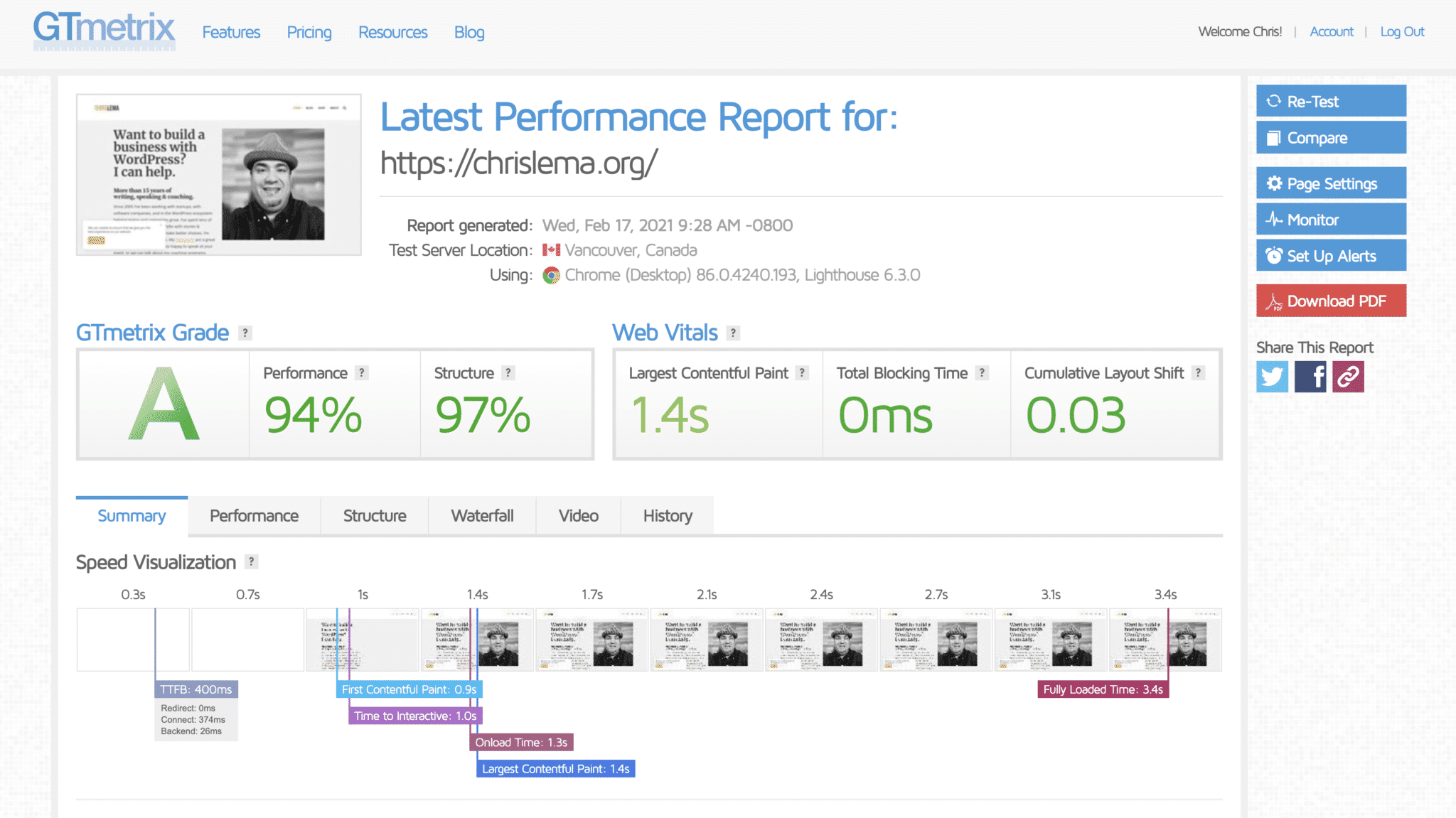
Google’s Core Web Vitals are three specific performance metrics that directly factor into search rankings. Understanding what each one measures helps you prioritize the right fixes for your specific site.
| Metric | Measures | Good Threshold | Common WordPress Cause | Primary Fix |
|---|---|---|---|---|
| LCP (Largest Contentful Paint) | When the largest visible element finishes loading | ≤ 2.5 seconds | Unoptimized hero image, slow hosting, no preloading | Compress hero image, use WebP, enable caching, preload critical assets |
| INP (Interaction to Next Paint) | How quickly the page responds to user actions | ≤ 200 milliseconds | Excessive JavaScript from plugins, heavy page builders | Defer non-critical JS, remove unused plugins, optimize page builder output |
| CLS (Cumulative Layout Shift) | How much the page layout jumps during loading | ≤ 0.1 | Images without set dimensions, web fonts loading late, ads shifting content | Add width/height to images, font-display: swap, reserve ad space |
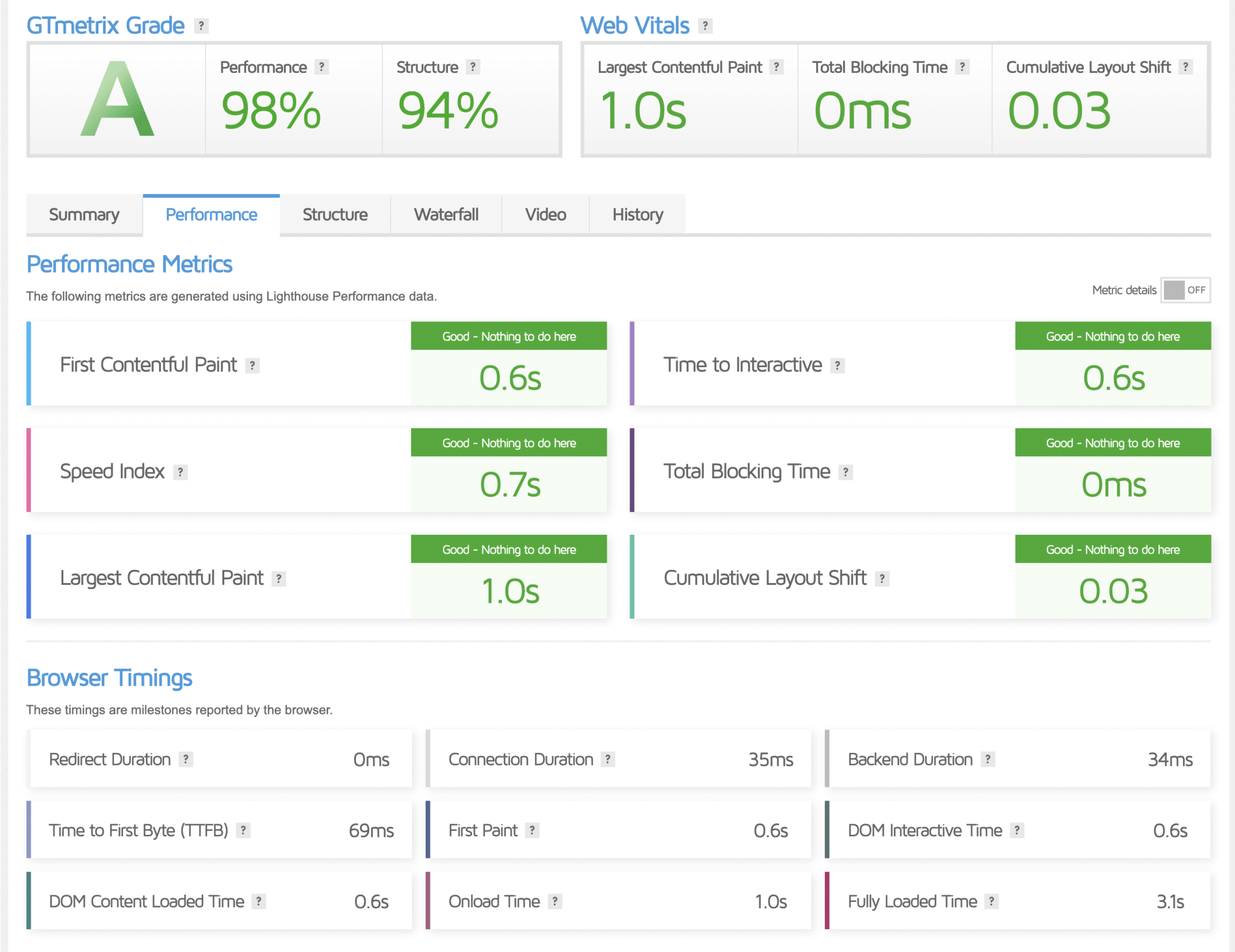
| TTFB (Time to First Byte) | Server response time (supporting metric) | ≤ 0.8 seconds | Slow hosting, no server-side cache, unoptimized database | Upgrade hosting, enable server-side caching, clean database |
Note: INP replaced First Input Delay (FID) as an official Core Web Vital in 2024. If older articles reference FID, that metric is no longer part of the ranking signal. (Source: web.dev/vitals, updated October 2024)
more WordPress performance guides on wplasma.com
Quick Wins — What to Fix in Under an Hour
Start here. These changes have the highest impact-to-effort ratio. Most take 15–30 minutes each and require no coding knowledge.
1. Install and configure a caching plugin
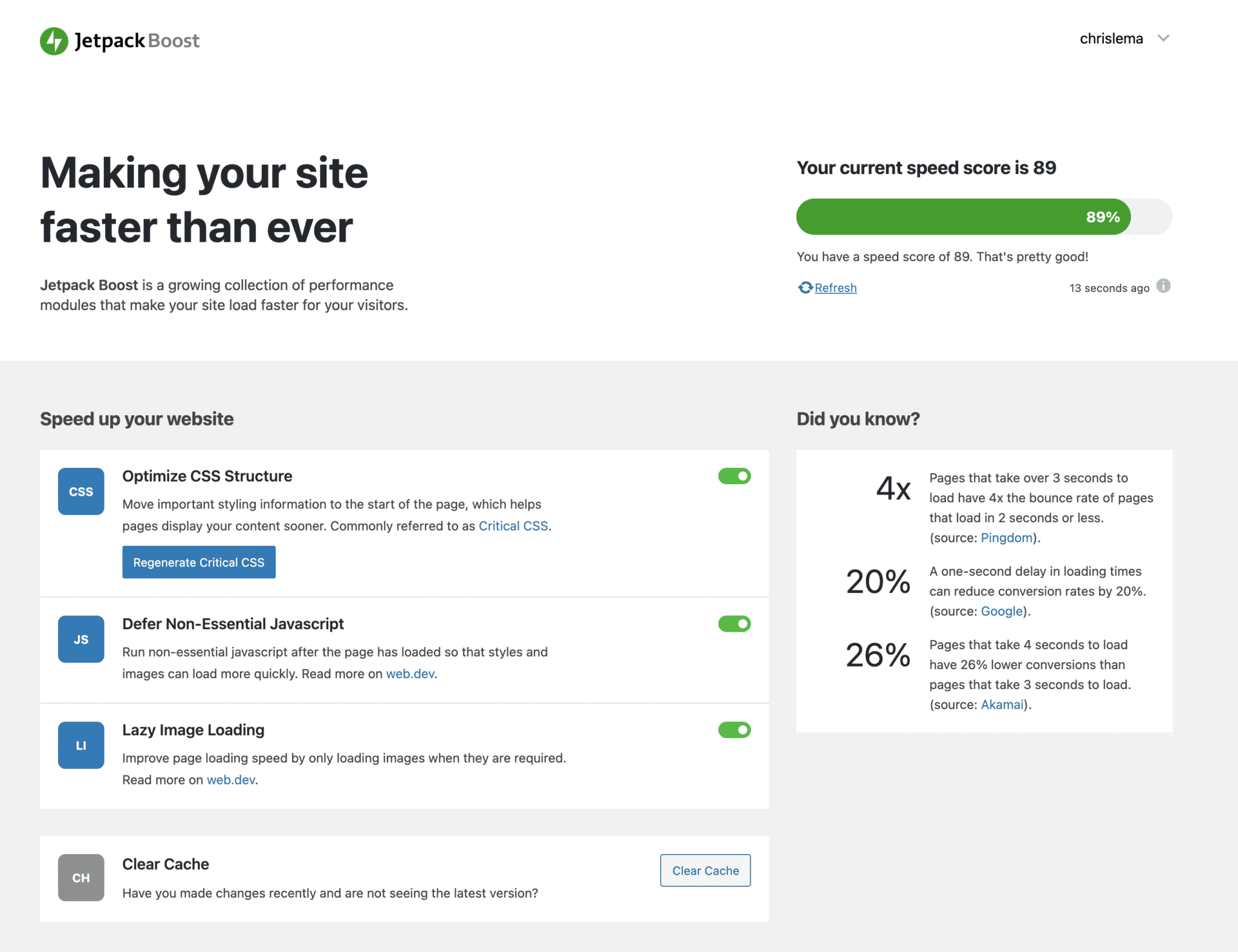
Caching stores a pre-built HTML version of each page so WordPress doesn’t have to regenerate it from scratch every time someone visits. For most sites, enabling caching is the single most impactful performance change you can make.
One important caveat: if you’re on managed WordPress hosting (WP Engine, Kinsta, Cloudways, etc.), the host typically handles server-level caching already. Installing a separate caching plugin can cause conflicts. Check your host’s documentation first.
For everyone else, here’s how the major caching plugins compare:
| Plugin | Free Option | Paid Price | Best For | Ease of Use |
|---|---|---|---|---|
| WP Rocket | No | $59/yr (1 site), $119/yr (3 sites), $299/yr (50 sites) | Most users wanting turnkey results | Very easy — 3-minute setup |
| W3 Total Cache | Yes (fully featured) | Pro version available | Developers who want granular control | Complex — many configuration options |
| WP Super Cache | Yes (fully featured) | No paid tier | Beginners, simple setups | Easy — made by Automattic |
| LiteSpeed Cache | Yes (fully featured) | Free (QUIC.cloud CDN optional) | Sites on LiteSpeed servers | Easy-to-medium |
| NitroPack | Yes (1,000 PV/month limit) | From $8/mo (8K pageviews) or $84/yr | Hands-off optimization including CDN | Very easy — automated setup |
Prices as of March 2026 — verify at each provider’s website before purchasing.
Practical recommendation: If you have budget and want the simplest experience, WP Rocket at $59/year is widely regarded as the most complete and conflict-free caching plugin available. If you need a free option, LiteSpeed Cache (on a LiteSpeed server) or WP Super Cache (on any host) are solid starting points.
2. Optimize and compress your images
Images are often the heaviest items on any WordPress page. A recipe blog with 20+ step photos per post can easily push 10–20MB of images per page if none of them have been optimized. The fix requires two things: compress existing images and establish a process for future uploads.
- Convert to WebP format. WebP images are typically 25–35% smaller than equivalent JPEG or PNG files with comparable quality. Most modern browsers support WebP natively. Plugins like Imagify, ShortPixel, or Smush can convert and serve WebP automatically.
- Compress before or on upload. Target under 200KB per image for body content; hero images can go up to 400–500KB if necessary.
- Use lazy loading. WordPress has included native lazy loading since version 5.5 — images below the fold are deferred until the user scrolls near them. This is on by default, but some older themes or custom code may override it.
- Set image dimensions explicitly. Declaring width and height attributes on image tags prevents layout shift during loading, which directly improves your CLS score.
3. Remove unused plugins and themes
Every plugin that remains installed — even if deactivated — adds overhead to WordPress admin and can still affect your site’s security profile. Inactive plugins don’t run on the front end, but they still load in the admin area and contribute to update maintenance burden.
Go through your plugin list and ask a simple question for each one: is this plugin actively contributing to my site’s functionality? If the answer is no, delete it entirely, not just deactivate it. Do the same for themes: you only need your active theme and one default WordPress theme as a backup.
4. Use a fast, lightweight theme
Your theme determines the baseline performance of every page on your site. A theme that loads 800KB of CSS and JavaScript before any content is added will always underperform a theme that loads 50KB. Page builder-heavy themes are often the worst offenders.
Lightweight themes known for good performance include GeneratePress, Astra, Kadence, and Hello Elementor. You can test your current theme’s contribution by temporarily switching to a default WordPress theme (Twenty Twenty-Four) and running a speed test — the difference gives you an accurate read of how much your theme is costing you.
WordPress theme and plugin guides
Deeper Optimizations — For When Quick Wins Aren’t Enough
If you’ve addressed caching, images, unused plugins, and theme weight but your site still loads too slowly, these more involved steps are the next tier to work through.
Update PHP to the latest supported version
PHP is the programming language that powers WordPress. Each major PHP version brings performance improvements. PHP 8.0 and 8.1 are measurably faster than PHP 7.4, and PHP 8.2/8.3 continues that trend. Running an outdated version means leaving speed on the table.
Check your current PHP version in WordPress dashboard → Tools → Site Health → Info → Server. Most hosting control panels (cPanel, Plesk, or your managed host’s dashboard) let you switch PHP versions directly. Important: back up your site and test on a staging environment first — some older plugins or themes have compatibility issues with the latest PHP.
Use a Content Delivery Network (CDN)
A CDN distributes your site’s static files (images, CSS, JavaScript) across dozens or hundreds of servers worldwide. When a visitor in Tokyo requests your site hosted in the US, instead of waiting for files to travel across the Pacific, they receive them from a CDN server in Asia. The result: significantly faster delivery for visitors who aren’t geographically close to your hosting server.
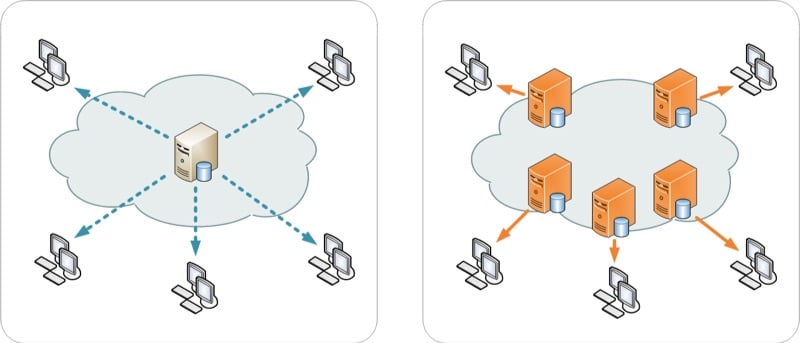
Cloudflare’s free tier covers most of what small to medium sites need: global CDN, DDoS protection, and basic performance features. If you’re already on managed WordPress hosting, check whether CDN is included in your plan before paying for a separate service.
Minify CSS, JavaScript, and HTML
Minification removes whitespace, comments, and redundant characters from code files without changing how they work. A CSS file that’s 200KB of well-formatted code with comments might compress down to 80KB after minification. Across multiple CSS and JavaScript files, those savings add up to meaningfully faster load times.
Most caching plugins (WP Rocket, W3 Total Cache, NitroPack) handle minification as part of their feature set. The free Autoptimize plugin is a dedicated option if you want minification without a full caching plugin. Test on staging first — combining JavaScript files can occasionally break functionality if scripts load in a different order than expected.
Reduce render-blocking JavaScript and CSS
When a browser encounters a JavaScript file in the page’s <head>, it pauses everything to download and execute that file before continuing. Even a fast connection experiences a perceptible delay when multiple scripts are render-blocking.
The fix is to defer non-critical JavaScript — tell the browser to load those scripts after the page has finished rendering. Most performance plugins handle this. The Delay JS feature in WP Rocket, for example, delays script execution until user interaction, which can substantially improve Time to Interactive scores.
Clean up your WordPress database
WordPress accumulates database clutter over time. Post revisions are the most common culprit: if you’ve edited a post 30 times, WordPress stores 30 separate revision records. Add to that old draft pages, deleted spam comments, orphaned metadata, and expired transients, and your database grows significantly without providing any value.
To limit future revision accumulation, add this line to your wp-config.php file:
define( 'WP_POST_REVISIONS', 5 );This caps revisions at 5 per post. For existing clutter, plugins like WP-Optimize or Advanced Database Cleaner safely identify and remove orphaned data. Alternatively, disable pingbacks and trackbacks under Settings → Discussion — they generate database entries and are rarely needed on modern sites.
WordPress database optimization tips
Hosting Is the Foundation (Not a Plugin Problem)
Some WordPress sites simply cannot be fixed with plugins. If your server is too slow to respond quickly, every optimization you apply on top of it has a ceiling. No caching plugin eliminates high TTFB — it reduces the load on a slow server, but the server is still slow.
Here’s how to tell if hosting is your real problem:
- TTFB consistently above 1 second, even with caching enabled
- Slow performance on the simplest pages (contact page, static about page) — pages with minimal dynamic content
- Speed noticeably worse during business hours (when you’re sharing server resources with other sites at peak usage)
What to look for in a WordPress-optimized host:
- PHP 8.2 or 8.3 support
- LiteSpeed or Nginx web server (both faster than Apache for WordPress at scale)
- SSD storage (NVMe preferred)
- Server-level caching built in (not just telling you to install a plugin)
- Data centers in geographic proximity to your primary audience
Managed WordPress hosting — offered by providers like Kinsta, WP Engine, Cloudways, or SiteGround — typically handles server configuration, caching, and updates for you. It costs more than shared hosting, but the performance difference is real and often eliminates the need for many optimization plugins. Whether that trade-off makes sense depends on your traffic and budget.
Who This Applies To — And How Much Work to Expect
Not every site needs every optimization. Here’s a realistic guide to what matters at each level:
| Site Type | Priority Fixes | Optional / Advanced |
|---|---|---|
| Personal blog / portfolio | Caching plugin + image compression + lightweight theme | CDN if you have international readers; PHP update |
| Small business website | All of the above + quality hosting + PHP update | CDN, minification, render-blocking JS fixes |
| WooCommerce store | All of the above + database cleanup + managed hosting | Object caching (Redis/Memcached), dedicated server |
| High-traffic content site | Everything + CDN + server-level caching + performance monitoring | Elasticsearch for search, edge caching, APM tools |
A personal blog on decent shared hosting with a lightweight theme, a caching plugin, and compressed images can realistically hit 1–2 second load times without touching any server settings. A WooCommerce store with thousands of products needs more care — but the same principles apply, just with more layers.
WooCommerce performance optimization guide
Frequently Asked Questions
- How fast should my WordPress site load?
- Google recommends Largest Contentful Paint (LCP) at or under 2.5 seconds. As a practical target for most WordPress sites, aim for a full page load under 3 seconds on desktop and under 4 seconds on mobile. Pages taking 5 or more seconds to load see dramatically higher bounce rates — the probability of a user leaving increases by 90% compared to a 1-second load time.
- Does a caching plugin really make a difference?
- Yes, significantly. Without caching, WordPress runs PHP code and database queries for every single page request. With caching, a pre-built HTML file is served directly — bypassing PHP and the database entirely for most visitors. This alone can reduce server response times by 50–80% on typical WordPress setups.
- What is the difference between page cache and object cache?
- Page caching stores the complete HTML output of a page as a static file. It’s what most caching plugins handle by default. Object caching stores the results of specific database queries (like menu items, widget data, or query results) in memory (Redis or Memcached), so WordPress doesn’t re-run those queries on every request. Object caching is especially useful for WooCommerce stores and sites with logged-in users, where page caching alone doesn’t help much.
- Can I speed up WordPress without installing any plugins?
- Yes, to a meaningful degree. WordPress has included native image lazy loading since version 5.5. Updating PHP through your hosting control panel requires no plugin. Limiting post revisions, disabling pingbacks, and increasing memory limits are all done through
wp-config.phpedits. Enabling GZIP compression is a server-level setting. A CDN like Cloudflare can be set up at the DNS level without a plugin. For most sites, however, a caching plugin still delivers the biggest single performance gain — it’s hard to replicate server-side caching without one. - Do I need managed WordPress hosting to have a fast site?
- No, but it helps. Managed WordPress hosting handles server configuration, caching, and updates on your behalf — which removes several performance variables. A well-configured shared hosting plan with a quality provider (LiteSpeed server, PHP 8.x, SSD storage) can absolutely support a fast WordPress site with the right optimizations in place. Managed hosting makes more economic sense as your traffic grows or as your time has more value than the cost difference.
- What is TTFB and why does it matter?
- TTFB (Time to First Byte) measures how long it takes for a browser to receive the first byte of data from your server after making a request. It’s essentially your server’s response time. Google recommends TTFB under 0.8 seconds. High TTFB (above 1 second) is usually a hosting or caching issue — no front-end optimization can compensate for a server that’s slow to respond.
- How often should I test my WordPress site speed?
- Test before and after any significant change — new plugin installation, theme switch, image optimization batch, or hosting migration. Beyond that, running a monthly check through Google PageSpeed Insights keeps you aware of any regressions. WordPress sites tend to accumulate performance debt gradually as content grows and plugins get added, so periodic audits prevent surprises.
- Will switching themes make my site faster?
- It can make a large difference. Themes vary widely in how much CSS, JavaScript, and third-party script they load. To measure your theme’s impact: disable all plugins temporarily (on a staging site), test speed with your current theme, then test with a default WordPress theme. The gap between those two scores is how much your theme contributes to load time. If the difference is significant, switching to a lighter theme is worth serious consideration.
- What is a CDN and do I really need one?
- A CDN (Content Delivery Network) is a global network of servers that stores and delivers your site’s static files (images, CSS, JavaScript) from a location close to each visitor. Without one, a visitor in Europe accessing a US-hosted site waits for files to travel across the Atlantic. With one, they receive those files from a European server. CDNs also reduce load on your origin server. Most sites benefit from one, and Cloudflare’s free tier is a practical starting point for sites on any budget.
- How do Core Web Vitals affect my WordPress SEO rankings?
- Google uses Core Web Vitals (LCP, INP, CLS) as a ranking signal, incorporated into their Page Experience ranking system. They don’t override content quality — a technically slow page with highly relevant content can still rank well — but when content quality is comparable between two sites, the faster one has an advantage. Google measures CWV using real user data from Chrome users (via the CrUX dataset) and evaluates performance at the 75th percentile across your page’s visits.
Key Takeaways
WordPress speed optimization isn’t a one-time task — it’s an ongoing practice. Sites accumulate weight over time as content, plugins, and theme updates pile up. The key is to work in the right order:
- Test first. You need numbers before you know what to fix.
- Start with hosting and caching. These are the highest-leverage changes for most sites.
- Compress images. They’re frequently the biggest single source of page weight.
- Audit plugins and theme. Remove what you don’t actively use.
- Move to PHP 8.x and add a CDN if the quick wins aren’t enough.
- Test again. Measure the impact of every meaningful change.
The goal isn’t perfection — a perfect score on PageSpeed Insights doesn’t guarantee a successful site. The goal is a site that loads fast enough to keep visitors engaged, rank reasonably well in search, and work reliably for the people who need it. For most WordPress sites, that’s achievable without expert help and without spending a lot of money.
