


WordPress powers roughly 43% of all websites on the internet. That market dominance makes it a prime target for automated attacks, and the numbers are getting worse year over year. According to Patchstack’s State of WordPress Security 2023, there were 5,948 new WordPress vulnerabilities discovered in 2023 alone — a 24% increase from 2022. Their 2024 data shows 7,966 vulnerabilities, a further 34% year-over-year increase. The problem compounds quickly when sites go unmaintained: plugins that were secure six months ago may now appear on public vulnerability lists that automated scanners sweep daily.
The statistic that should get your attention: 96.77% of WordPress vulnerabilities originate from plugins, not from WordPress core itself. This means the very tools that make WordPress functional — the plugins — are also your biggest security liability if left unpatched. And 58.84% of those vulnerabilities require no authentication to exploit, meaning an attacker does not need to have any account on your site to take advantage of them. Neglecting plugin updates is not a minor housekeeping oversight; it is an active risk.
There is another layer of confusion worth addressing upfront. Most guides on “WordPress maintenance” mix up two completely different concepts: ongoing maintenance services (the recurring work that keeps a live site healthy) and maintenance mode plugins (the temporary screen visitors see while you rebuild or repair something). Conflating these creates real purchasing mistakes. This guide separates them clearly and gives you a decision framework for both.

Here is what you will learn from this guide:
- A quick-reference table matching site types to the best maintenance option
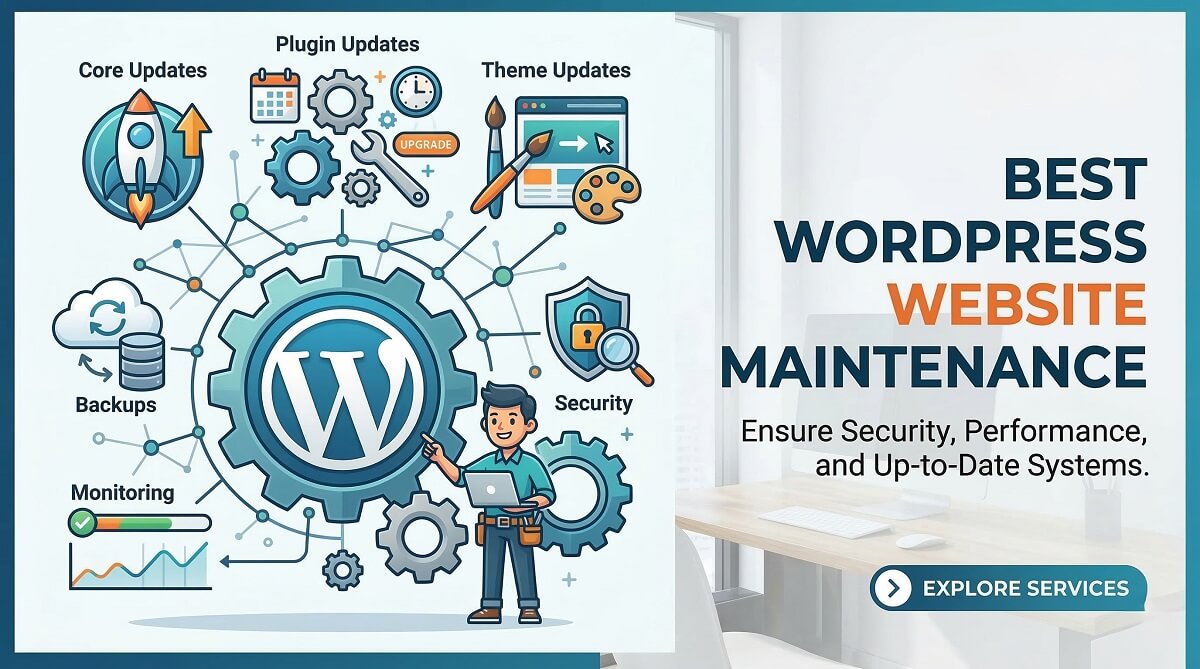
- The 8 core tasks that define WordPress maintenance and what happens if you skip each one
- Full reviews of 9 professional maintenance services, including honest gaps in each
- Reviews of the 6 best maintenance mode plugins with a side-by-side comparison table
- A complete DIY monthly maintenance checklist for WordPress beginners
- A framework for deciding when DIY is enough and when to hire a professional service
For a deeper look at the tools that power each of these tasks, the WordPress guides on wplasma.com cover plugin selection, security setup, and performance optimization in detail.
The Short Answer: Best WordPress Maintenance by Use Case
If you already have a sense of your site type and budget, this table will point you in the right direction. Every recommendation below is covered in detail in the sections that follow.
| Site Type | Best Option | Est. Monthly Cost | Why |
|---|---|---|---|
| Personal blog / hobby site | DIY (UpdraftPlus + Wordfence) | $0–15/mo | Low traffic, manageable tasks with basic free tools |
| 5-page brochure site | WP SitePlan or GoWP | ~$29–49/mo | Affordable, covers the basics without overpaying |
| SMB service site | WP Buffs Maintain or SiteCare Silver | $67–95/mo | Business continuity matters; professional oversight justified |
| WooCommerce store | WP Buffs Perform or SiteCare Gold | $197–390/mo | Revenue risk justifies premium SLAs and staging-tested updates |
| Membership / LMS site | SiteCare Gold or WP Tangerine | $147–390/mo | Complex plugin stack and user data require careful, tested updates |
| Agency (10+ client sites) | GoWP or Modular DS | $34–99/site/mo | White-label support, multi-site pricing, one portal for all clients |
Note: Verify all pricing at providers’ official sites — rates may have changed since February 2026.
Only need maintenance mode for a redesign or launch? Skip to Section 5: Best WordPress Maintenance Mode Plugins — ongoing maintenance services and maintenance mode plugins solve different problems.
What WordPress Website Maintenance Actually Includes
Professional maintenance plans and DIY checklists both revolve around the same eight core tasks. Understanding what each task is, how often it needs to happen, and what breaks when it is skipped is the foundation for evaluating any maintenance plan or building your own process.
| Task | Frequency | Consequence of Skipping | DIY Tool |
|---|---|---|---|
| WordPress core updates | Weekly check | Core vulnerabilities, compatibility breaks with new PHP versions | WP admin / WP-CLI |
| Plugin updates | Weekly | 96.77% of WP vulnerabilities are plugin-origin (Patchstack 2023) | ManageWP, MainWP |
| Theme updates | Monthly | Theme exploits, builder incompatibility with newer WordPress releases | WP admin |
| Full-site backups | Daily (eCommerce) / Weekly (static) | No recovery path after a hack or hosting failure | UpdraftPlus, Jetpack Backup |
| Security scanning | Daily automated | Malware can persist undetected for months, spreading to visitors | Wordfence, Sucuri, MalCare |
| Database optimization | Monthly | Query bloat slows admin panel by 30–60% on aging sites | WP-Optimize |
| Uptime monitoring | Continuous (5-min checks) | You find out about downtime from customers, not a monitoring alert | UptimeRobot, Jetpack Monitor |
| Performance testing | Monthly | Speed degrades as content and plugins accumulate unnoticed | GTmetrix, PageSpeed Insights |
Choosing the right tool for each task matters as much as doing the task. The WordPress plugin and tool guides at wplasma.com provide detailed comparisons across backup plugins, security scanners, and database optimization tools.
The Security Case for Regular Maintenance
The raw numbers from Patchstack’s State of WordPress Security 2023 make the case clearly: 5,948 new vulnerabilities in 2023, with 58.84% requiring no authentication to exploit. That means more than half of known WordPress vulnerabilities are accessible to anyone on the internet with a scanner — no login credentials required.
The vulnerability type breakdown is also instructive: Cross-Site Scripting (XSS) accounts for 53.31% of all vulnerability types. XSS attacks allow malicious code to be injected into pages your visitors see, turning your site into a vehicle for spreading malware or harvesting credentials from people who trust you. These are not theoretical risks — 97% of WordPress attacks are automated, meaning scanners are continuously probing known vulnerability signatures across millions of sites simultaneously.
Perhaps more alarming than the attack numbers: Patchstack reported 827 abandoned plugins in 2023, with 481 removed from the WordPress repository. An abandoned plugin will never receive a security patch, which means using one is accepting permanent vulnerability. Every day you run an unpatched plugin is a day your site appears on a known vulnerability list that automated attackers are actively querying.
Regular maintenance — at minimum weekly plugin updates and daily automated security scanning — closes the window between a vulnerability being discovered and being exploited on your site. The sites that get hacked are overwhelmingly the ones that sat untouched for months while their plugin list aged.
What Maintenance Does NOT Cover
Most maintenance plans and DIY processes cover the eight tasks above. What they do not cover is equally important to understand before you buy a plan or set expectations with a provider:
- Custom development: Writing new features, integrating APIs, or building custom post types is developer work, not maintenance. Most plans do not include it, or charge separately.
- Content creation or editing: Writing blog posts, updating page copy, or restructuring navigation is content work. Some higher-tier plans include limited “quick edits,” but full content management is a separate engagement.
- SEO strategy: A maintenance plan might include basic SEO health checks (broken links, indexing status), but keyword research, content strategy, and link building are outside scope.
- Hosting infrastructure: Unless the plan explicitly includes managed hosting (SiteCare Gold does, for instance), your server configuration, PHP version management, and CDN setup are your responsibility.
- Payment gateway setup: Configuring Stripe, PayPal, or WooCommerce payment processors is a setup task, not ongoing maintenance.
Maintenance Mode vs. Ongoing Maintenance: Two Different Things
This distinction is skipped in most guides, which leads to real confusion when someone searches for “WordPress maintenance” and ends up buying a maintenance mode plugin when they needed a service plan — or vice versa.
What Ongoing Maintenance Means
Ongoing maintenance is the recurring work that keeps a live, publicly accessible website healthy. Your site remains online throughout. Visitors can still browse. The maintenance work happens in the background — plugin updates are applied, backups run on a schedule, security scanners check for malware, and uptime monitors alert someone if the site goes down.
This is a continuous, subscription-based service or self-managed process. You pay monthly or annually for it, whether you hire a service like WP Buffs or SiteCare, or you manage it yourself using a stack of tools like UpdraftPlus, Wordfence, and UptimeRobot.
What Maintenance Mode Means
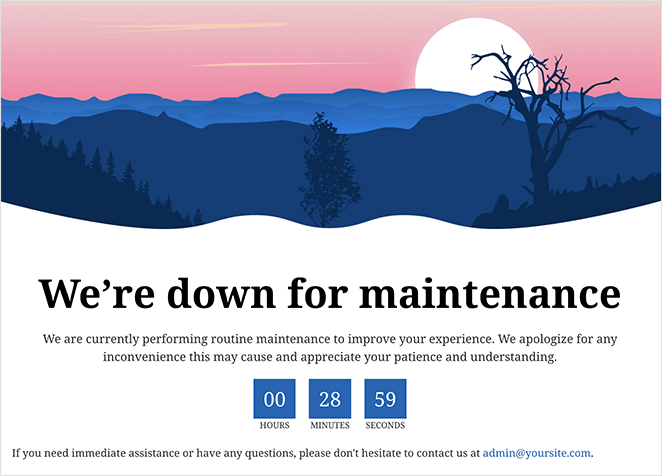
Maintenance mode is a temporary state in which your WordPress site shows a placeholder page to public visitors while you work on it. Your site is technically online, but visitors see a “we’re working on something” screen instead of your actual content. Administrators and logged-in users can still access the real site.
Common use cases for maintenance mode include:
- Major site redesigns — hiding an in-progress theme switch from visitors
- Plugin testing — applying a significant plugin update without visitors seeing a broken layout
- Pre-launch — keeping a site hidden while content is built out
- Emergency repairs — pulling a site offline-facing while fixing a critical issue
Maintenance mode is handled by a plugin (SeedProd, LightStart, CMP, and others) and is meant to be switched on temporarily, then off when the work is done.
Decision Guide
Which situation describes you?
- Your site is live and needs ongoing care → See Section 4 (Maintenance Services)
- You’re building or redesigning and need to hide the site from visitors → See Section 5 (Maintenance Mode Plugins)
- You’re doing a major update and want to show a temporary notice → See Section 5 for the plugin, plus the DIY checklist in Section 7
Maintenance mode plugins and ongoing maintenance services solve completely different problems. This guide covers both — clearly separated.
Best WordPress Maintenance Services: Full Reviews
The following reviews cover nine of the most credible WordPress maintenance services available in 2026. Each review follows a consistent format: what the plans include, what they honestly leave out, who they are best suited for, and what the published support SLAs look like.
WP Buffs — 24/7 Care Plans with Edit Support
WP Buffs is one of the most recognized names in WordPress maintenance, and for good reason: their plan structure is transparent, their response times are among the most clearly published in the space, and they offer genuine 24/7 emergency support even on entry-level plans.
| Plan | Monthly (Annual Billing) | Key Feature |
|---|---|---|
| Maintain | $67/mo | Updates, backups, security optimization, uptime monitoring |
| Protect | $147/mo | Everything in Maintain + 24/7 site edits |
| Perform | $197/mo | + Malware removal, staging environment, speed optimization tools |
| Custom | $347/mo | + More developer hours, advanced edits |
| Custom Pro | $447/mo | Maximum coverage, highest-priority support |
Source: Verify current pricing at wpbuffs.com/plans/ — February 2026 rates shown above.
Included (Maintain tier): WordPress core, plugin, and theme updates; daily cloud backups; security optimization; uptime monitoring; 24/7 emergency support access.
Not included in Maintain: Malware removal, speed optimization work, unlimited site edits, staging environment. These are Perform-tier features. If your site gets hacked on the Maintain plan, cleanup is extra.
Best for: Small and medium business service sites, small WooCommerce stores with a budget that prioritizes quality over cost minimization. The Protect tier ($147/mo) offers the best value for SMBs that need occasional site edits done for them.
Not the right fit for: Hobby blogs where the Maintain tier’s gaps (no malware removal, no staging) may result in unexpected costs; enterprise sites requiring contractual SLA guarantees with financial penalties.
Response / SLA: 24/7 support access; 24-hour response for standard requests; emergency response for critical issues around the clock.
SiteCare — Proactive Maintenance with SEO Included
SiteCare differentiates itself with a service guarantee at the Gold tier and above — if your site goes down, gets hacked, or suffers a performance degradation, the next month is free. That is a meaningful commitment that most competitors do not make in writing.
| Plan | Monthly | Key Feature |
|---|---|---|
| Silver | ~$95/mo | Daily backups, automated updates, malware scanning |
| Gold | ~$390/mo | + Managed hosting, staging-tested updates, 5 quick fixes/mo, service guarantee |
| Platinum | ~$965/mo | + Priority support, unlimited quick fixes, Core Web Vitals optimization |
| Diamond | Custom pricing | eCommerce, LMS, multisite, enterprise-level support |
Source: Verify current pricing at sitecare.com/plans/ — note: Silver pricing has ranged $95–120/mo in conflicting sources; confirm before purchasing.
Included (Silver): Daily backups, automated plugin and core updates, malware scanning, proactive threat protection, guaranteed email delivery setup.
Not included in Silver: Managed hosting, staging environment, content edits or quick fixes (Gold+), Core Web Vitals optimization (Platinum+). Silver is essentially monitoring and automated updates — useful, but passive.
Gold plan distinction: The service guarantee makes Gold genuinely different from Silver. It also includes staging-tested updates, which means plugin updates are tested in a safe environment before going live. This significantly reduces the risk of a broken update taking down a live site.
Best for: Growing businesses with marketing teams that rely on consistent site performance; sites where an update breaking checkout or lead forms would have immediate revenue consequences.
Not the right fit for: Budget-conscious site owners — Silver is genuinely basic and the gap to Gold is significant both in features and price. If you cannot justify Gold, SiteCare Silver may feel underwhelming compared to alternatives at a similar price.
Response / SLA: Standard email support at Silver; priority support at Gold and above. Gold includes the financial-backed service guarantee.
Performance optimization for WordPress extends well beyond what a maintenance plan covers. The wplasma.com WordPress guides include detailed breakdowns of caching plugins, CDN configuration, and Core Web Vitals improvement strategies.
GoWP — White-Label Maintenance for Agencies
GoWP is built around a specific use case: agencies and freelancers who manage maintenance for multiple client sites and need a white-label solution that looks like their own offering. The $39/site/month maintenance plan is priced to work as a component in an agency’s resold service package.
| Service | Monthly Cost |
|---|---|
| WordPress Maintenance | $39/site/mo |
| Unlimited Content Edits | $99/site/mo |
| Dedicated Developer | $1,299/mo |
| Dedicated Virtual Assistant | $1,099/mo |
Source: Verify current pricing at gowp.com — February 2026 rates shown above.
Included (Maintenance $39/site): WordPress core, plugin, and theme updates; security monitoring; cloud backups; white-label client reporting dashboard.
Not included: Content edits (separate $99/site plan), emergency developer support for complex issues, advanced security response beyond monitoring alerts.
Best for: Agencies managing 10 or more client sites who want to outsource the execution of maintenance while maintaining their own client relationships and branding. Freelancers who want to offer maintenance as a service without doing the technical work themselves.
Not the right fit for: Individual site owners; businesses that need developer hours included in the package, not just updates and monitoring.
Response / SLA: 24/7 maintenance team access; emergency support available.
WP Tech Support — Structured Plans with Developer Time
WP Tech Support stands out for one reason: their plans explicitly include developer time at tiers above entry-level. Most maintenance services either include unlimited minor edits or zero developer time — WP Tech Support offers a middle path with defined monthly developer hours.
| Plan | Monthly | Developer Time |
|---|---|---|
| Standard | $55/mo | None |
| Pro | $75/mo | 60 min/mo |
| Business | $99/mo | 90 min/mo |
| Advanced | $175/mo | 180 min/mo |
Source: WP Tech Support published pricing — verify at wp-techsupport.com before purchasing.
Included (Standard): WordPress core, plugin, and theme updates; daily security scans; daily backups; uptime monitoring; 24/7 support access.
Not included in Standard: Developer time for bug fixes or edits (Pro+), malware removal details, SEO optimization work (Advanced tier feature).
Best for: Small business sites that need occasional developer assistance — perhaps 60–90 minutes of minor fixes per month — without committing to a full developer retainer. The Business plan at $99/month gives 90 minutes of developer time on top of complete maintenance, which is a reasonable value for sites with occasional technical requests.
Not the right fit for: High-traffic or eCommerce sites that need stronger SLAs, staging environments, and more comprehensive security response than this tier provides.
Response / SLA: 24/7 support access across all plans.
WP Tangerine — Unlimited Tasks Model
WP Tangerine takes a different approach from the maintenance-focused services above. Rather than charging for specific tasks like updates and backups, they offer an “unlimited WordPress tasks” model where you submit requests and they are handled in order.
Plans start at: $147/mo (verify current pricing at wptangerine.com)
Included: Unlimited WordPress tasks including page edits, plugin installs, troubleshooting, speed optimization, content updates, and design changes. Tasks are handled 1–2 hours at a time per work cycle.
Best for: Non-technical WordPress site owners who need ongoing help with tasks beyond just maintenance — the kind of person who regularly needs someone to “just fix it” or “make this change.” If you have a growing list of small tasks that never get done, WP Tangerine’s model fits that use case.
Not the right fit for: Sites that only need passive maintenance (updates, backups, monitoring) with no active edit requests — you would be paying for task bandwidth you are not using. Also not ideal for emergency situations requiring immediate developer response, as the task queue model does not prioritize urgency the same way an SLA-based service does.
Response / SLA: Business hours availability; task queue model rather than guaranteed response times.
Elementor Care — Maintenance for Elementor-Powered Sites
Elementor Care is the maintenance offering from Elementor, the page builder that powers a significant share of WordPress sites. The key advantage is integration: if your site is built with Elementor, the people maintaining it deeply understand the tool you are using.
| Plan | Monthly |
|---|---|
| Basic | $9.99/mo |
| Platinum Support | $99/mo |
Source: elementor.com — verify current pricing before purchasing.
Included: 24/7 monitoring, daily backups with 30-day storage, Elementor-specific performance optimization, security scanning.
Not included at Basic: Developer hours, site edits, advanced troubleshooting. The $9.99/mo Basic plan is very much a monitoring-and-backups tier.
Best for: Elementor Pro users who want integrated support from the tool vendor, and who already pay for Elementor Pro. Eliminates the need for a third-party maintenance plugin or service for basic coverage. Platinum is appropriate for more complex Elementor sites needing active support.
Not the right fit for: Sites not built with Elementor — the performance optimization and support expertise is Elementor-specific and you will not get that tailored benefit on a Divi, Kadence, or block-editor site. Also not appropriate for anyone who needs significant developer time or content editing support.
Response / SLA: 24/7 global support team across both plans.
Modular DS — SaaS Tool for WordPress Agencies
Modular DS is categorically different from every other service on this list. It is not a service that maintains your site — it is a platform that lets agencies and freelancers build and run their own maintenance offerings for client sites. Understanding this distinction is critical before considering it.
| Plan | Monthly | Site Limit |
|---|---|---|
| Starter | ~$34/mo | Up to 50 sites |
| Business | ~$57/mo | Unlimited sites |
Source: Verify current pricing at modulards.com/en/pricing/ — February 2026 rates shown above.
Included: Multi-site management dashboard, automated plugin/core/theme updates, one-click backups, security monitoring, uptime monitoring, client reporting tools, white-label reporting.
Best for: Freelancers and agencies who want to build their own maintenance offering in-house. If you manage 10–50+ client sites and want a centralized dashboard with automated maintenance and professional client reports — without outsourcing the actual work — Modular DS is the right category of tool.
Not the right fit for: Individual site owners who want someone else to handle maintenance. Modular DS does not send a team to fix your site — it gives your team the tools to manage maintenance more efficiently.
Total WP Support — Budget Option for SME Sites
Total WP Support occupies the budget end of the professional maintenance market. At $49/mo to start, it targets small local business sites that need professional coverage without enterprise pricing.
Plans start at: $49/mo (verify current pricing at totalwpsupport.com)
Included: Site backups, WordPress core and plugin updates, uptime monitoring, hack cleanup, malware removal. eCommerce support is available as an add-on for $60/mo additional.
Best for: Small local business websites — restaurants, contractors, service providers — with straightforward WordPress installs and moderate traffic. The malware removal inclusion at this price point is notable and useful for sites at higher-than-average attack risk.
Not the right fit for: High-traffic sites, complex plugin stacks, WooCommerce stores with significant revenue volume, or any situation where a broken update could cause major business impact. The support depth at entry pricing reflects the price point.
WPRiders — Enterprise-Grade WordPress Partner
WPRiders operates at the opposite end of the market from Total WP Support. Their client list includes Panasonic, Versace, BNP Paribas, and Rutgers University — organizations with complex WordPress implementations that have outgrown generic monthly plans.
Pricing: Monthly retainer with custom pricing — contact for a quote (no published tiers).
Included: Content and software updates, security surveillance and response, performance optimization, daily backups, SEO monitoring, on-call expert access with a named account team.
Best for: Enterprise organizations, large membership sites, high-revenue eCommerce operations, or any site where a 4-hour outage could have measurable six-figure cost. The value is expertise, accountability, and access to a team that knows your specific implementation — not commodity updates and monitoring.
Not the right fit for: Small or medium sites where the custom pricing model and enterprise positioning would result in paying enterprise rates for standard maintenance needs. Request a quote to assess fit.
Service SLA Comparison
| Service | Published Response SLA | Emergency Support |
|---|---|---|
| WP Buffs | 24/7 support; 24h response for standard requests | Yes, 24/7 |
| SiteCare | Priority support Gold+; Gold includes service guarantee | Gold+ tiers |
| GoWP | 24/7 maintenance team | Yes |
| WP Tech Support | 24/7 across all plans | Yes |
| WP Tangerine | Business hours + task queue model | Not specified |
| Elementor Care | 24/7 global support | Yes |
| Modular DS | Not a service provider — platform/tool only | N/A |
| Total WP Support | Not published; standard support model | Available |
| WPRiders | Response within hours (per testimonials); named account team | Yes |
Best WordPress Maintenance Mode Plugins
Maintenance mode plugins serve a specific, temporary purpose: showing visitors a professional holding page while you work on your site. The six options below cover every use case, from free and simple to premium and feature-rich.
SeedProd — Most Powerful Maintenance Mode and Landing Page Builder
SeedProd is the most feature-complete option on this list, but it is also clearly more than a maintenance mode plugin. It handles coming soon pages, maintenance mode pages, and full landing pages in a single drag-and-drop builder. If you need all three, SeedProd eliminates the need to install multiple plugins.
| Plan | Annual Price | Sites |
|---|---|---|
| Basic | $79/yr | 1 site |
| Plus | $199/yr | 3 sites |
| Pro | $399/yr | 5 sites |
| Elite | $599/yr | 100 sites |
Pricing verified February 2026 — verify current rates at seedprod.com.
Free plan: Yes, with limited templates and features.
Key features: Drag-and-drop page builder, 150+ templates, proper 503 HTTP status code for SEO, meta tag control, countdown timers, opt-in forms, one-click enable/disable, WooCommerce block support (Elite).
Pros: Most complete solution available; handles coming soon, maintenance, and full landing pages from one interface; excellent template library; works reliably with caching plugins.
Cons: Higher pricing tiers needed for WooCommerce-specific blocks; the full feature set may be overkill if you genuinely only need to put up a maintenance page twice a year.
Best for: Sites that also need coming soon and landing pages — one plugin replaces three. Also the best choice for agencies building multiple sites who want a professional maintenance page on every project.
SeedProd’s full feature set extends beyond maintenance mode into landing page building and full website creation. For a look at how page builders compare for WordPress site design, see the WordPress theme and plugin reviews at wplasma.com.
LightStart (Formerly WP Maintenance Mode) — Best Free Option
LightStart, developed by Themeisle and formerly known as WP Maintenance Mode, is the go-to free maintenance mode plugin for good reason. Over 500,000 active installs and a 4.3/5 rating from 856 reviews (verified at WordPress.org, February 2026) reflect years of reliable performance. The plugin was last updated September 2025, confirming active maintenance.
Pricing: Free
Key features: Countdown timer, contact form, subscription form for email capture, social media icon links, WordPress multisite support, GDPR-ready subscriber management, exportable subscriber list, SEO options including proper response codes.
Pros: Completely free; actively maintained by Themeisle (a reputable WordPress developer); multisite support is a genuine differentiator at zero cost; subscribers are exportable to email platforms.
Cons: Basic design templates with limited visual customization; no drag-and-drop editing; fewer layout options than SeedProd. If your maintenance page needs to look like a highly polished brand page, LightStart’s free tier may require some CSS work.
Best for: Any site needing a free, reliable maintenance page with email capture. It is the default recommendation for anyone who needs maintenance mode without a budget commitment.
CMP — Coming Soon and Maintenance Plugin — Solid Free Alternative
CMP (Coming Soon & Maintenance) is another strong free option with a feature that distinguishes it from the competition: bypass URLs that allow clients or team members to preview the real site without logging in.
Pricing: Free
Key features: 3 built-in themes, SEO and GDPR settings, bypass URL for client or reviewer access, logo upload, countdown timer, social links.
Pros: Free; lightweight with minimal site overhead; GDPR compliant out of the box without configuration; bypass URL feature is genuinely useful for client review workflows during development.
Cons: Only 3 free themes — design options are limited; no drag-and-drop editing; significantly fewer templates than SeedProd; upgrade required for additional themes.
Best for: Web development teams and freelancers who need to share a preview of a site in progress with a client without giving them WordPress admin access. The bypass URL solves this cleanly without requiring additional user accounts.
Elementor Maintenance Mode — Best for Elementor Pro Users
Elementor Pro includes built-in maintenance mode functionality, meaning Elementor Pro users do not need a separate plugin for this. The maintenance page is designed and managed entirely within the Elementor editor, keeping the design system consistent with the rest of the site.
Pricing: Included in Elementor Pro ($49/yr and up — verify current Elementor Pro pricing)
Key features: Full Elementor widget library available on the maintenance page; built-in coming soon mode; SEO-friendly 503 status code; instant toggle in WordPress Customizer.
Pros: No additional plugin required; the maintenance page uses the same design system as the rest of the site; full access to Elementor widgets means highly customized pages are possible without a separate page builder.
Cons: Requires Elementor Pro — the free version of Elementor does not include maintenance mode; completely irrelevant for sites not built with Elementor.
Best for: Existing Elementor Pro users. If you already pay for Elementor Pro, this is your simplest path to a maintenance page — no additional plugin needed.
Under Construction — Dead Simple Setup
Under Construction targets WordPress users who want a maintenance page live in the shortest time possible. The plugin’s primary selling point is speed of setup, and it delivers on that.
Pricing: Free; Premium from approximately $49/year (verify at underconstructionpage.com)
Key features: One-click enable/disable, 100+ premade templates (many premium), caching plugin compatible out of the box.
Pros: Fastest setup on this list — the plugin is configured and active within minutes; works with popular caching plugins like WP Rocket and W3 Total Cache without additional configuration; strong template library even at the free tier.
Cons: No SEO tools (proper 503 code, meta control) in the free version — these require the premium tier; limited design flexibility beyond template selection; no drag-and-drop customization.
Best for: WordPress beginners who need a maintenance page live in under 5 minutes and do not need SEO control or email capture during the maintenance window.
Minimal Coming Soon — Lightweight Minimalist Option
Minimal Coming Soon is exactly what its name implies: a lightweight, visually clean maintenance and coming soon plugin that prioritizes simplicity over features. It is the right choice when you want the maintenance page to reflect a minimalist brand aesthetic without adding a heavy plugin to your install.
Pricing: Free; Pro from approximately $39/year (verify current pricing)
Key features: Custom logo upload, social media links, GDPR compliant by default; SEO tools including proper status codes in Pro version only.
Pros: Extremely lightweight with minimal database and performance impact; clean, modern default design that works well for design-focused brands; straightforward setup with no learning curve.
Cons: SEO protection (proper 503 status code and meta control) only available in Pro; no drag-and-drop editing; fewer active installs than LightStart or SeedProd, meaning less community support and fewer third-party resources.
Best for: Designers and minimalist-style sites that want a maintenance page consistent with a clean brand identity, without the overhead of a full page builder plugin.
Plugin Comparison Table
| Plugin | Pricing | Free Plan | Active Installs | SEO (503 Code) | Drag-and-Drop | Best For |
|---|---|---|---|---|---|---|
| SeedProd | $79–$599/yr | Yes | 1M+ | Yes | Yes | All-in-one builder + maintenance |
| LightStart | Free | Yes | 500K+ | Yes | No | Best free option with email capture |
| CMP | Free | Yes | 100K+ | Yes | No | Bypass URL for client previews |
| Elementor (built-in) | $49/yr (Pro) | No | 5M+ (Elementor) | Yes | Yes | Elementor Pro users only |
| Under Construction | Free, ~$49/yr | Yes | 1M+ | No (free) | No | Fastest setup for beginners |
| Minimal Coming Soon | Free, ~$39/yr | Yes | 30K+ | No (free) | No | Minimalist design aesthetic |
WordPress Maintenance Cost: What You Actually Pay
WordPress maintenance costs range from nearly zero (DIY with free tools) to nearly $1,000 per month (premium professional services). Understanding what drives that range — and where each option sits — helps you make a purchasing decision based on actual value, not marketing positioning.
| Service | Entry Plan | Mid Plan | Top Plan | Best Value Tier |
|---|---|---|---|---|
| WP Buffs | $67/mo | $197/mo | $447/mo | Protect ($147/mo) for small businesses |
| SiteCare | ~$95/mo | ~$390/mo | ~$965/mo | Gold for marketing-dependent sites |
| GoWP | $39/site/mo | $99/site/mo | $1,299/mo (dedicated staff) | Maintenance-only for agency use cases |
| WP Tech Support | $55/mo | $99/mo | $175/mo | Business for sites with dev time needs |
| WP Tangerine | $147/mo | — | — | Unlimited tasks if request volume is high |
| Elementor Care | $9.99/mo | $99/mo | — | Basic for Elementor-built monitoring |
| Modular DS | ~$34/mo | ~$57/mo | — | Business for agencies managing 50+ sites |
| Total WP Support | $49/mo | — | — | Simple brochure sites with tight budgets |
All prices are from multiple sources, verified February 2026. Verify current pricing at each provider’s website before purchasing — promotional pricing is common and rates may have changed.
DIY vs. Professional Cost Breakdown
A fully capable DIY maintenance stack built from the most reliable free and low-cost tools looks like this:
- UpdraftPlus Premium (backups): ~$70/year
- Wordfence Premium (security scanning): ~$99/year
- WP Rocket (caching and performance): ~$59/year
- UptimeRobot (uptime monitoring): Free for 5-minute checks
- GTmetrix (performance testing): Free tier
Total annual cost: approximately $228/year, or roughly $18–25/month equivalent. That is the tool cost. The real cost of DIY maintenance is time: 2–4 hours per month for a standard 5–10 page site. For a WooCommerce or membership site, expect 4–8 hours per month due to order database management, user accounts, and more complex plugin stacks.
The break-even calculation is straightforward: if your hourly professional or business value exceeds what a $67/month maintenance plan costs per the time it would take you to handle maintenance yourself, outsourcing is financially rational — independent of the expertise gap. Most small business owners who value their time at $75/hour or more will find professional maintenance plans worthwhile at the SMB tier ($67–99/mo) without needing to do detailed calculations.
DIY WordPress Maintenance Guide: Complete Monthly Checklist
If you have decided that DIY maintenance is the right approach for your site, the following checklist gives you a structured process. These tasks, done consistently, cover the core maintenance requirements for most WordPress sites.
Weekly Tasks (15–20 Minutes)
- Check WordPress core version — navigate to Dashboard → Updates. If a new version is available, review the changelog and apply the update. Minor version updates (e.g., 6.7.1 to 6.7.2) are almost always safe to apply immediately. Major version updates merit a staging test first if you have one.
- Run plugin updates — review each pending update before applying it. Check the plugin’s changelog for any notes about breaking changes. If you have a staging environment, test major plugin updates there before pushing to production. Apply updates one at a time if you have any concerns about plugin conflicts.
- Review backup logs — open your backup plugin dashboard (UpdraftPlus shows backup history on the main settings page) and confirm this week’s backup completed successfully. A backup that “runs” but fails silently is one of the most common DIY maintenance failures.
- Check uptime monitoring alerts — review your UptimeRobot or Jetpack Monitor dashboard for any downtime events you may not have noticed via email. Even brief outages worth less than 5 minutes may not trigger alerts but may appear in logs.
- Review security scan results — check your Wordfence dashboard or the Sucuri alert emails from the past week. Look for blocked login attempts trending upward (may indicate a brute-force campaign), new files flagged as suspicious, or any malware detection.
Monthly Tasks (45–60 Minutes)
- Optimize the database — use WP-Optimize or a similar plugin to clear post revisions, trash, spam comments, and expired transients. On an active blog or WooCommerce store, these tables accumulate quickly. A database with 10,000 post revisions will run noticeably slower on admin operations than a clean one.
- Review site speed — run a GTmetrix or Google PageSpeed Insights test. Compare against your baseline. If the overall score has dropped more than 10 points or a specific metric (LCP, CLS, FID) has regressed, investigate which recent change caused it. New plugins and large images are the most common culprits.
- Clean Media Library — delete images and files you no longer use. This reduces storage costs and keeps the library navigable. The Media Library Cleaner plugin can help identify unused attachments.
- Check for broken links — run Broken Link Checker (as a plugin or the online tool) and fix or remove any 404 errors. Broken internal links harm user experience; broken external links may affect perceived credibility.
- Review user accounts — check your user list for any inactive accounts, especially with Administrator or Editor roles. Remove former contractors or team members. Look for any accounts you do not recognize — unexplained new admin accounts are a common sign of a compromised site.
- Test contact forms and key conversion points — submit your contact form and confirm you receive the notification email. If you have a newsletter signup, test the confirmation flow. If you have a WooCommerce store, test the checkout with a $0 or refunded order.
Quarterly Tasks (2–3 Hours)
- Full plugin audit — review your complete installed plugin list. Any plugin not updated by its developer in 6 or more months should be researched: is the plugin officially abandoned? Has it been removed from the WordPress repository? If so, find an actively maintained alternative. Patchstack flagged 827 abandoned plugins in 2023 alone.
- Review analytics for traffic drops — open Google Search Console and Google Analytics. Look for sudden drops in organic traffic that may signal a manual penalty, deindexing issue, or technical problem (like a noindex tag accidentally applied sitewide). Traffic drops of 20%+ in a single week warrant investigation.
- Test a full site restore from backup — at minimum quarterly, verify that your backup can actually restore. Use a staging environment or a local install via LocalWP to run a restore test. A backup you have never restored from is an untested hypothesis, not a recovery plan.
- Review SSL certificate expiry date — check your SSL certificate expiration date in your browser or hosting control panel. Most certificates auto-renew, but failures happen. A lapsed SSL certificate causes browser security warnings that immediately damage trust and conversions.
- Check Core Web Vitals in Google Search Console — navigate to Search Console → Experience → Core Web Vitals. Review the trend for pages flagged as Poor or Needs Improvement, and address regressions.
- Update outdated content — review pages and posts that contain date-sensitive information: pricing, hours, staff members, event dates, or references to current-year statistics. Outdated content erodes credibility and may affect search rankings for time-sensitive queries.
Annual Tasks (4+ Hours)
- Full security audit — review all user access levels, firewall rules, and file permissions. Consider running a dedicated security audit using a service like Sucuri’s one-time audit or WPScan’s vulnerability scan to get an outside perspective on your current exposure.
- WordPress configuration review — check your current PHP version (should be at least PHP 8.1, ideally 8.2+ as of 2026) and verify server compatibility with the latest WordPress. Hosting control panels typically show PHP version in a settings panel.
- Hosting plan review — review your current hosting plan against actual traffic and storage growth over the past year. Many sites continue paying for hosting plans that are either significantly over- or under-provisioned as traffic patterns change.
- Plugin stack evaluation — are all installed plugins still actively used? Feature creep and past experiments leave behind plugins that run on every page load even when their visible functionality is not used. Deactivate and delete anything unnecessary.
- Theme review — is your current theme still actively maintained by its developer? Is it compatible with the latest WordPress release? Theme developers sometimes discontinue support, leaving users on an unmaintained codebase. This annual check catches the issue before it becomes urgent.
Total DIY time estimate: 2–4 hours per month for a standard 5–10 page site. WooCommerce stores or membership sites should budget 4–8 hours per month due to order database management, user activity, course content, and a more complex plugin stack requiring more careful update processes.
The tools you use for DIY maintenance determine how reliable your process is. For plugin-by-plugin recommendations covering backups, security, and caching, visit the WordPress plugin guides at wplasma.com.
When to Hire a Professional Maintenance Service
There is no universal answer to whether DIY or professional maintenance is the right choice. The decision depends on four factors: your site’s revenue risk, your technical comfort level, your available time, and the complexity of your WordPress installation.
DIY Makes Sense When:
- Your site is a personal blog, portfolio, or hobby project with low traffic and no revenue tied to uptime
- You have genuine technical comfort — you can troubleshoot plugin conflicts, interpret error logs, and use WP-CLI when needed
- You have 2–4 hours available each month and are willing to commit to a consistent maintenance schedule
- No business revenue, leads, or critical operations depend on the site being up at any given moment
Hire a Professional When:
- Business revenue depends on uptime: If one hour of downtime translates to lost sales, missed leads, or damaged client relationships, the economics of professional maintenance are almost always justified
- You lack time or technical confidence: Plugin conflicts, PHP compatibility issues, and database corruption require experience to diagnose and resolve. Attempting to fix these without the right knowledge often makes the situation worse
- Your WooCommerce or membership site has complexity that demands expert updates: A bad update on a WooCommerce store can silently break checkout. A staging-tested update process (which most professional services provide) eliminates this risk
- Your site has been hacked before: A prior compromise is a strong signal that your current security posture is insufficient. Professional monitoring and proactive response address the systemic issue, not just the symptom
- You manage 5 or more sites: At five sites, DIY maintenance consumes 10–20 hours per month. Professional services or agency tools like GoWP and Modular DS deliver better results in a fraction of the time
The Hidden Cost of Skipping Maintenance
The financial case for professional maintenance becomes clearest when you factor in the cost of the events it prevents:
- Emergency hack cleanup: Professional malware removal and site restoration typically costs $150–$500 per incident from reputable providers, and significantly more for complex infections or data loss scenarios
- WooCommerce downtime: One hour of downtime for an eCommerce store during peak traffic is not just an inconvenience — it represents real, calculable lost revenue. Even a store generating $5,000/month in revenue loses $7/minute of downtime, plus the recovery time and customer trust impact
- A broken checkout update: A single plugin update that breaks WooCommerce checkout can go undetected for hours if there is no automated testing or monitoring in place. Professional services with staged testing and active monitoring catch this before customers encounter it
What to Look for in a WordPress Maintenance Plan
Not all maintenance plans that look comprehensive actually are. The following eight criteria, paired with specific red flags, give you a framework for evaluating any maintenance plan before signing up.
| Criterion | What Good Looks Like | Red Flag |
|---|---|---|
| Update process | Staging-tested updates with a rollback plan before going live | “We apply live updates” with no mention of staging or rollback |
| Backup policy | Off-site daily backups with a documented, tested restore process | “Backups included” with no detail on storage location or restore testing |
| Security approach | Active daily scanning plus malware cleanup included in the plan | “We install a security plugin” — passive, no active response included |
| Uptime monitoring | 24/7 monitoring with active response, not just alert forwarding | “We notify you of downtime” — notification without action is on you to fix |
| Response SLA | Written timeframes for urgent vs. standard requests, in the plan terms | Vague: “we respond quickly” or “within business hours” with no specifics |
| Performance work | Database optimization, caching checks, and Core Web Vitals monitoring | No speed or performance work mentioned — updates and backups only |
| Developer time | Defined hours for fixes, edits, and troubleshooting included in monthly cost | Every change beyond automated updates is a separate project quote |
| Reporting | Monthly report with specifics: what was updated, scan results, uptime percentage | No reporting at all, or only available on request |
One additional evaluation step worth taking: ask any prospective provider how they handle a plugin update that breaks your site at 11pm on a Friday. The answer to that question — specifically, who responds, how quickly, and what authority they have to roll back — tells you more about the real quality of the service than any marketing page.
Match Your Site Type to the Right Maintenance Plan
The right maintenance approach is specific to your site’s traffic, revenue model, and technical complexity. This section translates the information from the service reviews into direct recommendations by site type.
Personal Blog or Portfolio
Risk level: Low. A blog going down for two hours is an inconvenience, not a business crisis.
Recommended approach: DIY maintenance using free tools — UpdraftPlus (free tier for weekly backups), Wordfence (free tier for security scanning), and a monthly 30-minute check covering updates, backup verification, and a basic performance check. Total cost: effectively $0 for basic coverage.
If outsourcing: Total WP Support at $49/month or Elementor Care Basic at $9.99/month covers the fundamentals without overpaying for capabilities you do not need. The $9.99 Elementor Care Basic plan, in particular, makes sense if your blog is built with Elementor Pro.
Small Business Brochure or Service Site
Risk level: Medium. Lead forms and phone number visibility depend on the site being up. Downtime during business hours can result in missed inquiries and reduced perceived credibility.
Recommended approach: WP Buffs Maintain at $67/month or WP Tech Support Standard at $55/month. Both cover updates, backups, security scanning, and uptime monitoring — the complete basic maintenance stack — with professional accountability and 24/7 support access.
Upgrade trigger: If your site generates meaningful lead volume — say, 20+ inquiries per month — consider moving to WP Buffs Protect ($147/mo) for site edit support, or WP Tech Support Pro ($75/mo) for 60 minutes of monthly developer time.
WooCommerce Store
Risk level: High. Every minute of downtime or broken checkout is directly measurable revenue loss.
Recommended approach: WP Buffs Perform at $197/month or SiteCare Gold at approximately $390/month. Both provide staging-tested updates (critical for WooCommerce where a bad update can silently break payment processing), 24/7 monitoring with active response, and malware cleanup included.
Must-haves for any WooCommerce maintenance plan: Staging environment for update testing; daily backups at minimum (per-order backups for high-volume stores); malware cleanup included in the plan price; documented SLA for emergency response.
WooCommerce site complexity grows with the number of extensions and payment integrations in use. The WooCommerce guides at wplasma.com cover plugin selection, security hardening, and performance tuning specifically for stores.
Membership or LMS Site
Risk level: High. User data, active subscriptions, course progress, and member access all depend on reliable, stable site operation. Plugin conflicts on a LearndDash or MemberPress site can be particularly complex to diagnose and resolve.
Recommended approach: SiteCare Gold (approximately $390/month) for sites with significant membership revenue, or WP Tangerine (starting $147/month) for sites that also need ongoing task support alongside maintenance. The plugin stack complexity on a membership or LMS site demands staging-tested updates and experienced WordPress developers who understand how these systems interact.
Agencies Managing Multiple Client Sites
Risk level: Varies by client, but reputational risk is high — a client site going down reflects on the agency.
Recommended approach: GoWP at $39/site/month for agencies that want to outsource maintenance execution with white-label reporting; Modular DS at $34–57/month as a SaaS platform for agencies who want to manage maintenance in-house across 10–50+ sites from a single dashboard. These two options serve different operational models and are not competing alternatives — one outsources the work, the other gives you tools to do it yourself efficiently.
Frequently Asked Questions
Why do I need WordPress website maintenance?
WordPress is a dynamic software platform that requires ongoing updates to remain secure, functional, and performant. Plugins — which power most WordPress functionality — introduce 96.77% of all WordPress vulnerabilities according to Patchstack’s 2023 research. Without regular updates, your site accumulates unpatched security risks while simultaneously degrading in performance as databases grow and caching configurations drift. Sites that go unmaintained for 6+ months are significantly more likely to be compromised by automated scanners targeting known vulnerabilities in outdated software versions.
How much does WordPress maintenance cost per month?
DIY WordPress maintenance with reliable tools costs approximately $18–25/month in software fees, plus 2–4 hours of your time each month. Professional maintenance services range from $9.99/month (Elementor Care Basic, monitoring only) through $49–99/month for entry-level plans covering updates, backups, and security scanning, to $390–965/month for premium plans with staging-tested updates, developer time, and SLA-backed emergency support. All pricing verified February 2026 — verify current rates directly with each provider before purchasing.
What is WordPress maintenance mode?
WordPress maintenance mode is a temporary state that shows a placeholder page to public visitors while you work on the site behind the scenes. Administrators remain able to access and edit the site normally. It is typically activated using a plugin (SeedProd, LightStart, CMP, and others) during major redesigns, significant plugin updates, pre-launch builds, or emergency repairs. Maintenance mode is not the same as ongoing WordPress maintenance — it is a temporary screen, not a recurring service.
Can I do WordPress maintenance myself?
Yes, provided you have technical comfort with WordPress, available time (2–4 hours per month for a basic site), and a low-stakes site where downtime or a broken update is an inconvenience rather than a business crisis. A DIY stack of UpdraftPlus, Wordfence, WP-Optimize, and UptimeRobot covers the core maintenance requirements at low cost. For WooCommerce stores, membership sites, or any site where downtime means lost revenue, the expertise and SLA guarantees of professional services typically justify the monthly cost.
How often should I update WordPress plugins?
Plugin updates should be checked weekly. Security updates — particularly those addressing known vulnerabilities — should be applied as soon as possible after release. Delay between a vulnerability being published and a patch being applied is exactly the window automated attackers exploit. Patchstack’s data shows 58.84% of WordPress vulnerabilities require no authentication, meaning public discovery of a vulnerability creates immediate risk. For non-security feature updates on WooCommerce or complex sites, testing on a staging environment before applying to production is strongly recommended.
What happens if I do not maintain my WordPress site?
Unmaintained sites accumulate compounding risks over time. In the short term (weeks to months), outdated plugins create known vulnerability exposure that automated scanners actively target — 97% of WordPress attacks are automated. In the medium term (months to a year), database bloat slows admin performance, outdated PHP compatibility creates hosting friction, and plugin conflicts from unmaintained codebases become increasingly difficult to resolve. In the long term, unmaintained sites face malware infection, search engine penalties for hosting malicious content, hosting suspension, and costly emergency restoration work that typically costs $150–500+ per incident.
What is the difference between maintenance mode plugins and maintenance services?
They solve completely different problems. A maintenance mode plugin (like SeedProd or LightStart) is a temporary visitor-facing screen that hides your site during a redesign or repair — it is switched on for hours or days and then turned off. An ongoing maintenance service (like WP Buffs or SiteCare) is a recurring subscription covering the background work that keeps a live site healthy: plugin updates, backups, security scanning, uptime monitoring, and performance checks. You may need both at different times, but they do not substitute for each other.
Which WordPress maintenance mode plugin is best for free users?
LightStart (formerly WP Maintenance Mode) is the strongest free option. It has over 500,000 active installs, a 4.3/5 rating from 856 reviews, is actively maintained by Themeisle as of September 2025, and includes features that some paid alternatives lack: multisite support, email subscription capture with an exportable list, countdown timers, and GDPR-ready subscriber management. CMP is a close second, particularly if your workflow requires giving clients a preview bypass URL during a build without creating WordPress user accounts for them.
How do I choose a WordPress maintenance plan?
Start with four questions: (1) Does my site generate revenue that depends on uptime? If yes, budget at least $67–99/month for a plan with active monitoring and emergency support. (2) Do I need staging-tested updates? If you run WooCommerce or a membership site, yes — this eliminates most broken-update risk. (3) How much developer time do I realistically need per month? Match developer hour inclusions to your actual workflow. (4) Is malware cleanup included or extra? Verify this specifically — it is commonly excluded from entry-tier plans. Use the criteria table in Section 9 to score any plan you are evaluating.
Do I need a maintenance plan if I have managed WordPress hosting?
Managed WordPress hosting (WP Engine, Kinsta, Flywheel, and similar providers) typically handles server-level maintenance: PHP updates, server security, infrastructure performance, and automatic WordPress core updates. What most managed hosting does not handle: plugin and theme updates, security scanning for application-level vulnerabilities, database optimization, uptime alerting configured to your specific workflows, performance monitoring, or malware cleanup. Managed hosting reduces your maintenance burden but does not eliminate it. For plugin-heavy sites, the plugin update and security scanning components of a maintenance plan or DIY process remain necessary even with managed hosting.
Conclusion
WordPress maintenance falls into two distinct categories, and treating them as one category leads to the wrong purchasing decisions. Ongoing maintenance services — WP Buffs, SiteCare, GoWP, WP Tech Support, and the others reviewed here — keep a live site secure, updated, and performing well on an ongoing basis. Maintenance mode plugins — SeedProd, LightStart, CMP, and their alternatives — temporarily hide a site from visitors during a redesign or repair. Both categories have a role, but they serve entirely different purposes.
For most small business sites, a professional maintenance plan in the $67–99/month range delivers the best protection-to-cost ratio. These plans cover the tasks that matter most — plugin updates, backups, security scanning, and uptime monitoring — with professional accountability and emergency response that DIY processes cannot replicate. For WooCommerce and membership sites where an undetected broken update could mean hours of lost revenue, the SiteCare Gold or WP Buffs Perform tier’s staging-tested update process is worth the higher price.
DIY maintenance remains a viable and financially rational choice for personal blogs, portfolios, and low-stakes sites where the site owner has technical comfort and consistent time available. A $18–25/month tool stack (UpdraftPlus, Wordfence, WP-Optimize, UptimeRobot) covers the core requirements if 2–4 hours per month are genuinely available and consistently applied.
The key decision factor is honest self-assessment: how much does your site’s downtime actually cost, and how much is your time worth relative to what a professional service charges? For most business owners, that calculation resolves clearly. For hobbyists and developers, DIY remains a perfectly sound approach.
All pricing in this guide was verified in February 2026. Verify current rates directly with each service or plugin provider before making a purchasing decision, as pricing in this market changes regularly.
