



Most WordPress sites leave their meta descriptions blank or let the platform auto-generate something from the first few lines of content. That default behavior costs clicks every single day. When someone sees your page in search results, the meta description is the 1-2 sentence pitch that decides whether they come to your site or scroll past it.
This guide covers exactly how to add meta descriptions — and yes, meta keywords too — using the three most popular WordPress SEO plugins: AIOSEO, Yoast SEO, and Rank Math. You’ll also get the honest 2026 verdict on meta keywords (spoiler: you can mostly skip them for Google), plus practical tips for writing descriptions that actually get people to click.
Quick Summary
If you’re short on time, here’s what you need to know before diving in:
- Meta descriptions: Still important — every post and page should have one. They appear in Google search results and influence whether people click your link.
- Meta keywords: Ignored by Google and Bing in 2026. Only worth adding if you’re specifically targeting Yandex (Russian search) or Baidu (Chinese search).
- Which plugin: AIOSEO, Yoast SEO, and Rank Math all handle meta descriptions well in their free versions. Choose based on what you’re already using.
- How fast: Once a plugin is installed, adding a meta description takes about 2 minutes per page.
Jump to your plugin:
- Using AIOSEO
- Using Yoast SEO
- Using Rank Math
- Checking without a plugin
- Writing meta descriptions that get clicks
What Are Meta Descriptions and Meta Keywords in WordPress?
Before touching any settings, it’s worth understanding what these two things actually are — because they get lumped together a lot, but they behave very differently in 2026.
What Is a Meta Description?
A meta description is the short paragraph — typically 150-160 characters — that appears under your page title in Google search results. It doesn’t live on your page where visitors can read it. Instead, it’s a tag in your page’s HTML <head> section that search engines read when building their results listings.
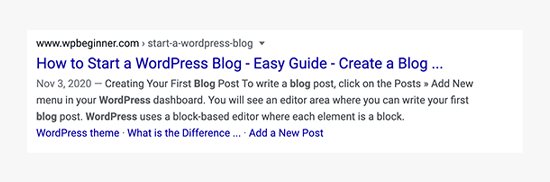
When someone searches for a term that matches words in your description, Google often bolds those words — making your result stand out. That’s why writing a description with your target keyword included (naturally) is worth the extra minute.
Here’s what a meta description tag looks like in raw HTML:
<meta name="description" content="Your 150-160 character summary goes here. Write it for humans, not search engines." />You’ll never need to write that code manually if you’re using an SEO plugin — but it’s helpful to know what’s happening behind the scenes.
What Is a Meta Keyword (and Should You Bother in 2026)?
The meta keywords tag is a separate HTML element that was designed to tell search engines which keywords a page targets. In the early web, it mattered. By 2009, Google officially announced it no longer uses the keywords meta tag for ranking. Bing followed suit. Today, adding meta keywords to your site does virtually nothing for Google or Bing rankings — and in cases of obvious keyword stuffing, it can register as a minor spam signal.
That said, there are two exceptions worth knowing:
| Search Engine | Uses Meta Keywords? | Notes |
|---|---|---|
| ❌ No | Official stance since September 2009; may treat heavy stuffing as spam | |
| Bing | ❌ No | Officially ignores them; keyword stuffing may trigger spam filters |
| DuckDuckGo | ❌ No | Uses Bing index — inherits Bing’s position |
| Yandex | ⚠️ Minimal | Historically used them; weight heavily reduced in recent algorithm updates |
| Baidu | ⚠️ Minimal | Drastically reduced weight; largely obsolete for Chinese SEO |
Practical guidance: If your site primarily targets English-speaking audiences on Google, skip meta keywords entirely. If you’re specifically targeting Russian or Chinese markets and have bandwidth to add them, a few relevant keywords per page won’t hurt.
Why WordPress Doesn’t Add Meta Descriptions Automatically
A default WordPress installation does not generate meta description or meta keyword tags. That’s by design — the WordPress core team can’t know what description you’d want for each unique post, so they leave that blank rather than publish something inaccurate.
When no meta description exists, Google usually pulls the first readable paragraph from your page as the snippet. Sometimes it works. Often it doesn’t — especially if your post starts with a table of contents, a callout box, or an intro that doesn’t summarize the page well. The plugins below give you direct control.
Which SEO Plugin Should You Use?
Three plugins collectively cover the vast majority of WordPress sites that manage meta descriptions. Here’s how they compare on the features relevant to this task:
| Feature | AIOSEO | Yoast SEO | Rank Math |
|---|---|---|---|
| Meta description field (free) | ✅ Yes | ✅ Yes | ✅ Yes |
| Meta keywords field (free) | ✅ Yes (enable in settings) | ✅ Yes (enable in settings) | ✅ Yes |
| Character counter | ✅ Yes | ✅ Yes | ✅ Yes |
| SERP snippet preview | ✅ Yes | ✅ Yes (desktop + mobile) | ✅ Yes |
| AI-assisted description generator | ✅ Yes (OpenAI API, pay-per-use) | ❌ Premium only | ✅ Yes (built-in, limited free) |
| Focus keywords (free) | ✅ Unlimited | ❌ 1 (unlimited in premium) | ✅ 5 per post |
| Active installs | 3M+ | 12–13M | 3M+ |
| WordPress.org rating | 4.7/5 (5,056 reviews) | 4.8/5 (27,790 reviews) | 4.9/5 (7,375 reviews) |
| Best for | Beginners; all-in-one simplicity | Industry standard; most integrations | Feature-rich free tier; power users |
Source: wordpress.org plugin pages, March 2026
All three are capable for this task. The choice usually comes down to which one you’re already using or plan to use for your broader SEO setup. If you’re starting fresh and want the most features free, Rank Math is hard to beat. If you want the most widely-supported plugin with the largest community, Yoast is the safe choice. AIOSEO sits comfortably in the middle. For a deeper breakdown, see our AIOSEO vs Yoast comparison.
How to Add a Meta Description Using AIOSEO
AIOSEO (All in One SEO) adds a dedicated settings panel below the WordPress editor — both the classic editor and the block editor (Gutenberg). Here’s how to use it.
Adding a Meta Description to Posts and Pages
Open the post or page you want to edit. Scroll down past the editor to find the AIOSEO Settings box. You’ll see a snippet preview at the top showing how your result might look in Google.
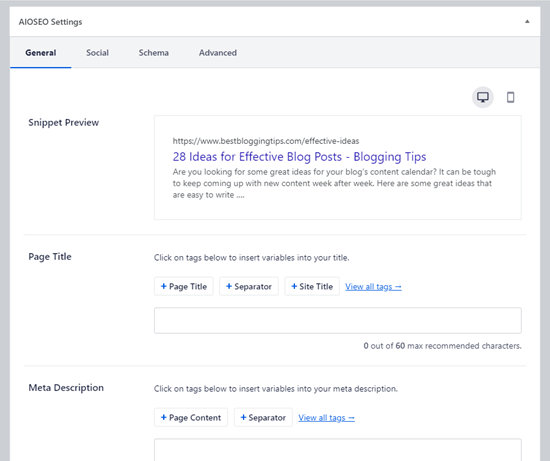
Click on the Meta Description field and type your description. AIOSEO shows a character counter as you type. Aim to stay under 160 characters to avoid truncation in most search results. When you’re satisfied, save or publish the post — the description saves automatically.
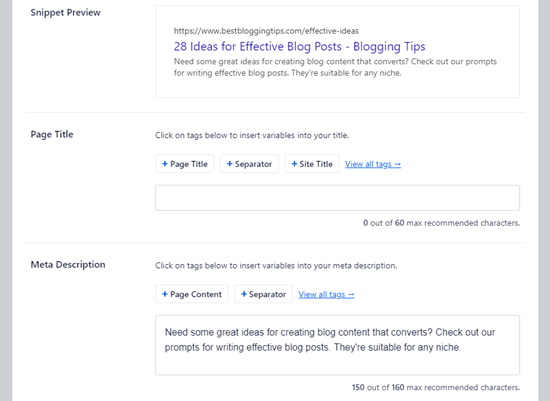
Dynamic tags: AIOSEO supports dynamic tags in descriptions — useful for automatically including elements like post date, category, or author name. Type the # character inside the description field to see the available tag options. This works well for templates across large sites.
Enabling and Adding Meta Keywords in AIOSEO
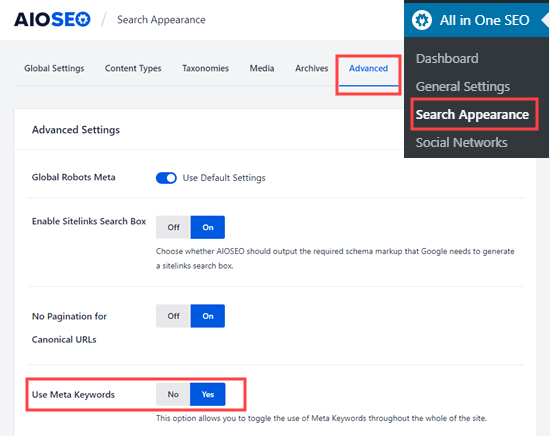
Meta keywords are off by default in AIOSEO, which reflects the reality that they don’t affect Google rankings. To enable them: go to All in One SEO → Search Appearance → Advanced in your WordPress dashboard, then toggle Use Keywords from No to Yes. Save your changes.
Once enabled, keywords appear in the Advanced tab of the AIOSEO settings panel on each post. Type a keyword and press Enter to add it. Keep your keywords directly relevant to the page content.
You can also configure AIOSEO to auto-generate keywords from your post’s categories and tags. This is a reasonable time-saver if you’re adding keywords at scale, though the SEO benefit remains minimal for Google/Bing.
Setting Meta Descriptions for Your Homepage and Archives
Homepage: Go to All in One SEO → Search Appearance → Global Settings, then scroll to the Home Page section. The description field works the same way as on individual posts.
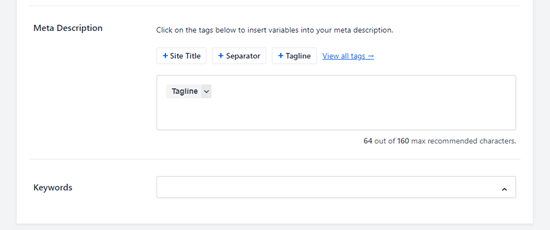
Category and tag archives: Navigate to Posts → Categories, hover over the category you want to edit, and click Edit. Scroll down to the AIOSEO Settings box — the description field works exactly as it does for posts. Repeat for tags if needed.
How to Add a Meta Description Using Yoast SEO
With over 12 million active installs, Yoast SEO is the most widely used SEO plugin in the WordPress ecosystem. Its color-coded feedback system — green for good, yellow for needs work, red for issues — has helped millions of users understand their SEO at a glance without needing to know the underlying rules.
Adding a Meta Description to Posts and Pages
In the Yoast SEO panel, click Edit snippet to expand the full snippet editor. You’ll see fields for the SEO title, slug, and meta description. The description field has a colored progress bar beneath it — green means your description is within the recommended range, yellow means it’s too long or too short.
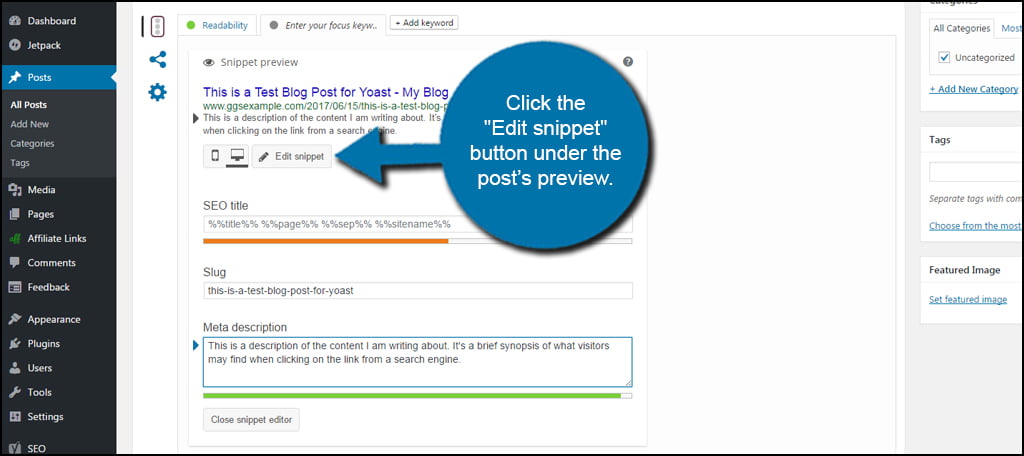
Write your description in the field and watch the bar. Aim for green. Once you’re happy with it, save or publish the post.
Focus keyphrase vs. meta keywords: These are two different things in Yoast. The Focus Keyphrase field (in the main Yoast panel) is an internal analysis tool — it tells Yoast which keyword to check your content against for density and placement. It has no direct output to your page’s HTML. Meta keywords, by contrast, are an HTML tag output. In the free version of Yoast, focus keyphrase analysis is limited to one keyword per post; the premium version unlocks multiple.
Enabling Meta Keywords in Yoast
Yoast disables the meta keywords feature by default — for the same reason as AIOSEO: they don’t affect rankings on major search engines. To enable it: go to SEO → Settings, navigate to the Advanced section, and look for the option to enable the meta keywords tag. Toggle it on and save.
Once enabled, a Meta keywords field appears in the Advanced tab of the Yoast panel for each post. Add keywords separated by commas.
Setting Homepage and Archive Descriptions in Yoast
For your homepage: go to SEO → Settings → Site representation, or via Search Appearance → General in older versions of Yoast. You’ll find a description field for your site’s home page there.
For category archives: go to Posts → Categories, edit the category, and scroll to the Yoast SEO box. The snippet editor appears here just as it does on individual posts.
How to Add a Meta Description Using Rank Math
Rank Math is the third major player in this space, with over 3 million active installs and the highest user rating (4.9/5) of the three plugins covered here. Notably, none of the competing articles on this topic cover Rank Math at all — so if you’re a Rank Math user, this section is for you.
Adding a Meta Description to Posts and Pages
After installing Rank Math, open any post or page. At the top of the block editor, you’ll see a small Rank Math SEO icon (a bar chart icon) in the toolbar. Click it to open the Rank Math panel on the right side, or look for it in the sidebar.
In the Rank Math panel, click the Edit Snippet button (it shows a small preview of your title and description). This opens the snippet editor with three fields: Title, Permalink, and Description.
Click inside the Description field and write your meta description. Rank Math includes a character counter with color feedback similar to Yoast — green when you’re in the optimal range. When done, close the snippet editor and save your post. Rank Math saves the description automatically.
Variables: Like AIOSEO’s dynamic tags, Rank Math supports variables in descriptions. Start typing % inside the description field to see available variables like %title%, %excerpt%, or %currentyear%.
Meta Keywords in Rank Math
Rank Math includes a meta keywords field in its Advanced tab within the post panel. Scroll down in the Rank Math sidebar panel, look for the Advanced section, and you’ll find the keywords input field there. Enter keywords separated by commas.
The same guidance applies here: skip meta keywords for Google and Bing-focused sites. The field is available, but the SEO value for most sites is effectively zero.
Homepage and Archive Descriptions in Rank Math
Go to Rank Math → Titles & Meta → Home Page for your homepage description. For category archives: Rank Math → Titles & Meta → Categories. Each of these sections has a description field and snippet preview that works the same way as the post editor.
How to Write Meta Descriptions That Actually Get Clicks
Knowing where to paste a meta description is the easy part. Writing one that makes people choose your result over the others is where most sites fall short. Here’s what actually works.
The Length Rules
Google truncates meta descriptions based on pixel width, not strict character count. On desktop, the cutoff is around 920 pixels — roughly 155-160 characters using standard fonts. On mobile, it’s tighter: about 680 pixels, or 120-130 characters. To be safe across both, write descriptions between 120 and 158 characters. That range gives you enough space to write a compelling summary without getting cut off on smaller screens.
Note: Bold text (which Google applies when your description contains words matching the search query) is slightly wider than regular text. If your primary keyword is near the end of a 158-character description, it may still get truncated on mobile after bolding. Keep your core message in the first 120 characters when possible.
What Makes a Description Worth Clicking
A meta description is closer to ad copy than a summary. The goal isn’t to describe your article — it’s to answer the reader’s implicit question: “Why should I read this instead of the other results?”
Effective descriptions tend to:
- Include the target keyword naturally (it appears in bold in search results when it matches the query)
- Be specific — “step-by-step guide with 3 methods” beats “learn about meta descriptions”
- Address the reader’s intent directly — if someone’s searching how-to, the description should confirm you deliver exactly that
- Stay accurate — Google rewrites descriptions that don’t match the page content
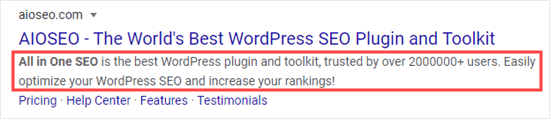
Here are three contrasting examples:
| Type | Weak | Better |
|---|---|---|
| How-to article | “This article is about adding meta descriptions in WordPress.” | “Step-by-step guide to adding meta descriptions in WordPress with AIOSEO, Yoast, or Rank Math — takes about 2 minutes per page.” |
| Product page | “Premium WordPress themes for professionals.” | “Responsive WordPress business themes — fast load times, WooCommerce ready, and 1-click demo import included.” |
| Service page | “We offer WordPress development services.” | “Custom WordPress development: theme customization, plugin builds, and speed optimization for growing businesses.” |
Does Google Always Use Your Meta Description?
Here’s a number that surprises many site owners: Google rewrites meta descriptions approximately 63-70% of the time, according to studies by Search Engine Journal and Ahrefs. On first-page results, the rewrite rate is even higher — around 68% on desktop and 71% on mobile.
This happens when Google believes a different passage from your page better matches the specific query someone typed. It’s not a penalty — it’s Google trying to serve a more relevant snippet. Understanding this dynamic is part of knowing how to improve organic click-through rate over time.
A few practices reduce how often Google overrides your description:
- Write descriptions that genuinely match what your page delivers (not a sales pitch for a page that reads like an educational guide)
- Include your primary keyword phrase, since Google is less likely to rewrite when the description already addresses the likely query
- Avoid duplicate meta descriptions across multiple pages — this is a common trigger for rewrites
Even with a 63-70% rewrite rate, writing descriptions is still worthwhile. The ~30-37% of the time Google does use yours is a direct opportunity to influence what searchers see.
Can You Add Meta Descriptions Without a Plugin?
Yes — though it’s rarely the practical choice. If you want to avoid adding a full SEO plugin, you can add a meta description directly to your theme’s header.php file. For a static, site-wide description, add this in the <head> section:
<meta name="description" content="Your site description here." />For dynamic, per-post descriptions using WordPress’s built-in functions:
<meta name="description" content="<?php
  if ( is_single() ) {
    single_post_title('', true);
  } else {
    bloginfo('name');
    echo ' - ';
    bloginfo('description');
  }
?>" />
The limitation here is obvious: the code method gives you far less control than a plugin. Each post won’t have its own unique, manually written description — you’ll get auto-generated fallbacks that rarely perform as well as crafted ones. For most sites, the 30 seconds to install an SEO plugin is the better investment.
Frequently Asked Questions
What is the ideal length for a meta description?
The sweet spot is 120-158 characters. Google’s cutoff is based on pixel width (around 920px on desktop, 680px on mobile), which works out to roughly 155-160 characters for standard text. Writing in the 120-158 range keeps you safe across both desktop and mobile without being so short that your description feels incomplete.
Does Google always use my meta description?
No. Research from Ahrefs and Search Engine Journal shows Google rewrites meta descriptions roughly 63-70% of the time, most commonly when it believes a different passage from your page better answers the specific query. You can reduce rewrites by writing accurate descriptions that match your page’s content and include your target keyword — but you can’t control it entirely.
Are meta keywords still important for SEO in 2026?
Not for Google or Bing. Google officially stopped using meta keywords for ranking in 2009, and Bing followed. For sites targeting English-speaking audiences on Google, meta keywords have no ranking value and aren’t worth the time. The only exceptions are Yandex (Russian search) and Baidu (Chinese search), which have historically considered them — though even their weight has been significantly reduced.
What is the difference between a focus keyword and a meta keyword?
A focus keyword (or focus keyphrase) is an internal tool setting within your SEO plugin. You use it to tell the plugin which term to analyze your content against — it affects the plugin’s optimization suggestions and scoring but doesn’t output any HTML to your page. A meta keyword, by contrast, is an actual HTML tag that gets written to your page’s <head> section. They’re separate features with different purposes.
Should I add meta descriptions to every page on my WordPress site?
Yes, for all important pages: posts, key landing pages, your homepage, and category archive pages. Low-value pages like tag archives, search result pages, or paginated archives (page 2, page 3) are often set to noindex anyway, so descriptions there are lower priority. Start with your most-visited pages first and work from there.
What happens if I don’t write a meta description?
Google will auto-generate a snippet by pulling text from your page — usually the opening paragraph, an excerpt, or whatever passage Google thinks is most relevant to a given query. Sometimes this works fine. More often, the auto-generated snippet is fragmented, missing context, or starts with a navigation element instead of your main content. Writing your own description gives you control over that first impression in search results.
Can I add meta descriptions in WordPress without a plugin?
Yes, by editing your theme’s header.php file directly. However, this approach either gives you one site-wide description (not ideal) or requires custom PHP for per-post descriptions. SEO plugins handle this automatically with a clean user interface, making them the practical choice for most sites. The code-only method is mainly used by developers who want minimal plugin dependencies.
How do I know if my meta description is working?
Google Search Console for WordPress is the most direct way to check. Under Performance → Search Results, you can see which queries trigger impressions for each page, the click-through rate (CTR), and the average position. If pages with well-written descriptions show higher CTR than similar pages without them, that’s your signal. AIOSEO also has a built-in keyword rank tracker that surfaces this data directly in your WordPress dashboard.
Conclusion
Meta descriptions are one of the few places where a small amount of effort pays consistent dividends. A well-written description doesn’t directly change your ranking, but it does change whether people choose to click your result — and click-through rate has downstream effects on how Google perceives your page’s relevance.
The process is straightforward regardless of which plugin you use: install AIOSEO, Yoast SEO, or Rank Math, open any post or page, scroll to the SEO panel, and fill in the description field. Keep it between 120-158 characters, include your target keyword naturally, and write it for the person searching — not for the algorithm.
Meta keywords, by contrast, are largely optional for most sites in 2026. If your audience is primarily on Google and Bing, skipping the keywords tag costs you nothing. Save that time for the description.
