


Your WordPress site could be offline in the next 24 hours, and you’d have no way to get it back. That’s not a scare tactic — it’s a statistical reality. Hackers target WordPress sites constantly, plugin updates go wrong without warning, and even reputable hosting providers lose data. The difference between a one-hour problem and a permanent loss of everything you’ve built comes down to one thing: whether you have a reliable backup.
This guide covers the best WordPress backup plugins available in 2026 — not just listing them, but comparing them honestly on restore reliability, pricing, performance, and which site types they actually suit. We also cover what most backup articles skip entirely: how to test that your backup works, what to do when your backup fails, and the 3-2-1 backup strategy that gives real protection. If you already know which plugin you want, jump to the comparison table. If you want to make a well-informed choice, read on.
BLUF — Quick Summary for Busy Readers
If you need to pick a plugin today, here’s the short version based on our analysis of the top 8 options:
- Best free backup plugin overall: UpdraftPlus — scheduled cloud backups, one-click restore, and Google Drive/Dropbox/S3 support at no cost
- Best paid solution for WooCommerce: Jetpack VaultPress Backup — real-time backups, order-safe restores, zero server load
- Most reliable restores: BlogVault — runs entirely on its own servers, independent of your hosting
- Best for agencies and site migrations: Duplicator Pro — package-based migration with scheduled cloud backups
- Most generous free tier: WPvivid — scheduling, cloud storage, and staging in the free version
- Best pre-update protection: Total Upkeep — auto-backup before every WordPress update with auto-rollback
- Best premium all-in-one: Solid Backups — incremental backups, 20GB included storage, malware scanning
| Your Priority | Best Plugin | Why |
|---|---|---|
| Best free option | UpdraftPlus Free | Scheduled cloud backups + one-click restore, no cost |
| WooCommerce site | Jetpack VaultPress | Real-time, order-safe restores, Automattic-backed |
| Maximum reliability | BlogVault | Off-server backups, works even when your site is down |
| Site migration + backup | Duplicator Pro | Package-based migration with scheduling and cloud storage |
| Budget + features | WPvivid Free | Includes staging, multiple cloud destinations, scheduling — free |
| Frequent updater | Total Upkeep | Auto-backup before every plugin/theme update; auto-rollback |
| Premium all-in-one | Solid Backups | 20GB included storage, incremental, malware scanning |
Keep reading for full reviews, a comprehensive comparison table, and guidance on choosing based on your specific site type and technical skill level.
Why Your WordPress Site Needs a Backup Right Now
WordPress powers over 43% of all websites on the internet, which makes it the single most targeted platform for cyberattacks. According to Patchstack, a WordPress site is attacked every six seconds. By the time you finish reading this sentence, another site has been compromised.
But hacking is only one of four categories of failure that can destroy a WordPress site:
- Human error: Accidentally deleted a page, corrupted the database running a query, or deactivated the wrong plugin — these are the most common causes of data loss
- Malicious activity: Ransomware, defacement, and data exfiltration happen to sites of every size
- Updates gone wrong: A plugin or theme update that breaks your site — WordPress has millions of plugin combinations, and conflicts happen
- Server chaos: Hardware failures, datacenter outages, and hosting provider bankruptcies are rare but permanent when they happen without a backup
The most common objection to using a backup plugin is: “My hosting provider already backs up my site.” This is partially true, but it misses a critical point. Host-provided backups typically offer:
- Daily snapshots only (you lose everything since the last snapshot)
- Short retention periods (7–14 days is common)
- No granular restore (you restore the whole site or nothing)
- Single point of failure (if your host has a catastrophic failure, their backups may be affected too)
- Restore process often requires contacting support — which adds hours of delay
A dedicated backup plugin solves all of these problems. Combined with the right backup strategy — which we’ll cover next — a backup plugin gives you genuine control over your data.
The 3-2-1 Backup Rule — A Framework Every WordPress Site Owner Needs
The 3-2-1 backup rule is a data protection framework from the IT industry that’s directly applicable to WordPress. It’s simple, proven, and almost completely ignored in WordPress backup articles. Here’s what it means and how to apply it:
Keep 3 copies of your data, on 2 different types of storage, with 1 copy stored offsite.
Applied to WordPress:
- Copy 1 — Your live site: The active version on your hosting server (this counts as one copy)
- Copy 2 — Local or cloud backup: A backup created by your backup plugin, stored on your server or your host’s storage
- Copy 3 — Offsite cloud storage: The same backup sent to Google Drive, Dropbox, Amazon S3, or a second cloud service — completely separate from your hosting environment
Why does this matter in practice? If your hosting server fails catastrophically, copies 1 and 2 may both be gone. Copy 3 — stored independently in the cloud — is your insurance policy. This is why plugins that only store backups locally (Duplicator Lite) or only on the same server are insufficient as your sole backup strategy.
The good news: several backup plugins make the 3-2-1 rule automatic. UpdraftPlus Premium supports backing up to multiple cloud destinations simultaneously. BlogVault stores all backups on its own servers by default — providing automatic offsite storage without any configuration.
What Makes a WordPress Backup Plugin Actually Good?
Before comparing plugins, it helps to understand what the evaluation criteria actually mean. Not all “backup” features are equal.
Backup Types — Full, Incremental, and Real-Time
Most plugins default to full backups — a complete copy of every file and database table every time a backup runs. Full backups are simple and reliable, but they’re expensive in terms of time and storage. A 2GB site running daily full backups generates 14GB of backup data per week.
Incremental backups solve this by only backing up what changed since the last backup. If you publish one blog post today, an incremental backup only captures that post and any related database changes — not the entire 2GB again. Incremental backups are faster, use fewer server resources, and accumulate far less storage over time. They’re a premium feature in most plugins (UpdraftPlus Premium, WPvivid Pro, BackWPup Pro, Solid Backups).
Real-time backups go further still — every change is captured as it happens. No schedule, no intervals. Jetpack VaultPress Backup and BlogVault (for WooCommerce sites) offer this. For a store processing dozens of orders per day, real-time backups mean you never lose more than seconds of data in a worst-case scenario.
Which type do you need? For a static blog or brochure site: weekly full backups are fine. For an actively updated site: daily full or incremental. For a WooCommerce store or high-traffic site: incremental with frequent runs, or real-time.
Storage Options — Where Your Backups Go Matters
There’s a temptation to store backups in the most convenient location — which is usually your own hosting server. Resist this. If your server is compromised or fails, the backup stored on the same server is worthless. The 3-2-1 rule requires at least one offsite copy.
The major cloud storage destinations for WordPress backup plugins:
- Google Drive: Free 15GB, available in most plugins’ free tiers (UpdraftPlus, WPvivid, Backuply)
- Dropbox: Widely supported across free and paid tiers
- Amazon S3: Most scalable option, best for large sites; available in free and paid plugins
- Microsoft OneDrive: Usually a premium feature (UpdraftPlus Premium, BackWPup Pro, WPvivid Pro)
- Plugin’s own storage: UpdraftVault, BlogVault’s servers, JetBackup Cloud — convenient but creates vendor dependency
- FTP/SFTP: Manual control; supported by most plugins
For maximum protection, choose a plugin that lets you back up to at least two destinations — your server (or local) and an external cloud service. UpdraftPlus Premium and WPvivid Pro both support multi-destination backups.
Restore Reliability — The Feature No One Talks About Enough
Creating a backup is easy. Successfully restoring from one — especially under stress when something has gone wrong — is where plugins diverge significantly.
Questions to evaluate restore capability:
- Can you restore if WordPress is broken? Some plugins require WordPress to be functioning to run a restore. Plugins with external dashboards (BlogVault, Jetpack VaultPress via Jetpack.com) or standalone installers (Duplicator) work even when your site is completely inaccessible.
- Can you restore individual components? UpdraftPlus lets you restore only the database, or only the uploads folder, or only plugins — without touching the rest of your site. This is valuable when one component breaks.
- Does restoring to a different domain work? When migrating to a new host or URL, a search-and-replace for your old domain in the database is required. Plugins like Duplicator handle this automatically; others require manual intervention.
- How long does a restore take? Test this before you need it (we cover how to test in a later section).
Scheduling and Automation
The most common reason people don’t have a backup when they need one is simple: they forgot to run one. Automated scheduling eliminates this risk.
Most plugins support hourly, daily, weekly, or monthly schedules. A few things to know about scheduling on shared hosting:
- WordPress uses WP-Cron to run scheduled tasks — this is triggered by site visits, not a real system clock. On low-traffic sites, scheduled backups may not run precisely on schedule.
- Some hosts restrict WP-Cron usage or have it disabled — check this with your host if scheduled backups aren’t running.
- Paid plugins often offer more reliable scheduling (system-level cron integration) or external cron triggers.
One underrated feature: pre-update backups. Total Upkeep automatically creates a backup before every WordPress core, plugin, or theme update. If the update breaks your site, you’re one click from rolling back. UpdraftPlus Premium offers this too. For sites that update frequently, this feature alone justifies the cost.
Security Features
Backup files contain your entire website, including user data and database contents. An unencrypted backup file stored on an accessible server is a security liability.
- Encryption at rest: BackWPup Pro, Duplicator Pro, Solid Backups, and UpdraftPlus Premium all encrypt backup archives
- Encrypted transfer: SFTP and HTTPS cloud destinations encrypt data in transit
- Access control: Some plugins (Duplicator Pro) add password protection to the restoration installer
- Security track record: Check how quickly a plugin responds to reported vulnerabilities — we cover this in each plugin’s review
The 8 Best WordPress Backup Plugins — Detailed Reviews
The following reviews are based on reading all 10 top-ranking competitor articles, analysis of official plugin documentation, and security assessments from Patchstack. Pricing is noted as of February 2026 — verify at each plugin’s official pricing page before purchase.
1. UpdraftPlus — The Most-Installed WordPress Backup Plugin
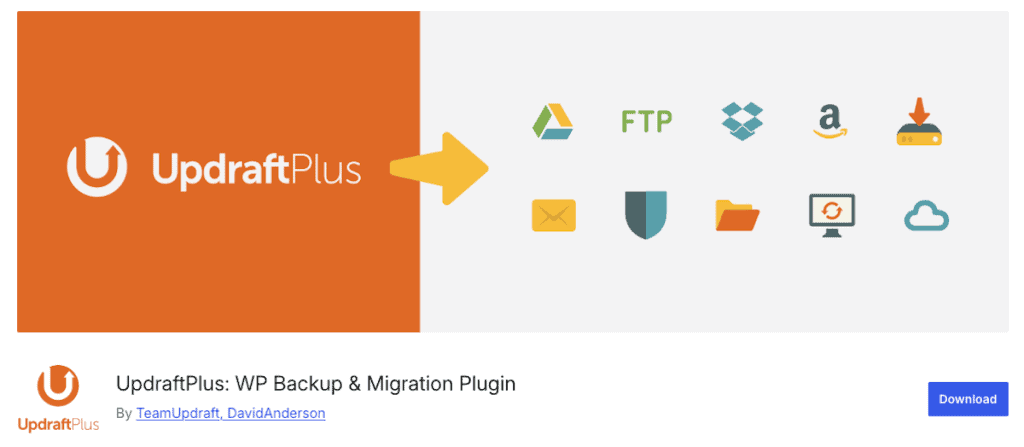
With over 3 million active installations and 8,352+ reviews on WordPress.org (as of January 2026), UpdraftPlus is the most widely deployed backup plugin in the WordPress ecosystem by a significant margin. That popularity is earned — the free version is genuinely capable, not a crippled teaser.
What the free version includes: Scheduled backups (daily, weekly, monthly, or custom intervals), cloud storage to Google Drive, Dropbox, Amazon S3, Rackspace Cloud, DreamObjects, OpenStack Swift, and FTP. One-click restore from the WordPress dashboard. Component-based backups — you can back up and restore the database, plugins, themes, and uploads separately.
What requires Premium: Incremental backups, multisite support, database encryption, backup to Microsoft OneDrive/Azure/Google Cloud/Backblaze/pCloud/SFTP/WebDAV, multi-destination backup (simultaneous upload to two locations), pre-update automatic backups, and priority ticket support.
Pricing: Free. Premium plans from approximately $70/year for 2 sites — verify current pricing at updraftplus.com (February 2026).
Restore process: UpdraftPlus can restore from the WordPress admin dashboard using its built-in restore interface. You select which components to restore, confirm, and the plugin handles the rest. One limitation: if WordPress itself is broken or inaccessible, you’ll need to access the server via SSH/SFTP to restore manually — the plugin can’t restore itself if the WordPress installation is corrupted. This is a common limitation of plugin-based solutions.
Security record: UpdraftPlus fixed a non-persistent reflected XSS vulnerability in January 2025 (version 1.25.1). The plugin maintains an active changelog and responds promptly to security reports. Patchstack rates their security practices at 3.5/5 — solid, though security fixes are sometimes bundled with other updates rather than released separately.
Pros:
- Most generous free cloud storage options of any plugin (Google Drive, Dropbox, S3 — all free)
- 3 million+ installs means extensive community support and documentation
- Component-level restore (granular control without premium)
- Very beginner-friendly setup with contextual help tooltips
- WP-CLI support in Premium for command-line automation
Cons:
- No incremental backups in free tier — large sites create full backups every time
- Cannot restore if WordPress is completely broken (requires working WP install)
- Premium upsell messages inside the dashboard can feel intrusive
- Incremental backups are a premium-only feature where competitors include them in free tiers
Best for: Personal blogs, small business sites, anyone who wants free scheduled backups with cloud storage. Also the default recommendation for beginners because of the setup wizard and extensive documentation.
2. Duplicator — Best for Site Migration and Cloning
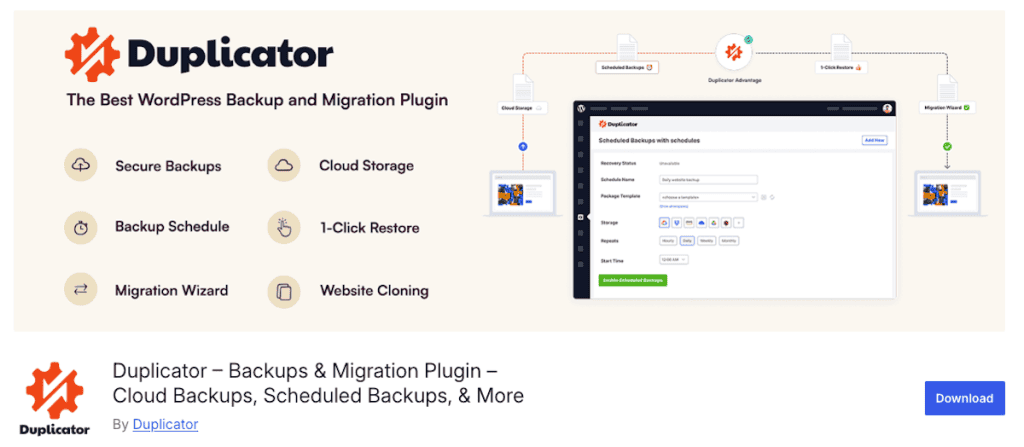
Duplicator has over 1 million active installations and more than 4,000 five-star reviews on WordPress.org. Its approach to backups is fundamentally different from most plugins: rather than creating a backup archive that requires the plugin to restore, Duplicator creates a self-contained package with a standalone installer script that can rebuild your site on any server — even without a pre-existing WordPress installation.
What the free version includes: Manual full-site backups (files + database), local storage only, no scheduling, but includes the standalone installer for migration. You can create custom packages by selecting specific files or database tables.
What requires Pro: Scheduled automated backups, cloud storage (Amazon S3, Google Drive, Dropbox, OneDrive), backup encryption, recovery points (set checkpoints before risky updates), larger site support, and managed hosting compatibility (WP Engine, Kinsta, Flywheel).
Pricing: Free (Lite version). Pro from approximately $49.50/year introductory pricing — verify at duplicator.com (February 2026).
Restore/Migration process: Duplicator’s package-based approach means you download two files: the archive (all site files + database) and an installer script. Upload these to a new server, run the installer in a browser, and it rebuilds your site automatically — handling URL replacements and database configuration. This works even on a completely fresh hosting environment with no WordPress installed. For migrations between hosts, this is genuinely easier than any other approach we’ve encountered.
Security record: Patchstack rates Duplicator’s security practices at 4.5/5 — among the highest of all plugins reviewed. The team has a history of addressing vulnerabilities promptly, and all changes are published in their changelog.
Pros:
- Best migration tool — drag-and-drop site moves between any hosting environments
- Works without WordPress pre-installed on the destination (standalone installer)
- Excellent for cloning sites for development or staging
- Recovery points in Pro let you roll back before risky changes
- Managed hosting support (WP Engine, Kinsta) — other plugins often struggle here
Cons:
- Free version lacks scheduling — manual backups only
- Free version stores locally only — no offsite storage without Pro
- Not the best daily automated backup solution without purchasing Pro
- Large sites (50GB+) can have issues with the free version
Best for: Developers and agencies who frequently move sites between hosting environments. Also excellent for anyone who needs migration capabilities alongside backup. For pure automated backup needs, pair with a free tier of UpdraftPlus or WPvivid.
3. Jetpack VaultPress Backup — Best Real-Time Protection

Jetpack VaultPress Backup is built by Automattic — the company behind WordPress.com and WooCommerce — which gives it a level of WordPress-ecosystem integration no third-party plugin can match. The key differentiator is real-time backup: every single change to your site is captured and stored as it happens, not on a schedule.
There is no free backup tier. This is a paid-only service.
What’s included: Real-time backups (every change, continuously), zero server load (backups run on Jetpack’s cloud infrastructure, not your hosting), 10GB cloud storage, 30-day backup archive, activity log showing every change with one-click restore to any point in the log.
For WooCommerce stores specifically: VaultPress can restore your site to any previous state while preserving recent orders — a genuinely hard problem that most backup plugins can’t solve elegantly. Regular restores would roll back orders along with everything else; VaultPress’s incremental architecture means it can reconstruct site state without losing transaction data.
Pricing: From approximately $2.97–$4.95/month (billed yearly) for 1 site — pricing varies by plan tier. Verify current pricing at jetpack.com (February 2026). Note: pricing sources vary; confirm directly on Jetpack’s pricing page.
Restore process: Restores can be initiated from the Jetpack dashboard (jetpack.com) or the Jetpack mobile app — both function even if your WordPress site is completely inaccessible. This is a significant advantage over plugins that require WordPress to be running for a restore.
Security record: Patchstack rates Jetpack VaultPress at the highest security tier (4.5/5 security practices) and confirms participation in Automattic’s HackerOne bug bounty program — the most proactive security posture of any plugin in this comparison. Backups are encrypted and stored redundantly across Jetpack’s global infrastructure.
Pros:
- True real-time backup — every change captured, not just scheduled snapshots
- Zero CPU/memory impact on your hosting (runs entirely on Jetpack’s infrastructure)
- WooCommerce-safe restores — restore site state without losing recent orders
- External dashboard restore works even when WordPress is broken
- Highest security rating of all plugins compared (HackerOne bug bounty)
- Backed by Automattic — enterprise-grade reliability and development resources
Cons:
- No free backup tier — paid-only from day one
- Requires a WordPress.com account (creates Automattic ecosystem dependency)
- 30-day archive on entry plan — older backups are deleted
- More expensive per year than standalone backup plugins
- Limited customization options compared to plugins like BackWPup
Best for: WooCommerce stores where every order matters. High-traffic sites where even a day’s worth of lost data is unacceptable. Sites where the site owners want a fully automated solution with zero maintenance overhead.
4. BlogVault — Most Reliable Restore Track Record
BlogVault takes a fundamentally different architectural approach: backups don’t run on your server at all. Instead, BlogVault’s systems connect to your site, pull the data, and process and store it on BlogVault’s own infrastructure. Your hosting resources are completely untouched during the backup process.
This architecture solves two of the biggest problems with plugin-based backups: server load impact during backups, and the single-point-of-failure issue where your backup and your live site share the same infrastructure.
There is no free version — only a 7-day free trial.
What’s included on all plans: Unlimited cloud storage (no picking between Google Drive and Dropbox — storage is included), one-click staging environment creation, one-click migration, emergency restore via off-site dashboard (works when WordPress is completely inaccessible), 90-day backup retention on standard plans.
The WooCommerce tier ($349/year) adds real-time backup for store data and extends retention to 365 days.
Pricing: From $149/year for 1 site (Plus plan). Verify current pricing at blogvault.net (February 2026).
Restore process: Restores initiated from the BlogVault dashboard — completely independent of your WordPress installation. If your hosting server is down, your wp-admin is broken, or you’re locked out, you can still restore your site. This is the critical advantage BlogVault has over plugin-based restore systems.
Security record: Patchstack rates BlogVault at 4/5 for security practices. The code follows WordPress best practices, vulnerabilities are patched proactively, and the team communicates fixes. One noted weakness: changelogs are very brief, making it hard to understand exactly what each update contains.
Pros:
- Zero server load — backups run entirely on BlogVault’s infrastructure
- Unlimited included cloud storage — no additional storage cost or configuration
- Off-site dashboard restore — works even when your site is completely down
- 90-day retention on standard plans (most competitors cap at 30 days)
- One-click staging, migration, and emergency restore all built in
Cons:
- Most expensive option on this list at $149/year
- No free plan (7-day trial only)
- Documentation poorly organized — navigating their support docs requires patience
- Limited storage destination flexibility (you use their storage, not your own)
Best for: Revenue-generating business sites where downtime is costly and restore reliability is the top priority. Agencies managing multiple client sites where “it always works” matters more than cost optimization.
5. BackWPup — Best Free Option for Technical Users
BackWPup has over 700,000 active installations and comes from WP Media — the same company behind WP Rocket (3.9 million installs) and Imagify. The plugin is notable for the depth of its free version: scheduled backups, multisite support, cloud storage to Dropbox, Amazon S3, Rackspace, and FTP, WP-CLI compatibility, and a database integrity checking and repair tool.
What the free version includes: Scheduled backups, database + files backup (complete WordPress site), multisite support, storage to Dropbox, Amazon S3, Rackspace, FTP, email. Database health check and repair. WP-CLI support. One-click restore was added to the free version in 2024.
What requires Pro: Google Drive and OneDrive storage, differential backups (only backing up changed directories), backup encryption, more granular scheduling, and priority support.
Pricing: Free. Pro from approximately $69/year — verify at backwpup.com (February 2026).
Restore process: The free version now supports one-click restore (added in 2024). Manual restoration via FTP/cPanel is still the most reliable approach for complete site recovery when WordPress is inaccessible. The pro version adds a dedicated restore interface.
Security record: Patchstack rates BackWPup at 3.5/5 for security practices. Regular updates are released, but there’s no dedicated security contact channel — vulnerability reports go through a generic contact form, which is not ideal for timely handling of critical issues.
Pros:
- Extensive free feature set — multisite, WP-CLI, database repair tool
- Highly configurable — granular control over what’s included in each backup job
- Free cloud storage to Dropbox, S3, and Rackspace (Google Drive requires Pro)
- WP-CLI support enables command-line automation without premium
- Built by WP Media — an established company with multiple popular WordPress products
Cons:
- Steeper learning curve than UpdraftPlus — interface is more complex
- Google Drive and OneDrive storage locked behind Pro (UpdraftPlus offers these free)
- No dedicated security disclosure channel
- Plugin blog hasn’t published a post since 2022 (development continues but communication is sparse)
Best for: Experienced WordPress users and developers who want detailed configuration control and appreciate WP-CLI support. Not the right choice for beginners who want a plug-and-play solution.
6. WPvivid — Most Generous Free Tier
WPvivid has grown to over 700,000 active installations by offering genuinely useful features in its free tier that most competitors lock behind paid plans. Where UpdraftPlus free gives you cloud backup and restore, WPvivid free adds staging site creation and automated migration on top of that.
What the free version includes: Manual and scheduled backups, cloud storage to Google Drive, Dropbox, Amazon S3, Microsoft OneDrive, DigitalOcean Spaces, and FTP/SFTP, one-click restore, staging site creation, and site migration. The free version is capped at 3 stored backups — older ones need to be deleted manually.
What requires Pro: Incremental backups, more cloud storage destinations (Wasabi, pCloud, Backblaze, WebDAV), backup before updates, multisite network support, white-labeling, roles and permissions management, and unlimited backup retention.
Pricing: Free. Pro from approximately $49/year — verify at wpvivid.com (February 2026).
Restore process: One-click restore from the WordPress admin dashboard. The migration engine handles URL replacement automatically when moving between domains. The restore interface is straightforward, though less polished than UpdraftPlus.
Security record: Patchstack rates WPvivid at 4/5 for security practices. Known vulnerabilities have been patched promptly. However, there’s no dedicated security disclosure channel, and changelogs don’t explicitly mention security fixes — which makes it harder to track the plugin’s security history.
Pros:
- Most generous free tier — includes cloud storage to 6+ destinations, scheduling, staging, and migration
- One-click staging site is a rarity in free backup plugins
- Clean, modern interface compared to older plugins
- Very fast backup speed (several reviews note faster-than-average completion)
- Direct site-to-site migration without downloading archives
Cons:
- Free version limited to full-site backups only (no selective component restore)
- Only 3 backup slots in free tier — requires manual management of old backups
- No incremental backups without Pro
- Documentation is hard to navigate (multiple sources flag this)
- Less community presence than UpdraftPlus for troubleshooting help
Best for: Freelancers and small agencies who need staging and migration alongside backups without paying for Pro. Also a strong UpdraftPlus alternative for anyone frustrated by UpdraftPlus’s free tier limitations.
7. Total Upkeep by BoldGrid — Best Pre-Update Protection
Total Upkeep (formerly BoldGrid Backup) addresses a specific pain point that most backup plugins ignore: the window of maximum risk for a WordPress site is the moment you click “Update All.” Total Upkeep automates a backup before every update and can auto-restore if the update triggers an error.
What the free version includes: Manual and scheduled backups, automatic pre-update backups (files + database before every plugin, theme, or core update), automatic rollback if a post-update error is detected, site error monitoring at defined intervals (sends email alert and auto-restores if error found), local server storage.
What requires Pro: Cloud storage to Amazon S3 and Google Drive, single file recovery from backup archives, backup version history with detailed timeline.
Pricing: Free. Pro from approximately $30/year — verify at boldgrid.com (February 2026). This is the most affordable premium option on this list.
Restore process: One-click restore from the WordPress admin. The auto-restore feature triggered by site error detection is genuinely useful — if a plugin update breaks your site and Total Upkeep’s monitoring detects the error, it can restore the pre-update backup automatically without any manual action.
Security record: Patchstack rates Total Upkeep at 3/5 for security practices — the lowest of the plugins reviewed here. There’s no public contact form for security vulnerability reporting on their website. Changelogs are sparsely documented. Vulnerabilities have been patched when discovered, but the security communication infrastructure is weak.
Pros:
- Auto-backup before every WordPress update — built into the free version
- Auto-rollback if post-update errors are detected (site monitoring)
- Lowest premium price of all plugins compared ($30/year)
- Streamlined interface — easier to understand than BackWPup
Cons:
- Cloud storage (S3, Google Drive) requires Pro — free version stores locally only
- Smaller community (60,000 installs) means fewer community resources
- Weakest security communication of all plugins reviewed (Patchstack 3/5)
- No granular incremental backups
Best for: WordPress sites that run frequent updates and want automatic protection during the update process. Also excellent for less technical users who want “set it and forget it” pre-update safety.
8. Solid Backups — Best Premium All-in-One Solution
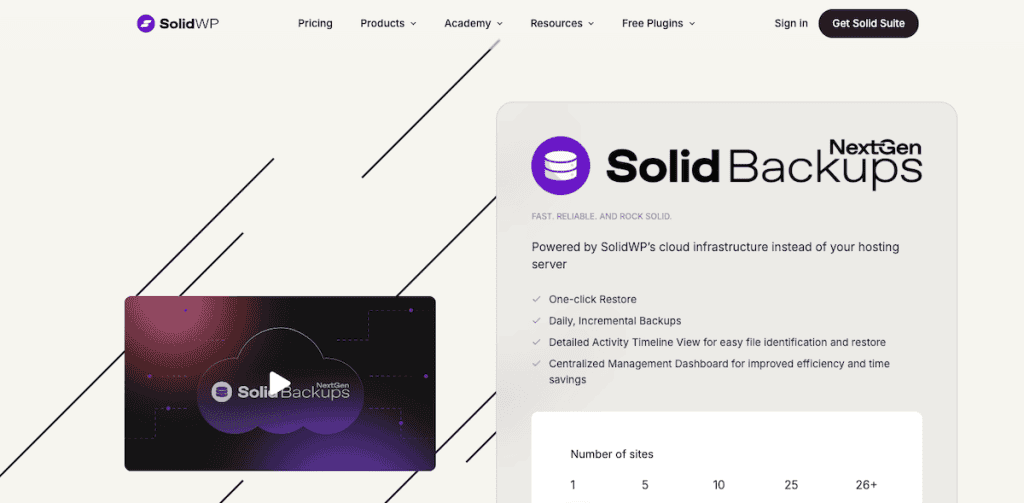
Solid Backups — formerly known as BackupBuddy, which launched in March 2010 — is one of the longest-running WordPress backup solutions. It’s now offered by SolidWP as part of a suite that includes SolidSecurity and SolidCentral. There’s no free version, but a 30-day trial is available.
What’s included: Daily incremental backups, 20GB of included cloud storage on SolidWP’s Stash service (no external cloud account required), one-click restore from Stash dashboard (works when WordPress is inaccessible), malware flagging (suspicious backup archives are flagged for review), mass text replacement for domain migrations, centralized management dashboard for multiple sites.
Solid Backups can also back up to Google Drive, Amazon S3, Dropbox, and Microsoft OneDrive in addition to its own Stash storage.
Pricing: From $99/year for 1 site (~$8.25/month) — verify at solidwp.com (February 2026). No free version — 30-day trial available.
Restore process: Solid Backups can restore from the Stash dashboard when WordPress is broken, similar to BlogVault and Jetpack. For complete site rebuilds, SSH/SFTP access may be needed to place files manually — this is slightly more technical than BlogVault’s one-click approach.
Security record: Patchstack rates Solid Backups at the highest security tier (4.5/5) — tied with Jetpack and Duplicator. The codebase is modular, well-documented, and the team communicates security fixes proactively. The company hosts community meetups and is actively involved in the WordPress community.
Pros:
- 20GB of included cloud storage — no external cloud account setup required
- Daily incremental backups reduce storage and backup time
- Malware scanning integration flags suspicious backup archives
- Mass URL replacement for domain migrations
- 15+ years of production use — most battle-tested premium backup plugin
- Excellent code quality and security record (Patchstack 4.5/5)
Cons:
- No free version — premium only from day one
- $99/year is one of the higher price points on this list
- Not available on WordPress.org plugin repository
- Some restore scenarios require SSH/SFTP for manual file placement
Best for: Sites already using SolidWP products (SolidSecurity, SolidCentral). Agencies wanting a mature, enterprise-grade backup solution with included storage and malware scanning. Sites where 15 years of production validation matters.
WordPress Backup Plugins Compared — Full Feature Matrix
The following table covers the 8 plugins reviewed above across 12 criteria. Pricing verified against competitor analysis data as of February 2026 — confirm at official websites before purchase.
| Plugin | Free Version | Scheduled Backups (Free) | Cloud Storage (Free) | Incremental | Real-Time | One-Click Restore | Staging | Multisite | Encryption | Active Installs | Paid From |
|---|---|---|---|---|---|---|---|---|---|---|---|
| UpdraftPlus | ✅ | ✅ | ✅ (Google Drive, Dropbox, S3, FTP) | Pro only | ❌ | ✅ | Via UpdraftClone (tokens) | Pro only | Pro only | 3,000,000+ | ~$70/year |
| Duplicator | ✅ (Lite) | Pro only | Pro only | ❌ | ❌ | Via installer | Via cloning | Pro only | Pro only | 1,000,000+ | ~$49.50/year |
| Jetpack VaultPress | ❌ | ✅ (paid) | Jetpack servers (paid) | ✅ (paid) | ✅ (paid) | ✅ (paid) | ❌ | ❌ | ✅ (encrypted) | N/A | ~$2.97/month |
| BlogVault | 7-day trial | ✅ (paid) | Unlimited (BlogVault servers) | ✅ (paid) | WooCommerce tier | ✅ (paid) | ✅ (paid) | ❌ | ✅ (encrypted) | 450,000+ | $149/year |
| BackWPup | ✅ | ✅ | ✅ (Dropbox, S3, Rackspace, FTP) | Pro only (differential) | ❌ | ✅ (added 2024) | ❌ | ✅ | Pro only | 700,000+ | ~$69/year |
| WPvivid | ✅ | ✅ | ✅ (Google Drive, Dropbox, S3, OneDrive, DO, FTP) | Pro only | ❌ | ✅ | ✅ | Pro only | Pro only | 700,000+ | ~$49/year |
| Total Upkeep | ✅ | ✅ | ❌ (local only) | ❌ | ❌ | ✅ | ❌ | ❌ | ❌ | 60,000+ | ~$30/year |
| Solid Backups | ❌ (30-day trial) | ✅ (paid) | 20GB Stash (paid, included) | ✅ (paid) | ❌ | ✅ (paid) | ❌ | ❌ | ✅ (paid) | N/A | $99/year |
Note: Pricing is approximate based on research as of February 2026. All pricing should be verified at official plugin websites before purchase. Features may vary by plan tier.
How to Choose the Right Backup Plugin for Your Site
The plugin that’s “best” depends entirely on your situation. Here’s how to match your needs to the right choice.
Choose by Site Type
| Site Type | Backup Priority | Recommended Plugin | Why |
|---|---|---|---|
| Personal blog (low traffic, infrequent updates) | Cost, simplicity | UpdraftPlus Free | Weekly scheduled cloud backup covers everything a blog needs at zero cost |
| Small business brochure site | Reliability, automation | UpdraftPlus Free or WPvivid Free | Daily scheduled backup with cloud storage; set up once, runs automatically |
| WooCommerce store (active orders) | Real-time, order-safe restores | Jetpack VaultPress Backup | Every transaction backed up in real time; restores preserve recent orders |
| High-traffic news / content site | Server performance, frequency | BlogVault or Jetpack VaultPress | Incremental or real-time backups with zero server impact |
| Agency / multiple client sites | Migration, centralized management | Duplicator Pro + UpdraftCentral | Best migration tool; UpdraftCentral manages backups across multiple sites |
| Developer workflow (staging + backup) | Cloning, staging integration | WPvivid or Duplicator | Both offer staging + backup in one tool without premium cost |
| Frequent updater (many plugins + themes) | Pre-update protection | Total Upkeep Free | Auto-backup before every update with one-click rollback if anything breaks |
| Site already on SolidWP ecosystem | Integration, all-in-one | Solid Backups | Seamless integration with SolidSecurity + SolidCentral; included Stash storage |
Choose by Technical Skill Level
| Skill Level | Best Plugin(s) | Why It Fits |
|---|---|---|
| Complete beginner — first WordPress site, no server experience | UpdraftPlus Free | Setup wizard, contextual tooltips, restore from dashboard without technical knowledge |
| Intermediate — comfortable in wp-admin, some hosting experience | WPvivid Free or Total Upkeep | More feature options without technical complexity; staging creation is a useful addition |
| Advanced — understands PHP settings, comfortable with FTP/SSH | BackWPup Free or Duplicator Pro | Maximum configuration control; WP-CLI support; migration capabilities |
| Developer / Agency — manages client sites, CLI workflows, staging | BackWPup + Duplicator or BlogVault | WP-CLI, migration tools, external management dashboards; multi-site workflows |
| Non-technical business owner — wants it to “just work” | Jetpack VaultPress or BlogVault | Fully managed; zero configuration; external dashboard restore without any technical steps |
How to Test Your WordPress Backup Before You Actually Need It
Here’s an uncomfortable truth: most people discover their backup doesn’t work when they desperately need it to. The only way to know your backup is reliable is to test a restore before something goes wrong.
Testing doesn’t require sophisticated tools. Here’s a practical process:
- Create a staging environment. Your hosting provider may offer a one-click staging tool. Alternatively, use WP Staging (free), WPvivid’s staging feature, or a local development environment like LocalWP (free).
- Run a full backup using your plugin. Don’t assume a backup exists — manually trigger one and confirm it completed without errors. Check the backup log file (most plugins log backup events).
- Restore the backup to your staging environment. Use your backup plugin’s restore function to deploy the backup onto the staging site. If the plugin requires manual steps for staging restores, document those steps now — not during a crisis.
- Verify the restored site works correctly. Check: Do all pages load? Does the database content match your live site? Are images rendering? Do forms submit? Does the admin login work?
- Test a cross-domain restore. If you ever need to restore to a new domain (moving hosts), test this scenario too. Plugins like Duplicator and WPvivid handle URL replacement automatically; manual replacements require accessing the database directly.
- Note the restore time. How long did it take to complete a full restore? This is your recovery time estimate in an emergency. If it takes 3 hours, plan accordingly.
- Repeat quarterly. Test your backup restore process every 3 months or before any major site change.
The plugins that shine in this test are those with external restore dashboards (BlogVault, Jetpack VaultPress) and standalone installers (Duplicator). They work even when WordPress is broken — and that’s exactly the scenario where you’ll most need a restore.
What to Do When Your WordPress Backup Fails
No backup system is perfect. Here are the most common reasons WordPress backups fail — and what to do when they do.
Common Backup Failure Causes
- Insufficient disk space: Your hosting account runs out of storage mid-backup, creating an incomplete archive. Check available disk space in your hosting control panel before running large backups.
- PHP execution timeout: Large sites on shared hosting often hit PHP time limits during backup. The solution: reduce the backup zip file split size in your plugin’s advanced settings, switch to incremental backups (Pro), or upgrade hosting.
- WP-Cron not running: On low-traffic sites, scheduled backups may not trigger because WP-Cron requires site visitors to fire. Verify WP-Cron is functioning using a plugin like WP Crontrol.
- Cloud upload failures: The backup creates successfully locally but fails to upload to your cloud storage (authentication issues, storage quota exceeded, network timeout). Check your cloud storage credentials and available quota.
- Corrupted backup archive: The backup completes but the resulting file is corrupted or incomplete. Solid Backups includes integrity verification; other plugins log errors in their backup log.
- Plugin conflicts: Another plugin interferes with the backup process. Deactivate other plugins temporarily and test if the backup completes.
When Your Backup Fails — Recovery Steps
- Check the backup log first. UpdraftPlus, BackWPup, and most major plugins maintain a log of backup events with error details. Find the specific error before attempting any fix.
- Try a database-only backup. The database is far smaller than your full site (typically 1–50MB vs. gigabytes). A database-only backup succeeds where a full backup times out. Restore the database backup + manually restore files via FTP if needed.
- Check server disk space. Log into your hosting control panel (cPanel, Plesk, etc.) and verify available storage. Delete old backup archives if needed.
- Contact your hosting provider. Some hosts throttle backup processes. Ask your host about PHP time limits, memory limits, and any backup restrictions.
- Fall back to your host’s backup. If your plugin backup fails, your host’s backup is your fallback — even if it’s imperfect. Know how to access it before you need it.
- Verify WP-Cron is functioning. Use WP Crontrol to see if scheduled backup tasks are queued and firing correctly.
Prevention is better than recovery: implement the 3-2-1 rule to ensure a backup failure in one location doesn’t leave you without a usable copy. Monitor your plugin’s email notifications — most plugins send an email on backup success or failure.
Frequently Asked Questions About WordPress Backup Plugins
What is the best free WordPress backup plugin?
UpdraftPlus is the most feature-complete free backup plugin for WordPress. The free version supports scheduled backups, cloud storage to Google Drive, Dropbox, Amazon S3, and FTP, and one-click restore from the WordPress dashboard — all without cost. WPvivid is a strong alternative if you also need staging site creation in the free tier.
How often should I backup my WordPress site?
The right frequency depends on how often your site changes. A static brochure site updated monthly needs weekly backups at most. An active blog publishing several times per week needs daily backups. A WooCommerce store processing orders every day needs daily incremental backups at minimum — or real-time backup via Jetpack VaultPress or BlogVault. As a general rule: backup as frequently as you’re willing to lose data. If losing a day’s work is acceptable, daily backups are fine. If losing an hour is unacceptable, you need real-time or hourly backups.
Do I need a backup plugin if my hosting provider already backs up my site?
Yes, for three reasons. First, host backups are typically retained for only 7–14 days — a plugin can retain backups for months. Second, host backups are stored on the same infrastructure as your site — a catastrophic hosting failure can affect both. Third, restoring from a host backup often requires contacting support and waiting hours. A plugin backup lets you restore in minutes, yourself, at any time. Use both: your host’s backup as a safety net, and a plugin backup for active protection.
What is the difference between full and incremental backups?
A full backup copies your entire site — every file and database row — every time it runs. Simple, but storage-intensive: a 2GB site running daily full backups generates 14GB per week. An incremental backup only captures what changed since the last backup. If you publish one post today, the incremental backup contains only that post and related database changes — not 2GB again. Incremental backups use far less storage, run faster, and put less load on your server. They’re a premium feature in most plugins.
Can backup plugins slow down my WordPress site?
Yes, if configured poorly. Backup plugins running full backups during peak traffic hours can noticeably impact server performance — especially on shared hosting. Solutions: schedule backups during low-traffic hours (typically 2–4 AM), use incremental backups (smaller operations), or use a service that runs off your server entirely (BlogVault, Jetpack VaultPress).
What is the 3-2-1 backup rule?
The 3-2-1 backup rule is an IT industry standard: keep 3 copies of your data, on 2 different types of storage media, with 1 copy stored offsite. For WordPress, this means: your live site (copy 1), a backup on your server or local storage (copy 2), and a backup on external cloud storage like Google Drive or Amazon S3 (copy 3 — offsite). Most free backup plugins support this: UpdraftPlus and WPvivid both back up to external cloud storage in their free tiers.
How do I restore my WordPress site from a backup?
The restore process varies by plugin. Most plugins (UpdraftPlus, WPvivid, Total Upkeep) offer a restore button directly in the WordPress admin panel — click it, select your backup, choose which components to restore, and confirm. If WordPress is broken or inaccessible, you’ll need an alternative method: BlogVault and Jetpack VaultPress offer external dashboard restores; Duplicator provides a standalone installer that works without WordPress installed. For manual restores, you’ll access your server via FTP, upload the backup files, and import the database using phpMyAdmin or MySQL command-line tools.
Should I backup to cloud storage or just locally?
Always cloud storage, or at minimum both local and cloud. Storing backups only on your hosting server means they’re at the same risk as your live site — a server failure destroys both. Cloud storage (Google Drive, Dropbox, Amazon S3) provides genuinely independent copies. The good news: UpdraftPlus, WPvivid, BackWPup, and others support free cloud storage destinations, so there’s no cost barrier to offsite backups.
Can I restore a WordPress backup to a different domain or hosting provider?
Yes, most backup plugins support this, but the process varies. When you restore to a different domain, your database contains references to your old URL (in options, posts, and serialized data). A proper restore must search-and-replace the old domain with the new one across the database. Duplicator handles this automatically in its installer. UpdraftPlus includes a search-and-replace tool in Premium. WPvivid’s migration engine does this automatically. For manual migrations, a tool like Better Search Replace is commonly used.
How do I know if my backup actually worked?
Check three things: your plugin’s backup log (most plugins maintain a log in the settings area), your email (if you’ve configured email notifications, a success or failure email should arrive after each scheduled backup), and your cloud storage destination (navigate to your Google Drive / Dropbox / S3 bucket and verify the backup files exist and have recent timestamps). Most importantly, test a restore to a staging environment at least quarterly. A backup you’ve never successfully restored from is a backup you can’t trust.
Conclusion — Your Backup Strategy Matters More Than Your Plugin Choice
The fundamental lesson from reviewing all 8 plugins is this: the “best” backup plugin is the one you’ll actually set up, run consistently, and test regularly. An advanced plugin configured poorly gives you less protection than a simple plugin used correctly.
For most WordPress site owners, the practical path is straightforward:
- Start with UpdraftPlus free — it covers 80% of what most sites need at zero cost
- Configure cloud storage to Google Drive or Dropbox (free) for offsite backups
- Set a daily or weekly schedule and let it run automatically
- Test a restore every quarter
As your site grows in revenue, traffic, or complexity, upgrade accordingly. A WooCommerce store processing hundreds of orders per day deserves real-time backup — the $35–60 per year for Jetpack VaultPress is a trivial expense compared to reconstructing lost orders. A site that’s been hacked once understands why BlogVault’s off-server backup architecture is worth the $149/year.
Whatever plugin you choose, implement the 3-2-1 rule: three copies, two storage types, one offsite. And test that restore before the fire drill becomes a real fire.
