


All in One SEO to Yoast Migration: Complete Guide + Fixes
Switching from All in One SEO to Yoast doesn’t have to be stressful. With the right preparation, you can migrate your entire site’s SEO data in 15-30 minutes—without losing a single meta description or title tag. Your Google rankings won’t drop if you follow the proper migration sequence, and both plugins handle metadata identically from Google’s perspective.
The built-in Yoast import tool automatically transfers your SEO titles, meta descriptions, focus keyphrases, canonical URLs, and social meta from All in One SEO’s database. Most migrations succeed on the first try, but when things go wrong, you’ll want the troubleshooting solutions we cover in this guide.
BLUF (Bottom Line Up Front)
Quick summary for busy site owners:
Migration takes 15-30 minutes for most sites with 500-5,000 posts. The built-in Yoast import tool transfers titles, descriptions, keyphrases, social meta, and canonical URLs automatically. Your Google rankings won’t drop if done correctly—search engines recognize plugin switches as metadata updates, not content changes.
Critical requirement: Both plugins must be active during import. This is the most common mistake that causes “No importable data found” errors. You’ll deactivate All in One SEO only after verifying the import succeeded.
Who should migrate now:
- AIOSEO users seeking better breadcrumbs, taxonomy control, or content analysis features
- Sites preparing for Gutenberg optimization—Yoast has better block editor integration
- Users wanting to reduce plugin bloat—Yoast combines features AIOSEO splits into addons
- Anyone experiencing AIOSEO conflicts with themes or page builders
Who should wait:
- Sites heavily using AIOSEO’s TruSEO analyzer custom scoring—no direct Yoast equivalent
- Multisite networks with complex AIOSEO network settings—requires manual per-site migration
- Sites mid-SEO-campaign where you need consistency in reporting tools
- Users with AIOSEO Pro custom schema that requires manual recreation in Yoast
Mini Decision Checklist
| Your Situation | Migrate Now? | Why |
|---|---|---|
| Free AIOSEO → Free Yoast | ✅ Yes | Straightforward, all features equivalent |
| AIOSEO Pro → Yoast Free | ⚠️ Carefully | May lose redirects, local SEO, video XML sitemaps |
| AIOSEO Pro → Yoast Premium | ✅ Yes | Best feature parity |
| <100 posts | ✅ Yes | Quick migration, easy to verify |
| 100-5,000 posts | ✅ Yes | Standard migration time (15-30 min) |
| 5,000-20,000 posts | ⚠️ Test first | Use staging site, may take 45-90 min |
| 20,000+ posts | ⚠️ Test first | Enterprise considerations, expect 2+ hours |
| Using Elementor/Divi | ✅ Yes | We cover page builder compatibility |
| WooCommerce store | ✅ Yes | See dedicated WooCommerce section |
| Multisite network | ⚠️ Manual work | No automated multisite migration |
Migration Time by Site Size
| Site Size (Posts) | Estimated Time | Notes |
|---|---|---|
| 0-500 posts | 10-15 minutes | Includes backup, import, verification |
| 500-2,000 posts | 15-25 minutes | Standard migration time |
| 2,000-10,000 posts | 25-45 minutes | May require PHP timeout increase |
| 10,000-20,000 posts | 45-90 minutes | PHP max_execution_time = 300s recommended |
| 20,000+ posts | 90-120+ minutes | Enterprise considerations, staging required |
Note: Times include full process (backup, migration, verification). Actual import may be faster, but preparation and verification add time.
Why Migrate from All in One SEO to Yoast SEO
Switching SEO plugins might feel risky—you’ve spent months or years optimizing titles, descriptions, and metadata. Here’s what you need to know before making the switch.
Will Migration Hurt My Rankings?
Short answer: No, if done correctly.
Why it’s safe: Google treats plugin metadata the same regardless of which plugin writes it to your database. Both AIOSEO and Yoast use identical WordPress metadata fields for Open Graph titles, meta descriptions, and robots directives. Your actual content, URLs, and site structure remain unchanged—meta tags just transfer from one plugin’s storage to another.
What Google actually sees:
- Before migration:
<meta name="description" content="Your meta description">(written by AIOSEO) - After migration:
<meta name="description" content="Your meta description">(written by Yoast) - To Google’s crawlers, these are identical
When rankings COULD drop (rare scenarios):
- You accidentally delete metadata during migration—why backups are critical
- You change titles or descriptions during plugin setup—stick with what worked
- Migration fails halfway and leaves missing meta tags—we’ll show you how to verify
Yoast Advantages Over AIOSEO
Free version feature comparison:
- Breadcrumbs: Yoast includes built-in breadcrumb support with schema markup; AIOSEO requires theme implementation
- Taxonomy control: Individual noindex settings per category and tag in Yoast; AIOSEO only has global settings
- Block editor integration: Better Gutenberg sidebar in Yoast with real-time analysis as you type
- Content analysis depth: Yoast checks for readability, keyphrase density, and image alt tags; AIOSEO focuses mainly on TruSEO score
Premium version considerations:
- Yoast Premium ($99/year as of 2026): Redirect manager, internal linking suggestions, content insights, multiple keyphrases
- AIOSEO Pro ($49.60-$199.60/year as of 2026): Smart XML sitemaps, local SEO, video sitemap, access controls
Common reasons users switch:
- Prefer Yoast’s content analysis UX with traffic light system vs numerical score
- Need better breadcrumb customization for structured data
- Want simpler plugin—Yoast consolidates features AIOSEO splits into modules
- Compatibility issues between AIOSEO and specific themes like Avada or Astra
Learn more about Yoast SEO features
What Data Migrates Successfully
Automatically transferred:
- Post and page SEO titles and meta descriptions
- Focus keyphrases (1:1 mapping)
- Canonical URLs
- Noindex and nofollow directives
- Open Graph social titles and descriptions
- Twitter Card metadata
- Sitemap inclusion and exclusion settings
Requires manual recreation:
- Custom schema markup—AIOSEO and Yoast use different schema systems
- 301 redirects—AIOSEO redirects don’t transfer; export separately if using Pro
- Local business data like NAP info and hours
- Custom robots.txt rules
- Advanced htaccess edits
Premium-specific limitations:
- AIOSEO Smart XML Sitemap custom priorities → Yoast uses automatic priority calculation
- AIOSEO video sitemaps → Manually recreate in Yoast Video SEO extension
- AIOSEO TruSEO analyzer custom rule sets → No equivalent in Yoast
Complete Data Migration Mapping
| AIOSEO Field | Yoast Equivalent | Migration Status | Notes |
|---|---|---|---|
| SEO Title | SEO Title | ✅ Migrates | 1:1 mapping |
| Meta Description | Meta Description | ✅ Migrates | 1:1 mapping |
| Focus Keyphrase | Focus Keyphrase | ⚠️ Partial | Known issues in AIOSEO 4.0+ |
| Canonical URL | Canonical URL | ✅ Migrates | 1:1 mapping |
| Noindex Directive | Meta Robots Noindex | ✅ Migrates | 1:1 mapping |
| Nofollow Directive | Meta Robots Nofollow | ✅ Migrates | 1:1 mapping |
| Open Graph Title | Open Graph Title | ✅ Migrates | Social meta |
| Open Graph Description | Open Graph Description | ✅ Migrates | Social meta |
| Twitter Card Title | Twitter Title | ✅ Migrates | Social meta |
| Twitter Card Description | Twitter Description | ✅ Migrates | Social meta |
| 301 Redirects | Redirects | ❌ Doesn’t migrate | Manual recreation or CSV export/import |
| Custom Schema | Custom Schema | ❌ Doesn’t migrate | Different schema systems |
| Local SEO Data | Local Business | ❌ Doesn’t migrate | Separate addon, manual entry |
| Video Sitemap Settings | Video SEO | ❌ Doesn’t migrate | Different implementations |
Before You Start: Pre-Migration Checklist
Preparation is the difference between a smooth 15-minute migration and hours of troubleshooting. Here’s what to verify before touching your live site.
System Requirements
WordPress requirements:
- WordPress 6.8+ minimum (Yoast SEO 26.x requires WordPress 6.8 or higher)
- PHP 7.4+ minimum (PHP 8.0+ recommended for performance)
- MySQL 5.7+ or MariaDB 10.3+ (WordPress recommended minimums)
Plugin versions:
- All in One SEO: Any version 4.0+ (earlier versions may have compatibility issues)
- Yoast SEO: Latest version (currently 26.9 as of February 2026)
Server requirements:
- Minimum 64MB PHP memory limit (128MB recommended for large sites)
- max_execution_time 300 seconds (5 minutes) for large imports
- Database access for both AIOSEO and Yoast tables
How to check your environment:
- Go to Tools → Site Health in WordPress dashboard
- Review “Info” tab for PHP version, memory limit, database version
- If values below minimums, contact hosting provider to upgrade
Create Complete Backup
Why backups are critical: Migration success rate is around 90%, but 10% encounter issues like database corruption, partial imports, or unexpected conflicts. Database corruption during import is rare but possible. You may want to revert if you prefer AIOSEO after testing Yoast for a week.
What to backup:
- Full database (contains all SEO metadata)
- Plugins folder (allows reinstalling exact AIOSEO version if needed)
- Themes folder (if using theme-level SEO customizations)
Recommended backup methods:
Option 1: Backup plugin (easiest)
- UpdraftPlus (free): Settings → UpdraftPlus Backups → Backup Now → Check all boxes → Start
- BackupBuddy (premium): BackupBuddy → Backup → Complete Backup
- Duplicator (free/pro): Duplicator → Packages → Create New → Select all files/database
Option 2: Hosting provider backups
- WP Engine: Click “Backup Points” in User Portal → Create Manual Backup
- SiteGround: Site Tools → Backups → Create Backup
- Bluehost: Advanced → Backup Wizard → Backup → Full Backup
Option 3: Manual database export (advanced)
- Login to phpMyAdmin via hosting cPanel
- Select your WordPress database
- Click Export tab → Quick method → Go
- Save .sql file to local computer (named with date: wp-backup-2026-02-13.sql)
Verify backup before proceeding:
- Check backup file exists and has realistic file size (>1MB for most sites)
- Test restore on local environment if mission-critical site
- Keep backup for 30 days post-migration in case issues appear later
Complete WordPress backup guide
Test on Staging Site First (Recommended)
Why use staging: Test import without risk to live site. Identify edge cases specific to your setup. Verify page builder compatibility before production. Practice rollback procedure if needed.
How to create staging site:
If your host provides staging:
- WP Engine: Environments → Add environment → Staging
- SiteGround: Site Tools → WordPress → Staging → Create Staging
- Kinsta: Sites → Your Site → Create Staging Environment
If using plugin for staging:
- WP Staging (free): Install → WP Staging → Create New Staging Site → Select tables/files → Start
- WP Stagecoach (premium): More advanced, includes push-to-production features
Staging site workflow:
- Create staging copy of production site
- Perform migration on staging (follow steps in next section)
- Test for 2-7 days:
- Check 10-20 sample posts/pages for correct titles and descriptions
- Verify homepage, key landing pages, top-traffic pages
- Test forms, WooCommerce checkout, critical functionality
- If successful, repeat migration on production site
- If issues found, troubleshoot on staging before touching production
When you can skip staging:
- Sites with fewer than 50 posts (quick to manually verify)
- Non-business sites where downtime is acceptable
- Personal blogs with low traffic
How to set up WordPress staging sites
Step-by-Step Migration Tutorial
Time estimate:
- Small sites (0-500 posts): 10-15 minutes
- Medium sites (500-2,000 posts): 15-25 minutes
- Large sites (2,000-10,000 posts): 25-45 minutes
- Enterprise sites (10,000+ posts): 45-120 minutes
Important: Both AIOSEO and Yoast must be active during import. Common mistake: deactivating AIOSEO before import causes empty metadata.
Step 1 – Install and Activate Yoast SEO
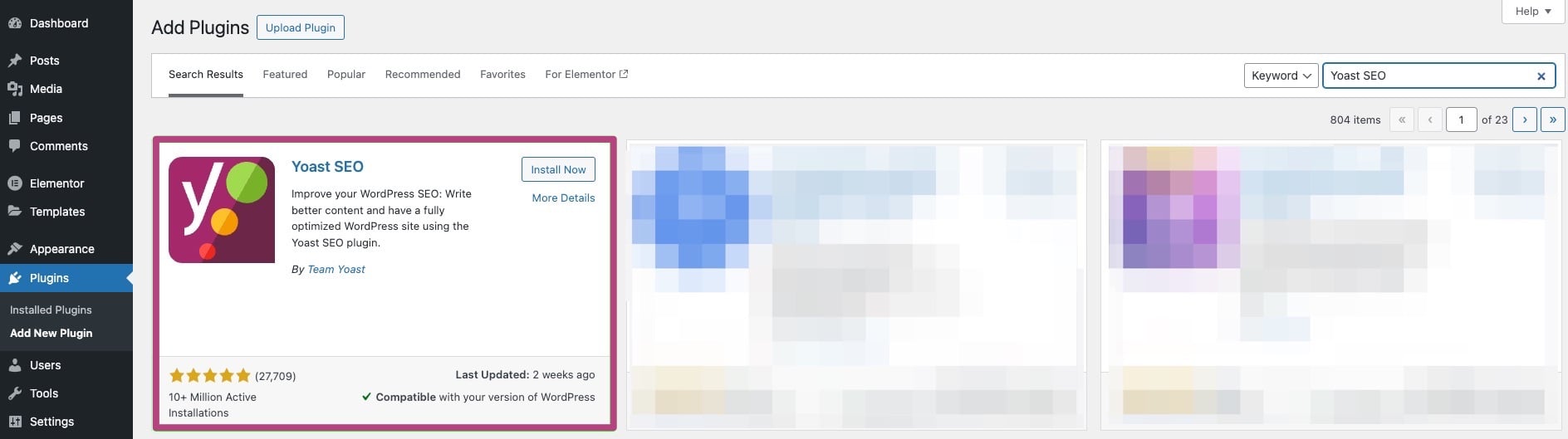
- In WordPress dashboard, go to Plugins → Add New
- Search for “Yoast SEO” in plugin search box
- Click Install Now on “Yoast SEO” by Team Yoast
- After installation completes, click Activate
- Do NOT deactivate All in One SEO yet (both plugins must be active for import)
What you’ll see:
- Yoast SEO menu appears in left sidebar
- Green notification: “Yoast SEO activated successfully”
- You now have two SEO plugins active (this is temporary and safe)
Optional: Skip first-time configuration wizard
- Yoast shows “First-time configuration” wizard—click Skip this step for now
- We’ll import your AIOSEO data first, then configure Yoast settings
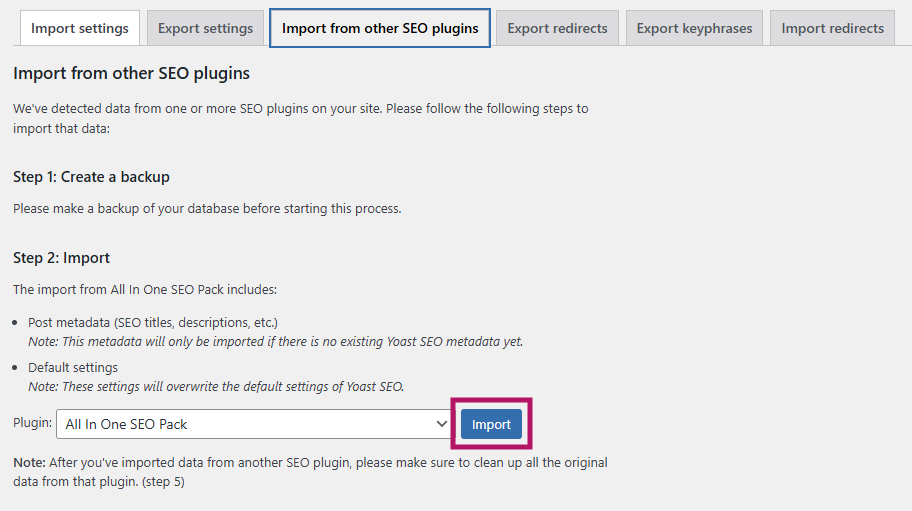
Step 2 – Import AIOSEO Data via Yoast Tool
- Go to Yoast SEO → Tools in WordPress dashboard
- Click on Import and Export tab at top of screen
- Scroll down to “Import from other SEO plugins” section
- Find “All in One SEO” in dropdown menu and select it
- Click Import button
- Yoast begins scanning AIOSEO database tables (you’ll see progress bar)
- Wait for import to complete (time varies by site size)

What Yoast imports:
- SEO titles (from _aioseop_title meta field)
- Meta descriptions (from _aioseop_description)
- Focus keyphrases (from _aioseop_keywords)
- Canonical URLs (from _aioseop_custom_link)
- Noindex directives (from _aioseop_noindex)
- Nofollow directives (from _aioseop_nofollow)
- Open Graph titles and descriptions (from _aioseop_opengraph_settings)
- Twitter Card data (from _aioseop_twitter_settings)
Success confirmation:
- Green notification: “Settings successfully imported from All in One SEO”
- Number of posts/pages processed displayed (e.g., “Imported data for 1,247 posts”)
Step 3 – Confirm Transfer Completed Successfully
Critical step: Don’t skip this validation. Transfers can partially fail without obvious errors.
Confirmation checklist:
1. Check homepage metadata:
- Visit your homepage
- View page source (Ctrl+U or Cmd+Option+U)
- Search for
<meta name="description"and verify your meta description appears - Search for
og:titleand verify Open Graph title exists
2. Verify sample posts:
- Open 5-10 random posts in WordPress editor
- Scroll to Yoast SEO meta box at bottom of editor
- Confirm “SEO title” and “Meta description” fields contain your AIOSEO data
- Check “Focus keyphrase” field contains your target keyword
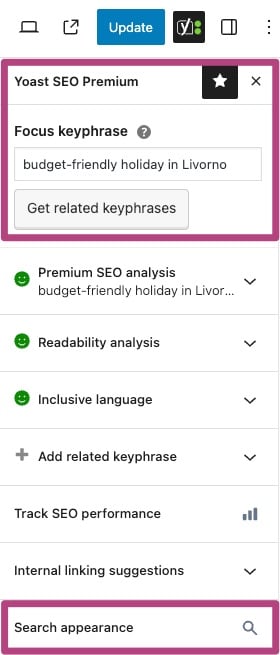
3. Check taxonomy pages:
- Go to Posts → Categories in dashboard
- Click Edit on a category you optimized in AIOSEO
- Scroll to Yoast SEO section and verify category description/title imported
4. Test search appearance:
- Use Yoast’s “Google preview” feature in post editor
- Verify preview shows your custom title (not auto-generated from post title)
- Verify preview shows your meta description (not excerpt)
If data is missing: See Troubleshooting section below for specific error solutions.
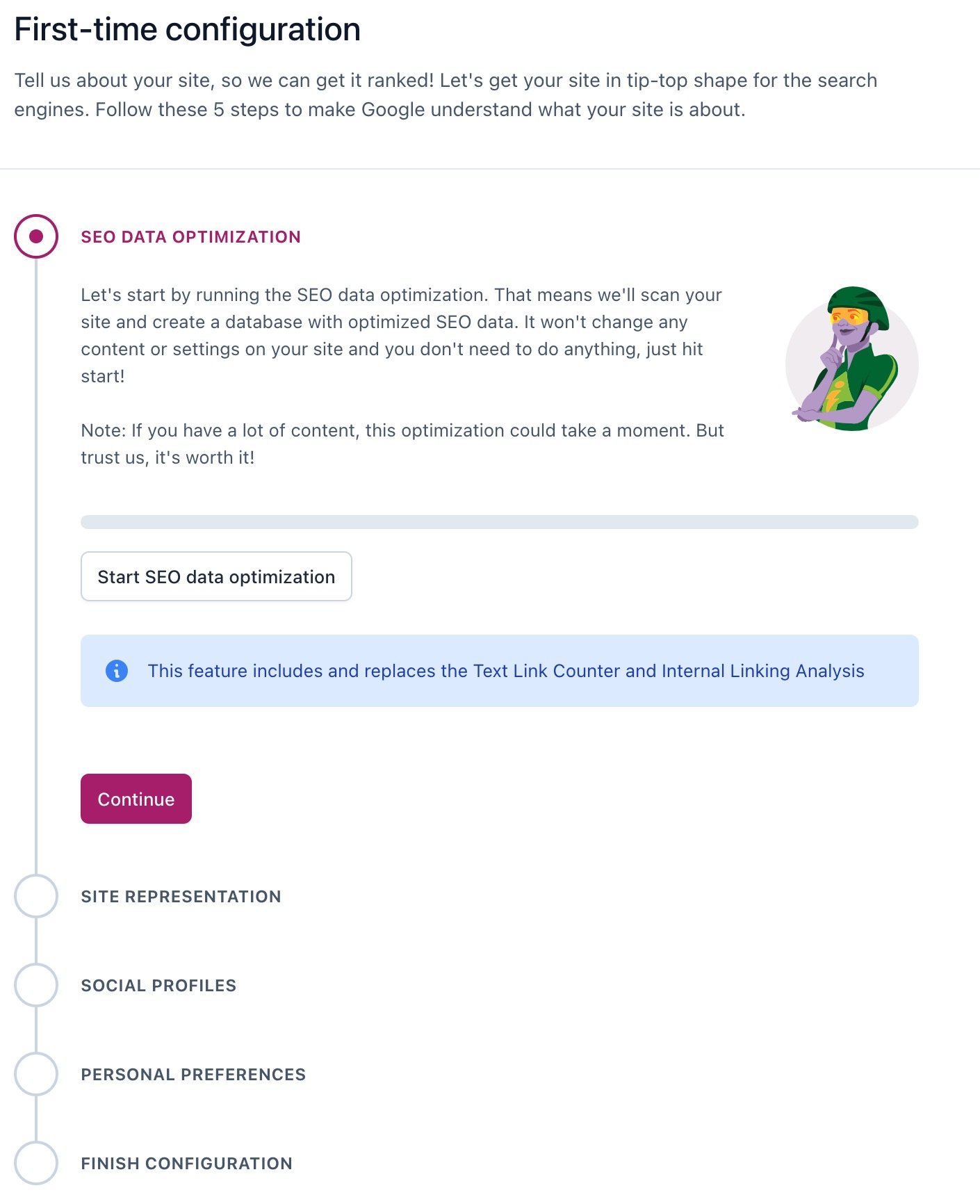
Step 4 – Set Up Yoast Initial Configuration
Now that your data has transferred, configure Yoast-specific options:
- Go to Yoast SEO → General → Configuration workout
- Click Start workout (or First-time configuration)
- Follow wizard steps:
- Step 1 – Environment: Select “A” for production site (live site), “B” for staging/development
- Step 2 – Site type: Choose your site type (blog, online store, news site, etc.)
- Step 3 – Organization or Person: Enter site name and tagline, upload logo for structured data
- Step 4 – Social profiles: Enter Facebook Page URL, Twitter handle, Instagram, LinkedIn
- Step 5 – Post type visibility: Choose which post types appear in search (default: posts and pages = Yes)
- Step 6 – Multiple authors: Select “Yes” if blog with multiple writers, “No” for single-author sites
- Click Save and continue after each step
- At end, click Close to finish setup
Settings to verify after wizard:
- Go to Yoast SEO → Search Appearance
- Verify default meta description template matches your style
- Check Content Types tab to ensure all custom post types are indexed
Step 5 – Deactivate and Remove AIOSEO
Only after verifying import success:
- Go to Plugins → Installed Plugins
- Find “All in One SEO” in list
- Click Deactivate link under plugin name
- After deactivation, click Delete link
- Confirm deletion in popup: “Yes, delete these files and data”

What gets deleted:
- All in One SEO plugin files
- AIOSEO database tables (e.g., wp_aioseo_posts, wp_aioseo_options)
- AIOSEO custom post meta fields (safely—your data now lives in Yoast tables)
Optional: Keep AIOSEO for 7-30 days
- Some users prefer to deactivate but NOT delete AIOSEO immediately
- Gives time to discover any edge cases or missing data
- After 30 days of Yoast working correctly, delete AIOSEO permanently
Step 6 – Clean Up Old AIOSEO Data
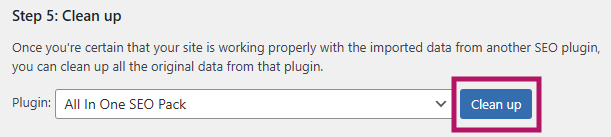
Yoast includes optional cleanup tool to remove old AIOSEO database entries:
- Go to Yoast SEO → Tools
- Click Import and Export tab
- Scroll to “Clean up” section
- Select “All in One SEO” from dropdown
- Click Clean up button
- Confirm cleanup in popup
What cleanup removes:
- Old _aioseop_* post meta entries (no longer needed)
- Orphaned AIOSEO options in wp_options table
- Reduces database bloat (typically saves 1-5MB for most sites)
When to skip cleanup:
- If you want to keep AIOSEO data as backup (no harm in leaving it)
- On very large databases (10,000+ posts), cleanup can take 10-30 minutes
- If using AIOSEO on other sites in multisite network (don’t clean network-wide tables)
That’s it! Your migration is complete. Next, verify everything works correctly over the next few days.
Post-migration optimization checklist
Troubleshooting Common Migration Errors
This is the section most migration guides skip—but it’s the most valuable when things go wrong. Here are solutions for the most common errors.
Error 1 – “No Data Found to Import”
Symptom:
- Yoast displays message: “No importable data found for All in One SEO”
- Transfer completes instantly (0 posts processed)
Root causes:
- AIOSEO was deactivated before import (most common)
- AIOSEO database tables were deleted prematurely
- AIOSEO was never configured (no metadata existed to import)
- Database table prefix mismatch
Solutions:
Solution A – Reactivate AIOSEO:
- Go to Plugins → Installed Plugins
- Find “All in One SEO” and click Activate
- Both plugins must be active simultaneously
- Return to Yoast SEO → Tools → Import and Export and try import again
Solution B – Check database for AIOSEO tables:
- Login to phpMyAdmin via hosting cPanel
- Select your WordPress database
- Look for tables like wp_aioseo_posts and wp_postmeta entries starting with _aioseop_
- If tables missing, restore from backup and try migration again
Solution C – Manual meta field check:
- In phpMyAdmin, run query:
SELECT * FROM wp_postmeta WHERE meta_key LIKE '_aioseop_%' LIMIT 10; - If query returns 0 rows, AIOSEO metadata never existed (nothing to import)
- If query returns rows, data exists but Yoast isn’t detecting it—contact Yoast support
Error 2 – Partial Transfer (Some Posts Migrated, Others Didn’t)
Symptom:
- Yoast displays “Imported data for 327 posts” but you have 1,200 posts
- Some content has metadata in Yoast, others don’t
Root causes:
- Existing Yoast metadata on some posts (Yoast won’t overwrite)
- AIOSEO metadata was only set on subset of posts
- Custom post types not included in import scope
- PHP timeout during import for large sites
Solutions:
Solution A – Check for existing Yoast data:
- Open a post that didn’t import in WordPress editor
- Check if Yoast SEO meta box already has title/description
- If yes: Yoast detected existing data and skipped overwriting (by design)
- Manually verify if AIOSEO or Yoast version is correct
- Update manually if needed (no bulk solution available)
Solution B – Verify AIOSEO only covered some posts:
- In AIOSEO, many users only optimize high-traffic posts
- Check if missing posts actually had AIOSEO metadata set
- Open post in editor and check if AIOSEO fields were empty
- If empty in AIOSEO, nothing to import (expected behavior)
Solution C – Custom post type issue:
- Yoast imports standard post types (posts, pages) automatically
- Custom post types (products, portfolio, events) may require manual migration
- Check Yoast SEO → Search Appearance → Content Types
- Ensure custom post type is set to “Show” in search results
- Re-run import after enabling custom post type visibility
Solution D – Increase PHP timeout (large sites):
- Transfer may have timed out for 5,000+ post sites
- Add to wp-config.php (above “/* That’s all, stop editing! */” line):
set_time_limit(300); // 5 minutes ini_set('max_execution_time', 300); - Save wp-config.php and retry the process
- Remove these lines after successful transfer
Error 3 – Meta Descriptions Missing After Migration
Symptom:
- Yoast SEO title imported correctly
- Meta description field in Yoast is empty
- View page source:
<meta name="description">tag missing or showing excerpt
Causes:
- AIOSEO meta description field was actually empty (used auto-generated descriptions)
- AIOSEO stored descriptions in non-standard meta key
- Character encoding issues (rare)
Solutions:
Solution A – Check original AIOSEO descriptions:
- Before deleting AIOSEO, reactivate it temporarily
- Open affected posts in editor
- Check if “Description” field in AIOSEO meta box actually had content
- If empty in AIOSEO, it was auto-generated (never stored in database)
- Auto-generated descriptions don’t migrate (expected behavior)
Solution B – Manual verification:
- For top 20-50 high-traffic posts, manually add meta descriptions in Yoast
- Use Google Search Console to identify most-viewed pages
- Prioritize those for manual description writing
- This is actually a good opportunity to improve thin descriptions
Solution C – Database query check (advanced):
- In phpMyAdmin, run:
SELECT post_id, meta_value FROM wp_postmeta WHERE meta_key = '_aioseop_description' AND meta_value != '' LIMIT 20; - Verify descriptions exist in AIOSEO format
- If descriptions exist but didn’t import, contact Yoast support with query results
Error 4 – Focus Keyphrase Not Migrating
Symptom:
- Titles and descriptions imported fine
- “Focus keyphrase” field in Yoast is empty
- AIOSEO definitely had focus keywords set
Causes:
- AIOSEO calls it “Focus Keyphrase”; Yoast calls it “Focus Keyphrase”—should map directly, but sometimes doesn’t
- Multiple keywords in AIOSEO (comma-separated) don’t migrate to Yoast Free (only 1 keyphrase)
- AIOSEO stored keyphrases in alternative meta key
Solutions:
Solution A – Verify AIOSEO keyphrase existed:
- Reactivate AIOSEO temporarily
- Open post in editor and check “Focus Keyphrase” field in AIOSEO meta box
- If empty, nothing to migrate (expected)
- If present, proceed to Solution B
Solution B – Manual keyphrase migration (small sites):
- For <100 posts, manually copy keyphrases from AIOSEO to Yoast
- Open post in editor with BOTH plugins active
- Copy keyphrase from AIOSEO meta box
- Paste into Yoast “Focus keyphrase” field
- Update post
- Repeat for critical posts (homepage, top landing pages, money pages)
Solution C – Database query for bulk keyphrase extraction (advanced):
- Export AIOSEO keyphrases to CSV:
SELECT p.ID, p.post_title, pm.meta_value as keyphrase FROM wp_posts p JOIN wp_postmeta pm ON p.ID = pm.post_id WHERE pm.meta_key = '_aioseop_keywords' ORDER BY p.ID; - Export results to CSV from phpMyAdmin
- Use CSV for reference when manually updating Yoast keyphrases
- Tools like WP All Import can bulk import keyphrases if comfortable with advanced imports
Error 5 – Social Meta (Open Graph) Not Migrating
Symptom:
- SEO titles/descriptions imported
- Facebook/Twitter social previews showing defaults instead of custom meta
- View source: og:title, og:description tags missing or incorrect
Causes:
- AIOSEO social meta stored separately from SEO meta (different database fields)
- Yoast social features disabled in settings
- Another plugin (like Jetpack) overriding social meta
Solutions:
Solution A – Enable Yoast social features:
- Go to Yoast SEO → Search Appearance
- Click Social tab at top
- Verify both Facebook and Twitter sections are expanded (not collapsed/disabled)
- Check “Add Open Graph meta data” is enabled
- Check “Add Twitter card meta data” is enabled
- Save changes
Solution B – Check for plugin conflicts:
- Common conflicts: Jetpack (Social module), Rank Math, Social Warfare
- Temporarily deactivate social sharing plugins one by one
- Clear cache (Ctrl+Shift+R) and check page source after each
- If social meta appears after deactivating plugin, you found conflict
- Choose: Keep Yoast social meta OR keep other plugin (can’t use both)
Solution C – Manually set social meta for key pages:
- Open critical pages (homepage, top landing pages, products) in editor
- Scroll to Yoast SEO meta box
- Click Social tab within Yoast box
- Set custom Facebook title, description, image
- Set custom Twitter title, description, image
- Update post and verify with Facebook Debugger (developers.facebook.com/tools/debug)
Error 6 – XML Sitemap Issues After Migration
Symptom:
- Google Search Console shows sitemap errors after migration
- Sitemap URL changed (was /sitemap.xml, now /sitemap_index.xml)
- Posts missing from sitemap or wrong posts included
Causes:
- AIOSEO and Yoast use different sitemap formats
- Old AIOSEO sitemap cached in Google
- Sitemap settings different between plugins (AIOSEO excluded certain post types)
Solutions:
Solution A – Update sitemap in Google Search Console:
- Login to Google Search Console
- Go to Sitemaps in left sidebar
- Remove old AIOSEO sitemap (sitemap.xml or /sitemap.xml)
- Add Yoast sitemap: sitemap_index.xml (or sitemap.xml for simple sites)
- Google will crawl new sitemap within 24-48 hours
Solution B – Verify sitemap settings match AIOSEO:
- Go to Yoast SEO → Search Appearance → Content Types
- For each post type (Posts, Pages, Products, etc.):
- If you included in AIOSEO sitemap, set “Show in search results” to Yes
- If you excluded in AIOSEO sitemap, set to No
- Click Save Changes
- Visit yourdomain.com/sitemap_index.xml to verify correct posts appear
Solution C – Force sitemap regeneration:
- Go to Yoast SEO → General → Features
- Toggle XML sitemaps to OFF, save
- Toggle back to ON, save again
- Clears sitemap cache and regenerates from current settings
- Verify new sitemap at yourdomain.com/sitemap_index.xml
Error 7 – Migration Fails on Multisite Network
Symptom:
- Network admin tries to migrate All in One SEO network-wide
- Yoast import tool only processes primary site
- Subsites still using AIOSEO or have empty metadata
Cause: Yoast doesn’t support automated multisite migration. Each subsite must be migrated individually.
Solution:
Manual per-site migration:
- Switch to first subsite in My Sites menu
- Ensure both AIOSEO and Yoast are network-activated OR activated on subsite
- Go to Yoast SEO → Tools → Import and Export on subsite
- Run import for that subsite
- Verify import success (check 10 sample posts on subsite)
- Repeat for each subsite in network
Note: For large multisite networks (10+ subsites), this is tedious. Consider hiring developer to write custom migration script or using WP-CLI with Yoast commands for bulk migration.
Troubleshooting Quick Reference
| Error Symptom | Most Common Cause | Quick Fix |
|---|---|---|
| “No importable data found” | AIOSEO deactivated before import | Reactivate AIOSEO, retry import |
| Partial import (some posts only) | Existing Yoast metadata present | Verify which posts had AIOSEO data |
| Meta descriptions empty | AIOSEO used auto-generated descriptions | Manually write for top pages |
| Focus keyphrases missing | AIOSEO 4.0+ compatibility issue | Manual copy or CSV export |
| Social meta not appearing | Yoast social features disabled | Enable in Search Appearance → Social |
| Sitemap errors after migration | Old AIOSEO sitemap cached | Update sitemap in Google Search Console |
| Multisite migration fails | No automated network-wide migration | Migrate each subsite individually |
Complete troubleshooting database
WooCommerce Migration Deep Dive
If you run a WooCommerce store, product SEO data has special requirements. Here’s exactly what migrates and what to verify.
What WooCommerce Data Migrates Automatically
Standard product fields (migrate successfully):
- Product SEO titles (from AIOSEO product editor)
- Product meta descriptions
- Product focus keyphrases
- Product canonical URLs
- Product noindex settings (for unpublished/draft products)
- Product Open Graph images (if set)
Shop and taxonomy pages:
- WooCommerce shop page title/description (if customized in AIOSEO)
- Product category SEO titles and descriptions
- Product tag SEO settings
- Attribute term SEO (size, color, etc.)
Example migration success:
- Before (AIOSEO): Product “Leather Wallet” has title: “Buy Premium Leather Wallet | Free Shipping”
- After (Yoast): Product editor shows identical title in Yoast SEO meta box
- On product page source:
<title>Buy Premium Leather Wallet | Free Shipping</title>(unchanged)
WooCommerce-Specific Verification Steps
- Check sample products:
- Go to Products → All Products
- Edit 5-10 products across different categories
- Verify Yoast SEO meta box has title, description, keyphrase from AIOSEO
- Test shop page:
- Go to Pages → Find “Shop” page
- Edit shop page and check Yoast SEO meta box
- Visit yoursite.com/shop and view source for
<meta name="description">
- Verify product category pages:
- Go to Products → Categories
- Edit main product categories
- Check Yoast SEO section for category title/description
- Test product schema markup:
- Visit product page in live site
- View source and search for
"@type": "Product" - Verify JSON-LD schema includes name, description, price, availability
- Use Google Rich Results Test to validate
WooCommerce Settings to Configure After Migration
Yoast WooCommerce SEO settings:
- Go to Yoast SEO → Search Appearance → Content Types
- Find “Products” post type
- Verify “Show Products in search results” = Yes
- Set product title template if needed (default: %%title%% %%sep%% %%sitename%%)
Breadcrumbs for products (if used):
- Go to Yoast SEO → Search Appearance → Breadcrumbs
- Enable breadcrumbs if your theme supports Yoast breadcrumbs
- Verify breadcrumb trail on product page: Home → Category → Product
Product schema (Yoast handles automatically):
- Yoast generates product schema for WooCommerce products by default
- No configuration needed unless using Yoast WooCommerce SEO add-on
- Schema includes: Product name, image, price, stock status, SKU, reviews
WooCommerce Migration Issues and Fixes
Issue: Product variations not showing individual meta
- Cause: Product variations share parent product’s SEO settings (normal WooCommerce behavior)
- Solution: Optimize parent product SEO; variation-specific SEO only possible with custom code
- Workaround: Focus on parent product titles that include variation keywords (e.g., “Leather Wallet – 5 Colors Available”)
Issue: Out-of-stock products showing in sitemap
- Cause: Default Yoast behavior includes all published products
- Solution: Go to Yoast SEO → Search Appearance → Content Types → Products
- Check “Show only in-stock products in sitemap” if available
- Alternative: Use Yoast WooCommerce SEO extension (premium) for advanced stock-based indexation
Issue: Product category meta not migrating
- Cause: AIOSEO may have stored category meta in non-standard term meta fields
- Solution: Manually check top 10-20 product categories and update Yoast term meta if empty
- Bulk fix: Use Yoast’s term meta bulk editor at Yoast SEO → Search Appearance → Taxonomies
Complete WooCommerce migration guide
Page Builder Compatibility
Many WordPress sites use page builders. Here’s how migration works with popular builders.
Elementor Compatibility
Migration compatibility: ✅ Excellent
How it works: Elementor stores page content separately from SEO metadata. Yoast import reads AIOSEO meta from wp_postmeta table (independent of Elementor). Result: SEO data migrates successfully regardless of Elementor usage. Yoast and Elementor have an official partnership since v15.4.
Elementor-specific verification:
- Edit Elementor page via Edit with Elementor button
- Click hamburger menu (☰) top-left → Page Settings
- Scroll to Yoast SEO section within Page Settings panel
- Verify SEO title, description, keyphrase appear correctly
- Return to WordPress dashboard and verify Yoast meta box also shows same data
Post-migration Elementor tips:
- Yoast analysis works in Elementor editor (green/orange/red dots for SEO score)
- Focus keyphrase analysis checks Elementor content, not just WordPress editor content
- Readability analysis available via Elementor → Yoast SEO panel
Known issue: Some Elementor templates override Yoast title/description with template settings. Solution: In Elementor template settings, ensure “SEO” options are NOT overriding post meta.
Divi Builder Compatibility
Migration compatibility: ✅ Good
How it works: Divi stores layouts in post content (shortcodes) or custom fields. AIOSEO and Yoast both read same WordPress meta fields. Migration succeeds; Divi unaffected.
Divi-specific verification:
- Edit Divi page via Edit with Divi button
- Scroll down below Divi Builder to Yoast SEO meta box
- Verify title, description, keyphrase imported correctly
- Divi Builder content does NOT interfere with SEO meta
Post-migration Divi tips:
- Yoast analysis works with Divi Builder content (analyzes Divi shortcodes/modules)
- Focus keyphrase density checks include Divi text modules, headings, buttons
- Use Divi’s built-in SEO tab for title/description OR Yoast (not both—Yoast overrides Divi)
Divi Monarch/Bloom compatibility: If using Elegant Themes’ Divi + Monarch (social sharing) or Bloom (opt-ins), ensure Monarch isn’t adding duplicate Open Graph tags (conflicts with Yoast social). Disable Monarch’s Open Graph at Monarch → Settings → Sharing Settings → Turn off Open Graph.
Beaver Builder Compatibility
Migration compatibility: ✅ Good
How it works: Beaver Builder saves layouts to post meta (separate from SEO meta). Yoast import unaffected by Beaver Builder presence. Both coexist without conflicts.
Beaver Builder verification:
- Edit page with Beaver Builder
- Exit Beaver Builder editor (return to WordPress dashboard)
- Check Yoast SEO meta box below Beaver Builder button
- Verify meta imported correctly
Known issue: Older Beaver Builder versions (pre-2.0) had meta box placement conflicts with SEO plugins. Solution: Update Beaver Builder to 2.5+ (current version as of 2026).
WPBakery (Visual Composer) Compatibility
Migration compatibility: ⚠️ Moderate
How it works: WPBakery stores content in custom format (shortcodes). SEO metadata separate; migration succeeds. However, WPBakery has history of plugin conflicts.
WPBakery-specific issues:
- Some WPBakery themes override SEO plugin output
- Check theme settings for “SEO” or “Meta tags” options
- Disable theme-level SEO to let Yoast handle meta tags
Verification:
- Edit WPBakery page (click “WPBakery Page Builder” button)
- Exit to backend editor
- Check Yoast SEO meta box—if missing, check theme compatibility
- View page source and search for
yoastin HTML comments (confirms Yoast is active)
Oxygen Builder Compatibility
Migration compatibility: ✅ Excellent
How it works: Oxygen stores page templates in custom post type. SEO metadata managed separately by Yoast. No conflicts; migration clean.
Oxygen verification:
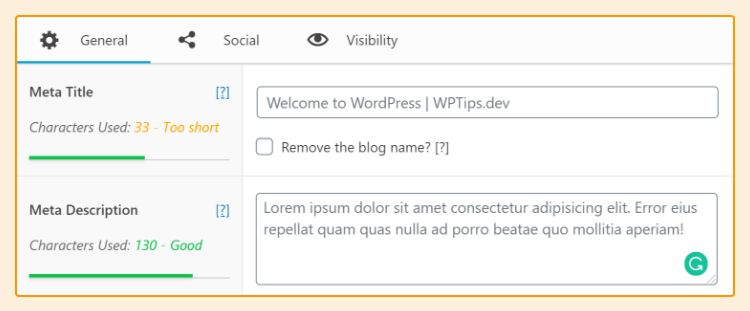
- Oxygen has built-in SEO title/description fields (in Page Settings)
- After migration, you can choose: Use Oxygen’s SEO OR Yoast’s SEO
- Recommended: Use Yoast for SEO (disable Oxygen SEO output)
- In Oxygen → Settings → SEO, set “Let WordPress plugins handle SEO” = Yes
Gutenberg (Block Editor) Compatibility
Migration compatibility: ✅ Perfect
How it works: Yoast designed specifically for Gutenberg. Yoast sidebar appears in block editor with real-time analysis. Metabox compatibility mode available for classic editor fans.
Gutenberg benefits after migration:
- Real-time SEO score updates as you write
- Readability analysis in sidebar (Flesch Reading Ease)
- Internal linking suggestions (Yoast Premium)
- Social preview tabs in sidebar (Facebook, Twitter, LinkedIn)
Switching between Gutenberg and Classic Editor:
- If using Classic Editor plugin, Yoast shows meta box below content (traditional placement)
- If using Gutenberg, Yoast shows sidebar panel (modern placement)
- Both work identically; data stored in same database fields
Page Builder Compatibility Matrix
| Page Builder | Migration Compatibility | Known Issues | Notes |
|---|---|---|---|
| Elementor | ✅ Excellent | None | Official Yoast partnership, full integration since v15.4 |
| Divi | ⚠️ Good | No dedicated integration | Metadata separate from Divi layouts |
| Beaver Builder | ✅ Good | None (on 2.5+) | Older versions (<2.0) had placement conflicts |
| WPBakery | ⚠️ Moderate | Theme SEO override conflicts | Check theme settings for SEO options |
| Oxygen Builder | ✅ Excellent | None | Set Oxygen to “Let WordPress plugins handle SEO” |
| Gutenberg | ✅ Perfect | None | Real-time analysis, designed for Gutenberg |
Page builder SEO best practices
Post-Migration Optimization Checklist
Successfully migrating data is step one. Now optimize Yoast-specific features for better SEO.
Immediate Post-Migration Tasks (Complete Within 48 Hours)
1. Submit Yoast sitemap to Google Search Console
- Action: Search Console → Sitemaps → Add: sitemap_index.xml
- Why: Google needs to know your sitemap URL changed from AIOSEO format
2. Verify Google Analytics integration
- Action: Yoast SEO → General → Integrations → Connect Google Analytics (if using)
- Why: Yoast can show page analytics in WordPress (Yoast Premium feature)
3. Set up breadcrumb schema (if applicable)
- Action: Yoast SEO → Search Appearance → Breadcrumbs → Enable
- Why: AIOSEO lacked breadcrumbs; Yoast’s breadcrumbs improve structured data
4. Configure redirects for old plugin URLs
- Action: Check for broken links to /aioseo/ URLs (rare, but possible)
- Why: Some AIOSEO features exposed public URLs that may be bookmarked
5. Re-fetch homepage in Google Search Console
- Action: Search Console → URL Inspection → Enter homepage → Request Indexing
- Why: Confirms Google sees Yoast meta (not cached AIOSEO version)
Optimization Tasks (Complete Within 1 Week)
6. Enable content analysis features
- Action: Yoast SEO → General → Features → Verify all toggles ON
- Why: Maximizes Yoast’s editing tools (content analysis, readability, cornerstone content)
7. Configure social preview defaults
- Action: Yoast SEO → Search Appearance → Social → Upload default share image
- Why: Fallback image for posts without custom social images
8. Review cornerstone content tagging
- Action: Edit your top 5-10 most important posts → Yoast meta box → Mark as “Cornerstone content”
- Why: Tells Yoast to prioritize internal linking suggestions to these posts
9. Check schema output for homepage
- Action: Visit homepage → View source → Search for
"@type": "Organization"or"@type": "Person" - Why: Verify Yoast’s schema JSON-LD replaced AIOSEO’s schema
10. Update indexation settings for archives
- Action: Yoast SEO → Search Appearance → Archives
- Why: Set author archives, date archives, format archives to noindex if thin content
11. Configure taxonomy meta templates
- Action: Yoast SEO → Search Appearance → Taxonomies → Set title template for categories/tags
- Why: Consistent formatting for category pages (e.g., %%term_title%% Archives | %%sitename%%)
12. Test mobile search appearance
- Action: Open mobile device → Google your top post title → Verify meta description matches Yoast
- Why: Confirms mobile users see correct meta (mobile-first indexing)
Advanced Optimization Tasks (Complete Within 1 Month)
13. Audit focus keyphrases across all posts
- Action: Yoast SEO → Search Console (if connected) → Review underperforming posts
- Why: Update old keyphrases based on current search data
14. Implement Yoast FAQ schema blocks (if applicable)
- Action: For posts with FAQs, use Yoast’s “How-To” or “FAQ” Gutenberg blocks
- Why: Adds structured data for rich snippets in Google (star ratings, FAQ expansions)
15. Configure redirects in Yoast Premium (if applicable)
- Action: Yoast SEO Premium → Redirects → Manually create redirects for changed URLs
- Why: AIOSEO redirects don’t transfer; must recreate in Yoast
16. Set up orphaned content analysis
- Action: Yoast SEO Premium → Tools → Orphaned content → Review posts with no internal links
- Why: Yoast identifies content that needs internal link love
17. Review crawl errors in Google Search Console
- Action: Search Console → Coverage → Check “Excluded” and “Errors” tabs
- Why: Migration may have triggered temporary crawl issues; verify resolved
18. Optimize for multiple keyphrases (Premium)
- Action: For top posts, add 2-3 related keyphrases in Yoast Premium multi-keyphrase field
- Why: Target semantic variations without keyword stuffing
19. Configure local SEO (if brick-and-mortar business)
- Action: Yoast SEO → Search Appearance → Knowledge Graph → Select “Organization” → Add address
- Why: Enables local business schema for Google Maps/local search
20. Schedule quarterly SEO audits
- Action: Calendar reminder every 3 months to review Yoast SEO analysis dashboard
- Why: Ongoing optimization beats one-time migration; catch content decay early
Post-Migration Checklist Summary
| Task | Timeline | Priority |
|---|---|---|
| Submit new sitemap to Google Search Console | Within 48 hours | Critical |
| Re-fetch homepage in Search Console | Within 48 hours | High |
| Set up breadcrumb schema | Within 48 hours | Medium |
| Enable content analysis features | Within 1 week | Medium |
| Configure social preview defaults | Within 1 week | Medium |
| Review cornerstone content | Within 1 week | High |
| Check schema output | Within 1 week | High |
| Test mobile search appearance | Within 1 week | High |
| Audit focus keyphrases | Within 1 month | Medium |
| Set up redirects (if Premium) | Within 1 month | High |
| Review Google Search Console errors | Within 1 month | High |
| Configure local SEO | Within 1 month | Medium |
Complete Yoast SEO optimization guide
Who Should Migrate Now vs. Who Should Wait
Not everyone should migrate immediately. Here’s how to decide based on your specific situation.
✅ Migrate Now If You…
1. Free AIOSEO user seeking better features
- Why: Yoast Free has better Gutenberg integration, breadcrumbs, taxonomy control
- Action: Migrate now—straightforward, low risk
2. Site with <5,000 posts/pages
- Why: Migration completes in 15-30 minutes; easy to verify manually
- Action: Migrate during low-traffic hours (backup first)
3. Need better breadcrumb support
- Why: Yoast has built-in breadcrumbs with schema; AIOSEO lacks this
- Action: Migrate, then enable Yoast breadcrumbs
4. Using Gutenberg block editor extensively
- Why: Yoast’s real-time sidebar analysis beats AIOSEO’s metabox UX
- Action: Migrate to improve editorial workflow
5. Experiencing AIOSEO conflicts with theme/plugins
- Why: Some themes (Astra, GeneratePress) optimize specifically for Yoast
- Action: Migrate to resolve compatibility issues
6. Want simpler plugin with fewer modules
- Why: Yoast consolidates features AIOSEO splits into separate modules
- Action: Migrate for simpler dashboard
7. Plan to upgrade to Premium version
- Why: Yoast Premium features (redirects, internal linking, content insights) often cited as better than AIOSEO Pro equivalents
- Action: Migrate to Free Yoast, test for 30 days, then upgrade to Premium if satisfied
⚠️ Consider Carefully If You…
1. Multisite network with 10+ subsites
- Consideration: Manual per-site migration required (no network-wide automation)
- Recommendation: Test on 1-2 subsites first; weigh time investment vs. value
- Alternative: Hire developer to write custom migration script
2. AIOSEO Pro user with extensive redirects
- Consideration: Redirects don’t migrate to Yoast (must recreate manually or use CSV import)
- Recommendation: Export AIOSEO redirects to CSV, import to Yoast Premium redirect manager
- Workaround: Use standalone redirect plugin (Redirection, Simple 301 Redirects)
3. Site between 5,000-20,000 posts
- Consideration: Import takes 45-90 minutes; PHP timeout risk on budget hosting
- Recommendation: Migrate on staging site first, increase PHP max_execution_time to 300+ seconds
- Best practice: Coordinate with hosting provider for optimal migration window
4. Mid-SEO-campaign where reporting consistency matters
- Consideration: AIOSEO analytics dashboards differ from Yoast’s; historical comparison difficult
- Recommendation: Wait until campaign concludes, then migrate for next campaign phase
- Workaround: Export AIOSEO analytics data before migration for historical reference
5. Multilingual site using WPML or Polylang
- Consideration: Each language may need separate verification post-migration
- Recommendation: Test migration on one language first, verify all translations migrated
- Known issue: Some WPML setups store SEO meta differently; may need manual adjustment
6. Custom schema markup beyond basic Organization/Person
- Consideration: AIOSEO and Yoast use different schema systems; custom schema may not migrate
- Recommendation: Document AIOSEO custom schema before migration, manually recreate in Yoast
- Alternative: Use Schema Pro or custom JSON-LD plugin for complex schema
❌ Wait or Don’t Migrate If You…
1. Enterprise site with 20,000+ posts
- Why: Migration time exceeds 2 hours; high risk of timeout/partial import
- Better option: If must switch, hire Yoast or WordPress development agency for custom migration
- Alternative: Evaluate if AIOSEO actually meets needs; switching may not be worth complexity
2. Heavily invested in AIOSEO Pro’s TruSEO score system
- Why: Yoast uses different scoring (traffic light vs. numerical score); team may need retraining
- Better option: Stick with AIOSEO unless specific feature gap exists
- Alternative: If seeking better analysis, consider Surfer SEO or Clearscope as external tools
3. AIOSEO is working perfectly for your needs
- Why: “If it ain’t broke, don’t fix it”—migration always carries risk
- Better option: Stay with AIOSEO until you hit actual limitation
- When to reconsider: Feature gap emerges, support quality declines, or critical compatibility issue
4. Don’t have recent backup
- Why: Migration without backup = playing with fire
- Better option: Take 15 minutes to create backup, THEN migrate
- Critical: Never migrate production site without recovery plan
5. Site is business-critical and you’re uncomfortable with technical tasks
- Why: Migration requires comfort with WordPress admin, troubleshooting, verification
- Better option: Hire WordPress professional to handle migration ($150-$500 typical cost)
- Alternative: Stick with AIOSEO and invest in learning it deeply
6. Peak business season (e.g., Black Friday for e-commerce)
- Why: Migration during high-traffic period = unnecessary risk
- Better option: Schedule migration during slow season
- Timing: Migrate Monday-Wednesday during lowest traffic hours (2-5 AM typical)
Alternative Migration Methods
For edge cases where standard migration doesn’t work, here are alternative approaches.
Manual CSV Export/Import (For Small Sites)
When to use:
- Fewer than 100 posts
- You want complete control over which data transfers
- Automated import failed and you want surgical approach
Process:
- Export AIOSEO data to CSV:
- Use phpMyAdmin query or plugin like WP All Export
- Export fields: Post ID, Title, Description, Keyphrase, Canonical URL
- Format CSV for Yoast:
- Column headers:
ID,yoast_wpseo_title,yoast_wpseo_metadesc,yoast_wpseo_focuskw
- Column headers:
- Import to Yoast using WP All Import:
- Install WP All Import plugin
- Map CSV columns to Yoast custom fields
- Run import
Pros:
- Precise control over what transfers
- Can clean/optimize data during export/import process
- Useful for troubleshooting which specific fields fail in automated import
Cons:
- Time-consuming for 100+ posts
- Requires CSV manipulation skills (Excel/Google Sheets)
- Must understand Yoast custom field names
Using Third-Party Migration Plugins
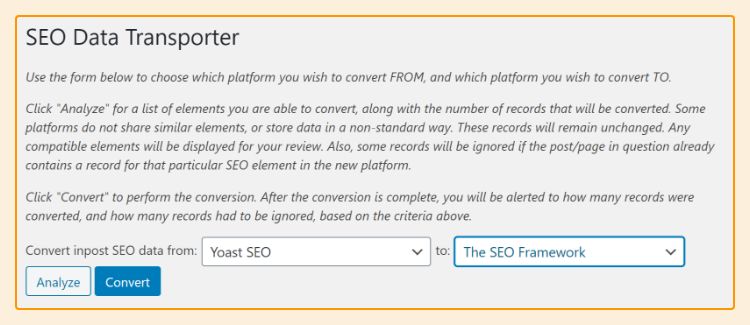
SEO Data Transporter plugin:
- Supports: Yoast, Rank Math, The SEO Framework, AIOSEO
- Process: Install → Select source (AIOSEO) → Select destination (Yoast) → Transport
- Limitation: Does NOT currently support AIOSEO as source (as of 2026)—only Yoast, Rank Math, SEOPress
- Verdict: Not viable for AIOSEO → Yoast migration
WP All Import Pro (Advanced):
- Use case: Custom migration scripts for complex setups
- Process: Export AIOSEO meta to XML/CSV → Write custom import template → Import to Yoast fields
- Best for: Developers comfortable with custom field mapping
- Cost: $99-$299 for Pro version with custom fields addon
Rollback Plan: Reverting to AIOSEO
When you might need to roll back:
- Migration failed and data corrupted
- Missing critical data discovered after 7+ days
- Team can’t adapt to Yoast UX (rare, but happens)
- Discovered feature gap that’s a dealbreaker
Rollback process:
1. Don’t delete AIOSEO immediately after migration
- Keep AIOSEO deactivated (but installed) for 7-30 days
- This allows instant reactivation if needed
2. Restore database from pre-migration backup:
- Login to hosting control panel (cPanel, WP Engine Portal, etc.)
- Access backup tool (UpdraftPlus, Jetpack Backups, hosting backups)
- Select backup from immediately before migration
- Restore database ONLY (don’t restore files unless necessary)
3. Reactivate AIOSEO:
- Go to Plugins → Installed Plugins
- Find “All in One SEO” and click Activate
- Verify metadata intact: Check 10 sample posts
4. Deactivate and delete Yoast:
- Go to Plugins → Installed Plugins
- Find “Yoast SEO” and click Deactivate
- Click Delete to remove Yoast
5. Clear all caches:
- Clear WordPress object cache (via WP-CLI or plugin)
- Clear server cache (WP Engine, SiteGround, etc.)
- Clear CDN cache (Cloudflare, StackPath, etc.)
- Purge browser cache (Ctrl+Shift+R)
6. Verify AIOSEO functional:
- Edit 5-10 posts and verify AIOSEO meta box appears
- Visit homepage and view source for AIOSEO HTML comments
- Check Google Search Console for crawl errors (may take 24-48 hours to clear)
Prevent need for rollback:
- Use staging site testing (see “Before You Start” section)
- Run verification checklist thoroughly (see “Step 3 – Verify Import Success”)
- Keep backup for 30 days before deleting AIOSEO permanently
Complete WordPress rollback guide
FAQ – Frequently Asked Questions
Core Migration Questions
Q1: Will migrating from All in One SEO to Yoast hurt my Google rankings?
No. Google doesn’t care which plugin writes your meta tags—only that meta tags exist and are accurate. Both plugins output identical HTML meta tags (<meta name="description">, <title>, og:title, etc.). As long as your titles and descriptions transfer correctly, Google sees no difference. Rankings drop only if metadata gets deleted during migration (prevented by backups and verification).
Q2: How long does migration from AIOSEO to Yoast take?
Depends on site size:
- 0-500 posts: 10-15 minutes (includes backup, migration, verification)
- 500-2,000 posts: 15-25 minutes
- 2,000-10,000 posts: 25-45 minutes
- 10,000+ posts: 45-120 minutes
Actual import takes seconds to minutes; most time spent on preparation and verification.
Q3: Do I need to backup my site before migration?
Yes, absolutely. While migration succeeds 90% of the time, the 10% that encounter issues need backups to recover. Back up your full database at minimum (takes 3-5 minutes with plugins like UpdraftPlus). Backup gives you instant rollback option if anything goes wrong.
Q4: Can I run both All in One SEO and Yoast at the same time?
Yes, temporarily—and you MUST during migration. Yoast’s import tool reads AIOSEO database entries, so AIOSEO must be active during import. After import completes and you’ve verified success, deactivate AIOSEO. Never run both long-term (conflicts cause duplicate meta tags).
Q5: What data does NOT migrate from AIOSEO to Yoast?
These don’t transfer automatically:
- 301 redirects (AIOSEO Pro feature; must recreate in Yoast Premium or redirect plugin)
- Custom schema markup beyond basic Organization/Person (different schema systems)
- Local SEO data (NAP info, business hours—manually re-enter in Yoast Local SEO)
- Video XML sitemap settings (AIOSEO Pro → Yoast Video SEO)
- Custom robots.txt rules
- htaccess modifications
- TruSEO custom scoring rules
Standard SEO meta (titles, descriptions, keyphrases, social meta) transfers successfully.
Troubleshooting Questions
Q6: Why does Yoast say “No importable data found” when I try to migrate?
Most common cause: AIOSEO was deactivated before import. Yoast needs AIOSEO active to read its database tables. Solution: Reactivate AIOSEO at Plugins → Installed Plugins, then retry import at Yoast SEO → Tools → Import and Export.
Less common causes: AIOSEO database tables deleted, or AIOSEO was never configured (no metadata existed).
Q7: Only some of my posts migrated—what happened?
Likely causes:
- Yoast detected existing metadata on some posts and skipped overwriting (by design)
- AIOSEO metadata only existed on subset of posts (you optimized high-traffic posts only)
- Custom post types weren’t enabled in Yoast (products, portfolio, etc.)
- PHP timeout during import on large sites (5,000+ posts)
Check affected posts: Did AIOSEO actually have data for them? If yes, see Troubleshooting section for PHP timeout fix.
Q8: My focus keyphrases didn’t migrate—how do I fix this?
For small sites (<100 posts), manually copy keyphrases:
- Reactivate AIOSEO temporarily (keep both plugins active)
- Open post in editor
- Copy keyphrase from AIOSEO meta box
- Paste into Yoast “Focus keyphrase” field
- Update post
For large sites, use database query to export AIOSEO keyphrases to CSV, then reference CSV when manually updating critical posts. Bulk keyphrase import possible with WP All Import (advanced).
Q9: My meta descriptions are empty after migration—what went wrong?
Check if AIOSEO actually had descriptions set:
- Reactivate AIOSEO temporarily
- Open affected posts in editor
- Check if AIOSEO “Description” field has content
If empty in AIOSEO, it was auto-generated (never stored in database). Auto-generated descriptions don’t migrate—expected behavior. Manually write descriptions for top 20-50 high-traffic posts.
Feature Comparison Questions
Q10: Which is better: Yoast or All in One SEO?
Depends on priorities:
- Choose Yoast if: Want better Gutenberg integration, built-in breadcrumbs, simpler UX, Premium features (internal linking, redirects)
- Choose AIOSEO if: Prefer numerical TruSEO score over traffic light, need specific Pro features (video sitemaps), already invested in AIOSEO ecosystem
Both handle core SEO equally well (titles, descriptions, sitemaps, social meta). Differences mainly in UX and premium features.
Q11: Do I need Yoast Premium if I had AIOSEO Pro?
Depends on which Pro features you used:
| AIOSEO Pro Feature | Yoast Free | Yoast Premium |
|---|---|---|
| Smart XML Sitemaps | ✅ Included | ✅ Included |
| Local SEO | ❌ No | ⚠️ Separate addon ($79/year) |
| Video Sitemap | ❌ No | ⚠️ Separate addon ($79/year) |
| Redirects | ❌ No | ✅ Included |
| Multiple keyphrases | ❌ No | ✅ Included |
| Internal linking suggestions | ❌ No | ✅ Included |
If you only used AIOSEO Pro for sitemaps, Yoast Free suffices. If you used redirects, local SEO, or video sitemaps, consider Yoast Premium + addons.
Q12: Can I export my AIOSEO settings for backup before migration?
Yes:
- Go to All in One SEO → Tools
- Click Import/Export tab
- Click Export Settings button
- Save JSON file to computer
Note: This exports AIOSEO settings/configuration, not your post metadata. Post metadata (titles, descriptions) lives in WordPress database, not AIOSEO settings file. Backup database for complete metadata backup.
Technical Questions
Q13: Will migration work with my page builder (Elementor, Divi, Beaver Builder)?
Yes. Page builders store layout/design separately from SEO metadata. Yoast import reads AIOSEO meta from wp_postmeta table, which is independent of page builder data. Tested successfully with Elementor, Divi, Beaver Builder, WPBakery, Oxygen, Gutenberg.
See “Page Builder Compatibility” section for builder-specific verification steps.
Q14: How do I migrate WooCommerce product SEO data?
Same process as posts/pages:
- Install and activate Yoast
- Run import at Yoast SEO → Tools → Import and Export
- Verify on sample products: Products → All Products → Edit product → Check Yoast meta box
Product titles, descriptions, keyphrases, and social meta transfer automatically. Product schema (price, availability, SKU) generated by Yoast based on WooCommerce data (not imported from AIOSEO).
Q15: Does migration work on WordPress multisite networks?
Partially. Yoast doesn’t support automated network-wide migration. You must migrate each subsite individually:
- Switch to subsite in My Sites menu
- Ensure both AIOSEO and Yoast active on subsite (or network-activated)
- Go to Yoast SEO → Tools → Import and Export on subsite
- Run import for that subsite
- Repeat for each subsite
For large networks (10+ subsites), consider hiring developer to write custom migration script.
Q16: What WordPress and PHP versions are required?
Minimum requirements:
- WordPress 6.8+
- PHP 7.4+ (PHP 8.0+ recommended)
- MySQL 5.7+ or MariaDB 10.3+
Check at Tools → Site Health → Info tab in WordPress dashboard. If below minimums, contact hosting provider to upgrade before migration.
Post-Migration Questions
Q17: How do I know if migration was successful?
Verification checklist:
- Visit homepage → View source (Ctrl+U) → Search for
<meta name="description"→ Verify your custom description appears - Edit 5-10 random posts → Check Yoast SEO meta box → Confirm title, description, keyphrase present
- Check Yoast import notification: “Settings successfully imported from All in One SEO”
- Check number of posts processed (should match total post count, or close)
If these pass, migration succeeded. If data missing, see Troubleshooting section.
Q18: Should I delete AIOSEO immediately after migration?
No. Best practice:
- Deactivate AIOSEO (but don’t delete)
- Keep deactivated for 7-30 days
- Monitor site for issues (missing meta, ranking drops, technical errors)
- After 30 days of stability, delete AIOSEO permanently
Keeping AIOSEO installed (deactivated) gives instant rollback option if problems emerge.
Q19: Do I need to submit new sitemap to Google after migration?
Yes:
- Login to Google Search Console (search.google.com/search-console)
- Go to Sitemaps section
- Remove old AIOSEO sitemap (usually sitemap.xml)
- Add Yoast sitemap: sitemap_index.xml
- Click Submit
Google crawls new sitemap within 24-48 hours. Also use URL Inspection tool to re-fetch homepage immediately.
Q20: Can I roll back to AIOSEO if I’m not happy with Yoast?
Yes, if you kept database backup:
- Restore database from pre-migration backup (via hosting control panel or UpdraftPlus)
- Reactivate AIOSEO at Plugins → Installed Plugins
- Deactivate and delete Yoast
- Clear all caches (WordPress, server, CDN, browser)
- Verify AIOSEO metadata intact on sample posts
This is why backups are critical—instant rollback if needed.
Conclusion
Migrating from All in One SEO to Yoast SEO is straightforward for most WordPress sites. The built-in Yoast import tool handles the technical heavy lifting—transferring titles, descriptions, keyphrases, social meta, and canonical URLs automatically.
What makes migration successful:
- Creating database backup before starting (your safety net)
- Keeping both plugins active during import (common mistake that causes failures)
- Verifying import success on sample posts (don’t assume it worked)
- Troubleshooting issues promptly using error-specific solutions
The 90/10 rule: 90% of migrations complete successfully on first try. The other 10% encounter issues—usually partial imports, missing metadata, or PHP timeouts on large sites. That’s why this guide includes comprehensive troubleshooting, rollback procedures, and verification checklists.
For most site owners:
- Budget 15-30 minutes total (backup + migration + verification)
- Test on staging site if business-critical or 5,000+ posts
- Manually check 10-20 sample posts for correct metadata
- Keep AIOSEO deactivated (not deleted) for 7-30 days
- Submit new sitemap to Google Search Console
What to do next:
- Review Pre-Migration Checklist and confirm readiness
- Create full database backup (use UpdraftPlus, hosting backup, or phpMyAdmin)
- Follow Step-by-Step Migration Tutorial
- Run Verification steps on homepage and sample posts
- If issues occur, consult Troubleshooting section for exact solutions
Your SEO data—the titles, descriptions, and metadata you’ve carefully crafted—is too valuable to risk. Take the time to back up, verify, and test. The 30 minutes invested in careful migration protects months or years of SEO work.
Yoast’s built-in import tool makes the technical process simple. This guide makes the strategic process safe.
