



Every WordPress site owner hits the wall eventually — you can’t log in, a plugin broke something, or you need to edit a file the dashboard won’t let you touch. That’s when knowing how to use an FTP client turns a crisis into a five-minute fix. The problem? There are dozens of FTP clients out there, and most comparison articles just list five tools without telling you which one actually fits your situation.
This guide cuts through the noise. Whether you’re running a personal blog, managing a client’s business site, or juggling multiple WordPress installs, you’ll find a clear answer here — along with an honest breakdown of pricing, platform support, and the features that actually matter for WordPress work.

For a deeper look at managing your WordPress site files and tools, this guide covers everything you need to make a confident choice.
Quick Answer — Which FTP Client Should You Use?
If you’re in a hurry, here’s the short version:
- Best overall (free): FileZilla — works on Windows, Mac, and Linux; reliable; massive community support
- Best for Mac users: Transmit 5 — polished macOS experience, fast, worth the one-time price
- Best for beginners: Cyberduck — simple, free, and works on Mac and Windows
- Best for Windows power users: WinSCP — scripting, automation, and zero cost
- Best budget Mac option: ForkLift 4 — native macOS feel at a lower price than Transmit
- Skip the install entirely if: You only need to fix one file → use your host’s cPanel File Manager
Not sure which category you fall into? Run through this decision checklist:
| Your situation | Recommended client |
|---|---|
| Windows-only user, any skill level | FileZilla (free) or WinSCP |
| Mac user, occasional FTP tasks | Cyberduck (free) |
| Mac user, frequent transfers | Transmit 5 ($45) |
| Linux user or cross-platform team | FileZilla |
| Need cloud storage (S3, Google Drive) | Cyberduck or FileZilla Pro |
| Developer managing multiple sites | WinSCP (Windows) or Transmit 5 (Mac) |
| Quick one-file fix, no software install | cPanel File Manager |
What Is an FTP Client — and When Does WordPress Actually Need One?
An FTP client is software that connects your computer directly to your web host’s server, letting you browse, upload, download, and edit files without going through the WordPress dashboard. Think of it as a file manager for your hosting account.
Most of the time, you don’t need it. The WordPress admin panel handles plugin installs, theme updates, and media uploads just fine. But there are situations where the dashboard either won’t load or simply can’t do what you need:
- You’re locked out of wp-admin — A plugin conflict, failed update, or hack can take down the admin area entirely. FTP lets you get in from the server side.
- You need to disable all plugins at once — Renaming the
/wp-content/plugins/folder via FTP forces WordPress to deactivate every plugin, the fastest way to diagnose a conflict. - You need to edit wp-config.php — This file lives outside the WordPress editor. Fixing a database connection error, setting debug mode on, or adjusting table prefixes all happen here.
- The file editor is disabled — Some sites (correctly) disable theme/plugin editing in the dashboard for security. FTP is how you edit those files.
- You want to bulk upload media — Drag a folder of 200 images directly to
/wp-content/uploads/in seconds instead of using the slow Media Library uploader. - You’re restoring a backup manually — When something goes badly wrong, FTP is how you put files back from a backup.
- You’re deploying a theme or plugin outside the dashboard — Uploading a custom theme zip and extracting it, or placing a plugin folder directly into
/wp-content/plugins/. - You’re recovering from a hacked site — Removing injected files, replacing core WordPress files with clean copies, or inspecting suspicious file modifications.
To connect via FTP, you’ll need your credentials: a hostname (your domain or server IP), a username, a password, and a port number. These are available in your hosting control panel under “FTP Accounts” — or in the welcome email your host sent when you signed up.
FTP vs SFTP vs FTPS — Always Use This One for WordPress
Here’s something most FTP guides skip over: not all FTP connections are equally secure. There are three distinct protocols, and using the wrong one on a live WordPress site is a real security risk.
| Protocol | Port | Encryption | When to use |
|---|---|---|---|
| FTP | 21 | None — data sent in plain text | Local development only; never on a live site |
| SFTP | 22 | SSH encryption (strong) | ✅ Use this for all live WordPress sites |
| FTPS | 990 (implicit) or 21 (explicit) | SSL/TLS | Fallback for older hosting environments |
Plain FTP (port 21) transmits your username, password, and all file data without any encryption. On a shared network — a coffee shop, a coworking space — anyone with a packet sniffer can grab your hosting credentials in seconds. Don’t use plain FTP on a live site.
SFTP (port 22) runs over SSH, which encrypts the entire connection. Every hosting provider worth using supports SFTP. All five clients in this article support it. Always choose SFTP when connecting to your WordPress server.
FTPS adds SSL/TLS encryption to the traditional FTP protocol. It’s less common than SFTP and mainly shows up on older hosting environments. If your host offers SFTP, use that instead.
Best FTP Clients for WordPress — Full Comparison (March 2026)
Here’s the complete side-by-side view. All pricing is verified from official sources as of March 2026.
| Client | Price | Windows | Mac | Linux | Protocols | Cloud Storage | Best For |
|---|---|---|---|---|---|---|---|
| FileZilla | Free / ~$19.99 Pro | ✓ | ✓ | ✓ | FTP, SFTP, FTPS | Pro only (S3, Drive, Dropbox, Azure, more) | Most users — universal default |
| Cyberduck | Free ($10 optional donation) | ✓ | ✓ | CLI only | FTP, SFTP, WebDAV, SMB | Yes — S3, Azure, Google Drive, Dropbox, OneDrive, B2, Nextcloud, and more | Beginners; cloud storage users |
| WinSCP | Free | ✓ | ✗ | ✗ | FTP, SFTP, FTPS, SCP, WebDAV | Amazon S3 | Windows developers and agencies |
| Transmit 5 | $45 one-time (direct) | ✗ | ✓ | ✗ | FTP, SFTP, FTPS, WebDAV | Yes — S3, Google Drive, Dropbox, Azure, B2, OneDrive, Rackspace, and more | Mac power users; frequent transfers |
| ForkLift 4 | From $19.95/yr (single) | ✗ | ✓ | ✗ | FTP, SFTP, WebDAV | Yes — S3, Google Drive, Dropbox, OneDrive, B2, Rackspace | Mac users wanting native UX |
Sources: filezilla-project.org, cyberduck.io, winscp.net, panic.com/transmit, binarynights.com — as of March 2026. Prices may vary by purchase channel.
FileZilla — The Reliable Free Standard

FileZilla has been the go-to free FTP client for over 20 years, and for good reason. It’s cross-platform, actively maintained, and has a community forum with answers to practically every question you’ll encounter. The interface isn’t the prettiest, but it works exactly as expected every time.
What FileZilla does well
- Free and open-source — no hidden costs, no nagware
- Works on Windows, Mac, and Linux — useful for cross-platform teams
- Site Manager for saving credentials; Quick Connect for one-off connections
- Transfer queue with resume support — interrupted transfers don’t start over
- Filename filters, synchronized browsing, and directory comparison
- Drag-and-drop file transfers in both directions
Worth knowing before you download
- The installer on Windows has historically bundled third-party software. Always download from filezilla-project.org directly and uncheck any optional software during install.
- The interface looks dated compared to native Mac apps — functional, but not beautiful.
- Cloud storage (S3, Google Drive, Dropbox) requires the Pro upgrade.
FileZilla Pro adds cloud storage support and costs approximately $19.99 as a one-time purchase direct from filezillapro.com (pricing may vary; Mac App Store and Microsoft Store list different prices). For most WordPress users managing a handful of sites, the free version is all you’ll ever need.
Price: Free | Pro ~$19.99 one-time (verified March 2026)
Platforms: Windows, Mac, Linux
Best for: Most WordPress users — the safe, reliable default choice
Cyberduck — Best Free Option for Beginners and Cloud Users
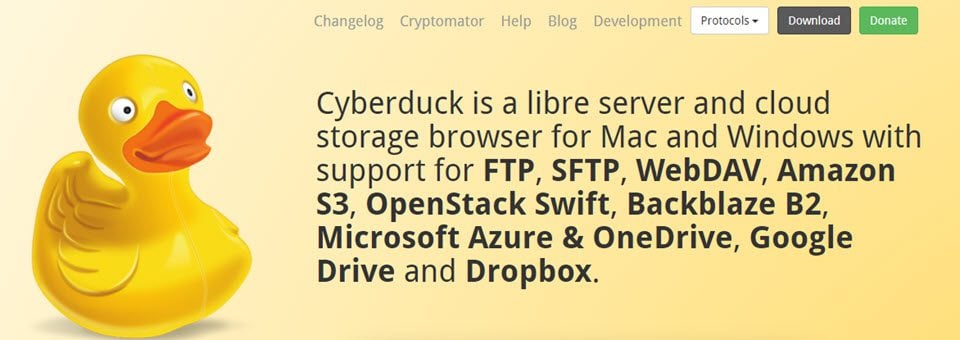
Cyberduck has a deceptively long feature list for a free tool. On the surface it looks simple — a clean browser-style interface you can pick up in minutes. Underneath, it connects to more cloud storage providers than any other client in this list, making it genuinely useful for WordPress sites hosted on Amazon S3 or deployed through Kinsta and similar platforms.
What stands out about Cyberduck
- Completely free — GPL open-source. A $10 optional donation removes the periodic donation reminder and gives you a personal registration key, but there’s no feature gate behind payment.
- External editor integration — click a file, it opens in VS Code, Sublime, or whichever editor you have set. Save the file there and Cyberduck uploads the change automatically. No download-edit-upload cycle.
- Protocol coverage is enormous: FTP, SFTP, WebDAV, SMB, Amazon S3, Azure, Google Cloud Storage, Google Drive, Dropbox, OneDrive, Backblaze B2, Nextcloud, ownCloud, Box, Files.com, Wasabi, and more.
- Cryptomator integration for client-side encryption — files are encrypted before they leave your machine.
- CDN configuration support for Amazon CloudFront and Akamai.
Where it falls short
- No native Linux GUI version — Linux users get a command-line client (duck) only.
- Large file transfers can feel sluggish compared to paid alternatives like Transmit.
- Less polished than native Mac apps like Transmit or ForkLift.
Price: Free ($10 optional donation — verified at cyberduck.io/donate)
Platforms: Windows, Mac (Linux CLI only)
Best for: WordPress beginners; developers who edit files directly; anyone needing cloud storage connections for free
WinSCP — Best for Windows Developers Managing Multiple Sites
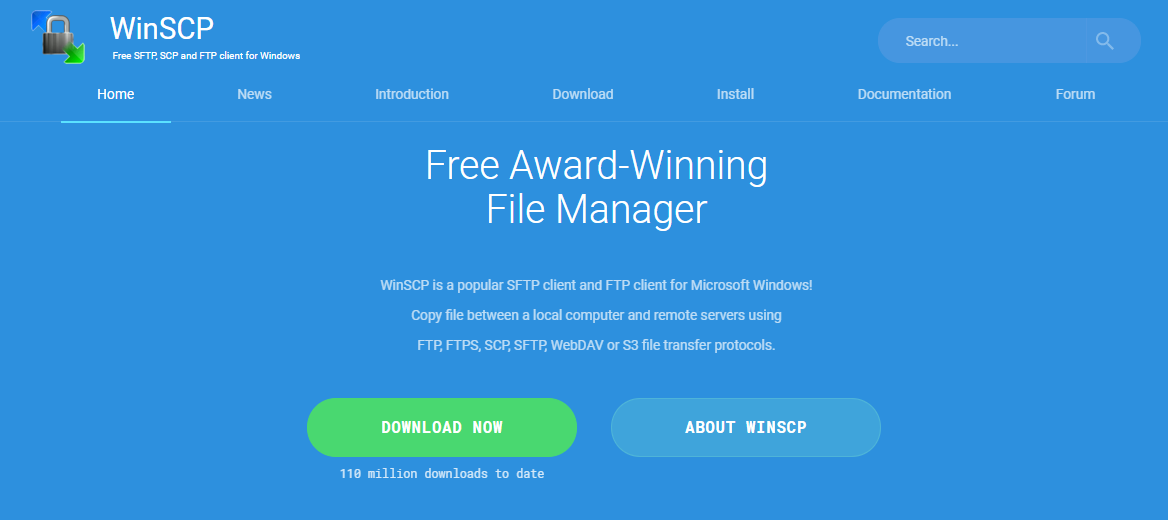
WinSCP has been around since 2000, and it still does things no other free client can match: scripting, automation, and batch operations across multiple servers. For a Windows developer managing 10 or 20 WordPress sites, those features turn hours of manual file management into scheduled scripts.
What makes WinSCP different
- Completely free — no paid tier, no feature restrictions
- Scripting and task automation — write scripts to backup files, sync directories, or push updates across multiple WordPress installs on a schedule
- Portable .exe version — run it from a USB drive on any Windows machine without installing
- File encryption for transfers — an extra layer beyond SFTP
- Dual-pane interface with drag-and-drop transfers
- Supports FTP, SFTP, FTPS, SCP, WebDAV, and Amazon S3
The main limitation
- Windows-only — no Mac or Linux versions. If you work across both platforms, you’ll need a different solution on Mac.
- The interface is functional but complex — it can feel overwhelming to someone new to FTP.
Price: Free (verified at winscp.net)
Platforms: Windows only
Best for: Windows developers; agencies managing multiple WordPress sites; anyone who wants scripting and automation without paying for it
If you’re building out a more complex WordPress development workflow, pairing WinSCP with a proper staging environment makes site management much smoother.
Transmit 5 — Best FTP Client for Mac (Worth Every Dollar)
Made by Panic — the same team behind Nova, one of the best-regarded code editors on Mac — Transmit 5 is in a different category from the free options. Transfer speeds are genuinely faster. The interface is native macOS through and through: proper window management, Quick Look preview, Finder integration, and everything exactly where you’d expect it.
What justifies the price
- Fastest transfer speeds of any client in this comparison — noticeable with large WordPress sites
- Dual-pane interface with local-to-remote and remote-to-remote transfers
- Panic Sync — securely sync your server bookmarks across multiple Macs
- Disk feature — mount a remote server as a local drive in Finder
- Excellent cloud storage support: Amazon S3, Google Drive, Dropbox, Azure, Backblaze B2, OneDrive for Business, Rackspace, OpenStack, DreamObjects
- YubiKey and two-factor authentication support
- Batch rename, folder sync, remote-to-remote transfers
- macOS 13.0+ required; actively maintained
The downsides
- Mac-only — no Windows or Linux version
- At $45 one-time (direct from panic.com), it’s a commitment — though if you transfer files regularly, you’ll feel the difference
- $24.99/year via Mac App Store if you prefer a subscription model
- 7-day free trial available from panic.com if you want to test before buying
Price: $45 one-time (direct); $24.99/yr (Mac App Store) — verified at panic.com, March 2026
Platforms: macOS 13.0+ only
Best for: Mac users who transfer files frequently and want the best native experience
ForkLift 4 — A Strong Mac Alternative
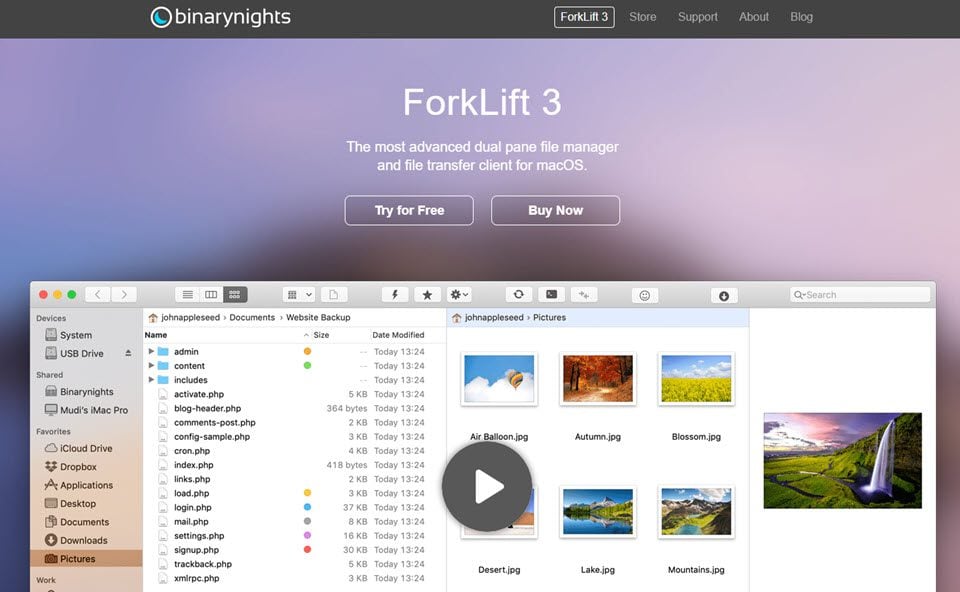
ForkLift 4 is worth mentioning not just as a budget Transmit alternative, but as a genuinely different kind of tool. Where most FTP clients are primarily file transfer tools, ForkLift is more of a full replacement for Finder — a dual-pane file manager where one pane can be your server. That distinction matters if you’re doing heavy file organization alongside transfers.
What ForkLift 4 brings to the table
- Native macOS dual-pane experience — identical workflow to Finder, not a separate app paradigm
- Multiple simultaneous server connections
- Batch renaming — rename dozens of files in a single operation
- Real-time sync, Git integration with file status indicators
- Native dark mode, Quick Look preview panel, workspace/tab system
- Archive browsing, audio/video/PDF preview without downloading
- Supports SFTP, FTP, WebDAV, Amazon S3, Backblaze B2, Google Drive, OneDrive, Dropbox, Rackspace, SMB, AFP, NFS
- Latest version 4.5.1 released March 10, 2026 — actively maintained
What to consider
- macOS 14.6+ required — newer OS requirement than Transmit
- Pricing moved to an update-period model: from $19.95/year for a single license (1-year update plan); family plan at $29.95/year
- After the update period expires, you keep the last covered version — no forced renewal
- Less community documentation and third-party tutorials than FileZilla
Price: From $19.95/yr single (1-year update plan) — verified at binarynights.com, March 2026
Platforms: macOS 14.6+ only
Best for: Mac users who want a native macOS file manager experience alongside FTP; developers who prefer ForkLift’s workspace model
When You Don’t Need an FTP Client at All
Before downloading any software, check whether your hosting control panel’s built-in File Manager can handle what you need. Most shared hosts — SiteGround, Bluehost, Hostinger, A2 Hosting, DreamHost — include a browser-based file manager in cPanel or their custom dashboard.
cPanel File Manager lets you browse your server files, upload, delete, edit, and set permissions directly from a browser tab. No installation, no credentials to configure, and it works from any device including a tablet.
When cPanel File Manager is the right call:
- You need to edit a single file — wp-config.php, .htaccess, or functions.php
- You’re on someone else’s computer or a machine without FTP software installed
- It’s an emergency and you need access in under 30 seconds
- You’re a beginner who only needs FTP access occasionally
When a dedicated FTP client is worth installing:
- You need to transfer more than a handful of files at a time
- You’re working regularly with staging environments or multiple sites
- You need cloud storage connections (S3, Google Drive) alongside FTP
- You’re doing development work that requires editing server files frequently
For hosting-specific setup instructions and cPanel walkthroughs, the wplasma.com WordPress guides cover the major hosting providers step by step.
Common FTP Mistakes WordPress Users Make
FTP gives you direct access to your server, which means mistakes have consequences. These are the errors that show up most often in WordPress support forums:
- Using plain FTP (port 21) instead of SFTP (port 22). Your login credentials travel unencrypted. On any shared network, this is a genuine risk. Every FTP client in this article supports SFTP — there’s no reason to use plain FTP on a live site.
-
Deleting or overwriting the wrong files. FTP shows you the raw server filesystem. Deleting the
wp-contentfolder, the wrong theme, or a plugin that another plugin depends on can break things in non-obvious ways. Always double-check which folder you’re working in. -
Editing files directly without a backup. FTP edits are live. If you change
wp-config.phporfunctions.phpand introduce a syntax error, your site goes down immediately. Download a copy of the file first; edit locally if possible. - Uploading files with wrong permissions. WordPress files should be 644 (read/write for owner, read-only for everyone else). Directories should be 755. Files set to 777 are a security vulnerability that attackers actively scan for. Check permissions after bulk uploads.
- Downloading FileZilla from a third-party site. The official FileZilla installer from certain third-party software aggregators has historically included adware or browser toolbars bundled in. Always download from filezilla-project.org directly.
Frequently Asked Questions
What is the best free FTP client for WordPress?
FileZilla is the most widely used free FTP client for WordPress. It supports SFTP, works on Windows, Mac, and Linux, and has an active community that’s answered virtually every question you might have. For Mac and Windows users who also need cloud storage connections, Cyberduck is an excellent free alternative.
What’s the difference between FTP and SFTP?
FTP (port 21) sends data — including your username and password — without any encryption. SFTP (port 22) encrypts the entire connection using SSH, so your credentials and file data can’t be intercepted. You should always use SFTP when connecting to a live WordPress site. All five clients covered in this article support SFTP.
How do I find my FTP credentials for WordPress?
Log into your hosting control panel (cPanel, SiteGround, Bluehost, Hostinger, etc.) and look for an “FTP Accounts” section. You’ll need: the hostname (usually your domain or server IP), a username, a password, and port 22 for SFTP. Your host may also have sent these details in the welcome email when you signed up.
Is FileZilla safe to use in 2026?
Yes — FileZilla itself is safe, open-source, and actively maintained. The risk comes from downloading it via third-party sites that bundle adware with the installer. Always download from the official site at filezilla-project.org. The software itself is trusted and used by millions of WordPress developers worldwide.
Which FTP client is best for Mac?
Transmit 5 by Panic is considered the gold standard for Mac — native macOS design, the fastest transfer speeds, and excellent cloud storage support at $45 one-time (or $24.99/year via the Mac App Store). For a free alternative, Cyberduck is solid. ForkLift 4 is a strong middle ground with a more file-manager-oriented approach.
Can I use FTP to fix a broken WordPress site?
Yes, and it’s often the only option. Common FTP-based fixes include: renaming /wp-content/plugins/ to deactivate all plugins at once (helps diagnose conflicts), editing wp-config.php to fix database connection errors, and replacing corrupted core WordPress files with clean copies from wordpress.org. FTP access is how you regain control when wp-admin won’t load.
Do I need an FTP client if I have cPanel?
Not necessarily. For occasional single-file edits or quick emergency access, cPanel’s built-in File Manager works fine — no installation required. For regular work, bulk transfers, development workflows, or cloud storage connections, a dedicated FTP client like FileZilla or Cyberduck is noticeably faster and more capable.
Does Cyberduck cost anything?
Cyberduck is free and open-source under the GPL license. You can download and use it without paying anything. A $10 optional donation removes the periodic donation reminder and provides a personal registration key, but no features are locked behind payment. It’s genuinely free.
Can FTP clients connect to Amazon S3 or Google Drive?
Some can. Cyberduck supports S3, Google Drive, Dropbox, OneDrive, Azure, Backblaze B2, and many others natively at no cost. FileZilla Pro (~$19.99) adds cloud storage support to the free client. Transmit 5 and ForkLift 4 both include extensive cloud storage connections as well. The free version of FileZilla supports only FTP, SFTP, and FTPS — no cloud storage.
Is WinSCP only for Windows?
Yes. WinSCP is Windows-only. There is no Mac or Linux GUI version. Mac users should use Cyberduck (free) or Transmit 5 (paid). If you need something that works identically on both Windows and Mac, FileZilla is the cross-platform choice.
Wrapping Up — The Right FTP Client for Your WordPress Site
For most WordPress users, FileZilla is the answer — it’s free, cross-platform, and does everything you need for day-to-day WordPress file management. If you’re on Mac and work with FTP regularly, Transmit 5 is worth the $45. Cyberduck earns a spot for anyone who needs cloud storage connections without spending anything. WinSCP remains the best choice for Windows developers who want scripting and automation. ForkLift 4 rounds out the Mac options with a file-manager-first approach.
Whatever client you choose, always connect over SFTP (port 22), keep a local backup of any file before you edit it, and download your FTP software from the official project website. FTP is a powerful tool — handled carefully, it makes WordPress problems much easier to solve.
